

Your user roles
User roles control what each member of a project can do: who may edit Riddles, who may publish them, who sees leads and stats, and who manages integrations, billing or AI features. Every project member has a role. The default roles Admin, Editor and Author cover the usual team setups; on Enterprise plans you can adjust them or create your own roles with exactly the permissions you need.
Use cases:
- Agency and client projects: your clients get a role that lets them review and publish, but not touch integrations, billing or the other clients' projects.
- Editors without publish rights: content creators build and edit Riddles, a lead or manager publishes them.
- Data protection: only a few named people may view, search or download leads; everybody else works with the content only.
- Controlled AI usage: decide who may create Riddles with AI or use the AI assistant, to keep AI credits and costs in check.
The default roles Admin, Editor and Author are available on every plan. Editing a default role or creating your own roles is available on Enterprise plans.
Default roles
- Admin is the most powerful project role: unlimited access and permission to change everything in the project, including publishing, leads, integrations, members and billing.
- Editor is ideal for the majority of your project members: build, edit and publish Riddles, edit palettes and settings, view and download leads, use templates and AI features, but no deleting, no account integrations and no project administration.
- Author is designed for junior members of your project, interns, or freelancers: create, copy and edit Riddles and use templates and AI features, without publishing, stats or settings.
The Permissions table below lists exactly what each default role may do.
Edit default roles (Enterprise)
Enterprise · See plans- Click on the settings icon in the top right corner.
- Click on User roles under COLLABORATION.
Here you can see all the roles you have assigned and how many times they've been used.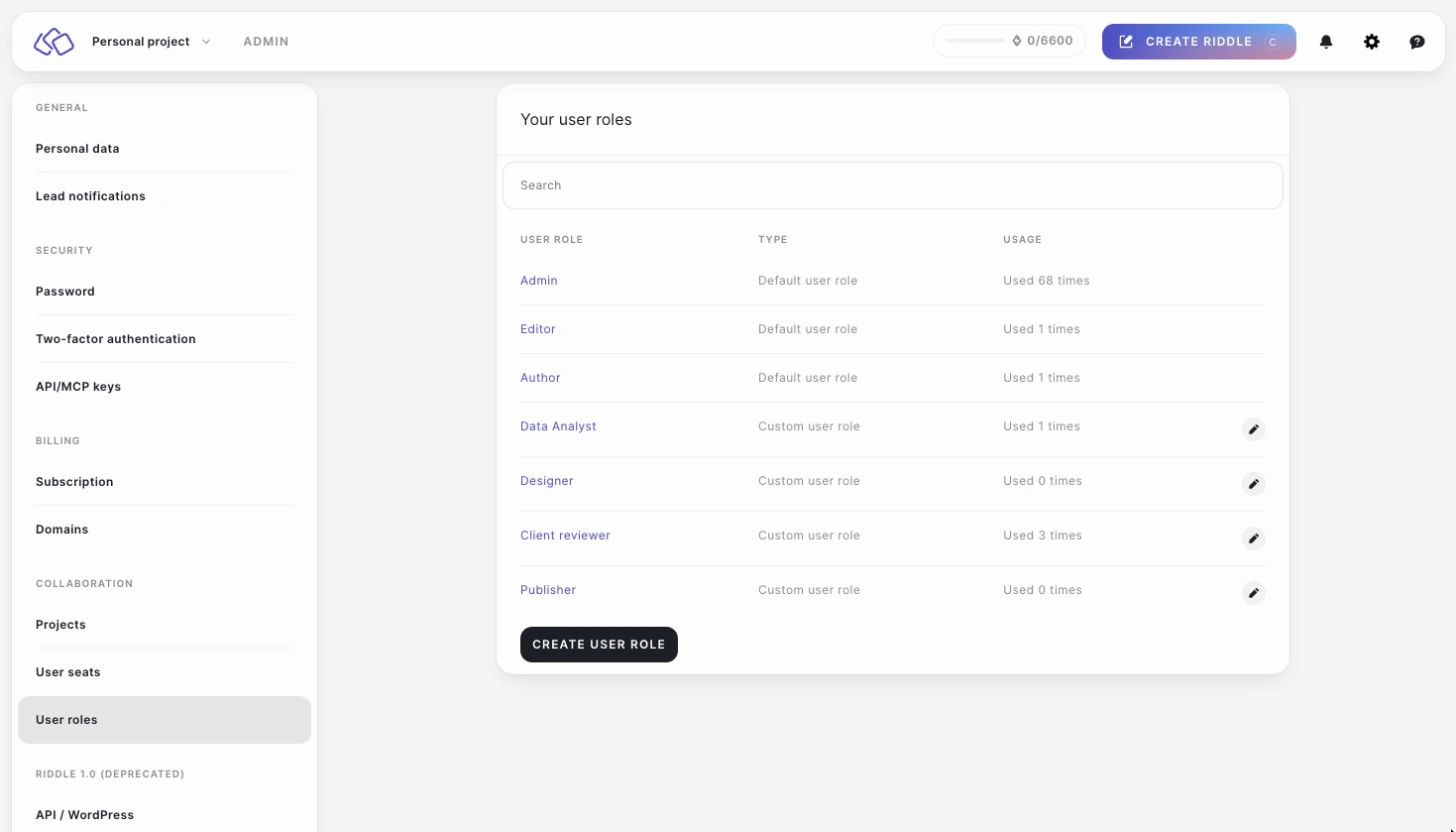
- Click on the role you'd like to edit.
- Select / deselect any of the permissions.
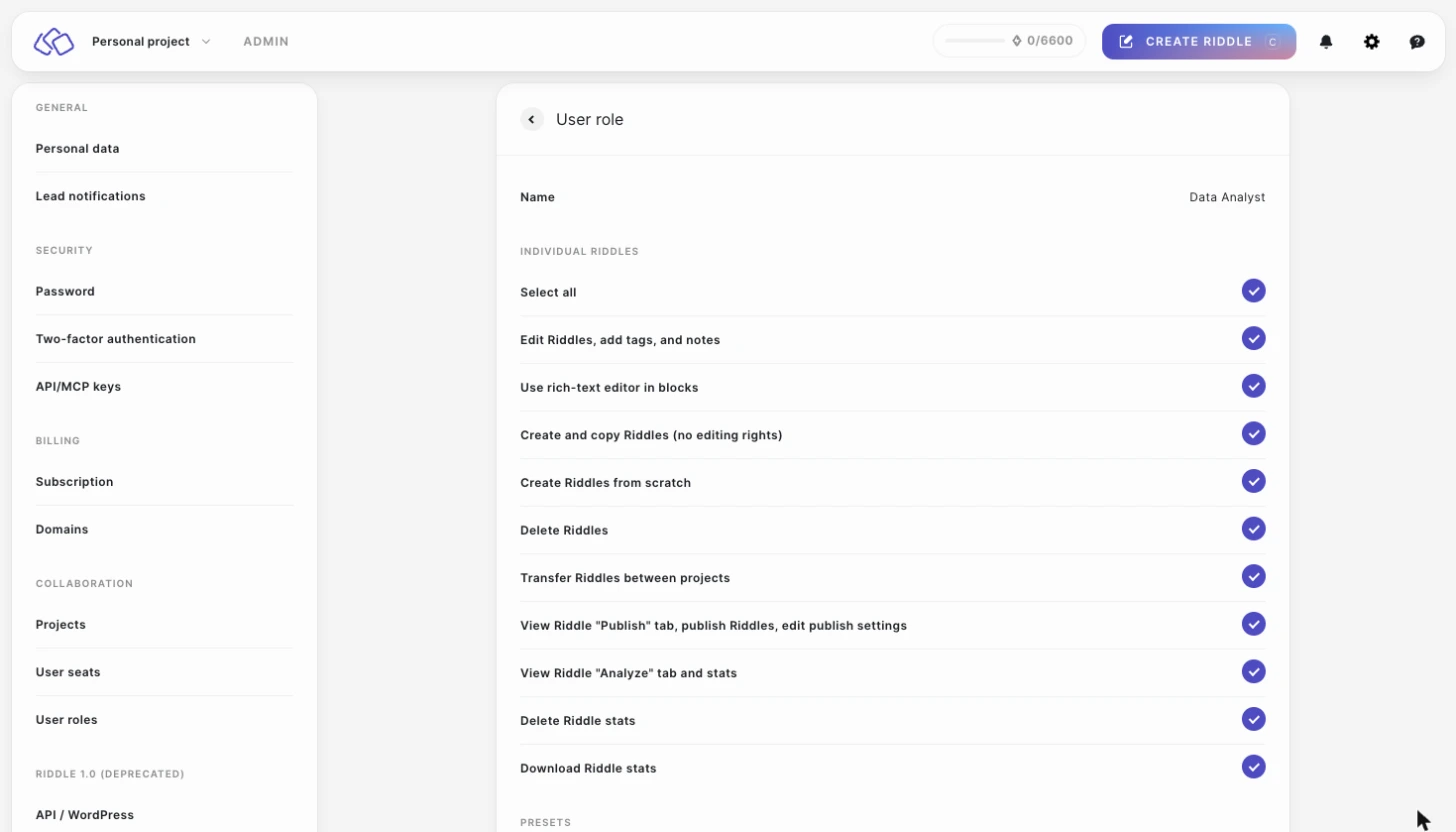
- Enter a name for the customized role in the Name field.
- Click on SAVE NEW USER ROLE.
The edited role will appear in Your user roles list.
Create new user role (Enterprise)
Enterprise · See plans- Click on the settings icon in the top right corner.
- Click on User roles under COLLABORATION.
Here you can see all the roles you have assigned and how many times they've been used. - Click on CREATE USER ROLE.
- Enter a name in the Name field.
- Select any of the permissions.
- Click on SAVE USER ROLE.
To give a project member a role, open the project and change the role next to the member, see Your projects.
Permissions
Every role is a set of the following permissions, grouped as in the role editor. The columns show which permissions the default roles include. Admin includes all of them except Full access via MCP, which no default role has: grant it in a custom role when an AI tool should also change content built by hand.
| Permission | What it allows | Admin | Editor | Author |
|---|---|---|---|---|
| Individual Riddles | ||||
| Edit Riddles, add tags, and notes | Change the content of Riddles in the project and organize them with tags and notes | x | x | x |
| Use rich-text editor in blocks | Format titles and descriptions with the rich text editor, including links and custom classes | x | x | x |
| Create and copy Riddles (no editing rights) | Create new Riddles and duplicate existing ones | x | x | x |
| Create Riddles from scratch | Start a Riddle without a template | x | x | x |
| Delete Riddles | Remove Riddles from the project permanently | x | ||
| Transfer Riddles between projects | Move a Riddle to another project, see Permissions for transferring Riddles | x | ||
| View Riddle "Publish" tab, publish Riddles, edit publish settings | Publish and unpublish Riddles and change tracking, data layer, email and integration settings | x | x | |
| View Riddle "Analyze" tab and stats | See views, starts, completions and the breakdown per block | x | x | |
| Delete Riddle stats | Reset the stats of a Riddle | x | ||
| Download Riddle stats | Export stats as a file | x | ||
| Presets | ||||
| Manage project presets | Create, change and delete the project's presets | x | ||
| Apply project presets | Apply a saved project preset to a Riddle | x | x | |
| Create, delete, edit palette | Create and change palettes, including fonts and custom CSS | x | x | |
| Apply different palettes | Switch a Riddle to another palette | x | x | |
| Edit Riddle settings | Change the settings of a Riddle, such as timer, results and security | x | x | |
| Integrations | ||||
| Create, delete, edit account integrations | Manage the connections to Mailchimp, Brevo, webhooks and other tools | x | ||
| Connect / disconnect existing Riddle integrations | Use an existing integration in a Riddle, or remove it from the Riddle | x | x | |
| Privacy & Data collection | ||||
| View leads tab under "Analyze" & search for leads | See the leads a Riddle collected and find a lead by email address | x | x | |
| Download leads | Export leads as a file | x | x | |
| Delete leads | Delete a lead, for example on a GDPR request | x | ||
| Add blocks for data collection & manage data collection settings | Add form and text entry blocks that collect data, and change tracking and data layer settings | x | x | x |
| Accessibility | ||||
| Add in-accessible blocks (Tap & Find / Spot the difference) | Use blocks that do not meet accessibility standards, see below | x | x | x |
| Templates | ||||
| Create templates | Save a Riddle as a template of the project | x | x | |
| Use templates | Create a new Riddle from a template | x | x | x |
| Delete templates | Remove templates from the project | x | ||
| Projects | ||||
| Create new projects | Create a new project; users with this role are always Admin in the projects they create | x | ||
| Edit project settings | Change the project's name, image and defaults | x | ||
| Edit and publish global "Publish" settings | Set the project-wide global publish settings | x | ||
| Override global "Publish" settings within individual Riddles | Deviate from the global publish settings in a single Riddle | x | ||
| Update project ads | Create and edit the project's ad slots, see Monetization | x | ||
| Update project members | Invite members to the project and remove them | x | ||
| Update project member roles | Change the role of a project member | x | ||
| Manage project API keys | Create and delete API keys for the project | x | ||
| Access media library | Open the project's media library and upload files to it | x | ||
| Custom messaging | ||||
| Update SMTP gateway credentials | Change the SMTP server used for the project's emails | x | ||
| Update company data details | Change the company data shown in emails | x | ||
| Adapt email design | Change the design of the emails Riddle sends | x | ||
| Domains | ||||
| Allow access | Manage the domains the project's Riddles may be embedded on | x | ||
| Billing | ||||
| Allow access | See and change the subscription and invoices | x | ||
| AI features | ||||
| Create content with AI (from topic / URL) | Create new Riddles with AI from a topic or a URL | x | x | x |
| Create content from .pdf file uploads | Upload PDF files and let AI generate content from them | x | x | x |
| Use AI assistant in the Creator to answer Riddle-related questions | Use the AI assistant within the Creator to get help and suggestions | x | x | x |
| Can create MCP keys and use MCP tools | Create MCP keys and let a connected AI tool read, create and change what automation created in this project | x | x | x |
| Full access via MCP (incl. content built by hand) | Let a connected AI tool also change Riddles, question banks, tags and media that were built by hand in the Creator, within what the role allows otherwise |
AI permissions
You can now control AI feature access with granular permissions:
- Create content with AI (from topic / URL): Allows users to create new Riddles using AI generation features
- Create content from .pdf file uploads: Permits users to upload PDF files and use AI to generate content from them
- Use AI assistant in the Creator to answer Riddle-related questions: Enables users to access the AI assistant within the Creator to get help and suggestions
- Can create MCP keys and use MCP tools: Lets users create MCP keys and reach the project from a connected AI tool. By default the AI tool can read everything and create new Riddles, but only change what was created via MCP, the API or the Riddle AI
- Full access via MCP (incl. content built by hand): Lets the AI tool also change Riddles, question banks, tags and media that were built by hand in the Creator. No default role has this permission, so it has to be granted in a custom role (Enterprise). The user additionally has to tick Allow full access when connecting the AI tool, and the role's other permissions (edit, publish, delete) still apply
These permissions help you control AI usage costs and ensure only authorized team members can use AI features.
Content accessibility permissions
The Add in-accessible blocks (Tap & Find / Spot the difference) permission controls whether users can create content that doesn't meet accessibility standards.
When this permission is enabled:
- Users can create and use inaccessible blocks and settings
- All content creation features are available
When this permission is disabled:
- Inaccessible blocks are hidden from the block selection menu
- Certain settings that would create inaccessible content are automatically enabled or disabled by default
- Users cannot override accessibility settings to create inaccessible content
This ensures that users without this permission can only create accessible content, helping maintain compliance with accessibility standards across your organization.
Permissions for transferring Riddles
A Riddle cannot be transferred into a project if the access level in the target project is lower than in the source project. For example, if a creator user has no permission to use data collection blocks in the new project, the Riddle cannot be transferred.
The permissions required for transferring Riddle are as follows:
| Source --> target project | Permissions required | Permission required in |
|---|---|---|
| Personal project --> project | Create Riddles Transfer Riddles | Target project |
| Project --> personal project | Delete Riddles | Source project |
| Project --> project | Transfer Riddles | Target project |
Tips
- Admin for project owners and team leads who need full control including publishing, leads access, integrations, and billing.
- Editor for day-to-day content creators who need to build and publish Riddles, edit palettes and settings, view leads, and use AI features – but should not delete Riddles or leads, manage integrations or administer the project.
- Author for freelancers, interns, or junior team members who should only create, copy and edit Riddles, without publishing, stats or settings.
- On Enterprise plans, create a custom role when none of the defaults fit – for example, a "Data Analyst" role with leads access but no editing rights, or a "Designer" role with palette editing but no publishing.
Next steps
- Your projects – create projects and invite members with a role.
- Your user seats – how many colleagues can join your account.
- Global publish settings – project-wide defaults every Riddle inherits.