

Create a story
Create interactive stories, listicles, and journeys using text, images, videos, or social media posts. Each block becomes one page in a swipeable format.
When to use a story
- Listicles and rankings - "The 10 best coffee shops in Berlin"
- Behind-the-scenes features - Take your audience through a process step by step
- Product showcases - Highlight features or use cases one at a time
- News recaps - Break down complex topics into digestible pages
- Then vs. now - Show transformations or historical timelines
Story setup
- In the Riddle Creator, click on CREATE RIDDLE, select Story, and click on Create Story from scratch.
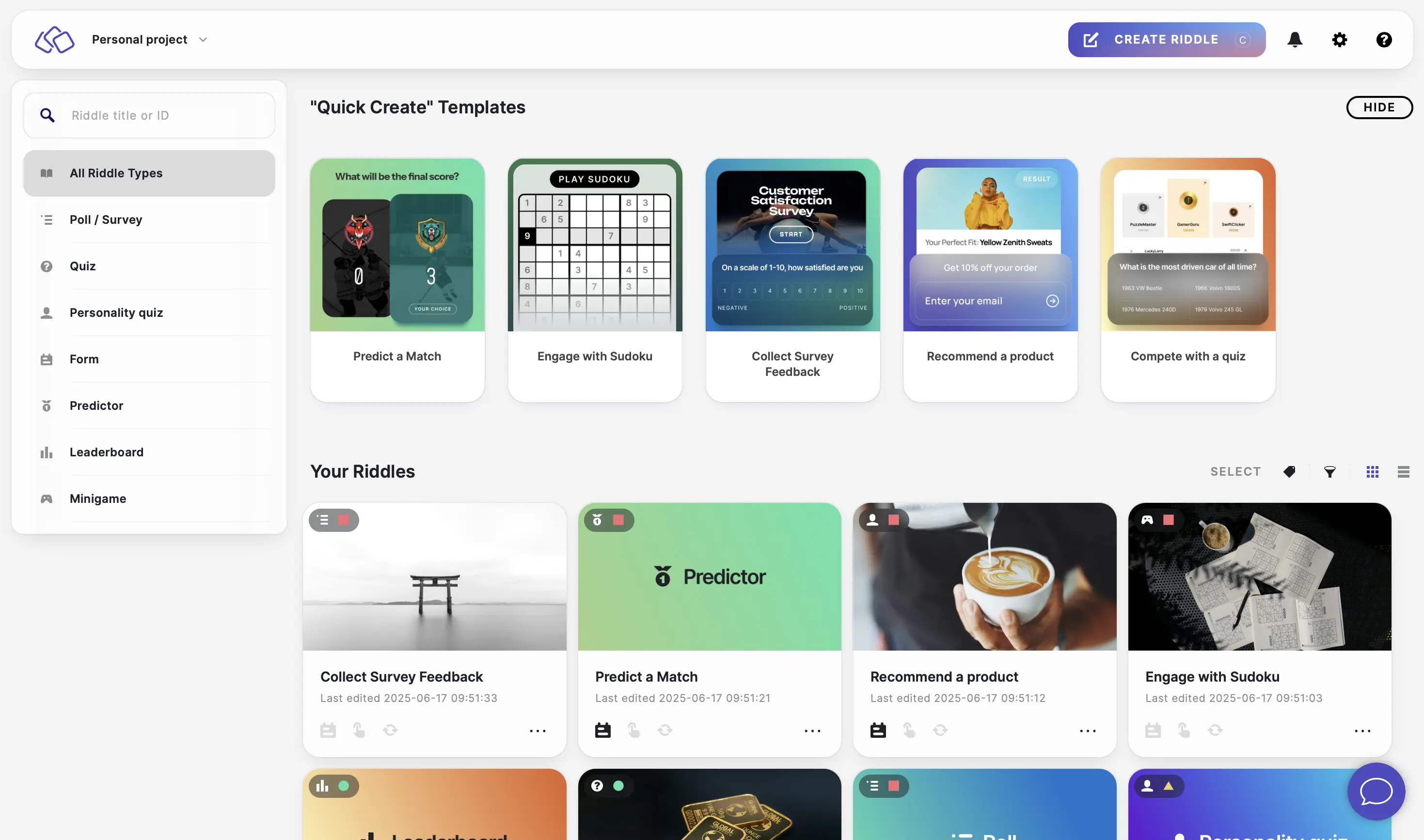
You can also select Create Story from template to start with a pre-built story. - Click on ADD A BLOCK and select one of the available story content blocks.
- Complete your story by adding multiple blocks. You can also add form blocks, personal details, text input, and monetization blocks.
- Under Results, edit the result block(s). Go to the Result blocks help guide.
- Publish your story.
- Embed your story.
Table of Contents