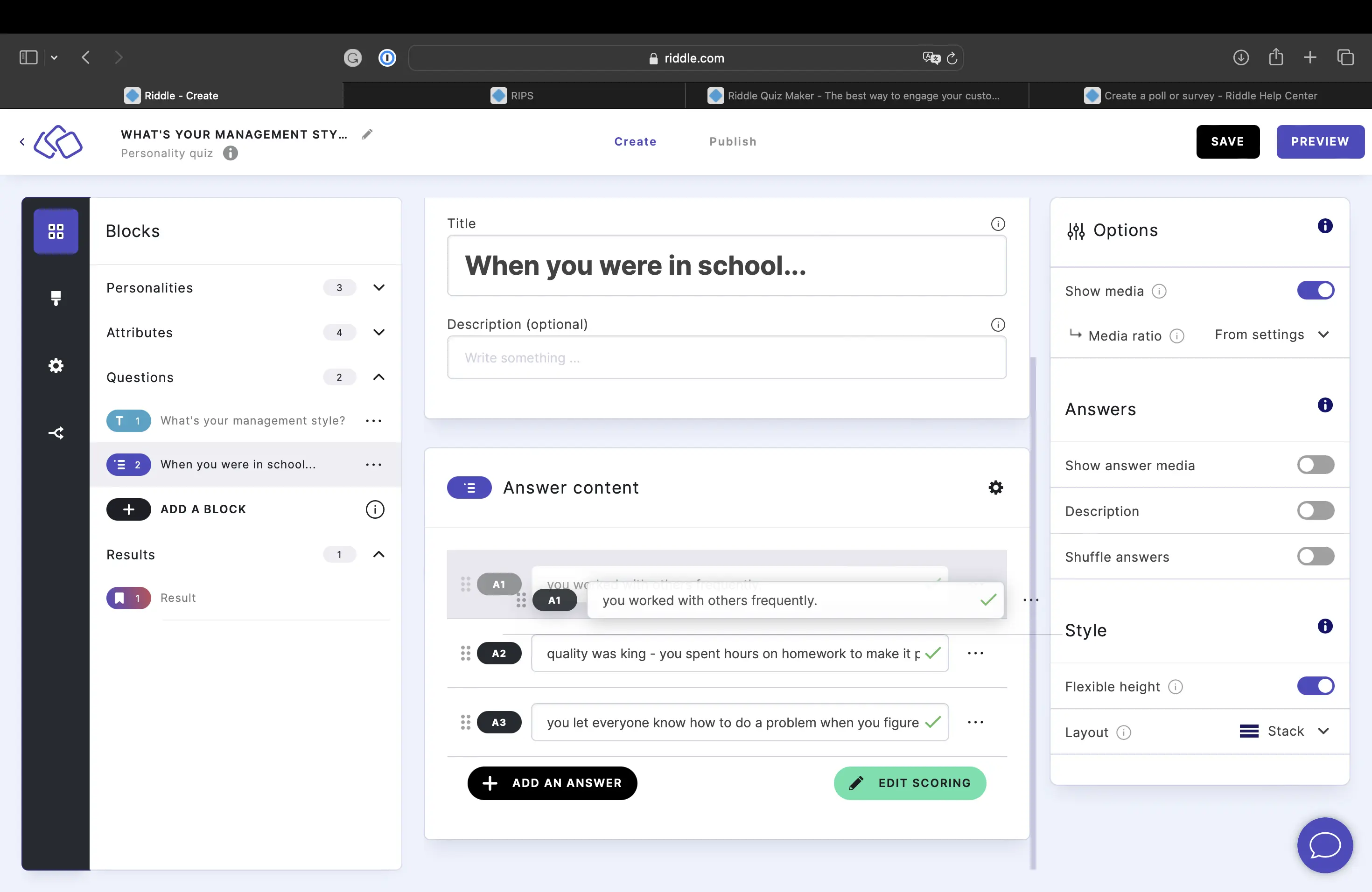
Single-select
Your audience picks one answer from a list of choices. Each answer is scored against your personality outcomes using the scoring matrix. The personality with the highest total score wins.
Setup
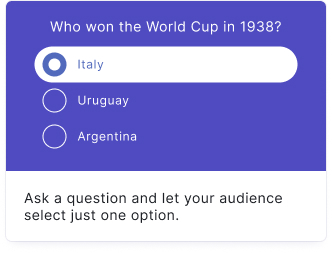
- Click on ADD A BLOCK and select Single-select.
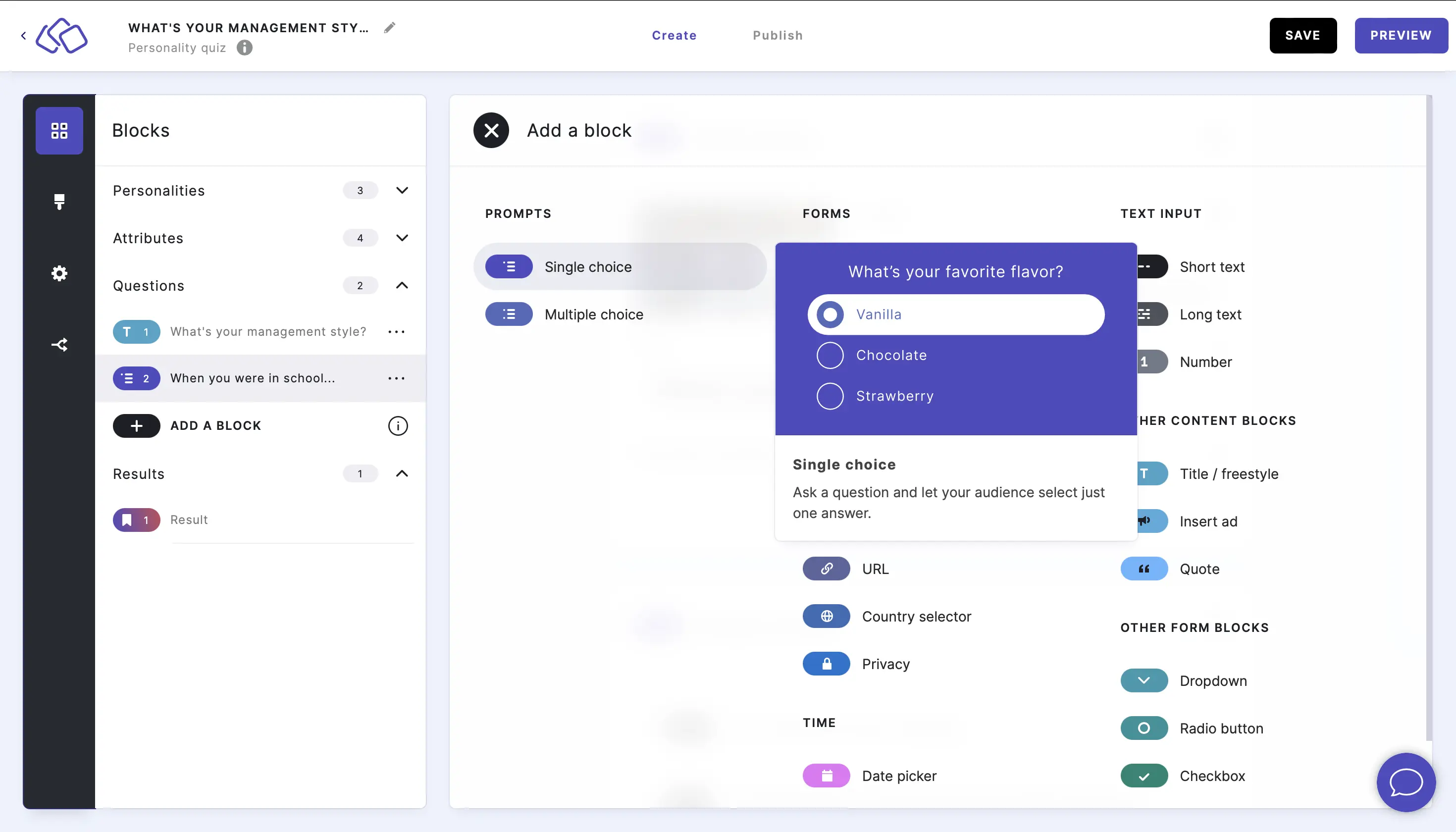
- Insert a question into the Title field.
- Add an image by clicking on Add image, GIF, or video/audio file.
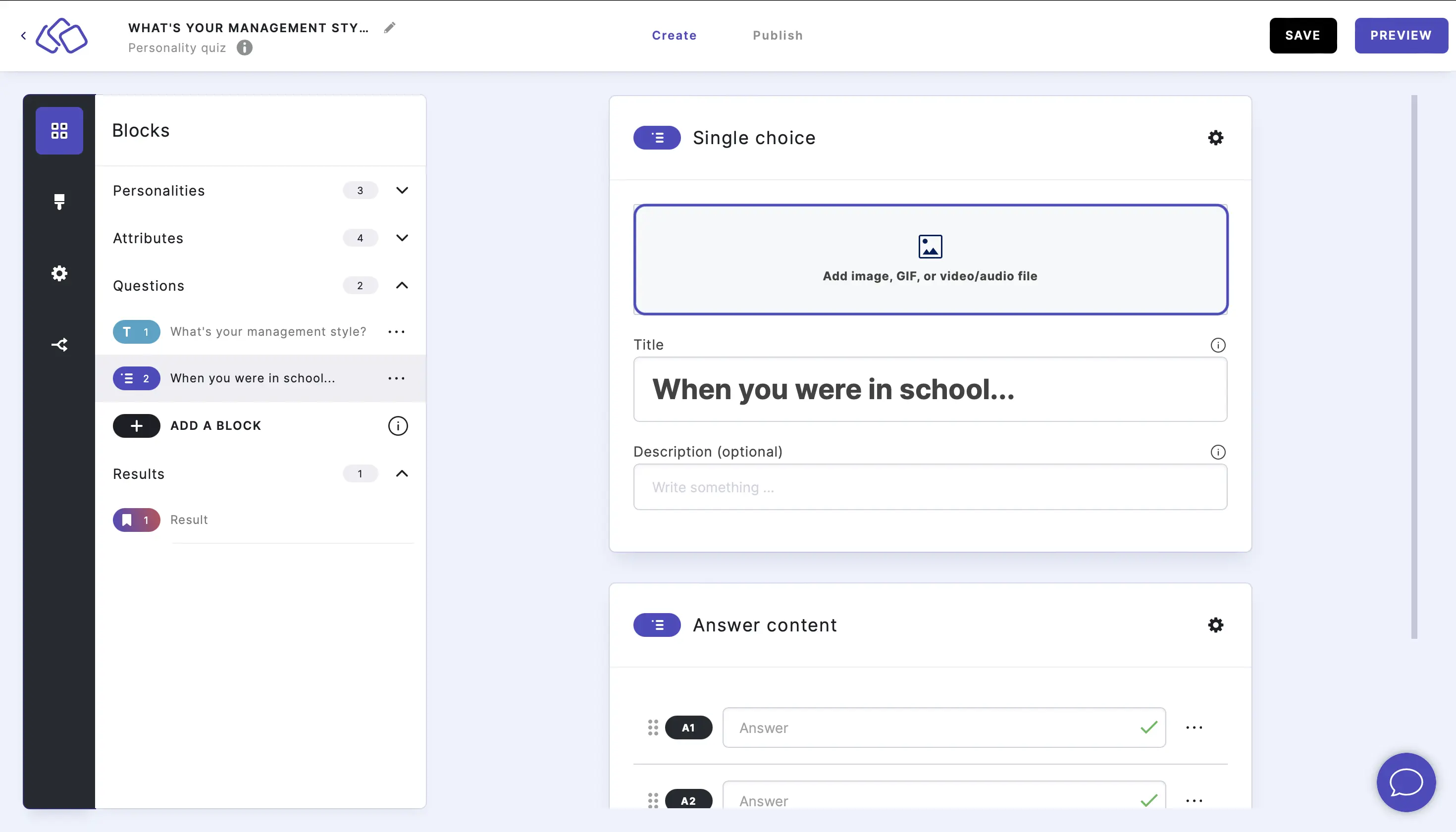
- Insert the answers into the Answer content fields.
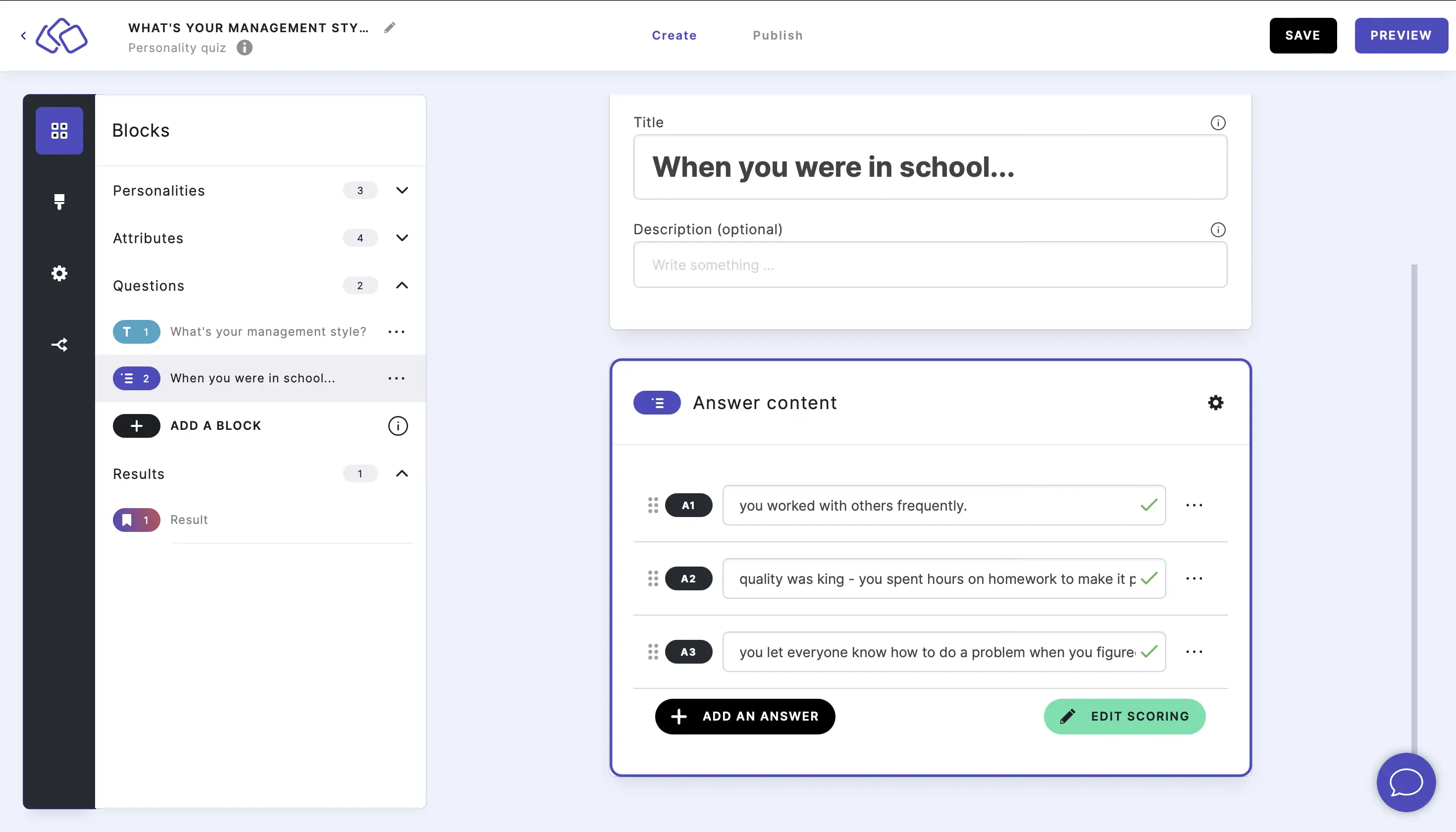
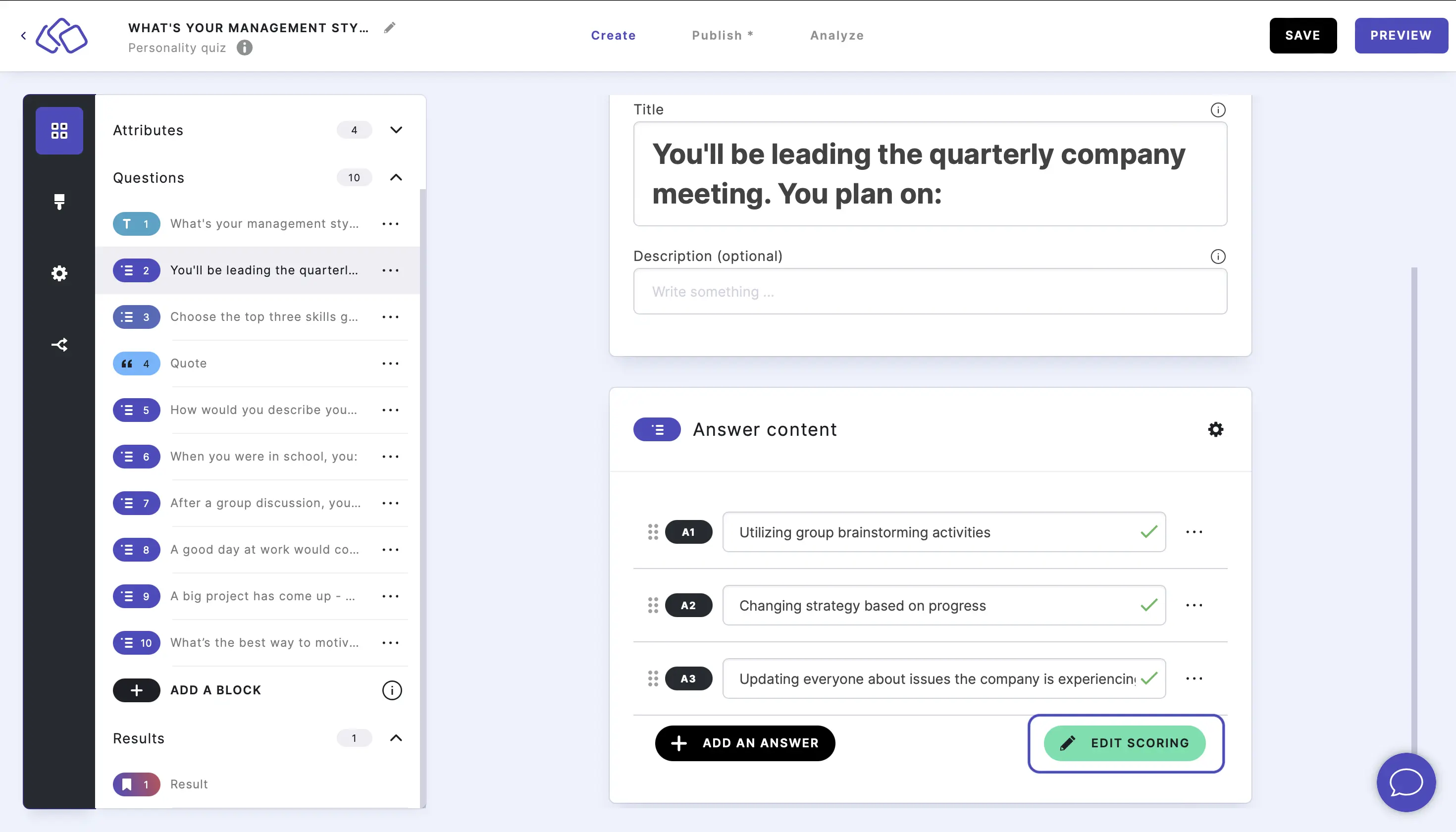
- Click on EDIT SCORING to open the scoring matrix and assign point values for each answer against each personality.
Edit scoring
Click on EDIT SCORING to open the scoring matrix dialog.
The dialog has two tabs: PERSONALITIES and ATTRIBUTES (OPTIONAL).
Personalities tab: A matrix where rows are your answers and columns are your personalities. Enter a score value (default: 0) in each cell. The TOTALS row shows the sum per personality. The personality with the highest total score wins.
Attributes tab: Same matrix structure, but columns are your attributes. Only visible if you have defined attributes.
Learn more about Scoring.
Options
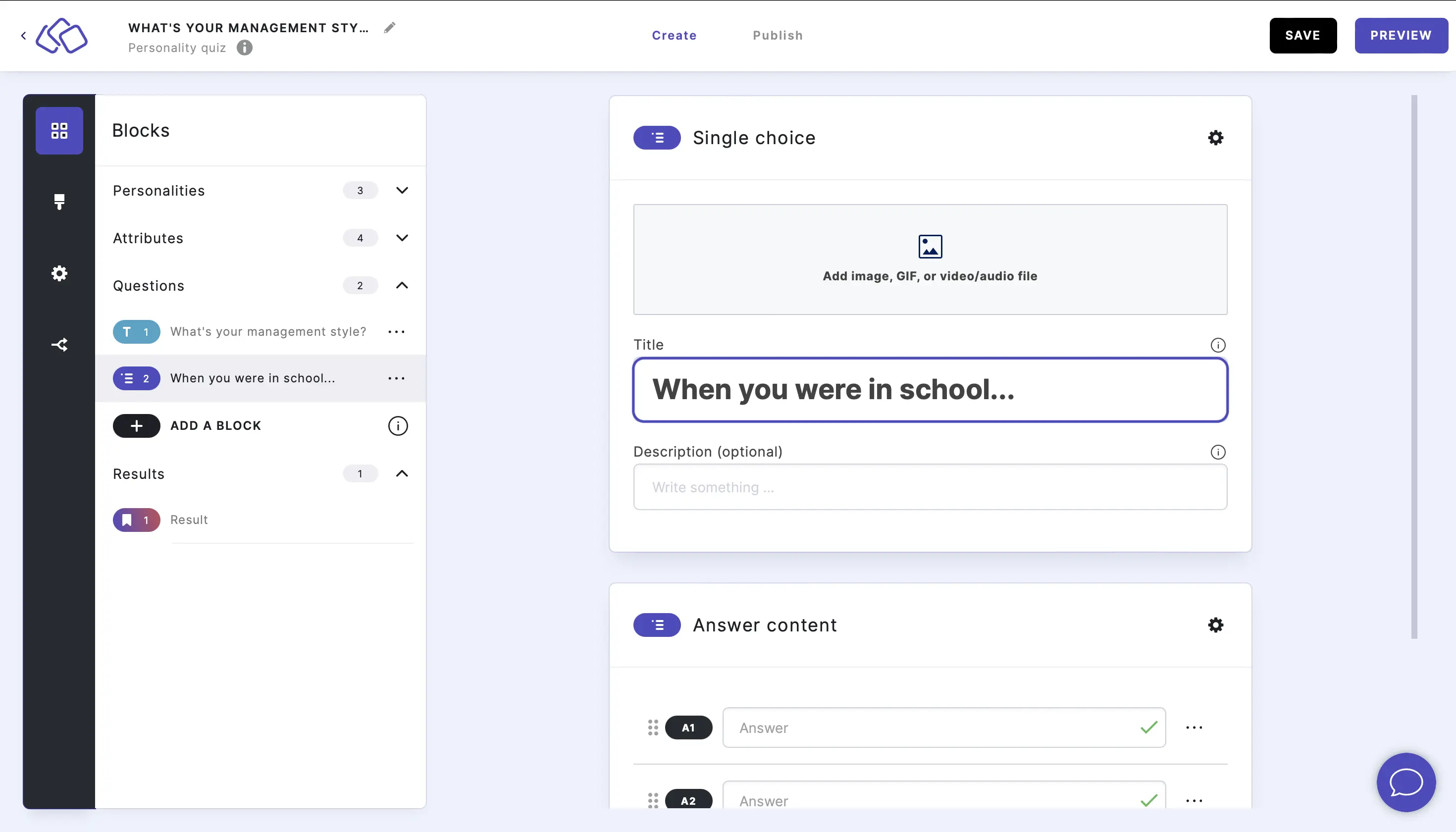
Click on the options icon on the right to configure the following settings.
Media
| Option | Description | Default |
|---|---|---|
| Show media | Toggle to show or hide the block's main image. | ON |
| Media ratio | Choose the aspect ratio: From settings, Wide 16:9, Square 1:1, Tall 3:4, or Original ratio. | From settings |
Answers
| Option | Description | Default |
|---|---|---|
| Show answer media | Toggle to show or hide images on each answer choice. | OFF |
| Description | Show a description field for each answer. | OFF |
| Shuffle answers | Randomize the order of answers each time the block loads. | OFF |
Style
| Option | Description | Default |
|---|---|---|
| Flexible height | Allow answer boxes to have different heights based on their content. | ON |
| Layout | Choose how answers are displayed: Stack (vertical list) or Row (horizontal grid). | Stack |
Change the order of answers
Click and drag the six dots on the left of the answer field to move answers up or down.