

Type the answer
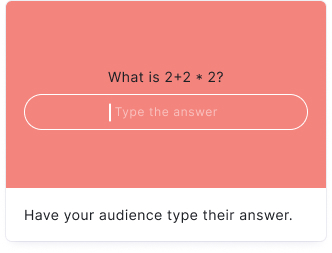
Your audience types their own answer to your question in a free text box, which replaces the answer buttons. Ideal for fill-in-the-blank questions where you want to test recall rather than recognition.
You can add unlimited answer variants so several spellings count as correct, and Riddle ignores capitalization and stray spaces by default, so "new york" is accepted for "New York". Your audience gets 3 guesses unless you allow unlimited guesses, and a correct answer is worth 1 point unless you change the score.
Setup
- Click on ADD A BLOCK and select Type the answer.
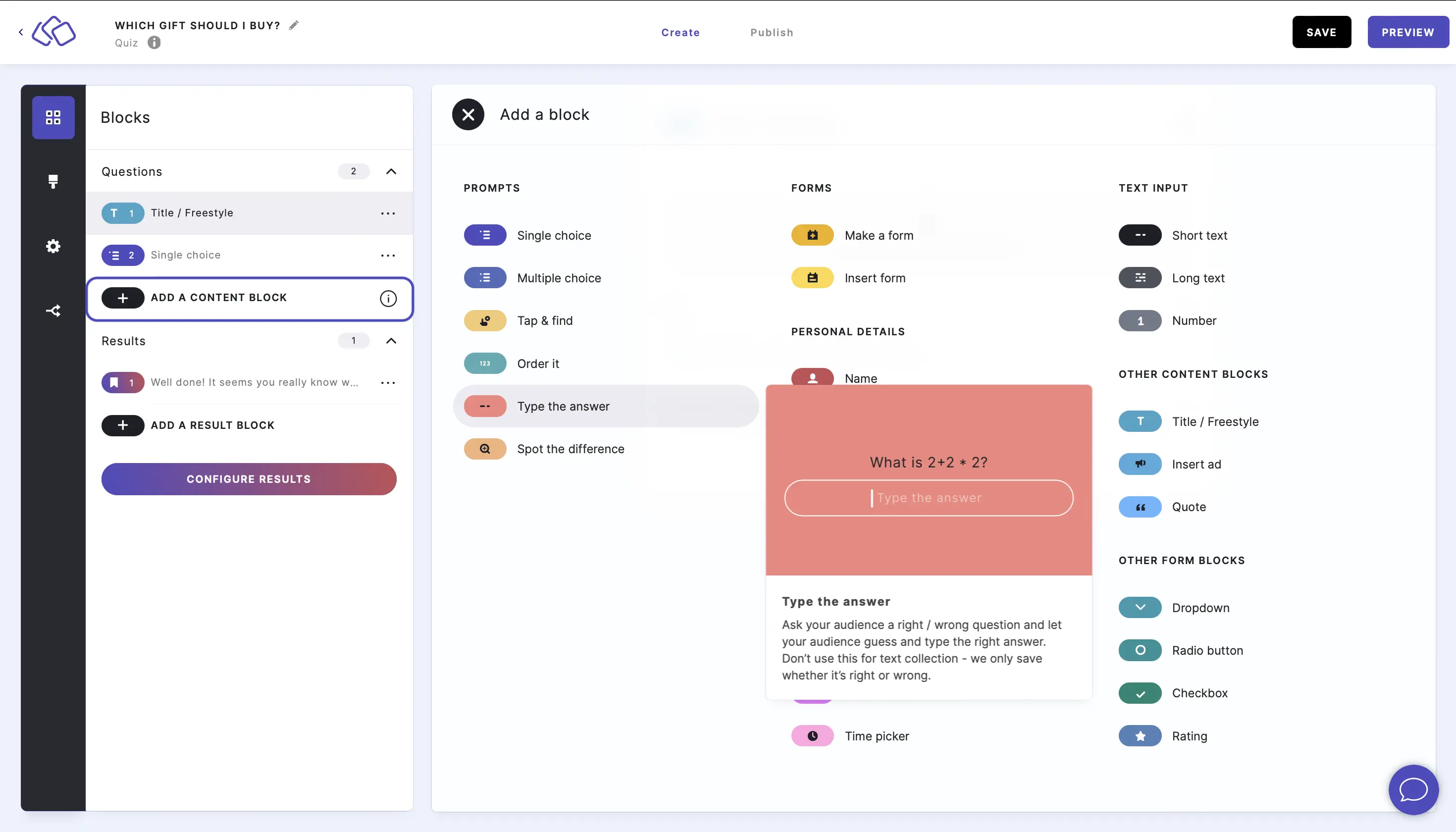
- Insert a text into the Title field.
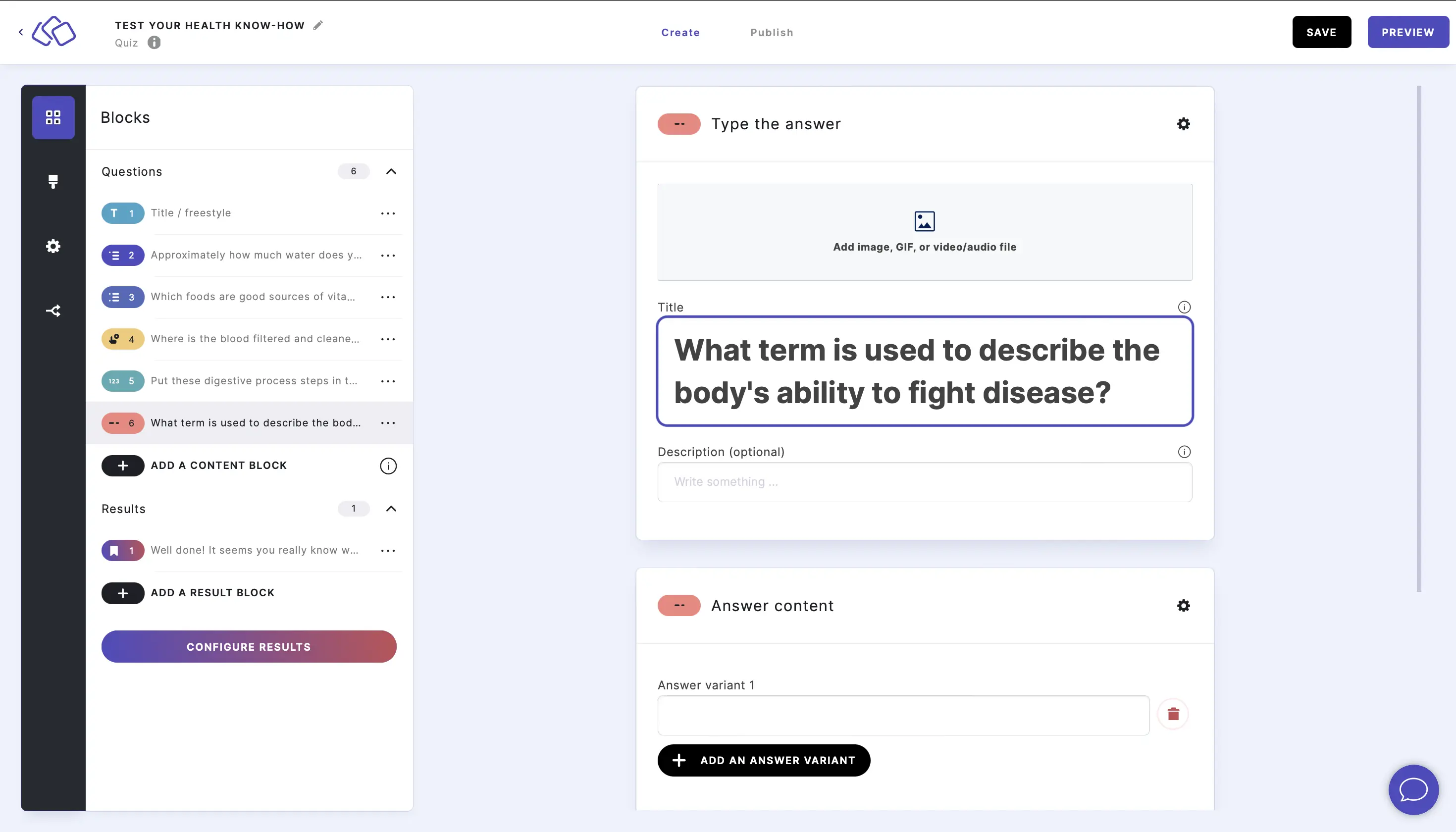
- Add an image by clicking on Add image, GIF, or video/audio file.
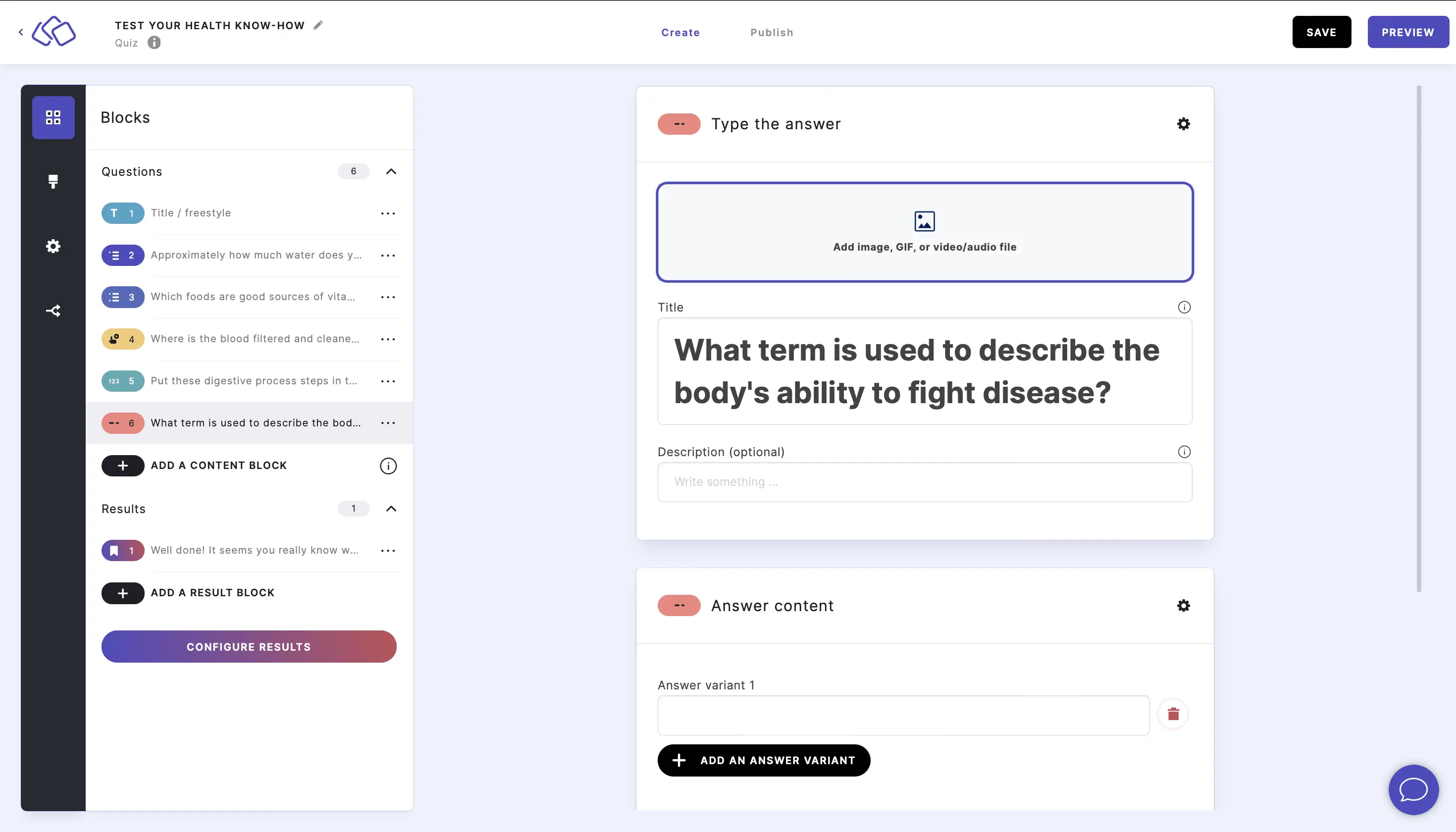
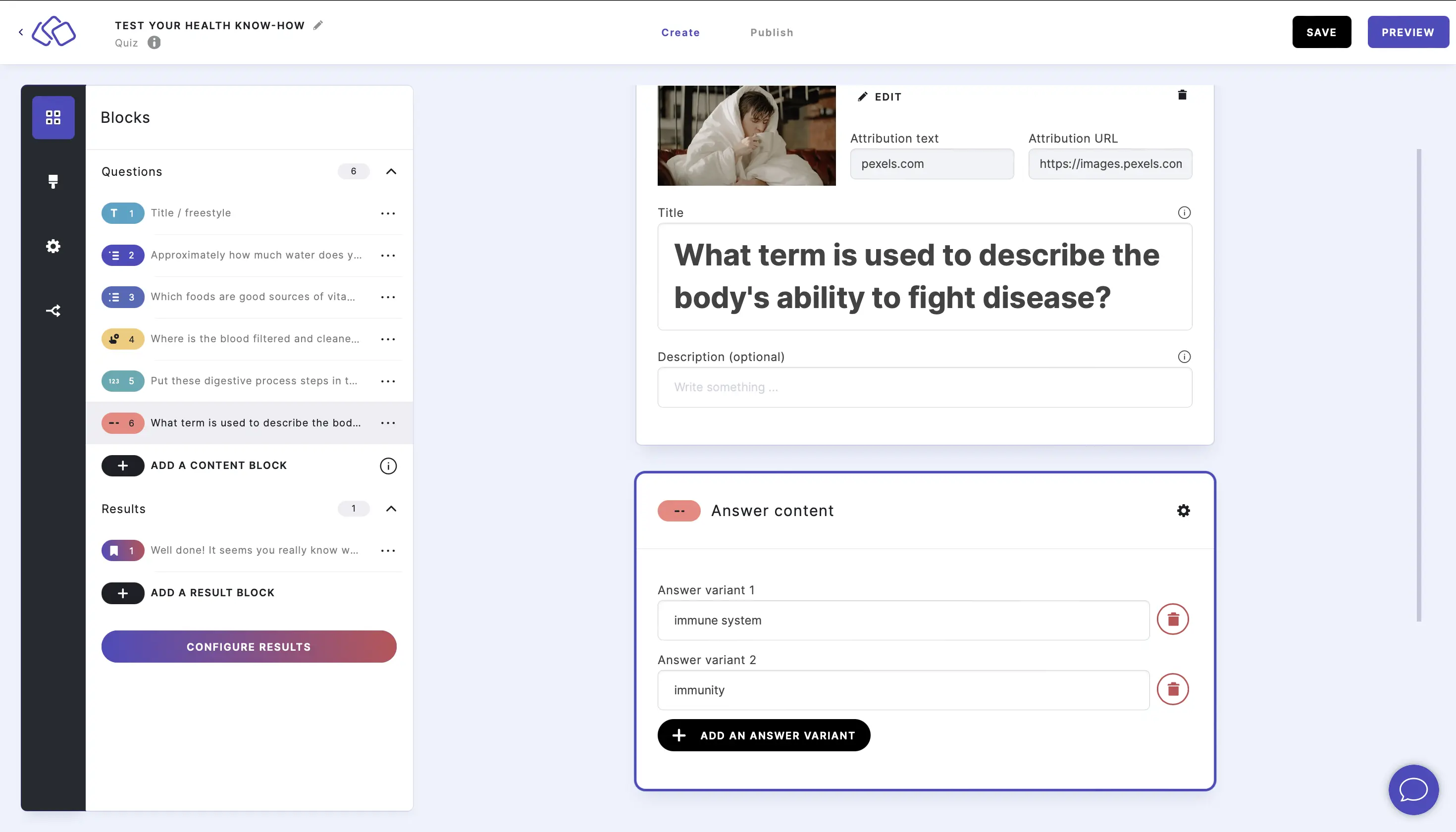
- Insert the answers. Add as many answers as you want by clicking on Add an answer variant.
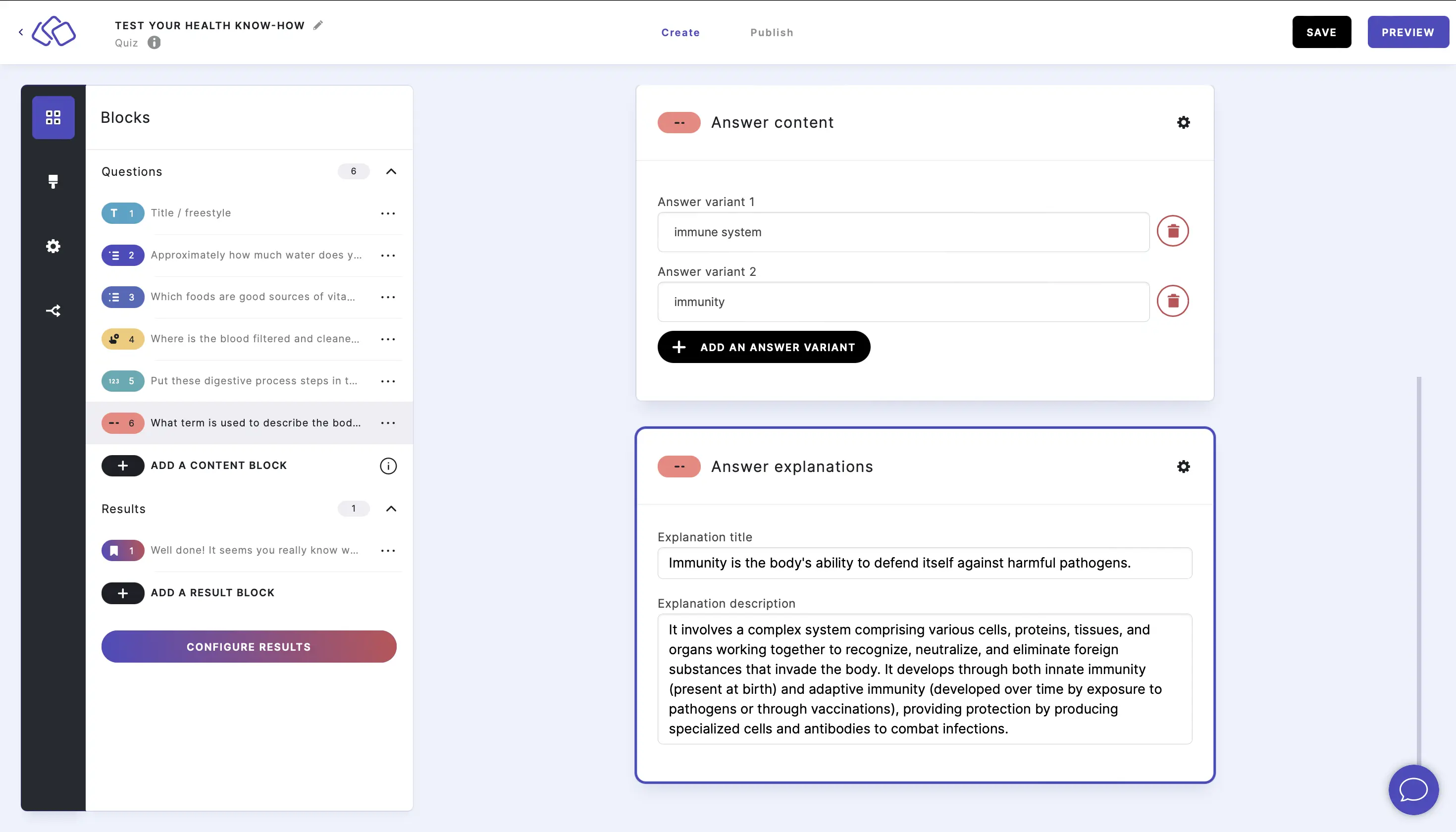
- Insert explanations into the Answer explanations field(s) (optional).
Hints
You can add hints in the HINT (OPTIONAL) field. Your audience can choose to reveal the hint at any time. Hints give your audience a nudge in the right direction without giving away the answer.
Options
Click on the options icon on the right to configure the following settings.
Media
| Option | Description | Default |
|---|---|---|
| Show media | Toggle to show or hide the block's main image. | ON |
| Media ratio | Choose the aspect ratio: From settings, Wide 16:9, Square 1:1, Tall 3:4, or Original ratio. | From settings |
Required
| Option | Description | Default |
|---|---|---|
| Required | When enabled, your audience must answer this block before proceeding. When disabled, a "Skip" button appears. | ON |
Answers
| Option | Description | Default |
|---|---|---|
| Unlimited guesses | Allow your audience to guess as many times as they want. When disabled, the number of guesses is limited. | OFF |
| Guesses icon | Choose the icon displayed next to the guess counter. | Heart |
| # of guesses | The number of guesses your audience gets before the block ends. Only visible when Unlimited guesses is disabled. | 3 |
| Display # guesses | Toggle to show or hide the remaining guess count to your audience. | ON |
| Guesses text | The label displayed next to the guess counter. | Tries |
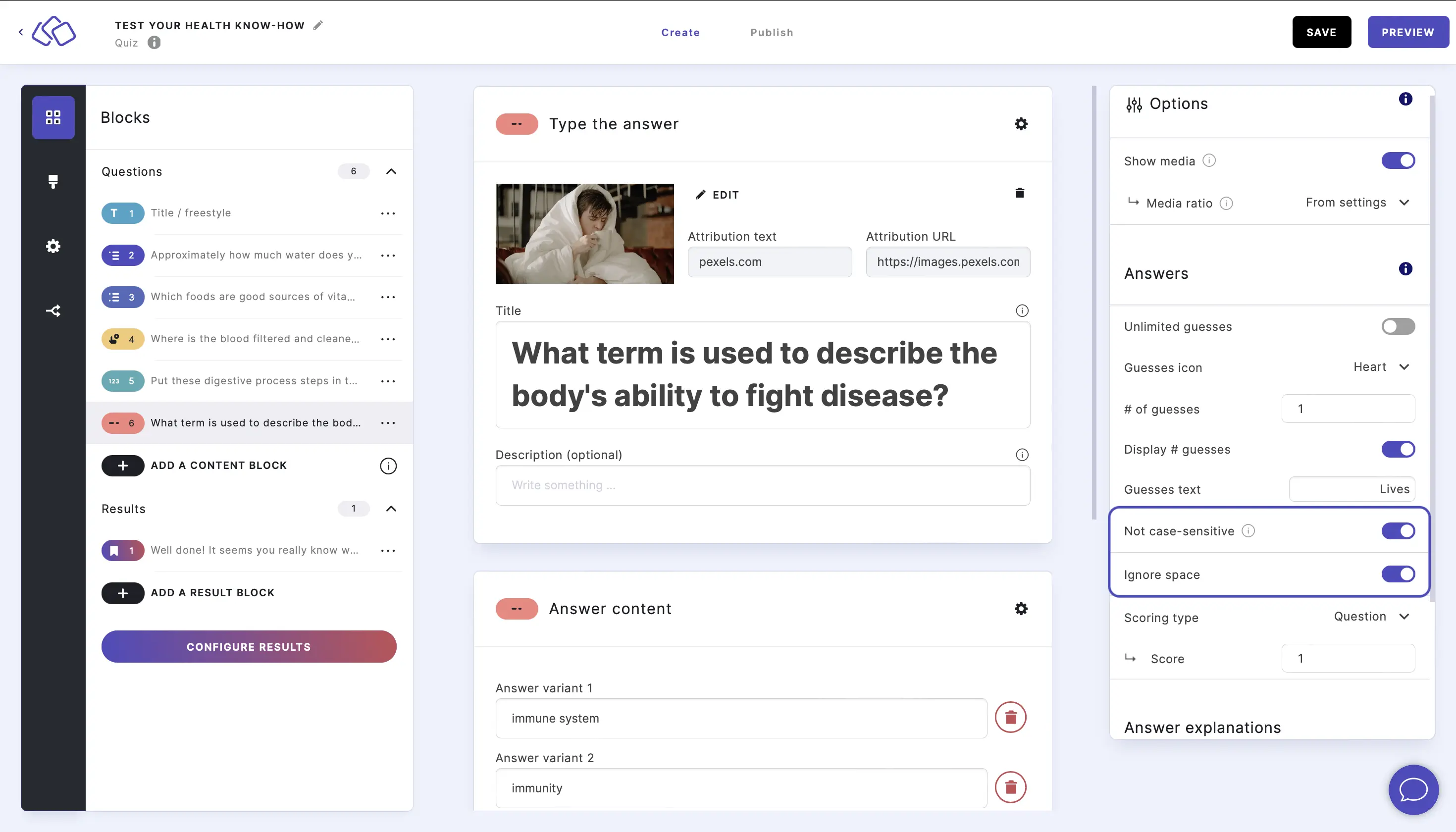
| Not case-sensitive | When enabled, your audience's answer does not need to match the exact capitalization of the correct answer. For example, "paris" and "Paris" would both be accepted. | ON |
| Ignore space | When enabled, extra or missing spaces in your audience's answer are ignored. For example, "NewYork" and "New York" would both be accepted. | ON |
| Scoring type | Choose how points are awarded: Question (one score for the whole question). | Question |
| Score | The number of points awarded for typing the correct answer. | 1 |
| 'Show correct answer' button | When enabled, a button appears that lets your audience reveal the correct answer after their guesses are used up. | OFF |
| Answer suffix | A text label that appears after the text input field. Useful for adding units like "kg", "km", or "years" to clarify what format you expect. | (empty) |
Set spelling options
Go to the options icon on the right of Answer Content and enable Not case-sensitive and/or Ignore space to be more forgiving with your audience's spelling.
Answer explanations
| Option | Description | Default |
|---|---|---|
| Show explanations | Toggle to show or hide answer explanations after your audience answers. | ON |
| # of explanations | Choose how many explanations to display: One for all answers, Right and wrong, or Per answer. | One for all answers |
| Answer explanation display | Choose where the explanation appears: Overlay pop-up or Below question. | Overlay pop-up |
| Show media | Toggle to show or hide images in the answer explanation. | ON |
| Media ratio | Choose the aspect ratio for explanation images: From settings, Wide 16:9, Square 1:1, Tall 3:4, or Original ratio. | From settings |
Frequently asked questions
How do I accept more than one correct answer?
Click Add an answer variant in the answer content of the block and enter the alternative spelling or wording. You can add as many variants as you need, and each of them counts as a correct answer.
Is the Type the answer block case-sensitive?
No, not by default. Not case-sensitive is enabled, so "paris" and "Paris" are both accepted, and Ignore space is enabled too, so "NewYork" and "New York" are both accepted. You find both switches behind the options icon next to Answer Content.
How many guesses does my audience get?
Three by default. Enable Unlimited guesses to remove the limit, or change # of guesses to any other number. The remaining guesses are shown next to a heart icon with the label "Tries", and you can hide the counter with Display # guesses.
Can I give my audience a hint?
Yes. Enter it in the HINT (OPTIONAL) field. Your audience can reveal the hint at any time, which nudges them in the right direction without giving away the answer.
Can I reveal the correct answer when the guesses run out?
Yes. Enable the 'Show correct answer' button in the block options. It is off by default, so your audience only sees the correct answer if you switch it on.
How do I ask for a number with a unit?
Use the Answer suffix field to add a label after the input field, for example "kg", "km", or "years". This tells your audience which format you expect without adding it to the question title.
How many points is a correct answer worth?
One point by default. Change the Score value in the block options to award more. The scoring type is Question, which means one score is awarded for the whole question.
What is the difference between Type the answer and Typerush?
Type the answer asks for one answer that your audience types into a text box, with optional variants and a limited number of guesses. Typerush asks a categorical question and lets your audience type as many matching answers as they can.