

Connect Riddle to your AI tool (MCP)
Looking for an AI assistant that builds a Riddle for you? The support chat is answered by our team, not by an AI builder. To build with AI, use Create a Riddle with AI in the Creator, or connect your AI tool as described below.
Connect your Riddle account to your AI tool so it can create, analyze, and manage your Riddles from a plain-English prompt like "Build me a 5-question quiz on solar panels in German."
Riddle works with every AI tool that speaks MCP (Model Context Protocol): Claude, ChatGPT, Google Gemini and Grok. The setup takes about a minute in each of them: you add Riddle once, sign in with your Riddle account, and you're done. There is no API key to create, copy or share.
The only thing you may need to paste:
https://www.riddle.com/creator/api/v3/mcp
Claude doesn't even need that – it has Riddle in its connector directory.
This guide is the step-by-step setup. The MCP reference covers the OAuth flow, MCP keys for unattended setups, and the complete list of tools and resources.
Watch the full walkthrough
7:25 minutes, end to end: connecting your AI tool and then working with Riddle straight from the chat.
Good to know before you start:
- Where it works: Setting up an MCP connection works in the web (and desktop) versions of these tools. Most of them also need a paid plan for custom connectors – check your AI provider's own plan details.
- Riddle plans: The MCP works on every plan, including creating, publishing and managing Riddles and reading your stats.
- AI credits: AI generation tools (e.g. "Make me a quiz about X") use your account's AI credits, just like generating Riddles in the Creator. Ask "How much AI usage do I have left?" anytime to check your quota.
- Your account, your projects: You sign in with your own Riddle account, so your AI tool only reaches the projects your AI permissions allow.
Claude
Riddle is listed in Claude's connector directory, so there is no URL to type.
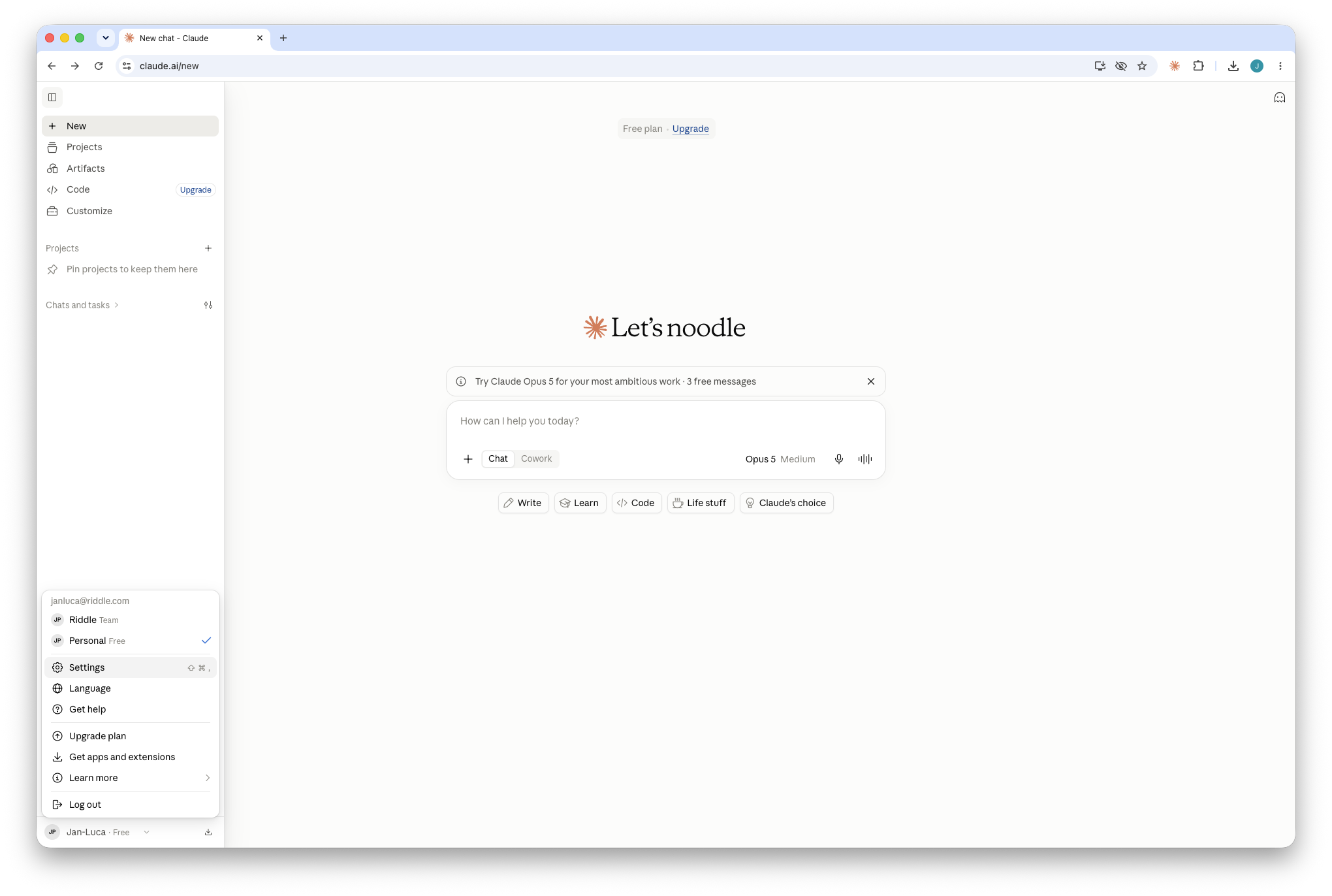
- In Claude, open the account menu at the bottom left and click Settings.
- Go to Connectors, switch to the Discover tab and search for
riddle. Click the Riddle MCP card. You can also open the Riddle MCP entry directly.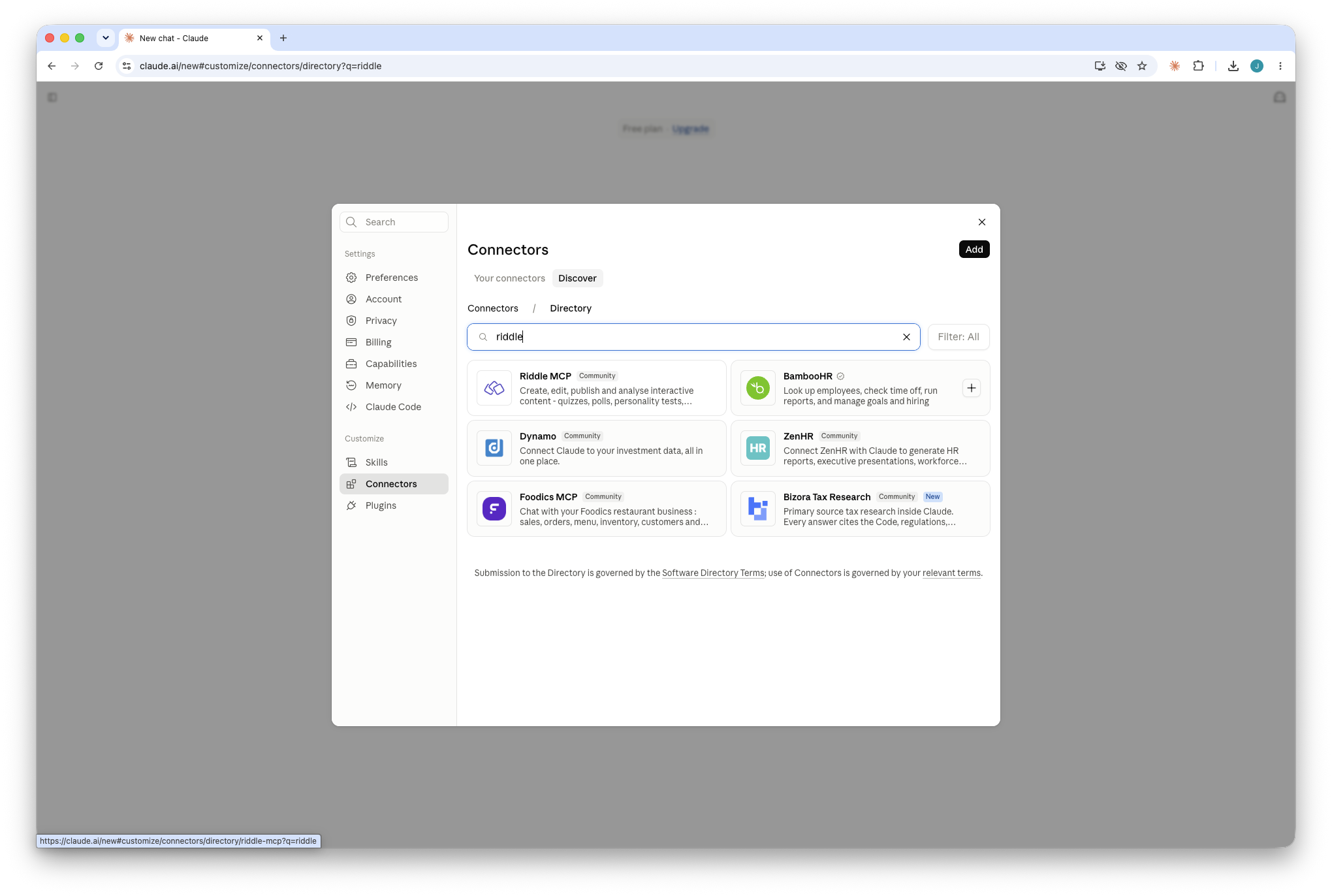
- Click Connect to Claude.
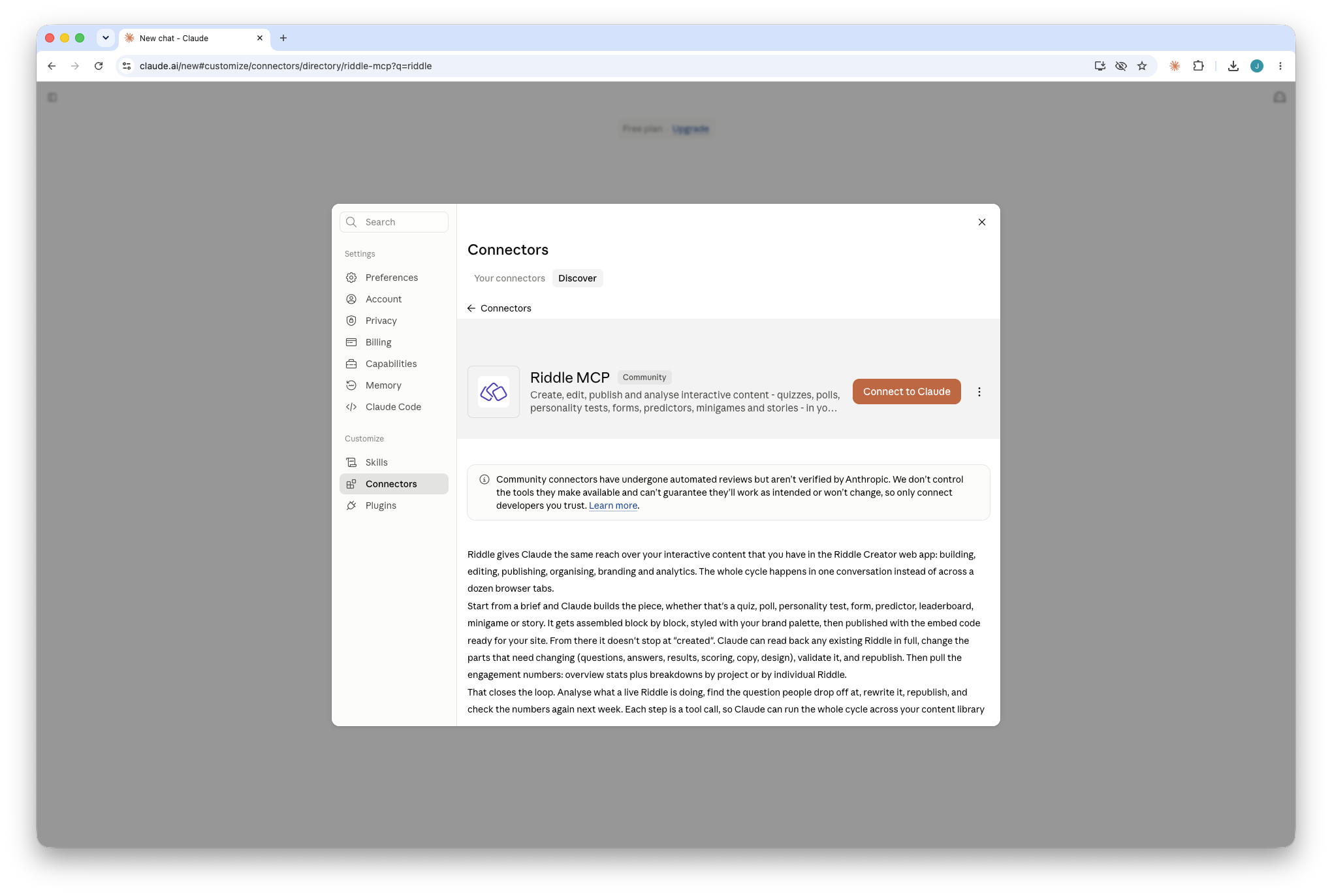
- Sign in to Riddle in the window that opens and confirm the access.
Done. In a new chat, open the connector icon below the chat input and make sure Riddle MCP is switched on.
ChatGPT
ChatGPT calls MCP connectors plugins, and custom ones need developer mode.
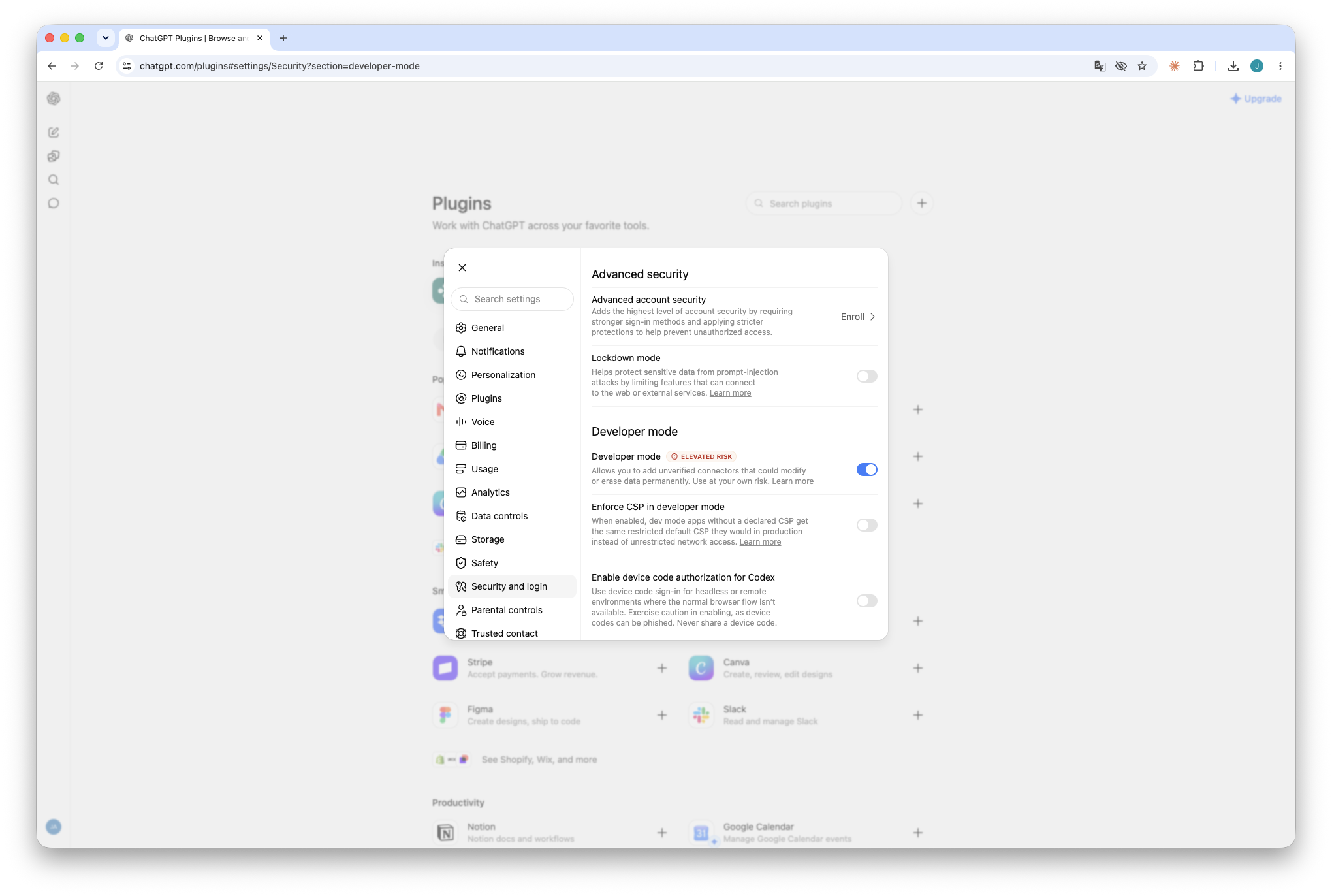
- In ChatGPT, open Settings → Plugins and click Developer mode.
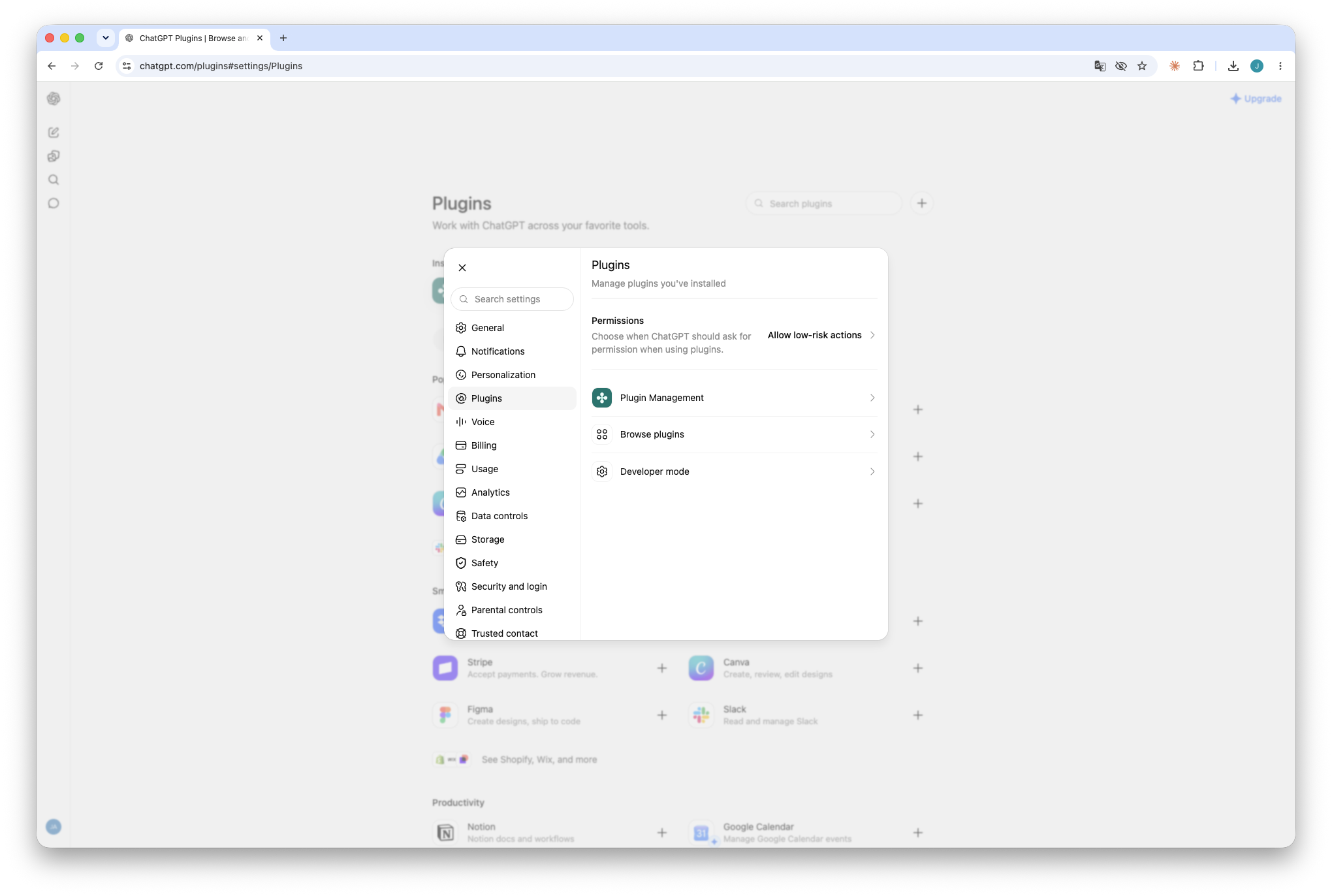
- Switch Developer mode on.
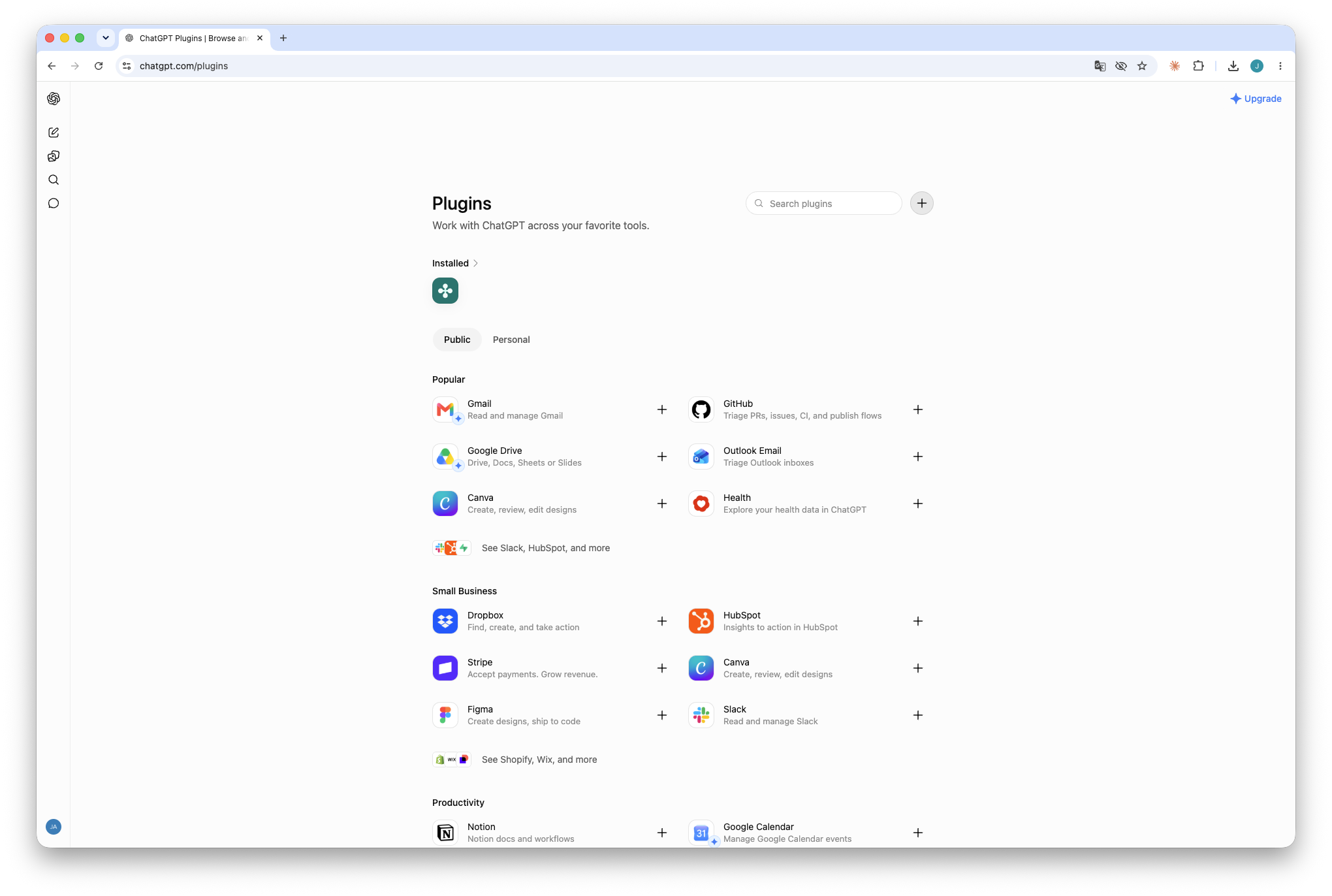
- Go back to the Plugins page and click the + button next to the search field.
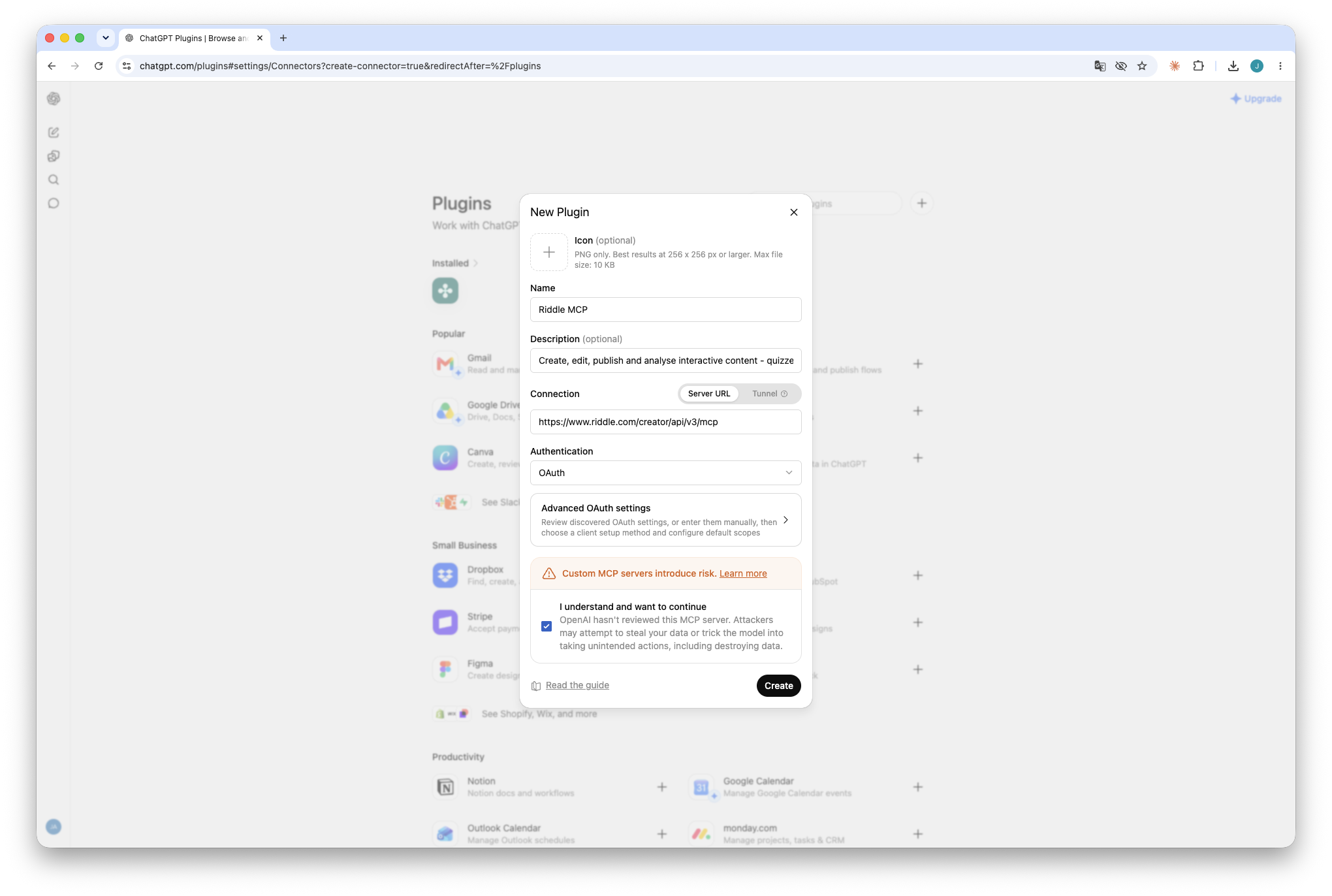
- Fill in the New Plugin dialog:
- Name:
Riddle MCP - Connection: keep Server URL and enter
https://www.riddle.com/creator/api/v3/mcp - Authentication:
OAuth - Tick I understand and want to continue, then click Create.
- Name:
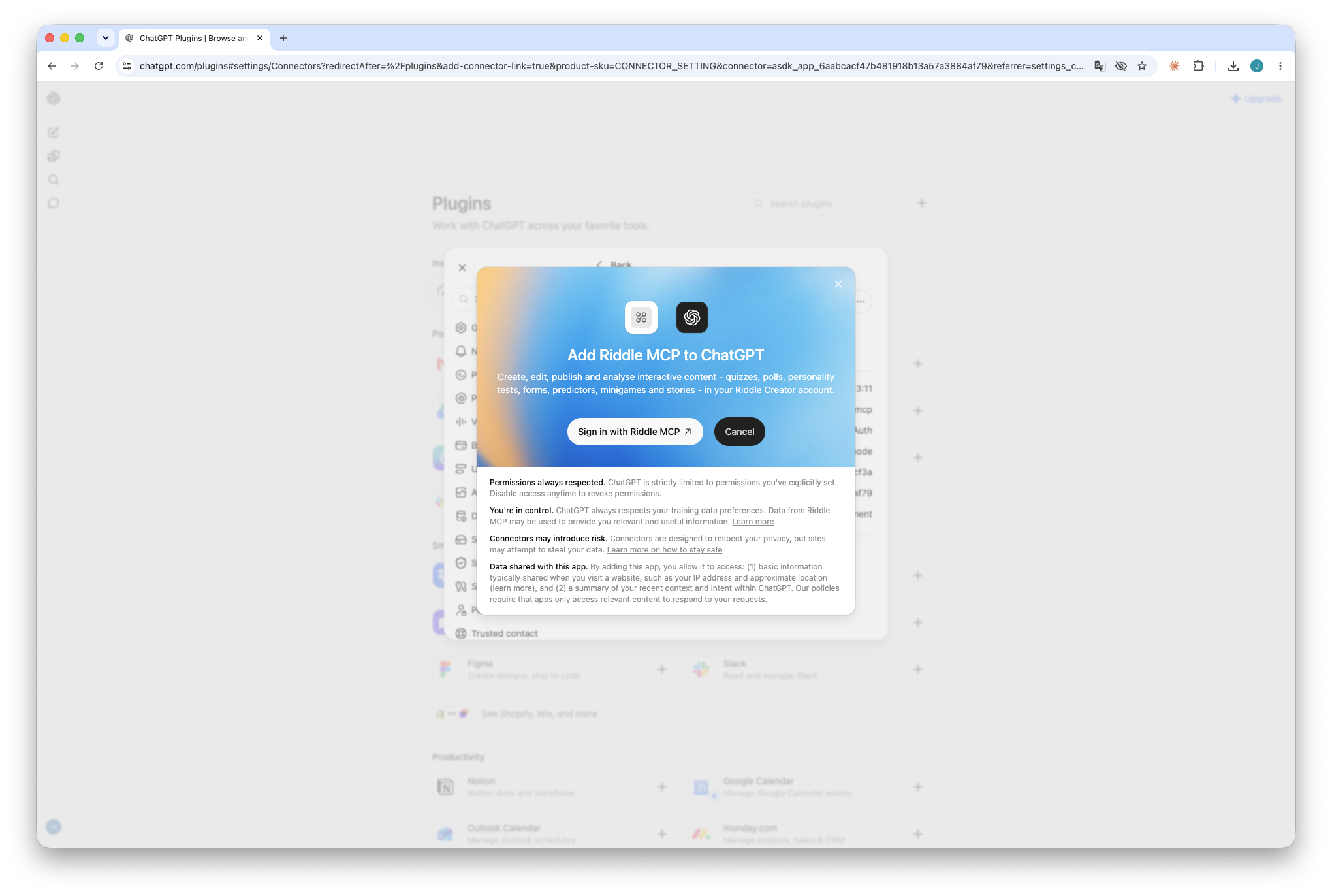
- Click Sign in with Riddle MCP, then sign in to Riddle and confirm the access.
Done. In a new chat, pick Riddle from the tools menu below the message field when you want ChatGPT to use it.
Google Gemini
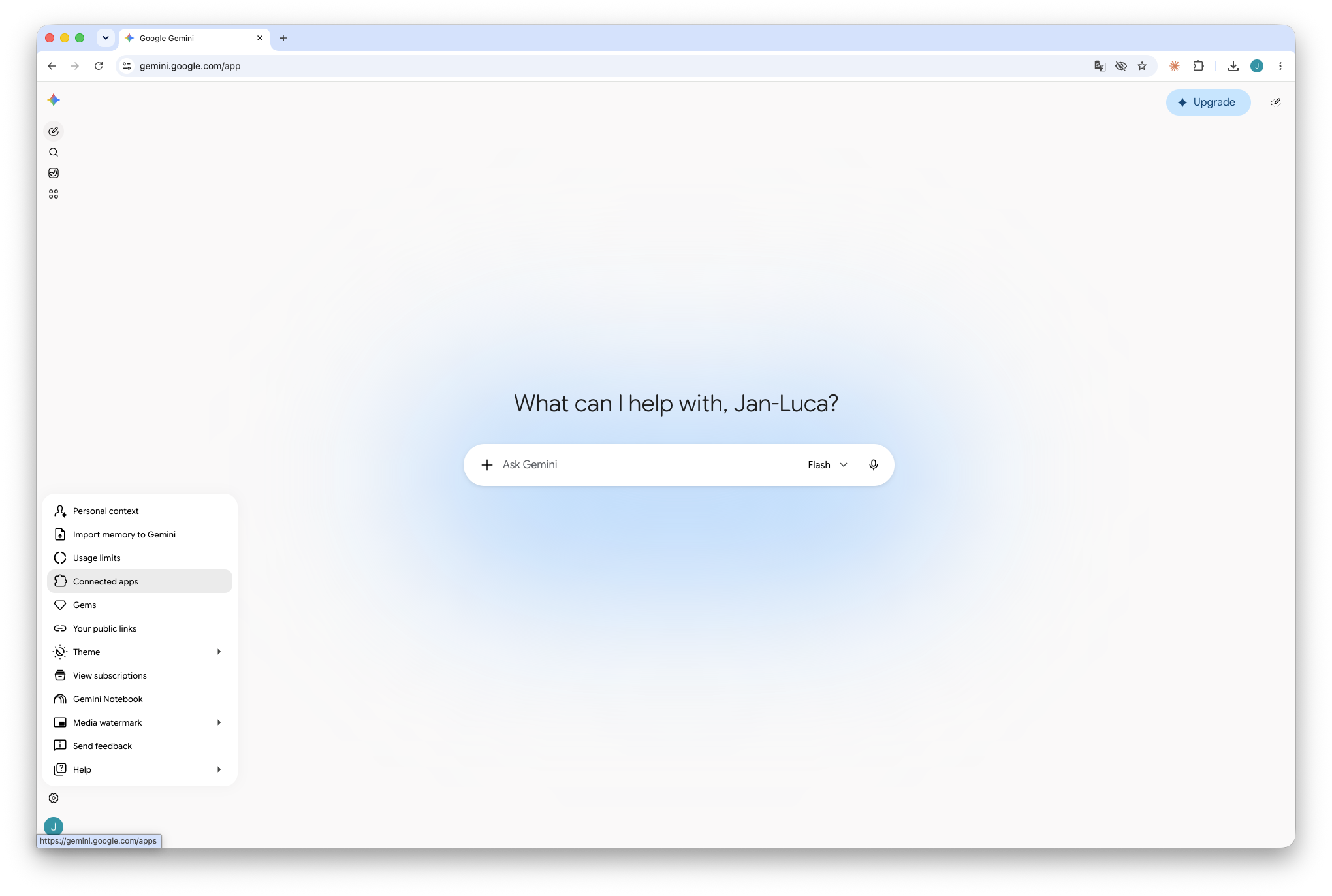
- In Gemini, click the Settings gear at the bottom left and choose Connected apps.
- Scroll down to Custom apps, paste
https://www.riddle.com/creator/api/v3/mcpinto Add a custom app link to get started and click Next.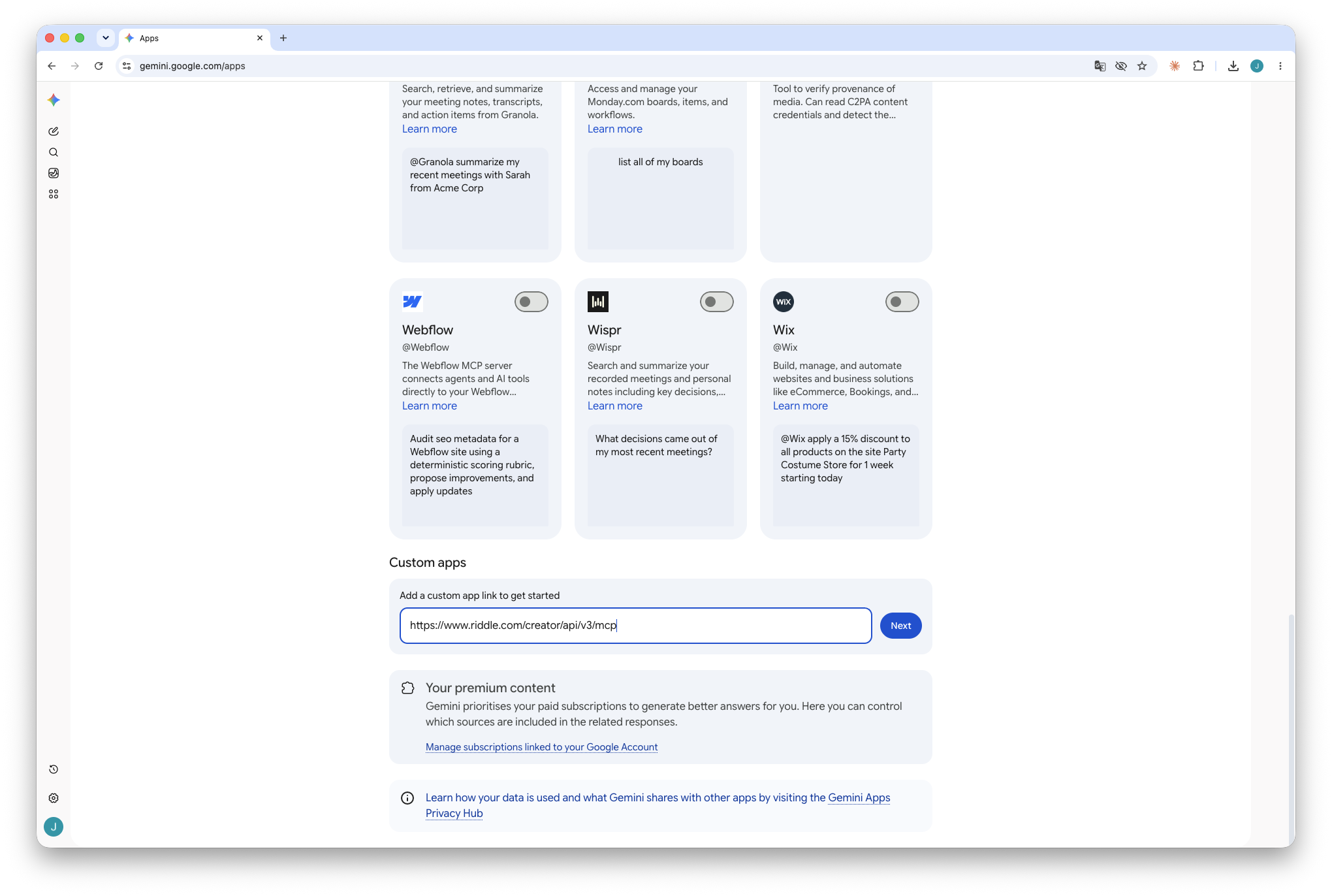
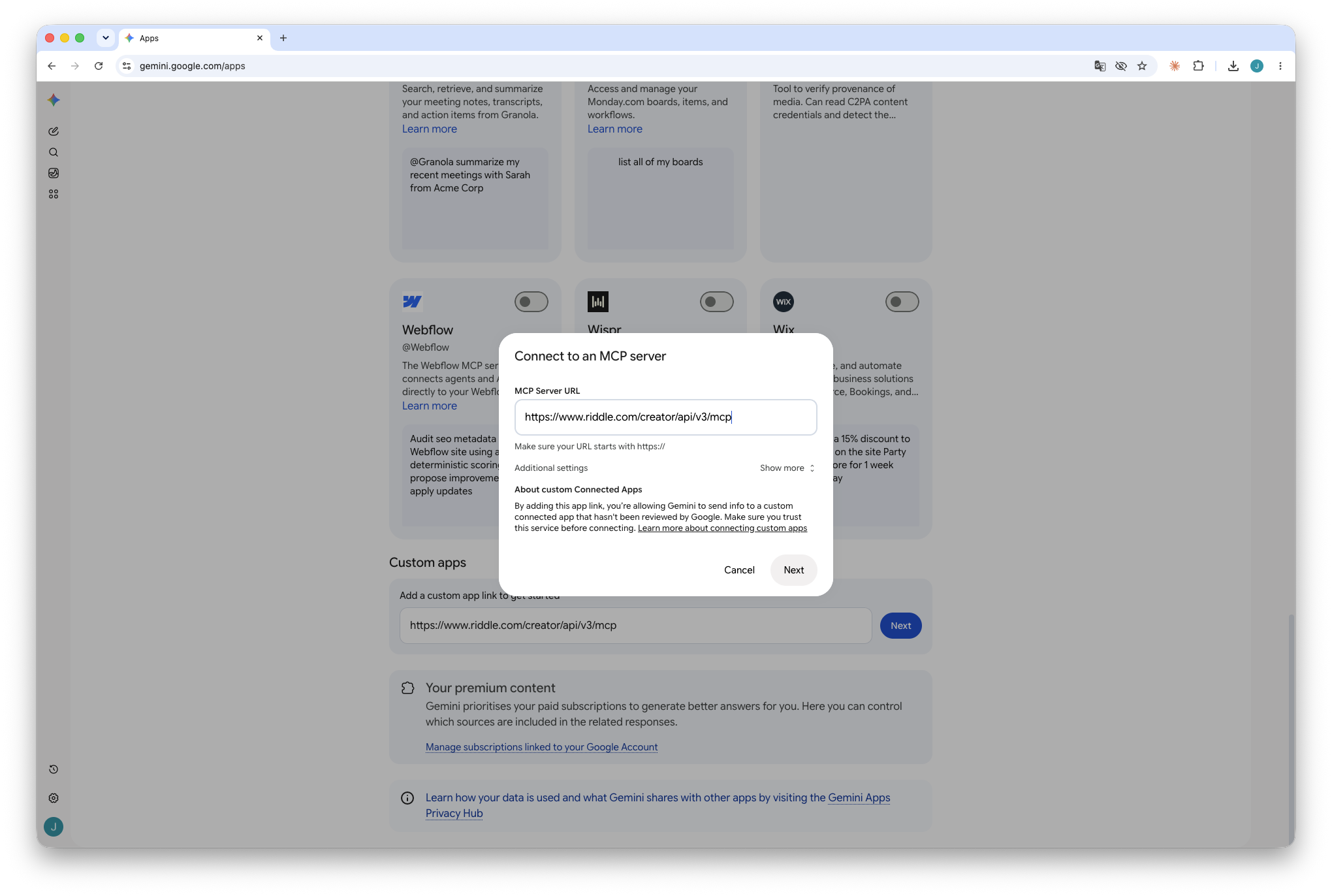
- Gemini opens Connect to an MCP server with the URL prefilled. Click Next.
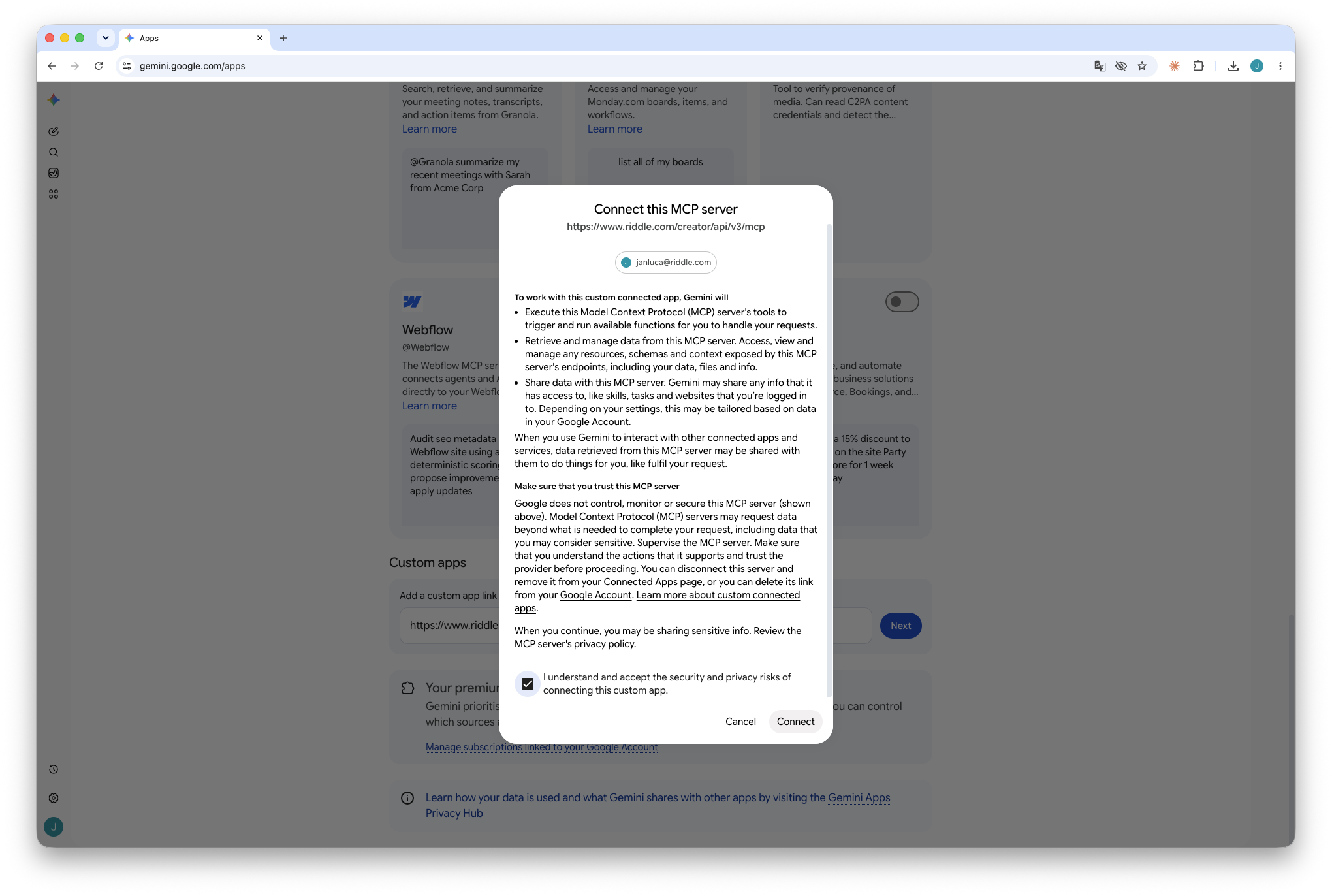
- Read the summary, tick I understand and accept the security and privacy risks of connecting this custom app and click Connect.
- Sign in to Riddle in the window that opens and confirm the access.
Done. Riddle now shows up under your connected apps and you can use it in any Gemini chat.
Grok
- In Grok, click Plugins at the bottom of the left sidebar.
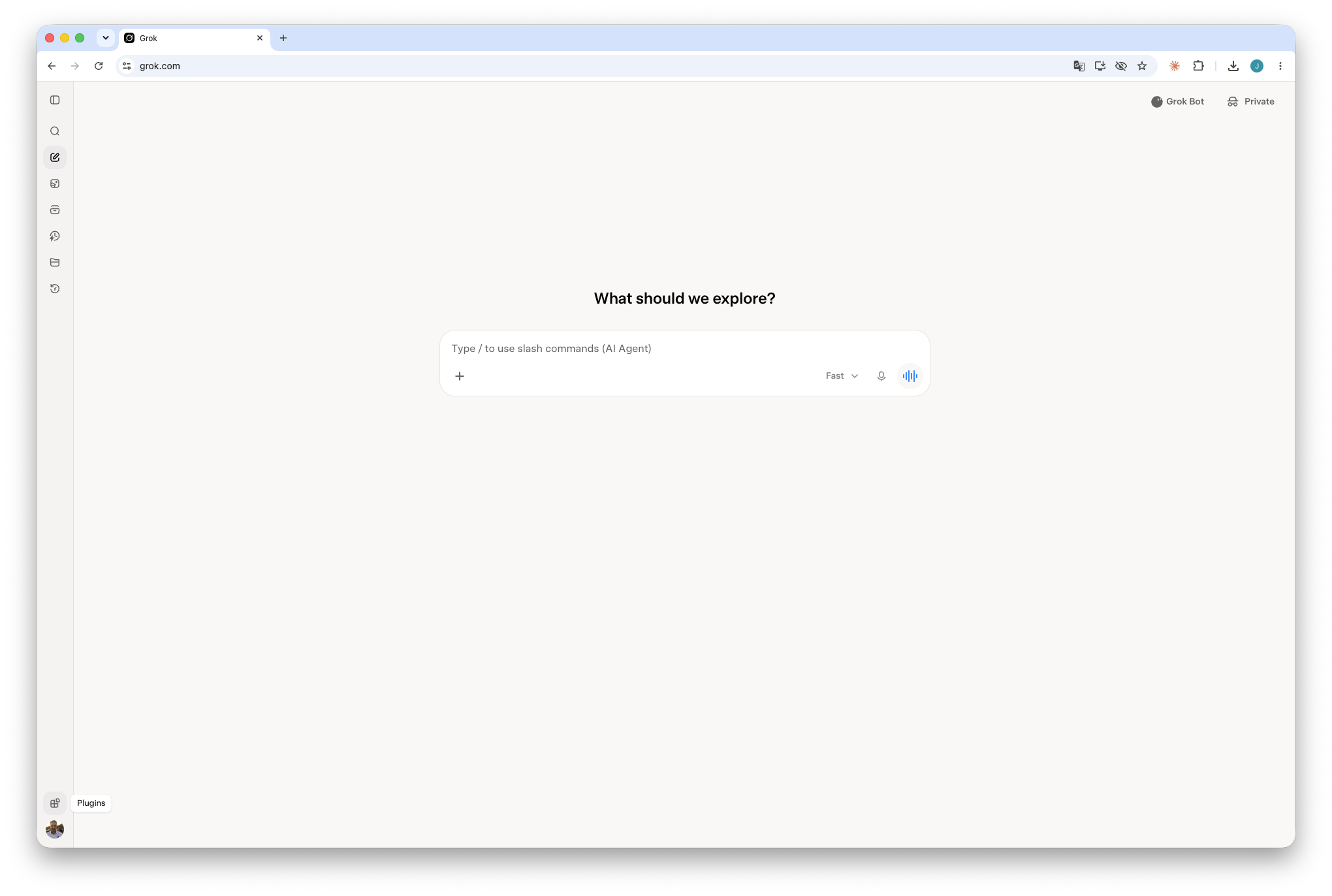
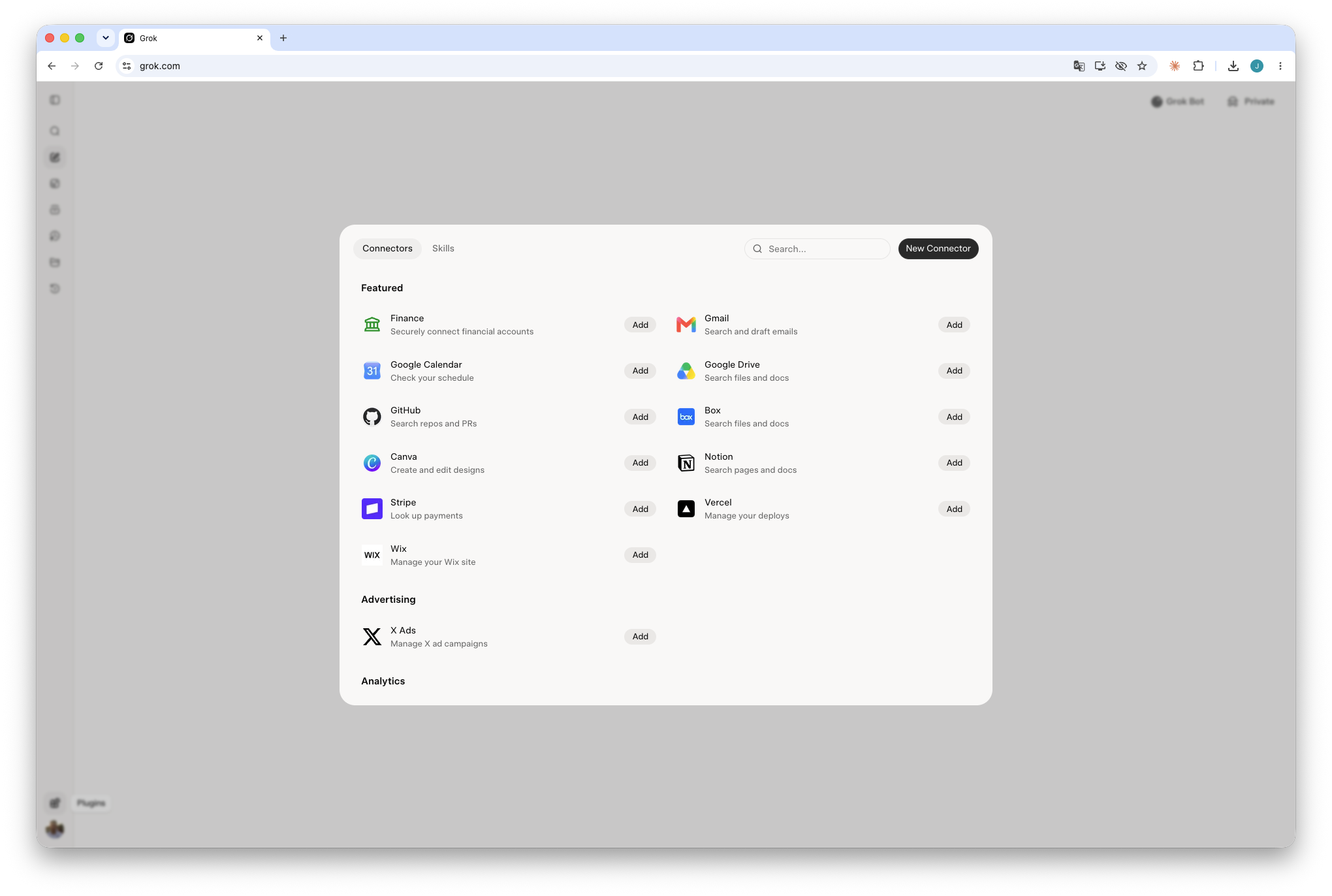
- On the Connectors tab, click New Connector in the top right.
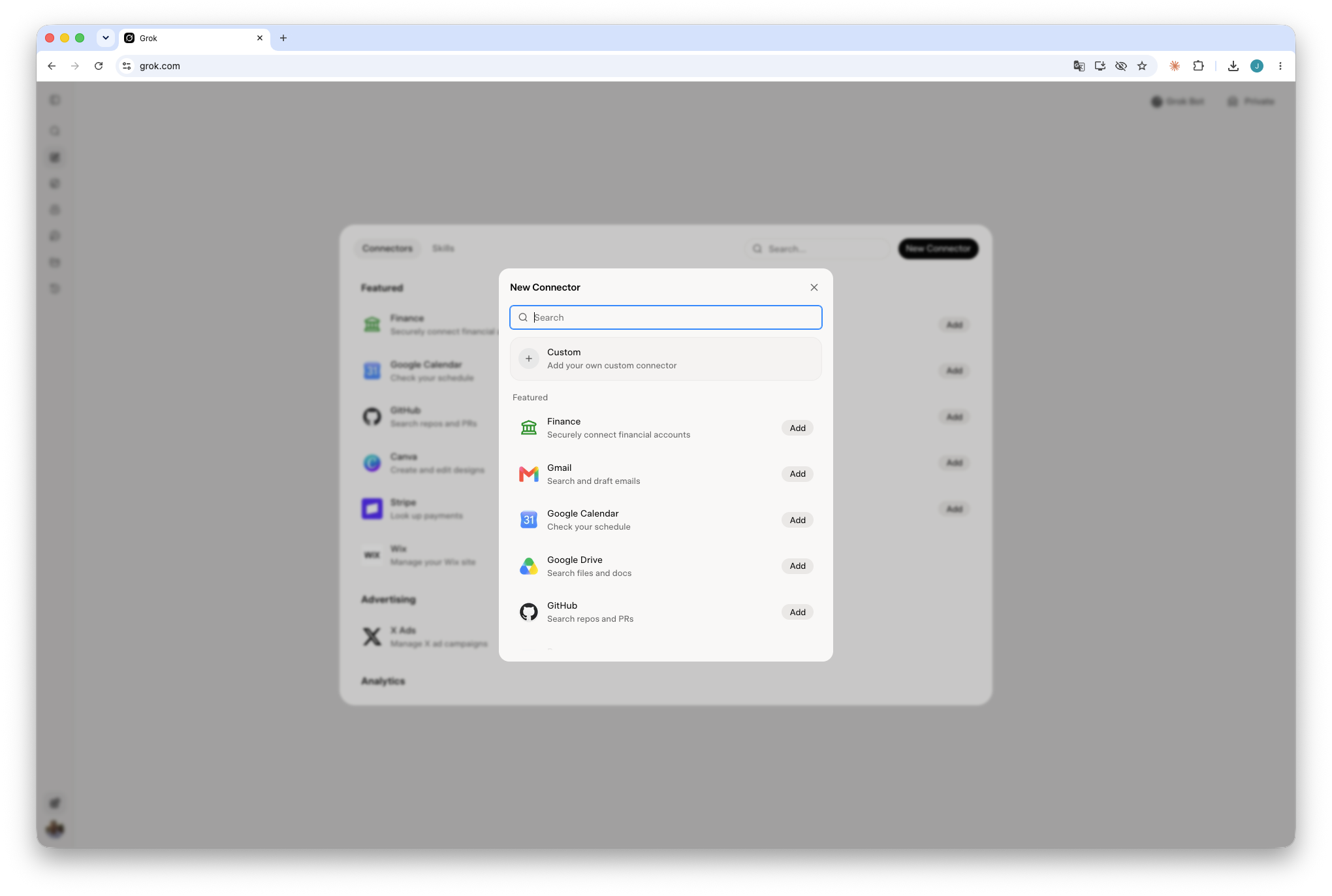
- In the New Connector dialog, choose Custom – Add your own custom connector.
- Enter a Name (e.g.
Riddle MCP) and the Server URLhttps://www.riddle.com/creator/api/v3/mcp, then click Add Connector.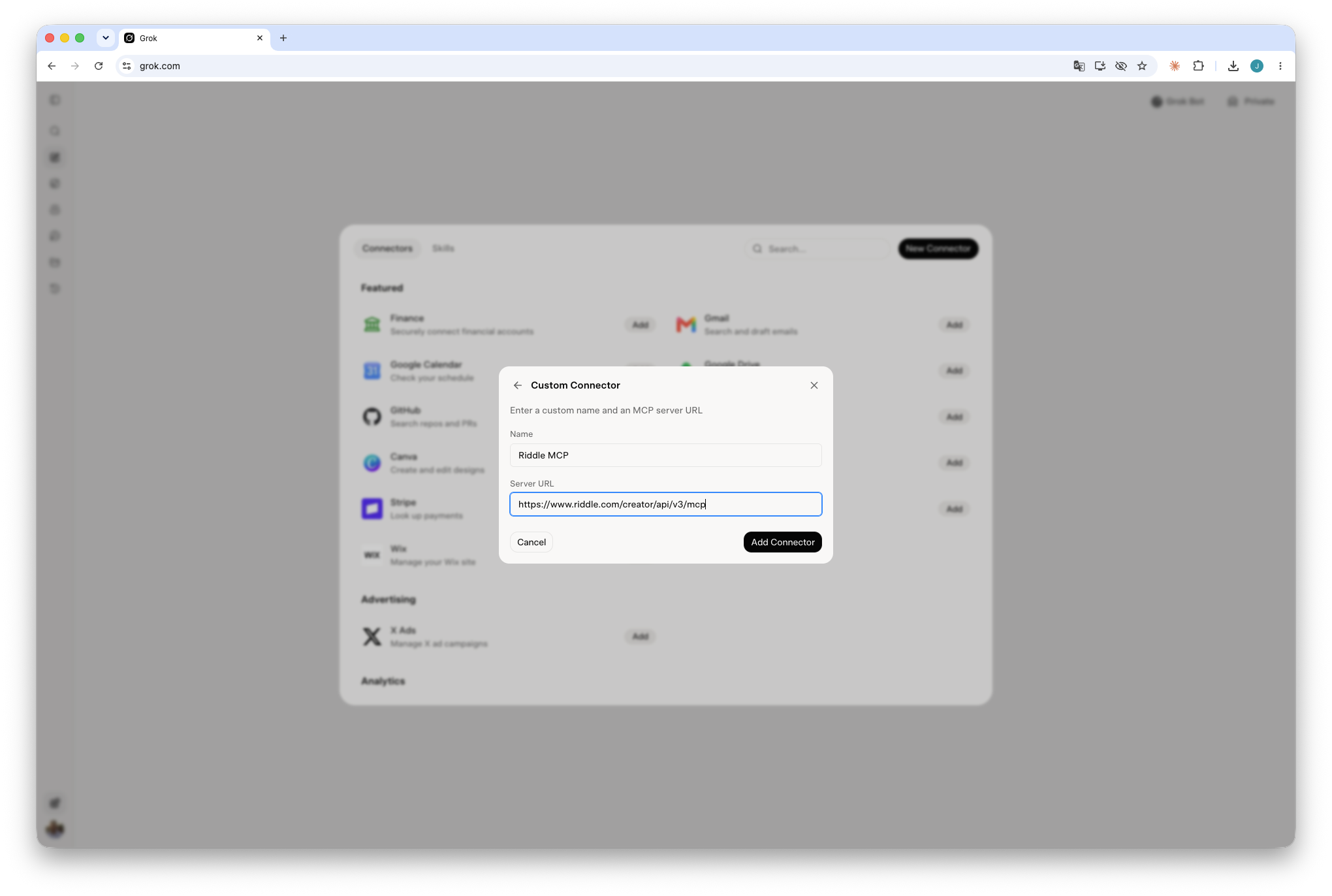
- Sign in to Riddle in the window that opens and confirm the access.
Done. Riddle is now available as a connector in your Grok conversations.
Try it out
Open a new conversation and make sure the Riddle connector is enabled for that chat. Then ask:
"Show me my last Riddle."
If your AI tool returns one of your Riddles, you're set. (If not, see Troubleshooting below.)
Now try anything you'd normally do in Riddle:
- "List my last 5 Riddles."
- "Create a quiz about climate change with 7 questions in English."
- "Show me the stats for my 'Brand awareness quiz' from the last 30 days."
- "Publish the Riddle named 'Holiday giveaway 2026'."
Your AI tool picks the right action and carries it out in your account.
Get better results
Three habits that get you from prompt to finished Riddle with the least back and forth.
1. Say what you want upfront
Instead of "Make a quiz about marketing", try:
"Create a 5-question quiz on email marketing best practices, in English, single-choice answers, with a results page that shows a score."
The same trick works for rules that should apply to a whole conversation – state them once at the start: "For all Riddles in this chat: friendly tone, address the user with 'you', language German."
2. Pick the right kind of creation
Riddle can create content in two ways – and your phrasing decides which one is used:
- "Build a quiz with these exact 5 questions: …" → the structured builder. Best when you already know your content.
- "Make me a quiz about X" → Riddle's AI generation invents the questions. Best for fast, topic-based content.
Builder for precision, generation for speed.
3. Iterate, don't restart
If something's off, refine it: "Change question 3 to multiple-choice", "Translate the result page to French". Iterating on an existing Riddle is faster than deleting it and starting over.
Troubleshooting
The connection or sign-in failed
Remove the Riddle connector in your AI tool and add it again. If you had to type the URL, check that it is exactly https://www.riddle.com/creator/api/v3/mcp, and make sure you're signed in to the Riddle account you want to use before you authorize.
"I don't have access to project X" The connection only works for projects where your user has the right AI permissions. Ask your project admin to grant access.
Your AI tool doesn't seem to use Riddle Most tools let you enable connectors per conversation. Open the connector or tools menu below the message field and make sure Riddle is switched on.
Your AI tool can't add custom connectors Custom MCP connectors are a paid feature in most AI tools, and in business workspaces an admin may have to allow them first. Check your AI provider's plan and workspace settings.
Want to disconnect? Remove the Riddle connector in your AI tool to revoke its access to your account.
Still stuck? Reach out to our support team via the support chat or via email.
Using another AI tool, or building your own integration?
Any MCP-compatible client works – Cursor, Cline, VS Code, custom agents – with the same server URL and the same sign-in. If you want the technical details (the OAuth flow, MCP keys for unattended or multi-account setups, and the complete tool and resource reference), see the technical MCP guide.
Next steps
- Browse the full list of MCP tools and resources – for a complete reference of what your AI tool can do via the MCP.
- Look at the API specification – every MCP tool maps to an API endpoint, so the API docs explain the parameters and response structure in detail.
- Set up AI permissions for your team – give the right people access to the right projects.