

Embed placeholder
Business & Enterprise · See plansRotate multiple Riddles in a single embed spot based on time or date conditions. Use this for daily quiz challenges, weekly polls, seasonal content, or A/B testing different Riddles – all without changing the embed code on your website.
Create an embed placeholder
- Publish all the Riddles you want to include in the placeholder.
- Go to the main menu in the top right corner and click on Embed placeholder.
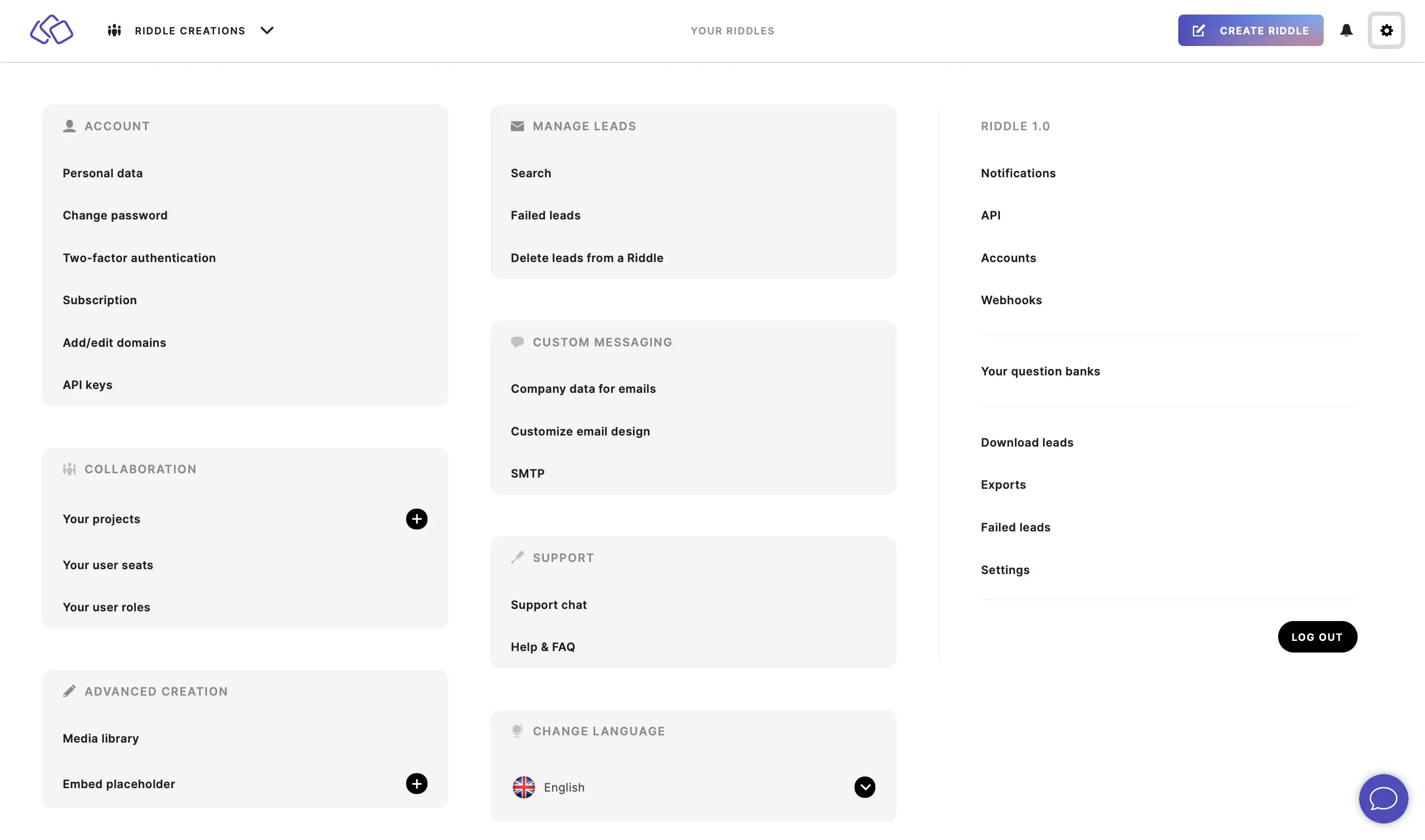
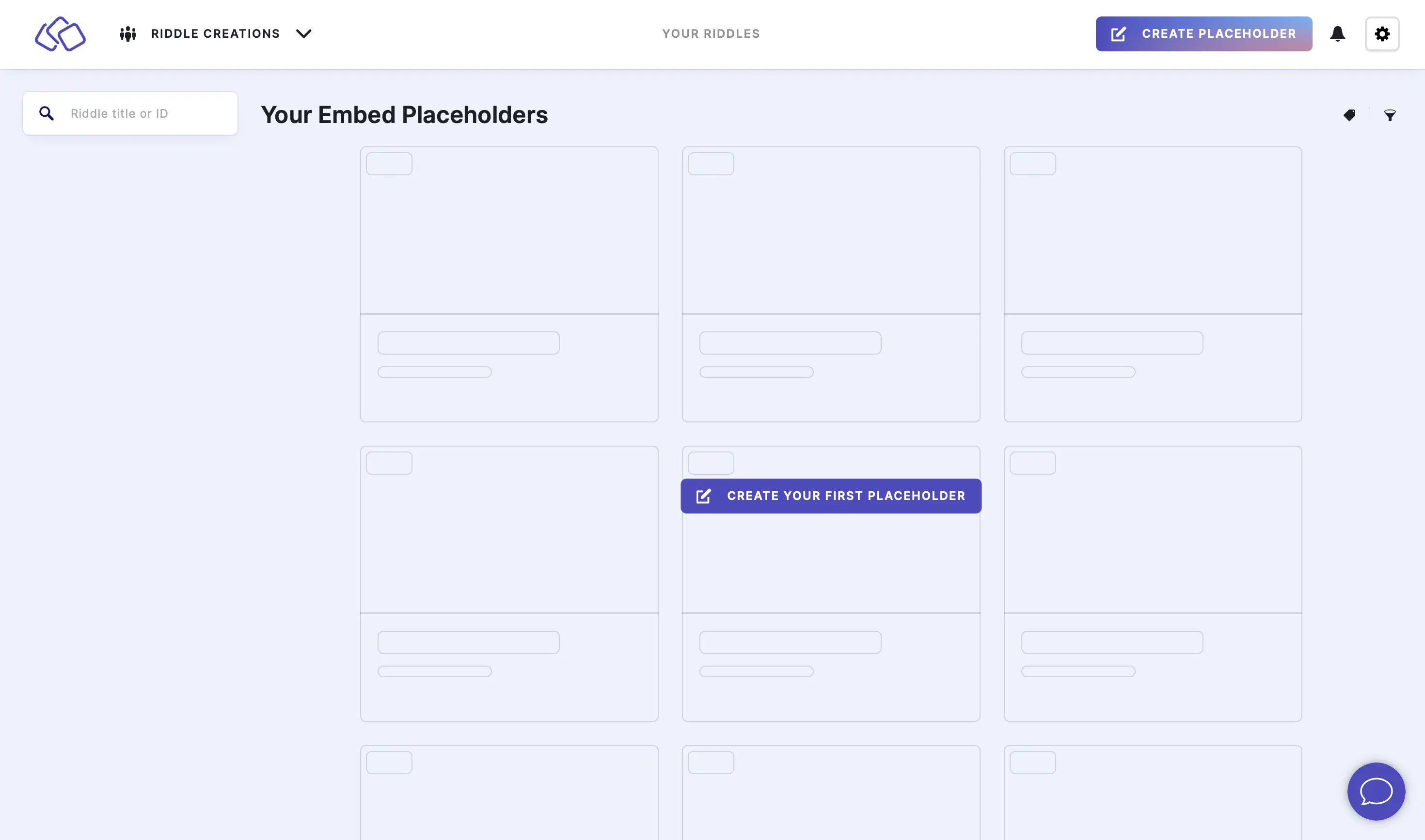
- Click on CREATE PLACEHOLDER or CREATE YOUR FIRST PLACEHOLDER.
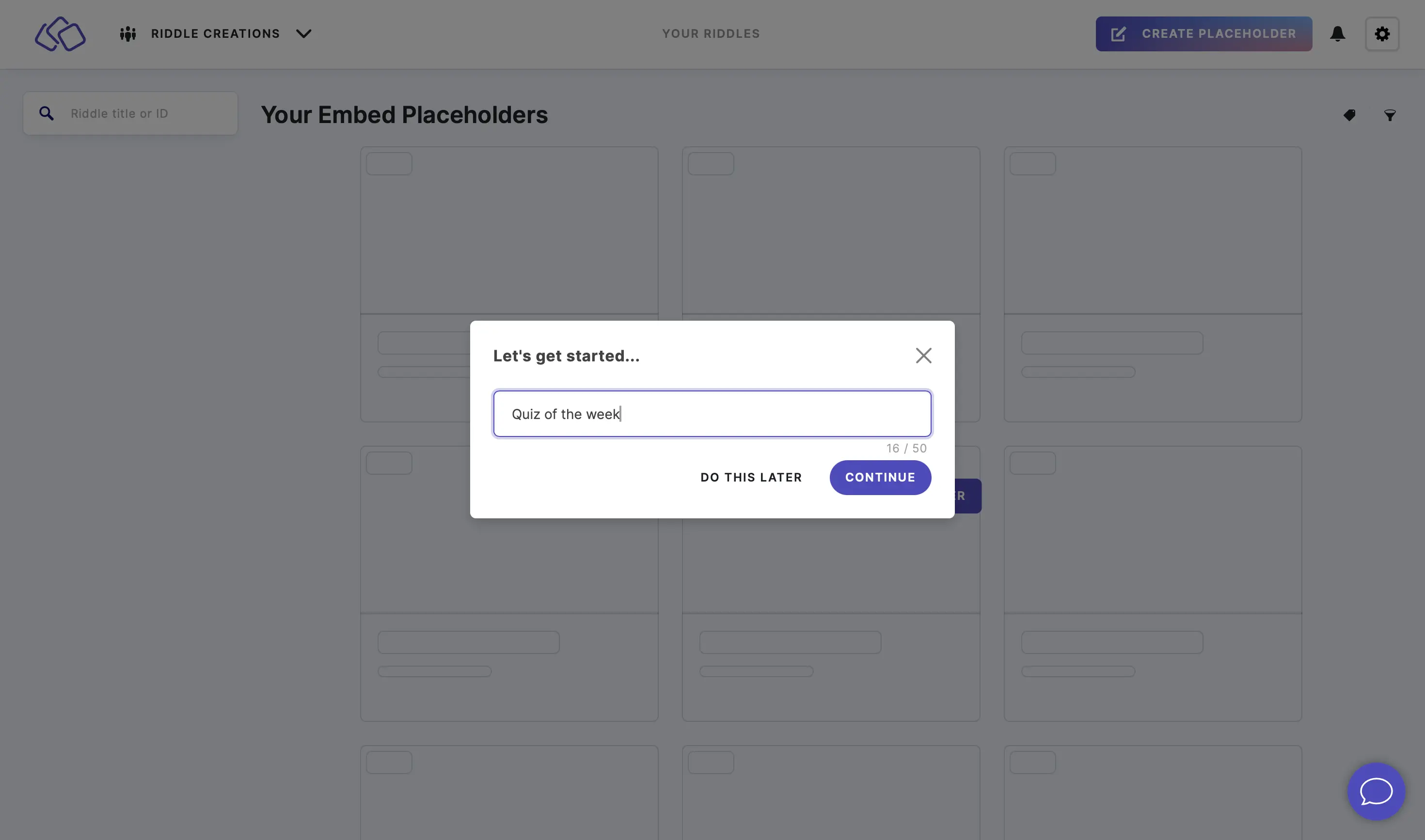
- Enter a title and click on CONTINUE, or click on DO THIS LATER.
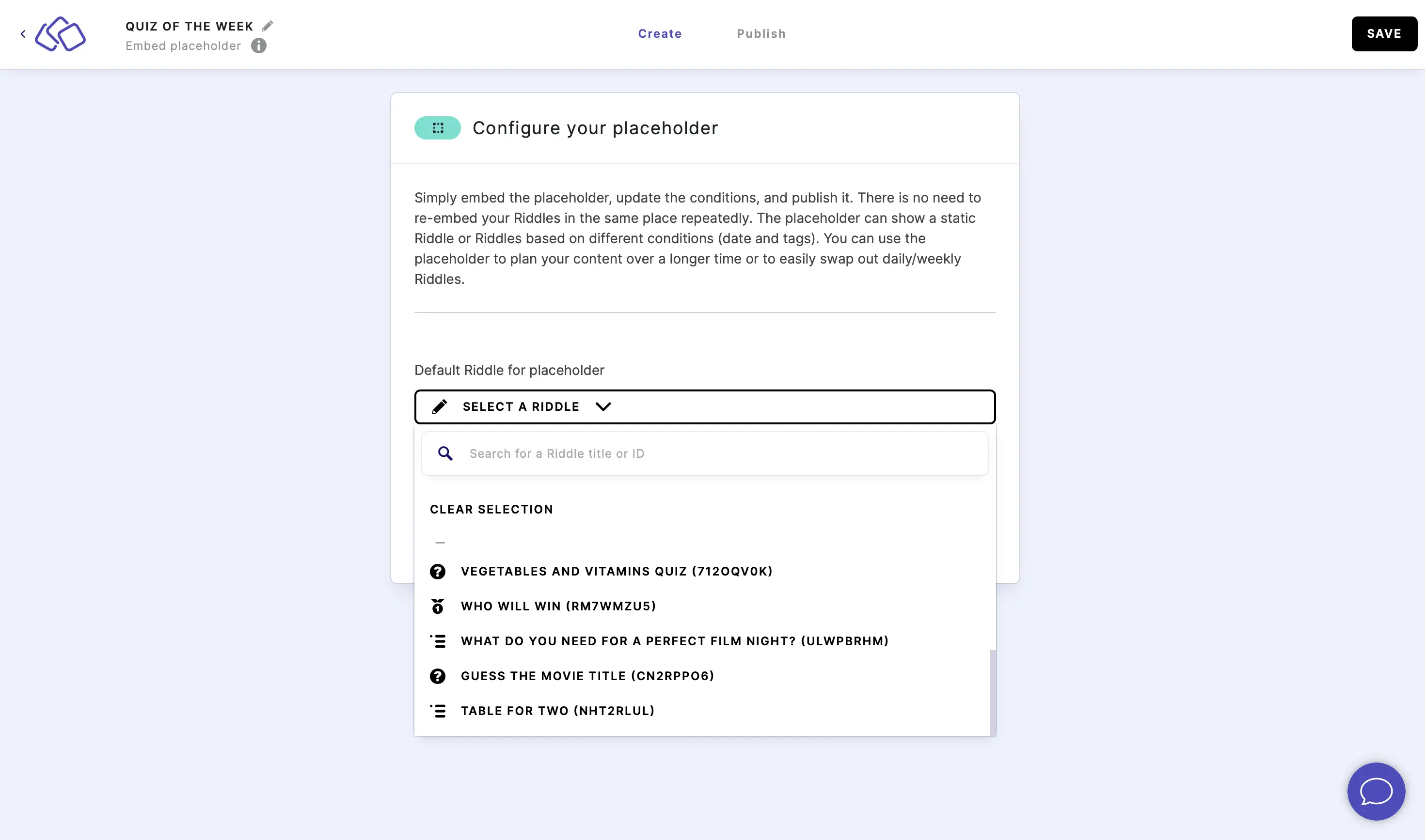
- Select a Riddle from the dropdown menu. This will be the default Riddle for the placeholder.
- Click on ADD CONDITION.
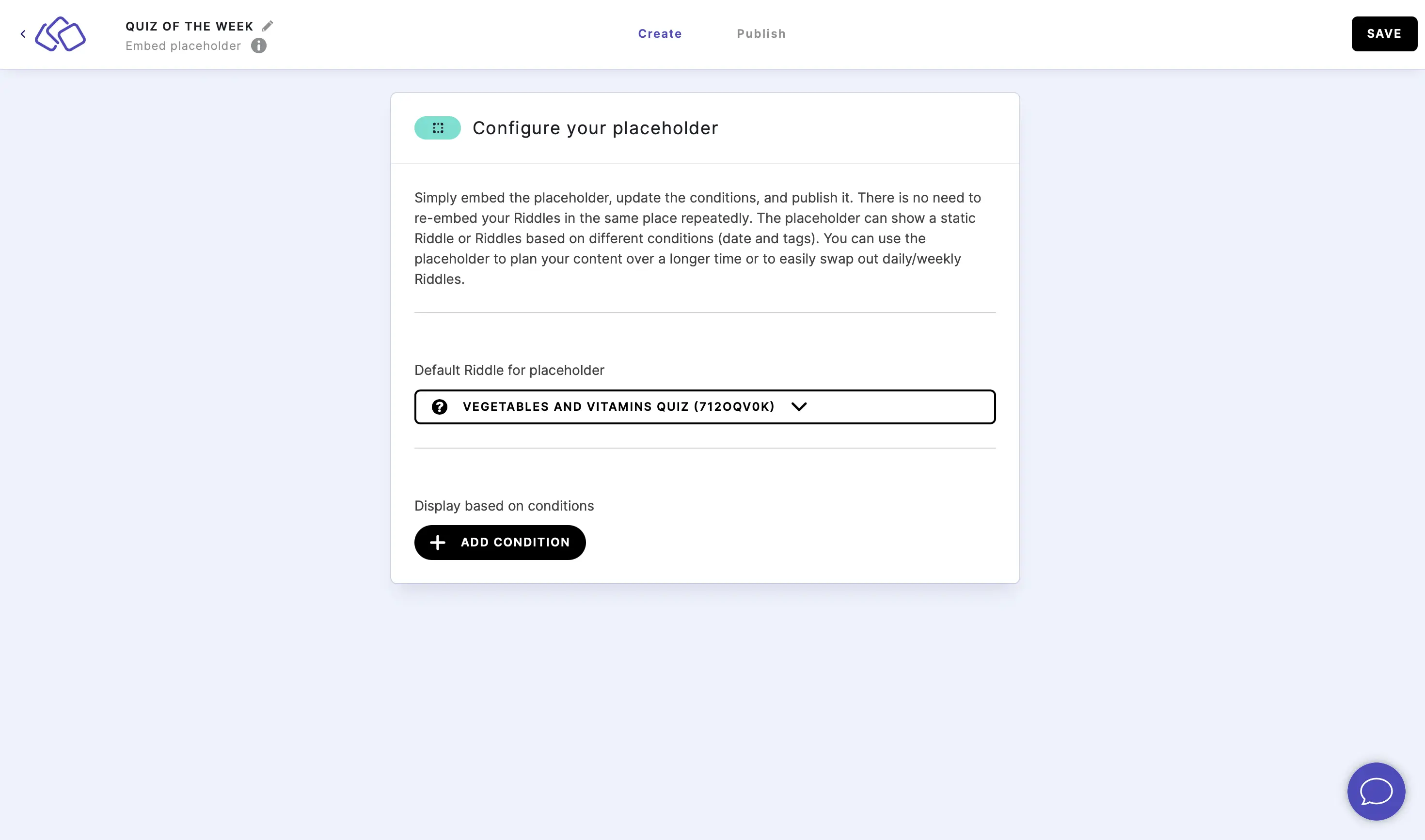
- Select a Start date and End date.
If someone in your audience is actively playing while the end date is reached, they will be shown an error message, forcing them to refresh the placeholder.
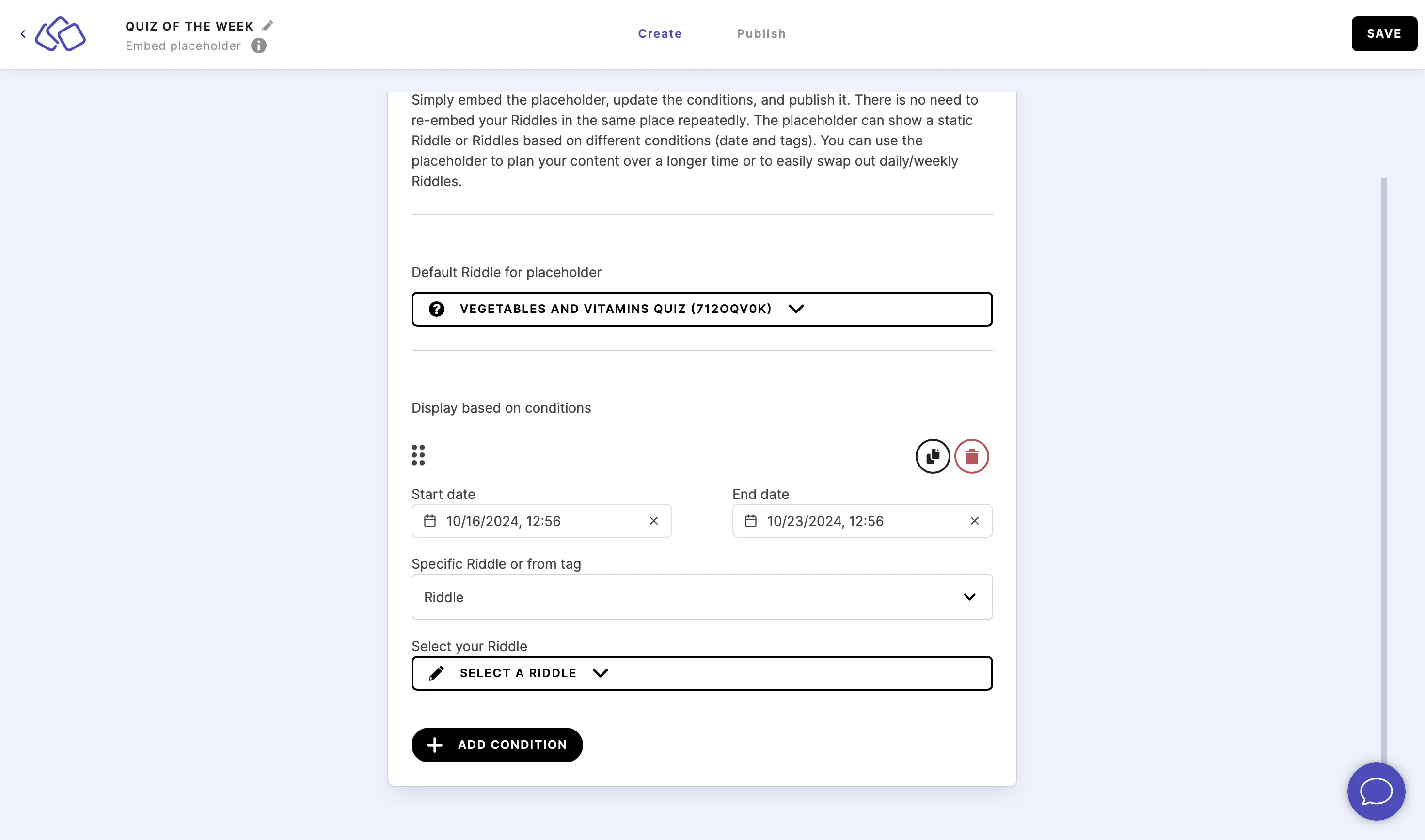
Note: Instead of a fixed date range, a condition can run at the same time every day – switch on Use only time conditions (no date) and see Daily time windows below. - By default, you can down select a Riddle from the dropdown menu, using the searchbar if necessary.
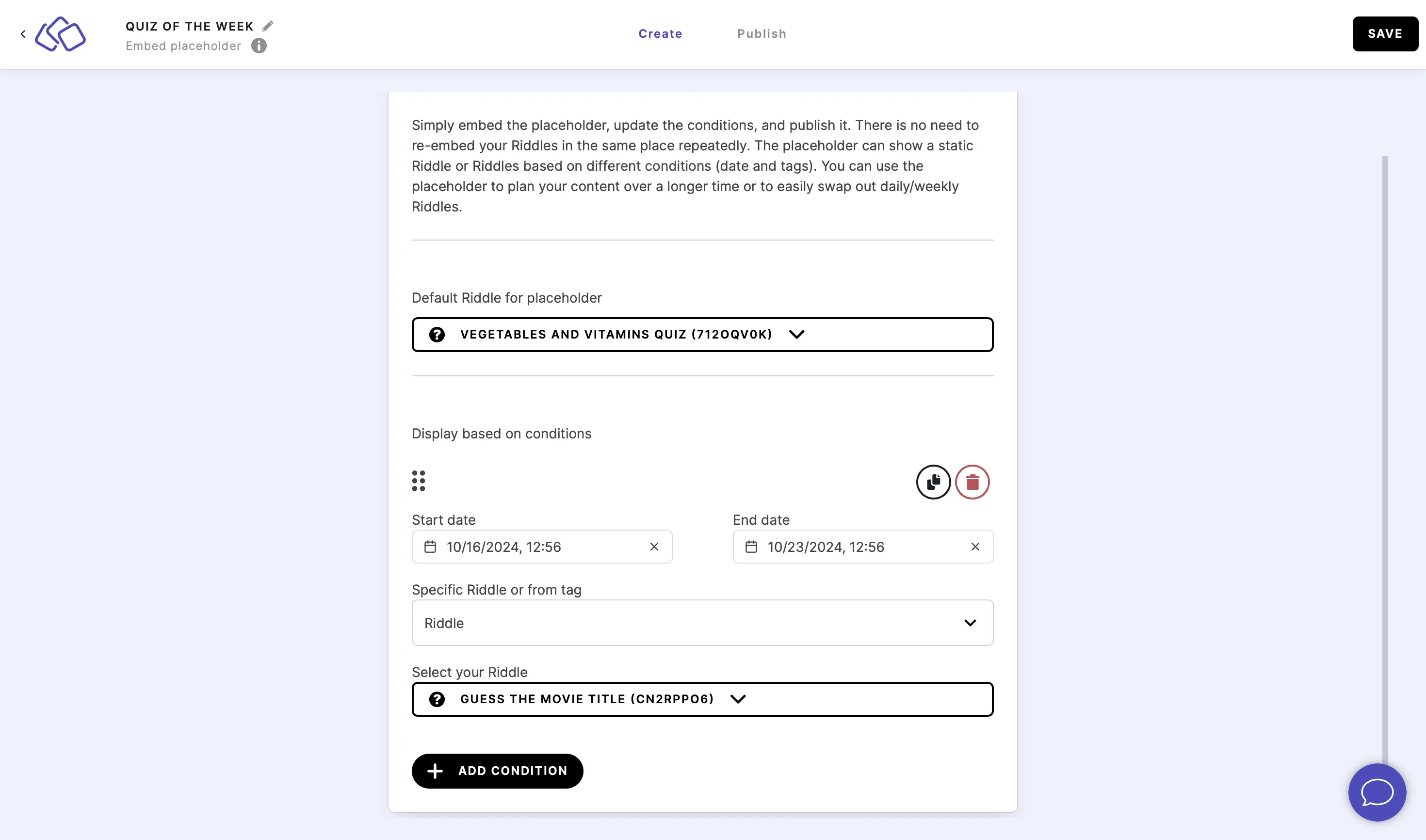
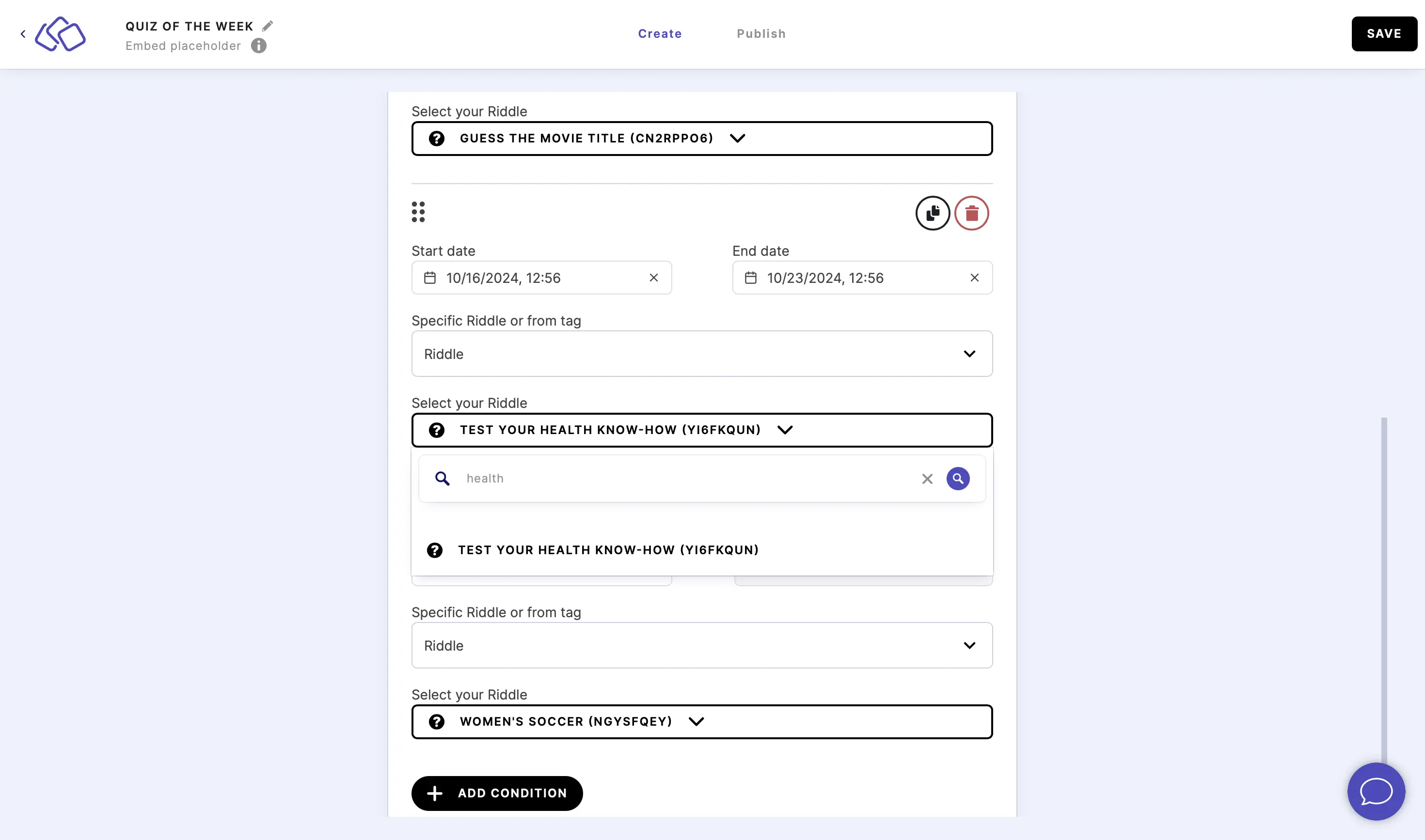
- To set up a tag rather than choose a specific Riddle, select Tag from the dropdown menu under Specific Riddle or from tag and then select a Tag condition, Tag, and Refresh interval.
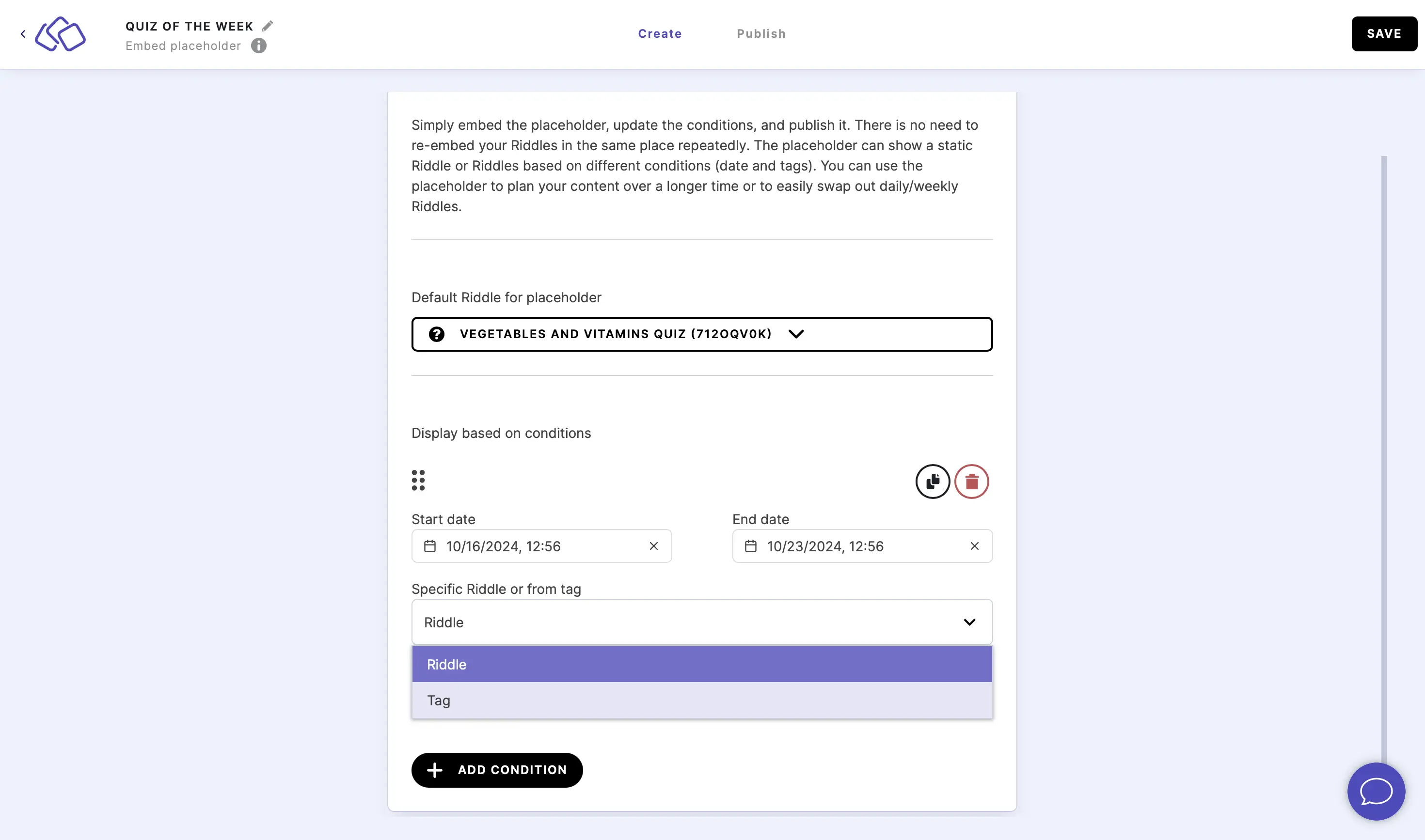
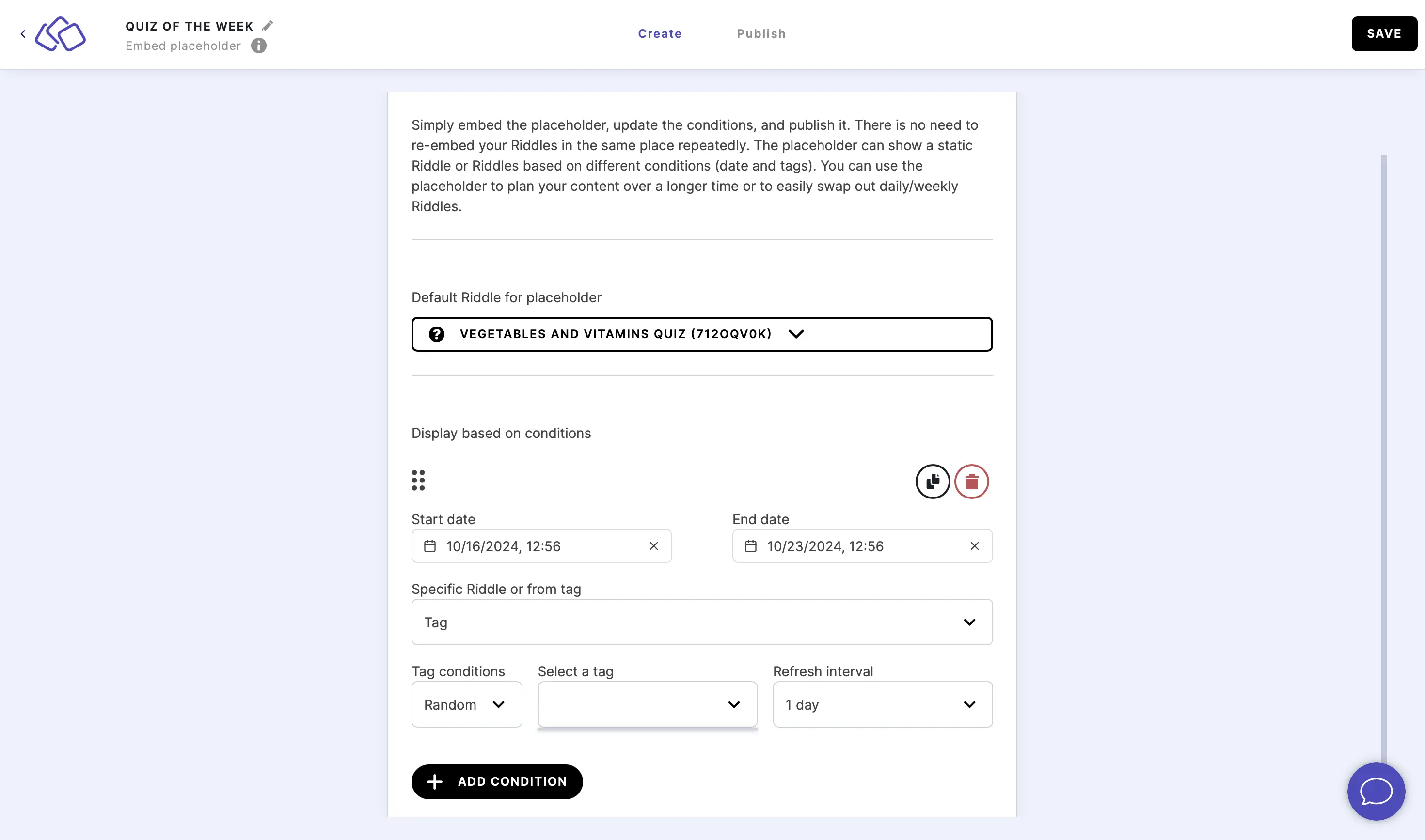
- Repeat steps five to eight for as many different Riddles as you like.
- Click on the black copy button to duplicate a condition, or on the red trash button to delete a condition.
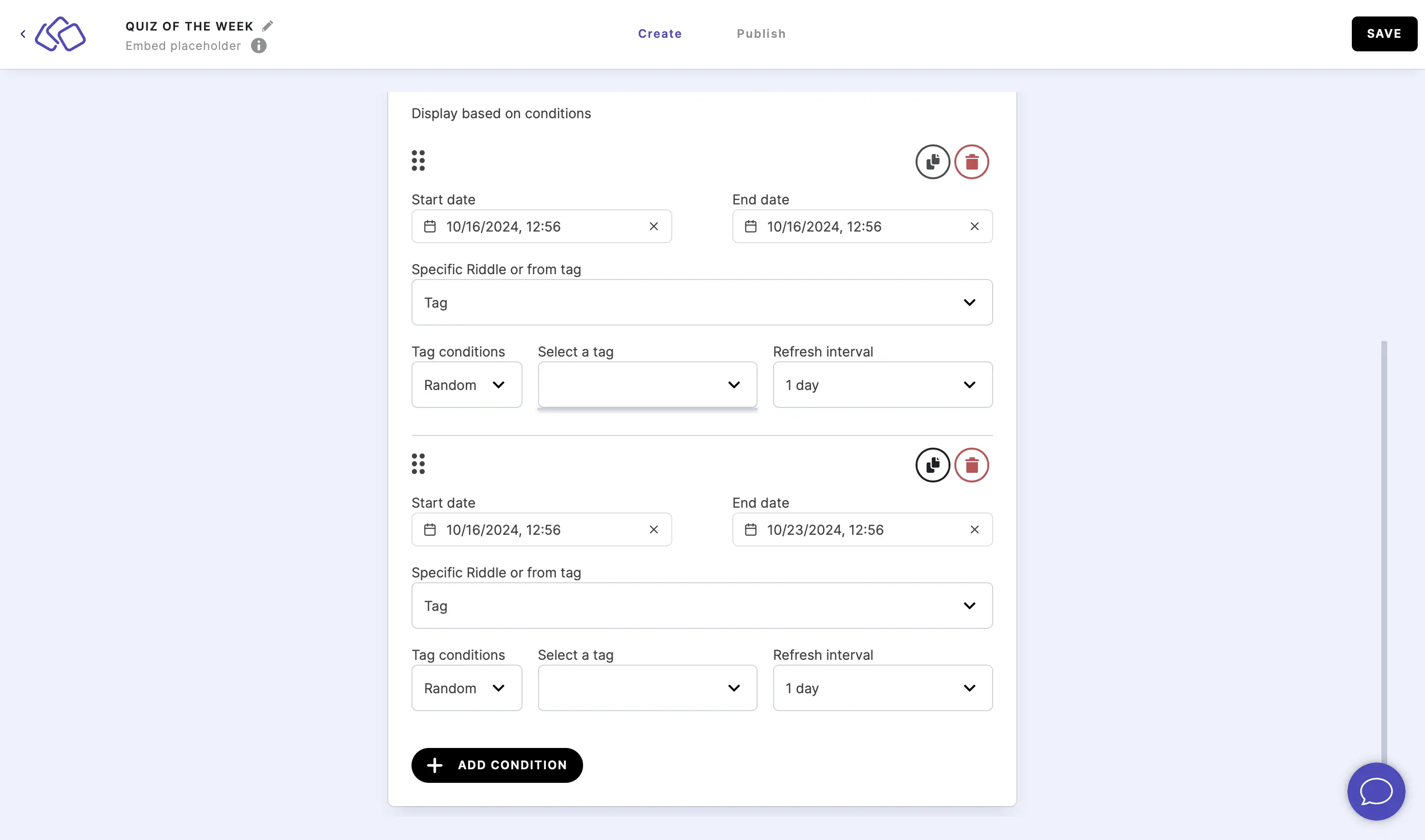
- Click, drag, and drop the six dots top left of any condition to reorder the conditions.
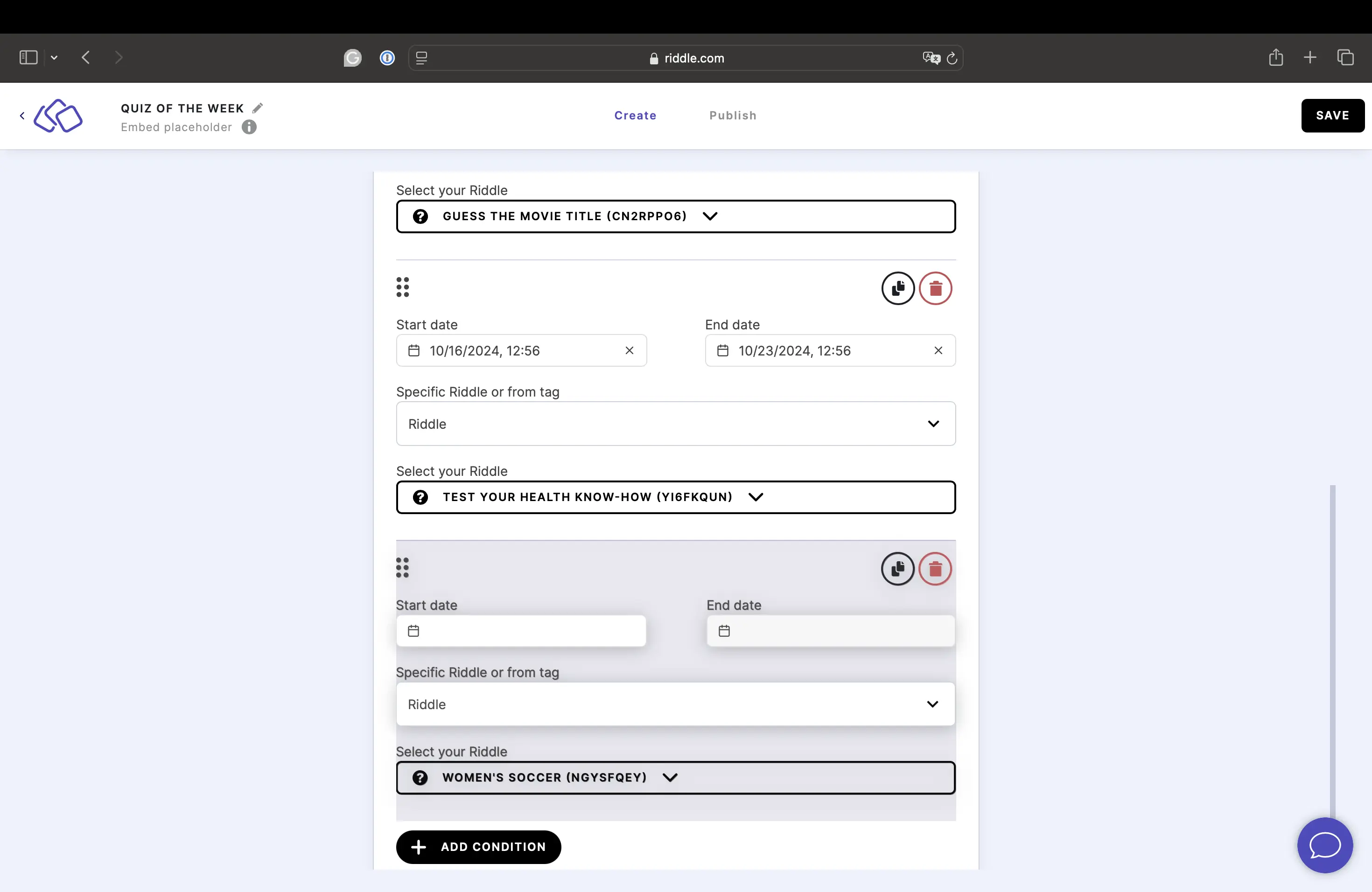
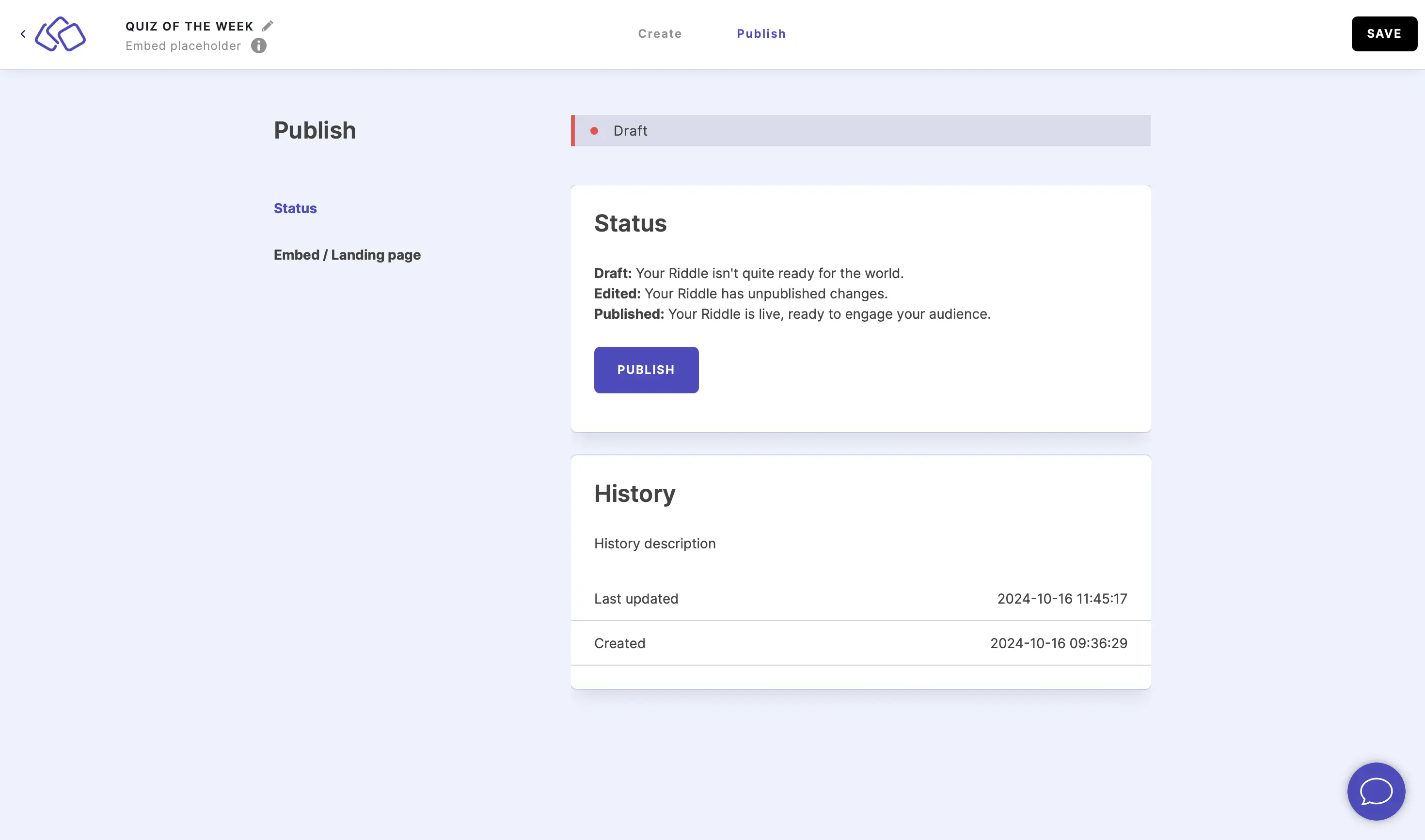
- Go to the Publish section and then click on PUBLISH.
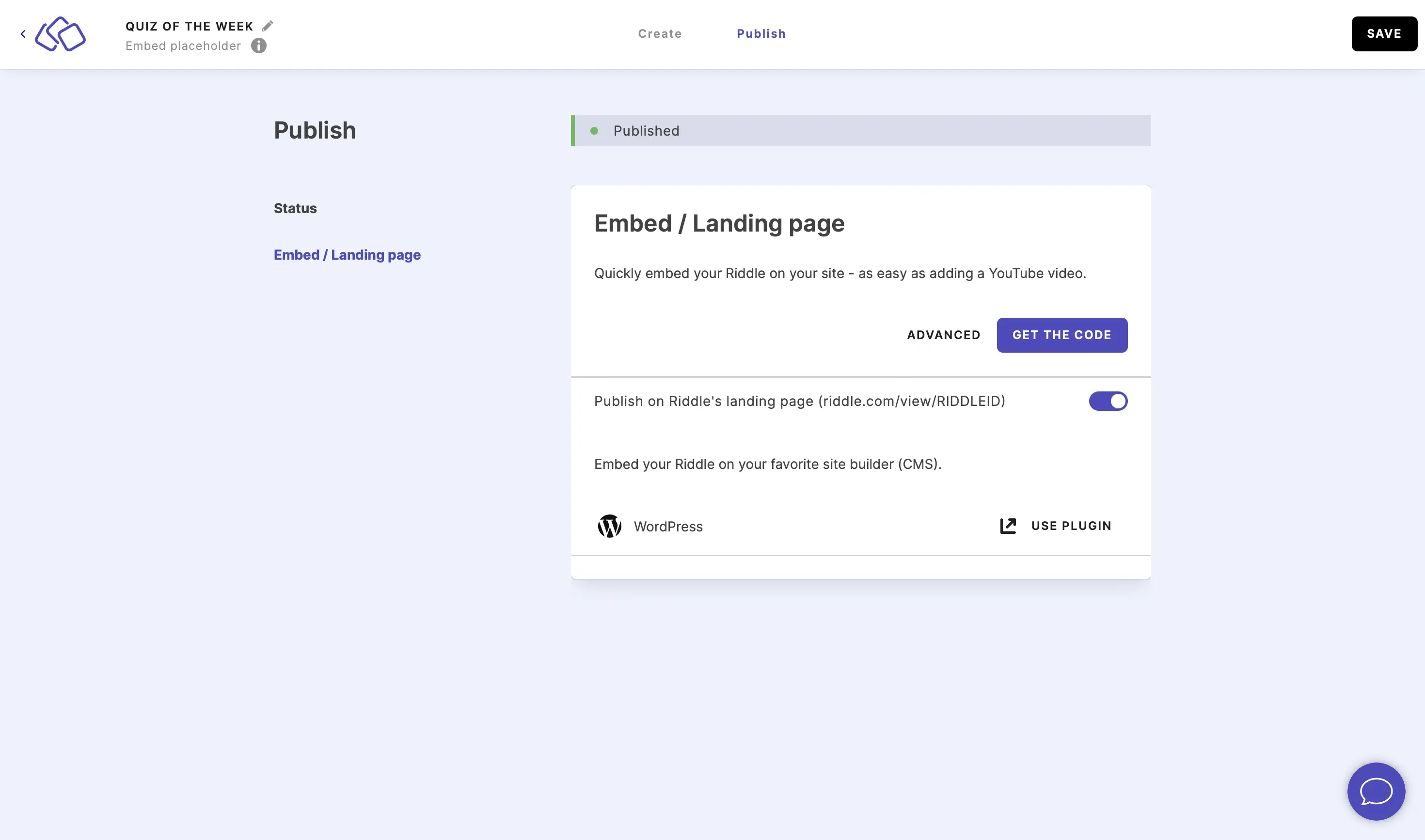
- Go to the Embed/Landing page section, click on GET THE CODE or ADVANCED, copy the embed code, and paste it into your website publishing site.
Daily time windows
A condition does not have to run between two fixed dates – it can run at the same time of day, every day. Use this for a lunchtime poll, an evening quiz, or a Riddle that is only live during your opening hours.
- Add a condition as described above and switch on Use only time conditions (no date).
- Set a Start time and an End time. The Start date and End date fields disappear - the condition now repeats daily instead of running once.
- Underneath the two times, the placeholder shows the time zone the times belong to, for example
Europe/Berlin.
The end time has to be later than the start time, so a window cannot run past midnight. If no end time is set, the window runs until midnight.
Which time zone your times use
The times you enter are the times on the clock in your own time zone, and they keep that place on the clock permanently. Enter 10:00–12:00 in Berlin and the Riddle is live from 10:00 to 12:00 Berlin time – today, after the clocks change in spring, and after they change back in autumn. You never have to move a window by an hour and back again.
Your time zone is stored with the condition and shown underneath the two times, so it is always visible which clock the window refers to. That also means the window is not re-interpreted for each visitor: a window set in Berlin runs on Berlin time for everybody, wherever in the world they open your page. If you need a window to follow your audience's own clock instead, use one placeholder per region.
Because the time zone is stored rather than a fixed offset, your conditions also follow the real world: if a country changes its daylight saving rules, or stops using them altogether, they adjust to it automatically and nothing has to be re-saved.
Note: On the two days a year when the clocks change, an hour is either skipped or repeated. A window covering that hour is correspondingly shorter or longer on that one day. Windows outside the small hours of the night are unaffected.
Working on a placeholder with your team
A condition keeps the time zone it was created in, even when a colleague in another time zone edits it. Someone in New York opening a condition created in Berlin sees the Berlin times together with the Europe/Berlin label, and any time they enter is a Berlin time as well. That way nobody's window moves by accident when somebody else touches the condition.
Note: Daily windows created before this was introduced do not have a time zone stored with them, and are read as Europe/Berlin. If such a condition was originally set up in a different time zone, or is off by an hour, open it, re-enter the two times, and publish – it then keeps the time zone you saved it in.
Set up a quiz placeholder that auto-refreshes daily
You can set up a placeholder to auto-refresh to a new quiz every day via tags.
- Create a new project (e.g. "Daily Quizzes") to keep all your auto-refresh quizzes in one place and build your quizzes for this placeholder in that project.
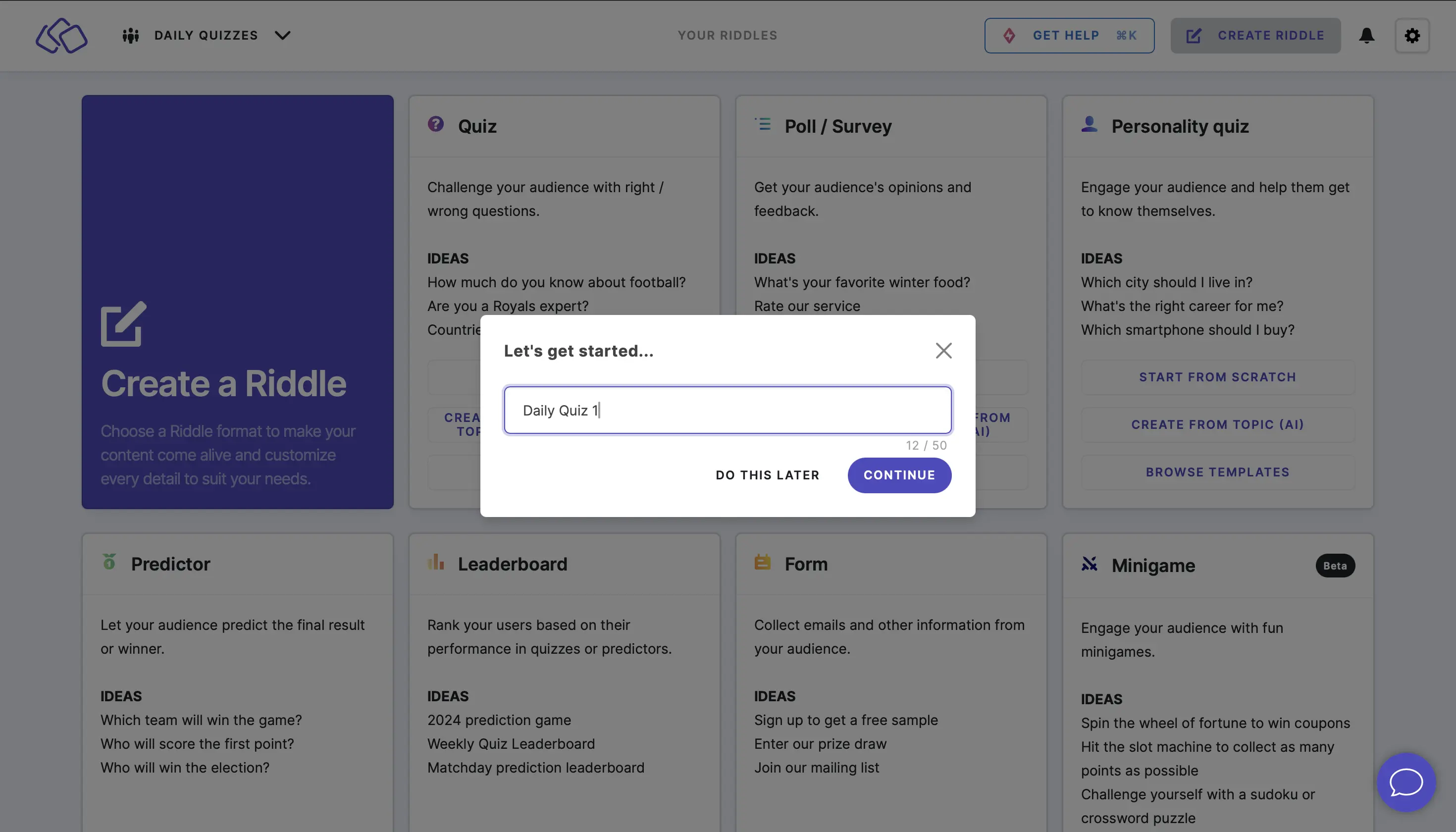
- For every quiz you create:
- Publish it.
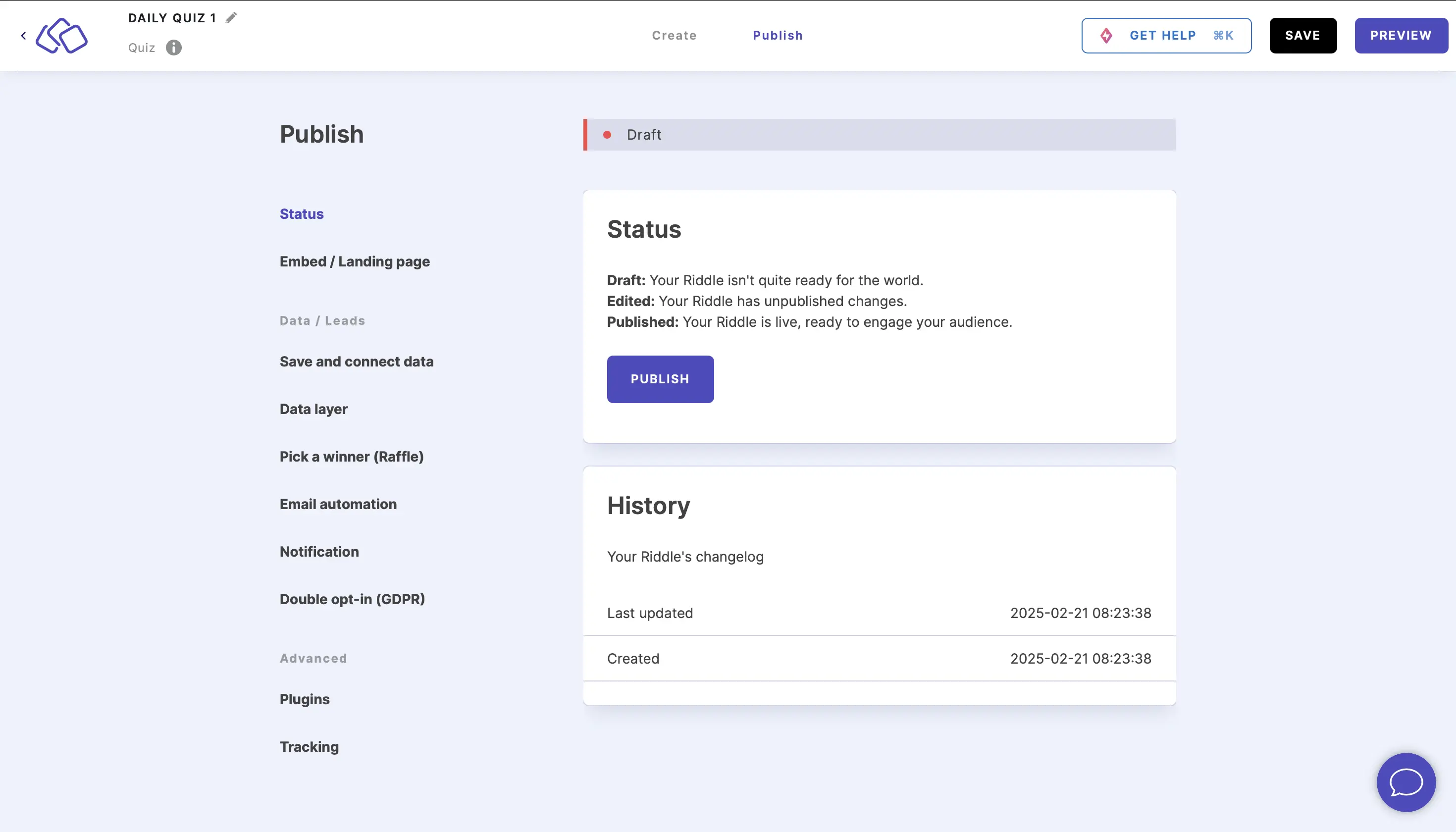
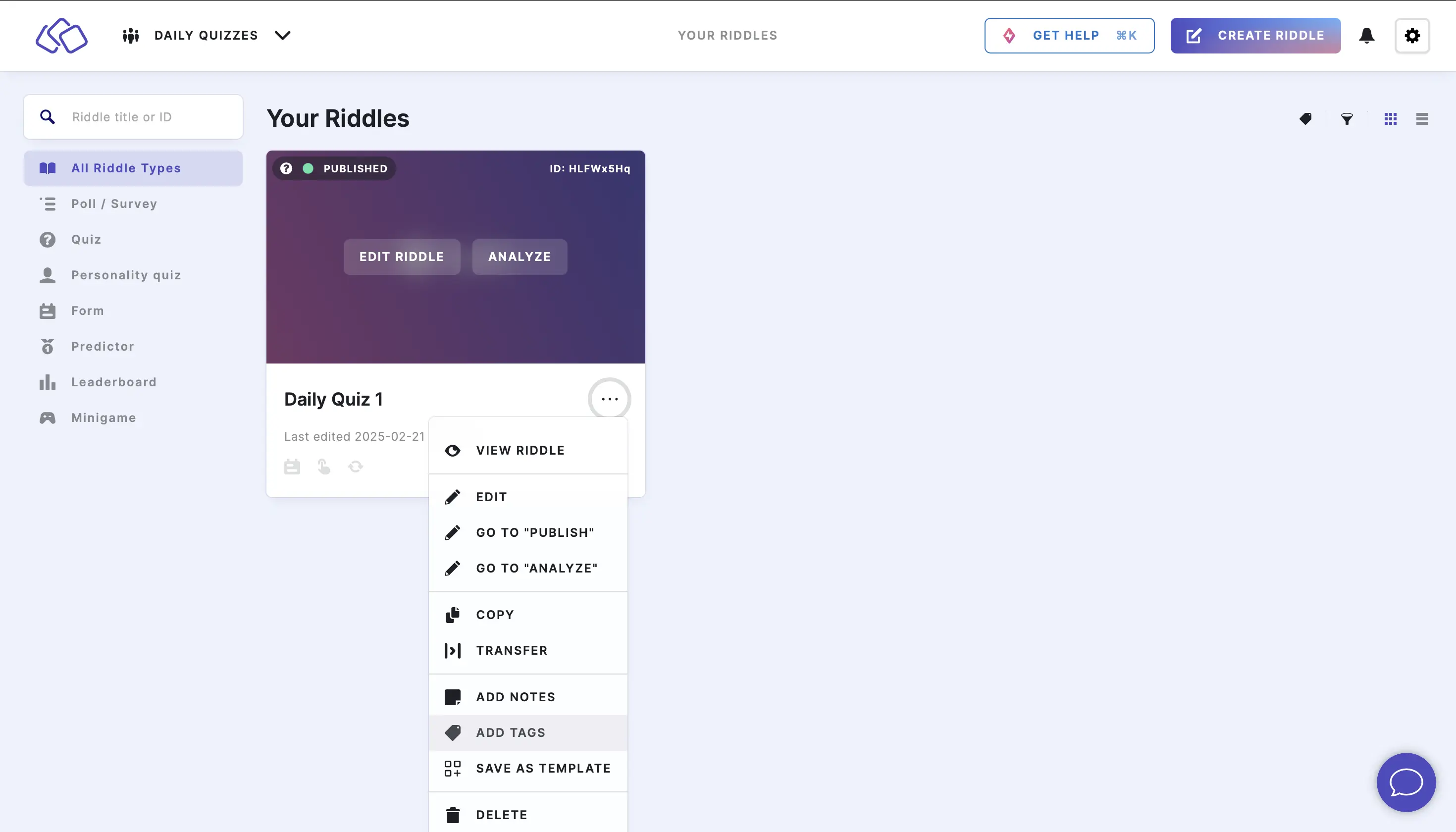
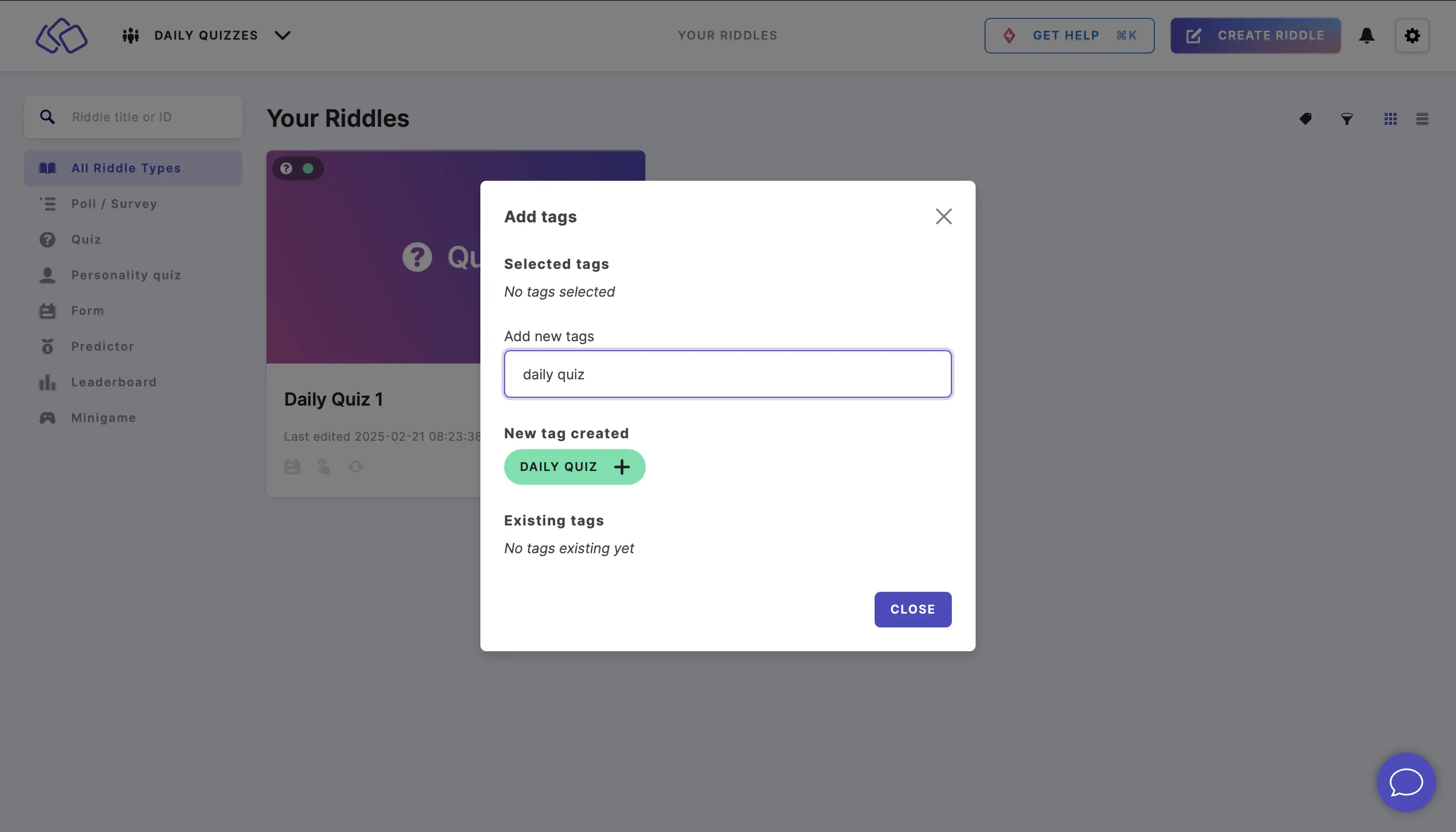
- Go to the YOUR RIDDLES section, click on the three dots next to the title, and click on ADD TAGS. Type a tag (always the same one), e.g. "daily quiz", into the Add new tags field, click on the green plus button
- Publish it.
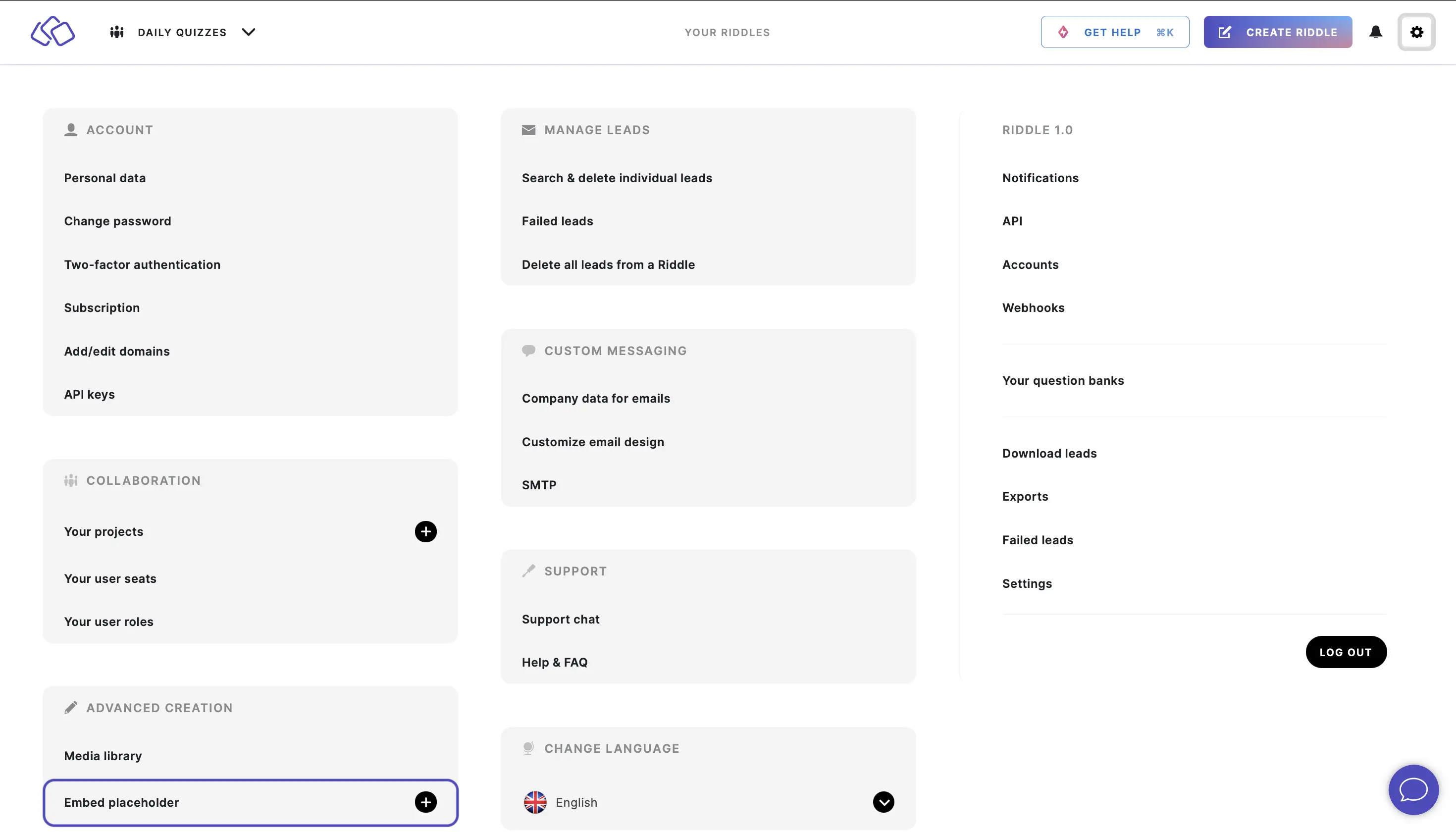
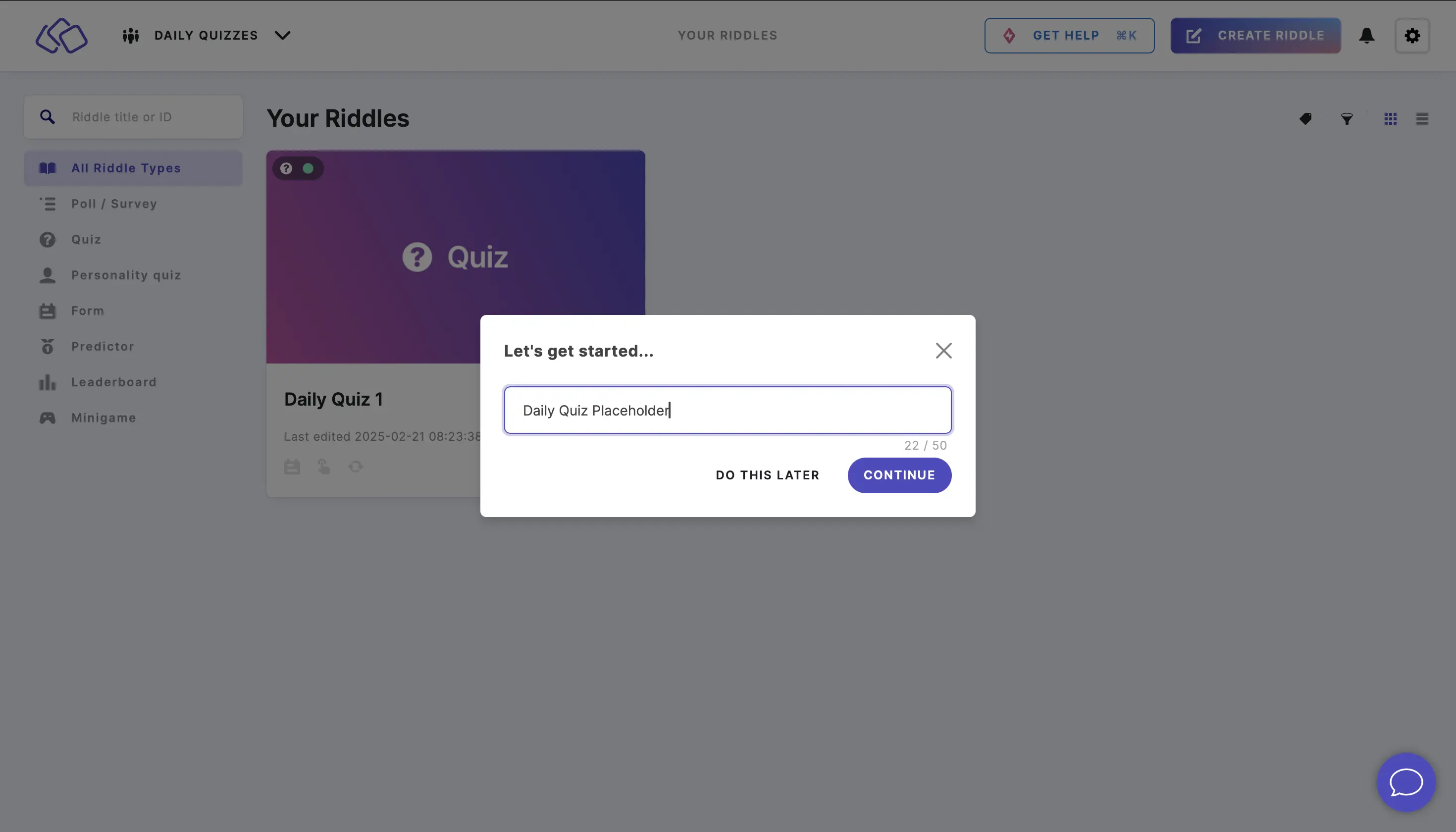
- Go to the main menu in the top right corner and click on the + next to Embed placeholder, enter a name (e.g. "Daily Quiz Placeholder") and click on CONTINUE.
- Apply the following settings:
- Default Riddle: don't select any unless you want one.
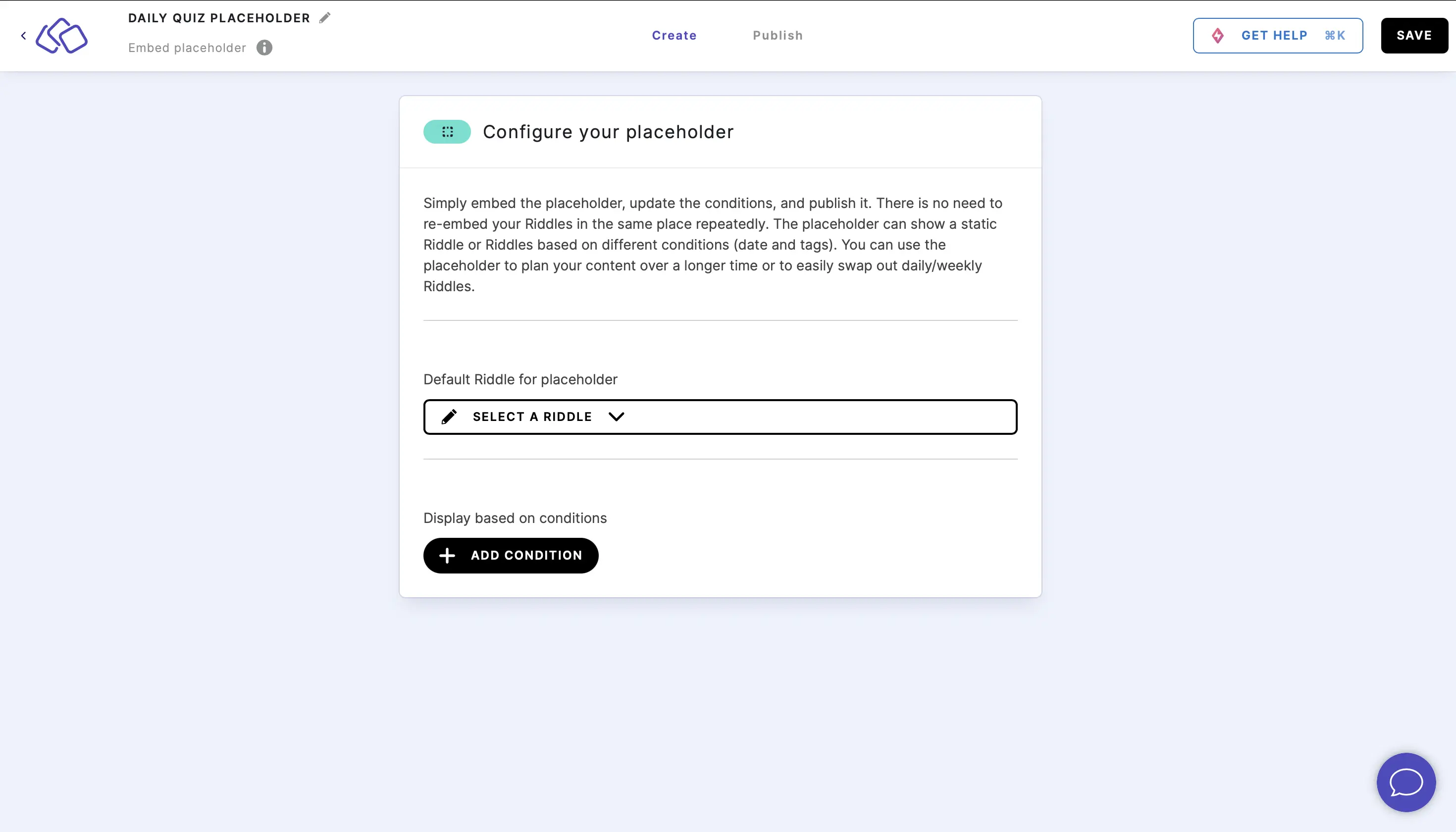
- Click on ADD CONDITION:
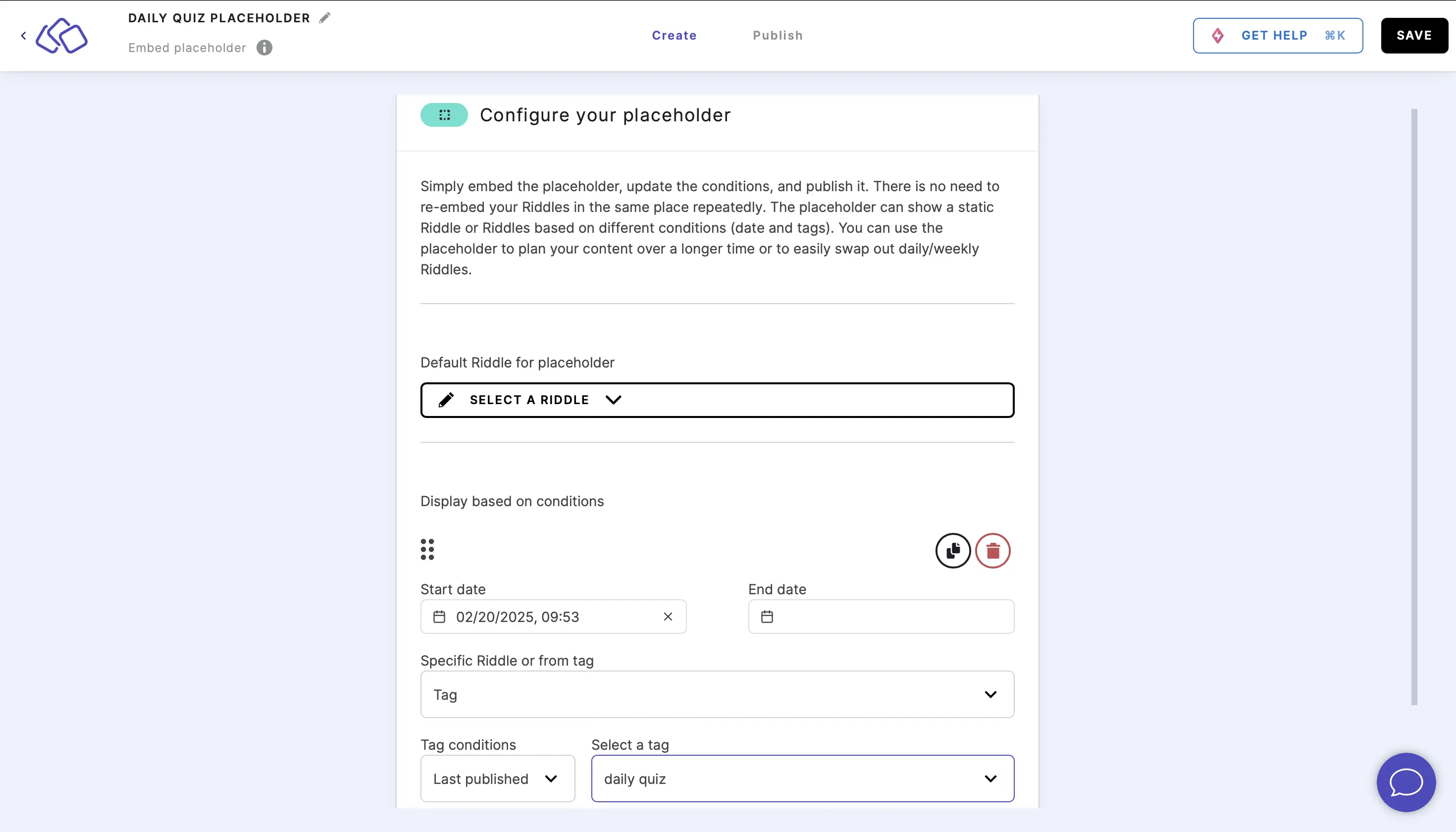
- Set the start date to any date in the past. Leave the end date.
- Specific Riddle or Tag: Choose "Tag"
- Tag conditions: "Last published"
- Select a tag: "daily quiz" (The tag you add to every quiz after publishing it)
- Default Riddle: don't select any unless you want one.
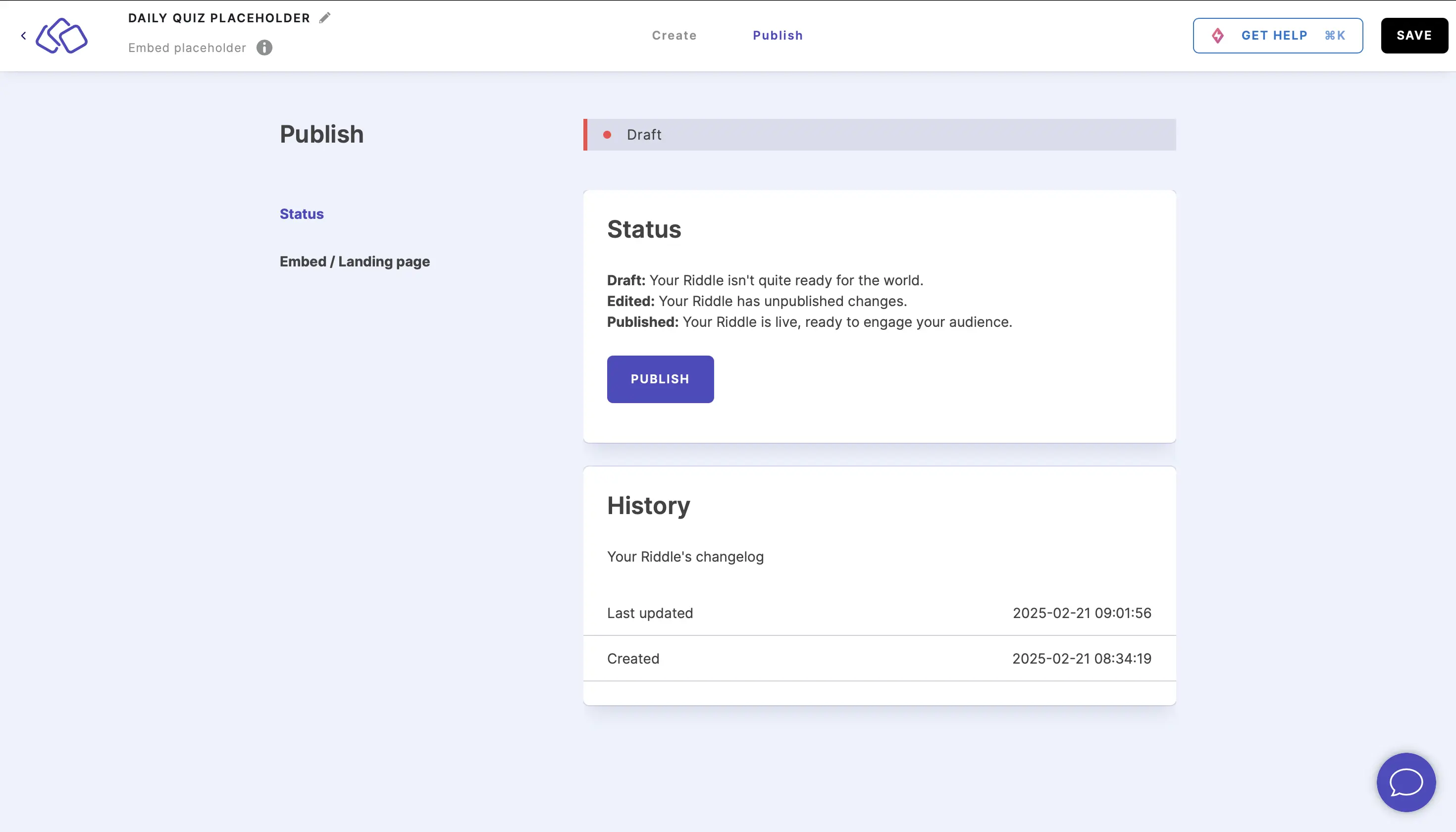
- Go to the Publish section and then click on PUBLISH.
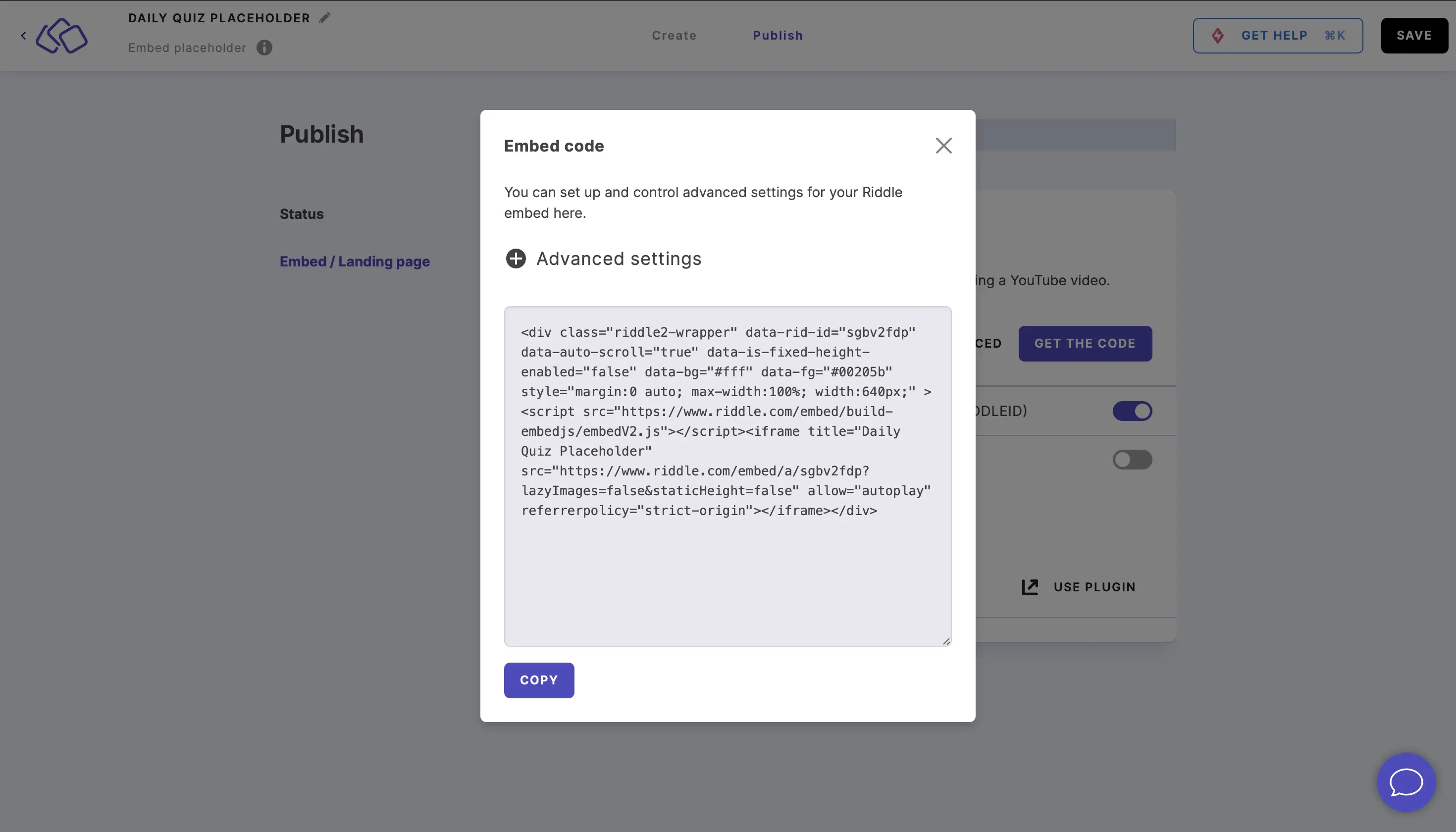
- Go to the Embed/Landing page section, click on GET THE CODE, click on COPY, and paste it into your website creator.
- The placeholder will show the last published Riddle with the "Daily Quiz" tag without you having to do anything else.
Note: Updating will take up to five minutes after adding the tag.