

Shuffle answers
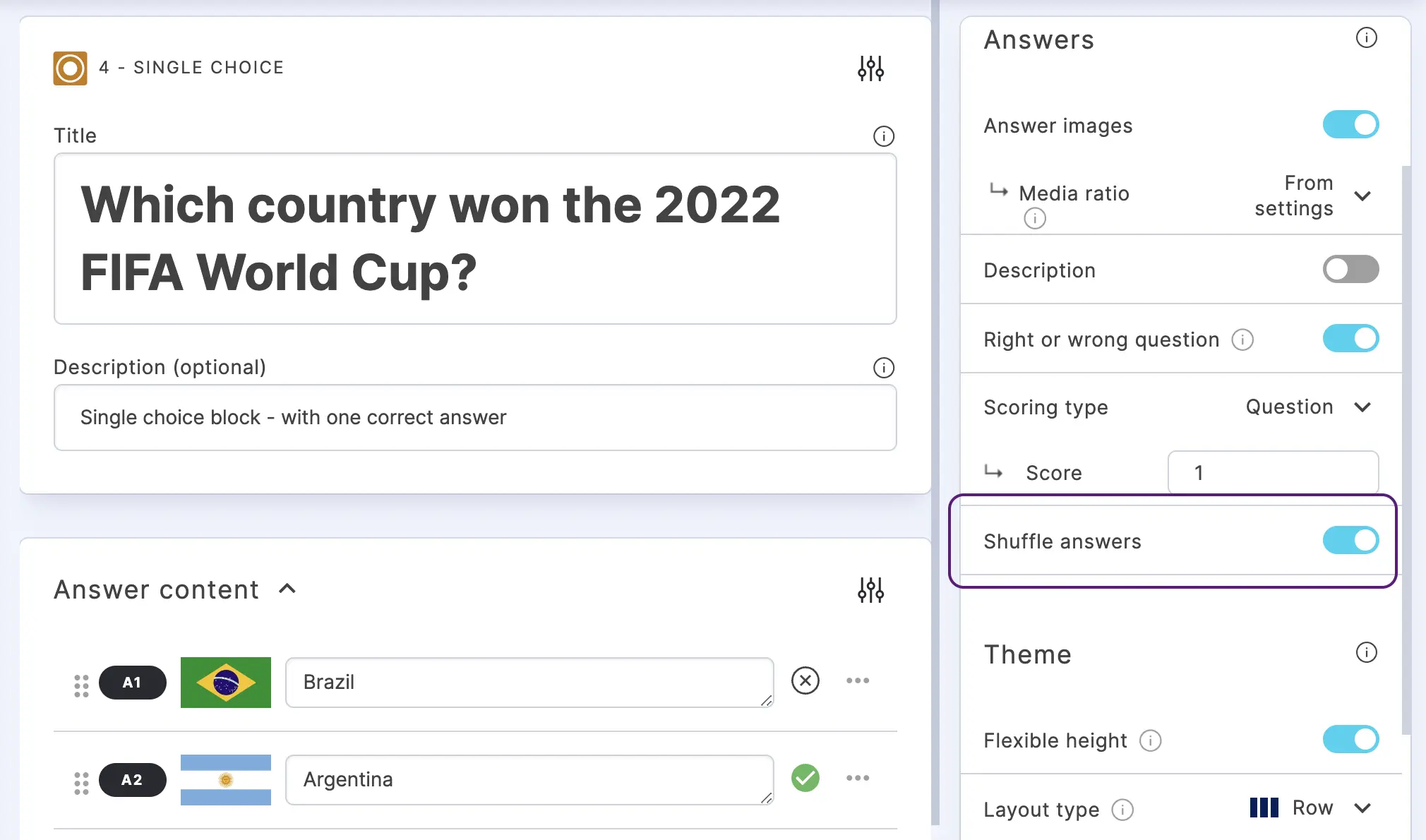
Shuffle answers randomizes the order of the answers each time a block loads, so every participant sees the choices in a different sequence. This prevents users from sharing answer positions (e.g. "the correct answer is always the third one") and is recommended for any competitive quiz or graded assessment.
Turn on shuffle answers
- Go to the CREATE section.
- Click on the Settings icon on the right of ANSWER CONTENT.
- Under ANSWERS, enable Shuffle answers.
Good to know: Shuffle answers is a setting of each block, not of the whole Riddle. Turn it on in every block you want randomized.
Which blocks support it
| Riddle type | Block | Default |
|---|---|---|
| Quiz | Single-select, Multi-select | OFF |
| Quiz | Order it | ON |
| Poll and survey | Single-select, Multi-select, Order it, Rate it | OFF |
| Personality quiz | Single-select, Multi-select | OFF |
Two related settings:
- Reshuffle choices after each submission (Quiz, Order it): shuffles the choices again after every incorrect attempt, so your audience can't just repeat their previous arrangement. See Order it.
- Shuffle questions (Poll and survey, Likert Matrix): randomizes the order of the rows instead of the answers. See Likert Matrix.
When to use it
- Quizzes and competitions: players can't pass on "it's C" to their friends, and a leaderboard reflects knowledge instead of shared answer positions.
- Polls and surveys: your audience is less influenced by where an answer sits, so the first option doesn't collect extra votes just because it comes first.
When to leave it off
Shuffle moves every answer in the block. Leave it off when the order carries meaning, for example:
- Scales such as "Never, Sometimes, Often, Always" or price ranges from low to high.
- Answers like "All of the above" or "None of the above" that only make sense in the last position.
- Years, dates or numbers that your audience expects in sequence.
Randomize the questions, too
Shuffle answers changes the order of the answers inside one block. To show your audience a random selection of questions instead, use a Question Bank: it draws questions from a database you build, so returning players get fresh content. See Create a Question Bank for quizzes.
Next steps
- Single-select – all options of the most common quiz block.
- Guesses and lives – give your audience more than one try per question.