

Flashcard
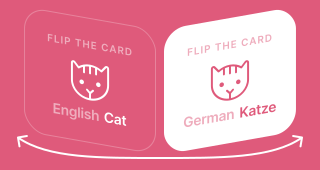
Encourage self-directed learning with interactive flashcards. Each card has a front and back side. Your audience flips the card to reveal the answer, then self-marks I got it right or I got it wrong.
Setup
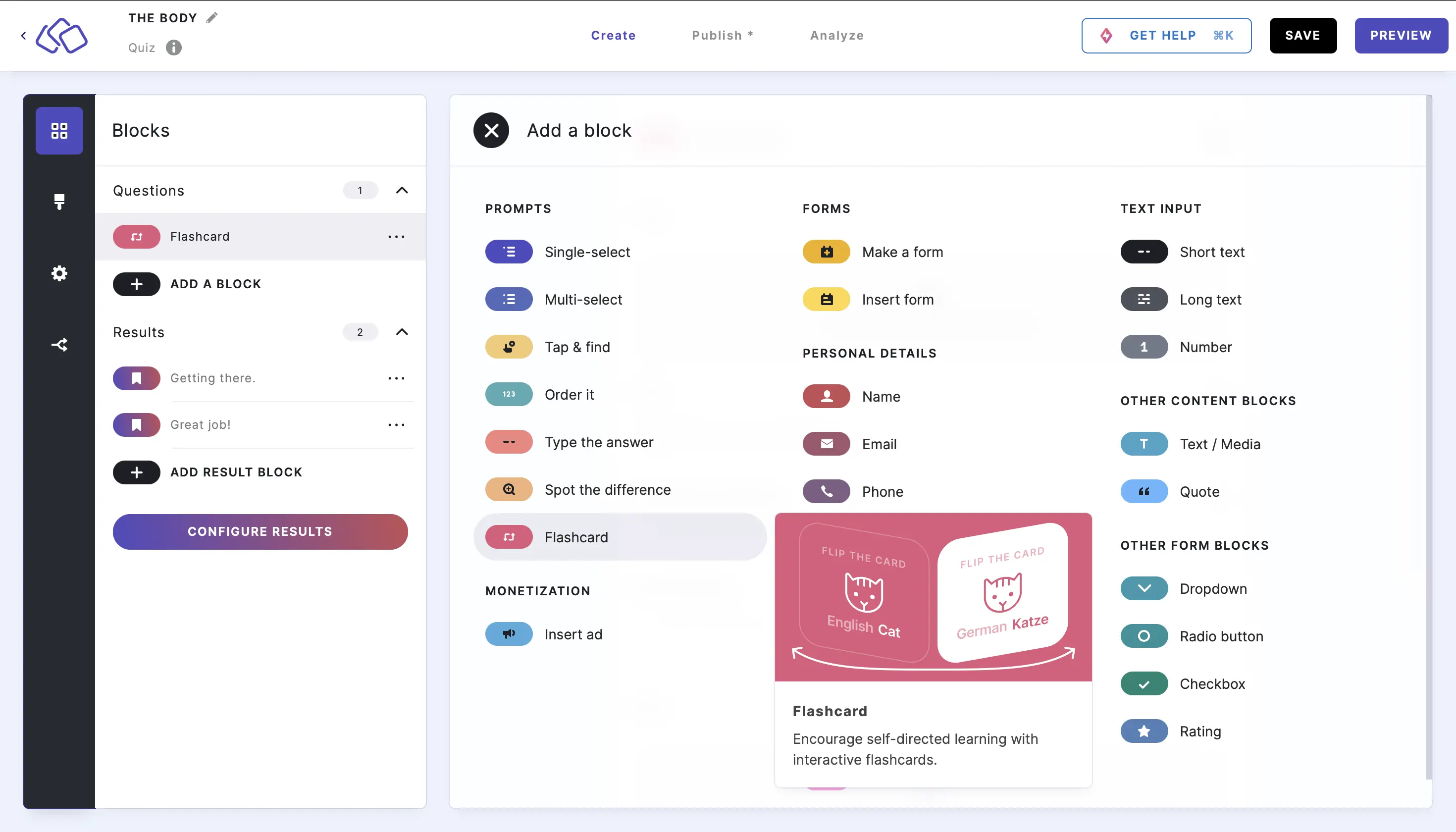
- Click on ADD A BLOCK and select Flashcard.
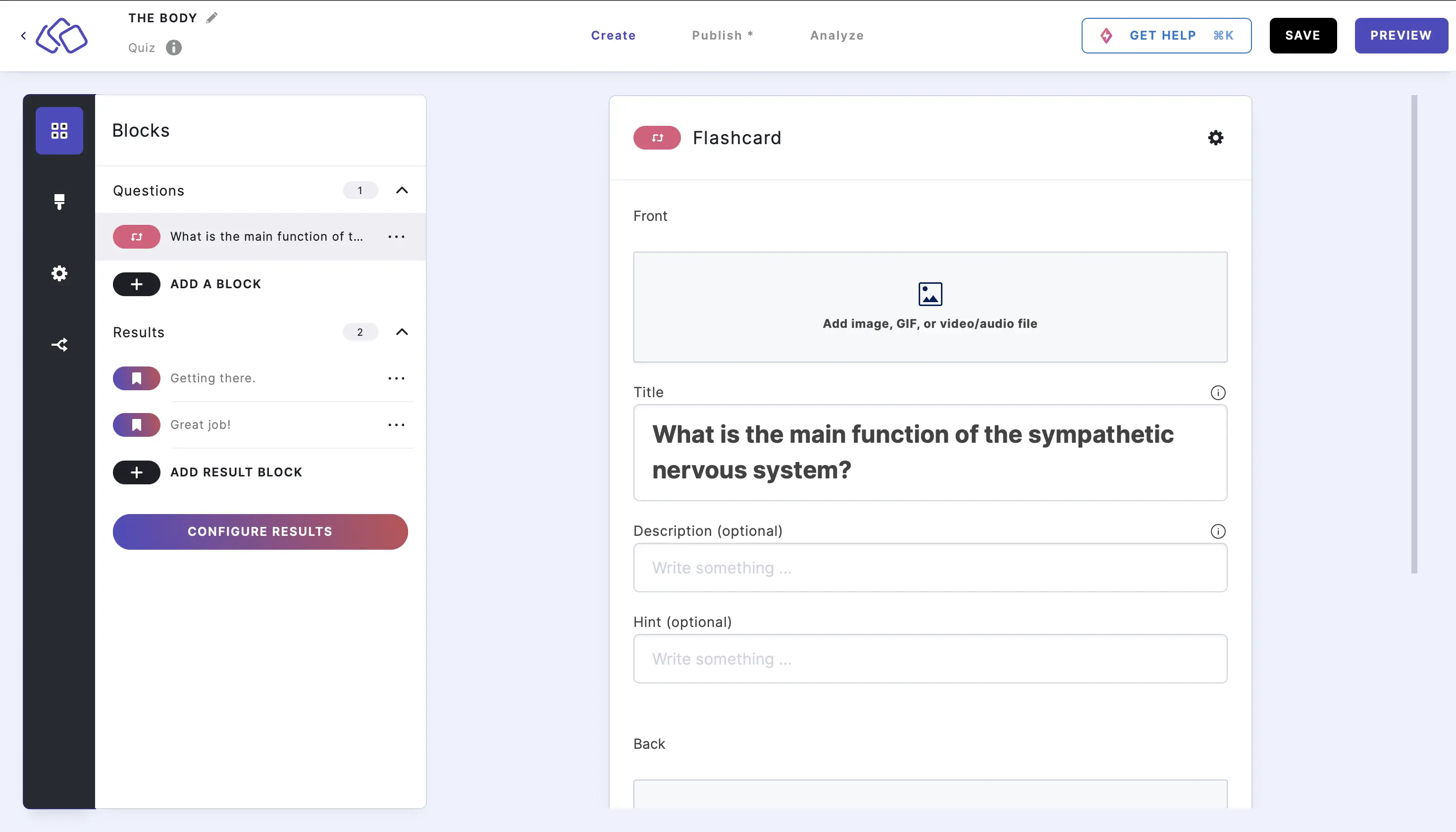
- Fill in the front of the flashcard by inserting a question or phrase into the Title field. Enter an optional Description and Hint.
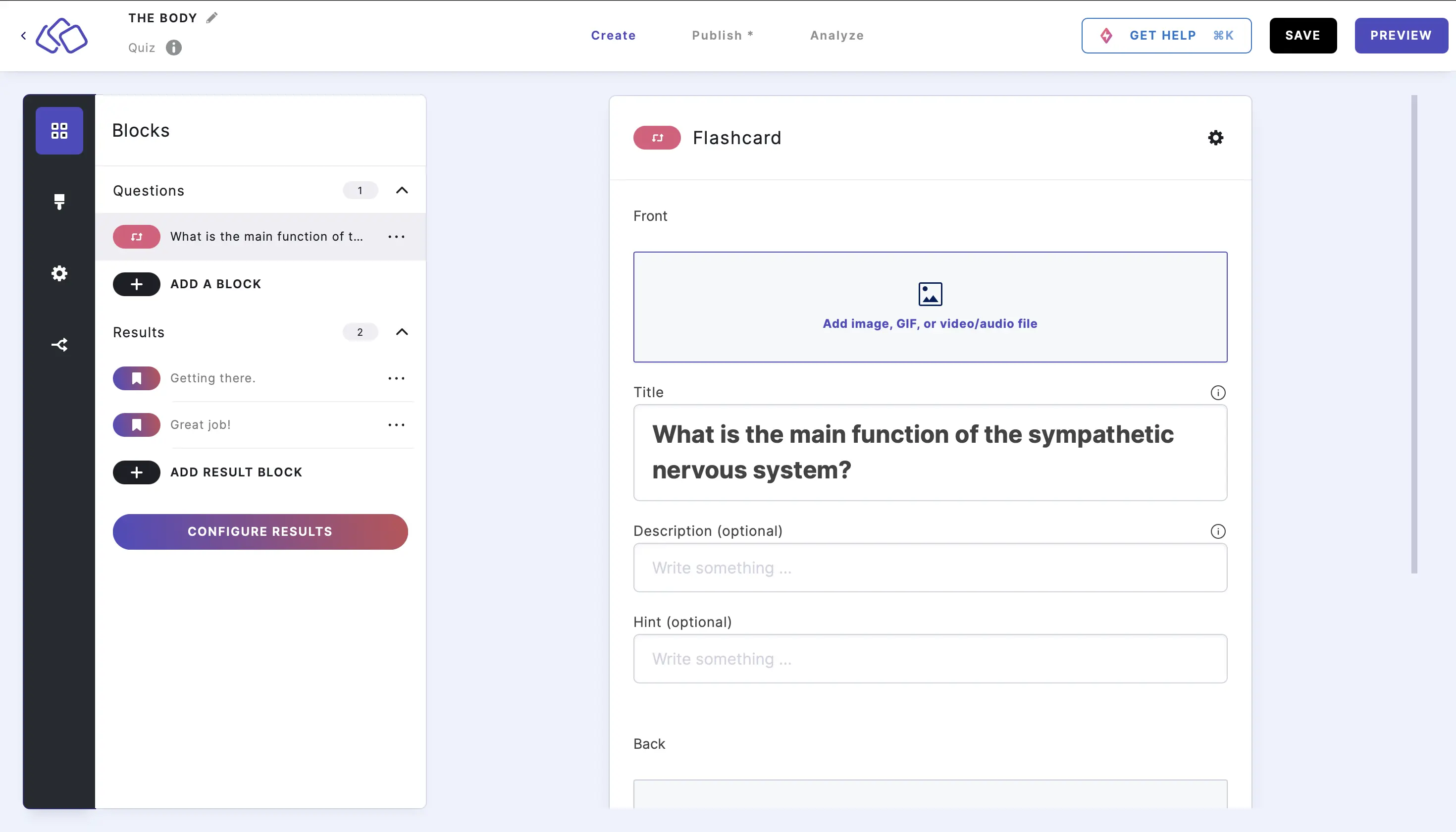
- Add an image to the front by clicking on Add image, GIF, or video/audio file.
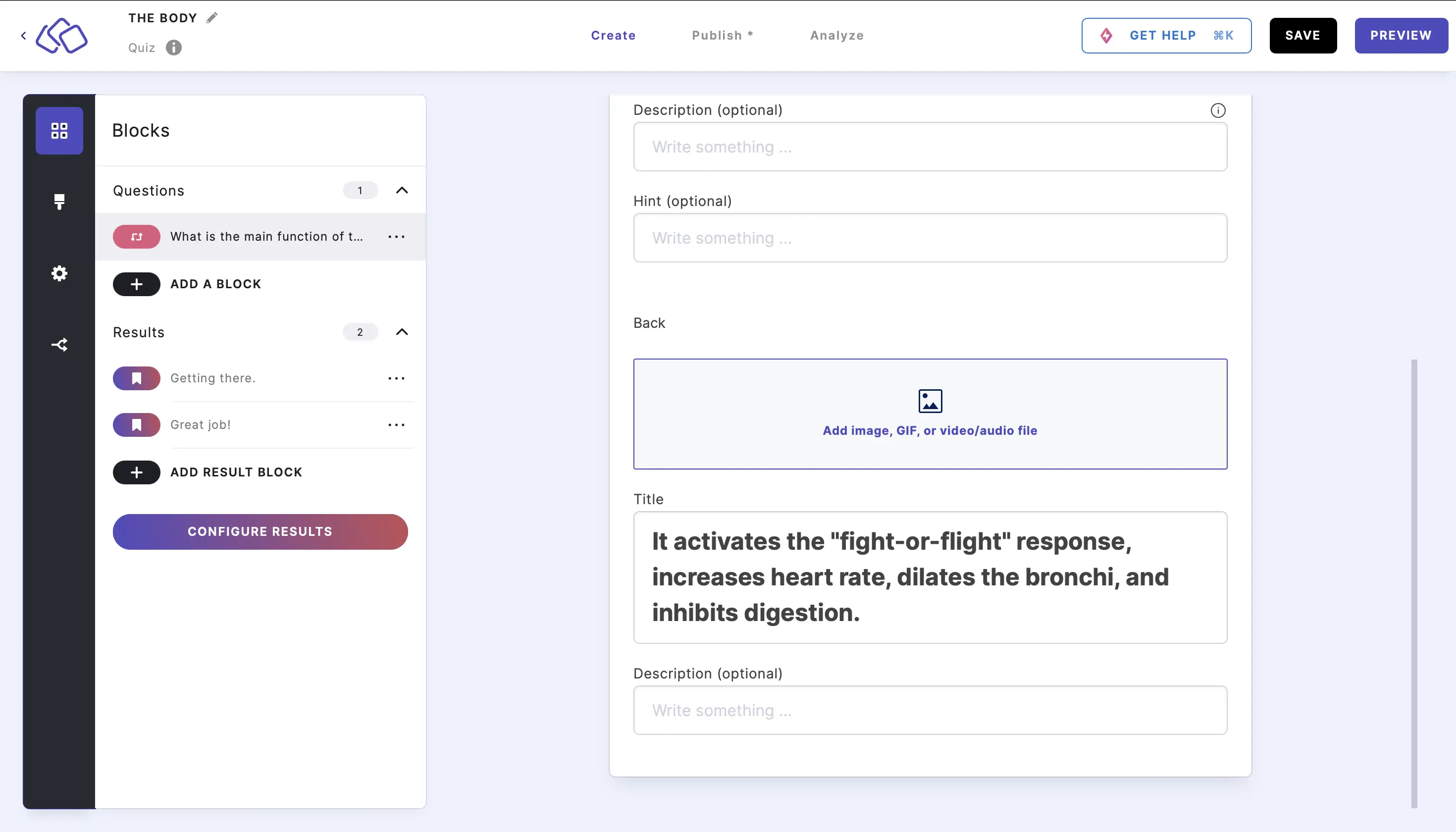
- Fill in the back of the flashcard by inserting a question or phrase into the Title field. Enter an optional Description.
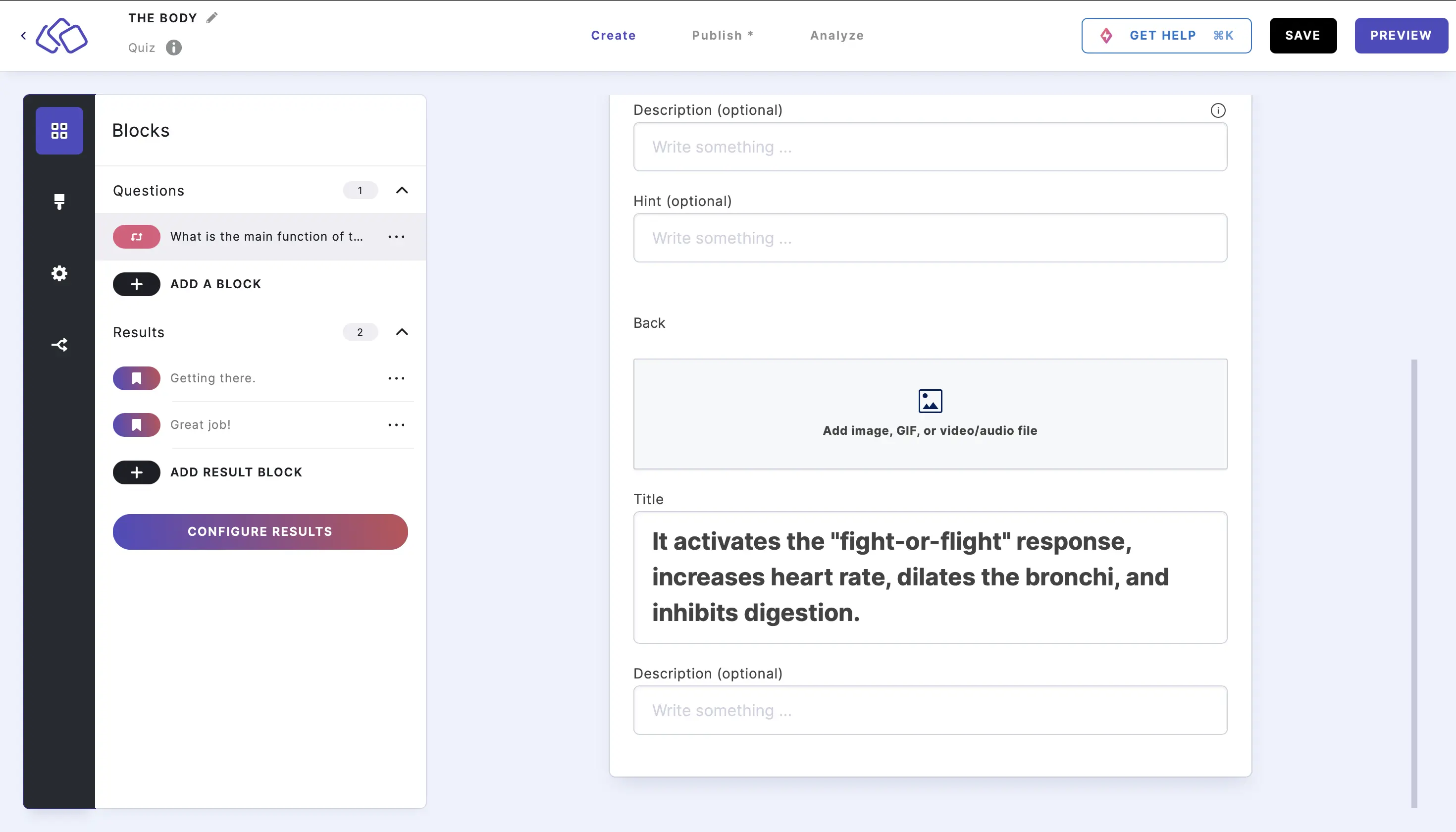
- Add an image to the back by clicking on Add image, GIF, or video/audio file.
- To change the score for the flashcard, click on the options icon on the right of Flashcard, and enter the number of points you want to assign when your audience marks the card I got it right. The default score is one.
Hints
You can add hints in the Hint field on the front of the flashcard. Your audience can choose to reveal the hint at any time. Hints give your audience a nudge in the right direction without giving away the answer on the back.
Options
Click on the options icon on the right to configure the following settings.
Media
| Option | Description | Default |
|---|---|---|
| Media ratio | Choose the aspect ratio of the flashcard media: From settings, Wide 16:9, Square 1:1, Tall 3:4, or Original ratio. | From settings |
Answers
| Option | Description | Default |
|---|---|---|
| Score | The number of points awarded when your audience marks the card I got it right. | 1 |
| Text for "I got it right" | Custom label for the right button. | I got it right |
| Text for "I got it wrong" | Custom label for the wrong button. | I got it wrong |
| Text for "Reveal Answer" | Custom label for the flip button. | Reveal Answer |
Quiz navigation with flashcards
Flashcards work differently from other quiz blocks: your audience flips each card and scores themselves.
- The front of the card shows first, with a Reveal Answer button. Your audience taps it – or taps the card – to flip to the answer.
- Once flipped, they self-mark: the button splits into I got it wrong and I got it right, and the option they choose is then shown.
- I got it right adds the card's score.
- I got it wrong leaves the score unchanged.
- They can tap the card again to flip it back. The Reveal Answer, I got it right, and I got it wrong labels are all customizable in the block options.
How flashcard navigation differs from standard blocks
| Action | Standard block | Flashcard block |
|---|---|---|
| Answering | Select an answer and submit | Flip the card, then mark I got it right or I got it wrong |
| Back | Returns to the previous block (re-voting not possible) | Returns to the previous flashcard in its already-answered state (re-voting is possible) |
| Next | Goes to the next block in order | Goes to the next unanswered flashcard first, then continues in order |
| Play again | Shows unanswered questions first, then starts from the beginning | Shows only unanswered flashcards until all are finished |
| Reset flashcards | - | Restarts the entire quiz |
Audience percentages
When Display percentages is enabled, a flipped flashcard shows the share of your audience who marked it right versus wrong, beneath the answer – just like the audience stats on Order it or Tap and find.
- Right – marked I got it right.
- Wrong – flipped the card but didn't mark it right.
Remember user setting
- OFF: Progress is lost on page reload. Your audience starts fresh each time.
- ON (permission required): Your audience is asked for consent on the first flashcard or form. If they agree, progress is saved.
- ON (permission not required): Progress is saved automatically. On page reload, your audience is taken to their next unanswered card.
Timer behavior
When a Riddle timer expires, the current right/wrong status is preserved. Your audience is redirected to the first block and can continue from there.
Please note: Forms that were automatically submitted during the quiz will not be re-submitted when navigating back, but they are displayed as answered and disabled.