

Multi-select
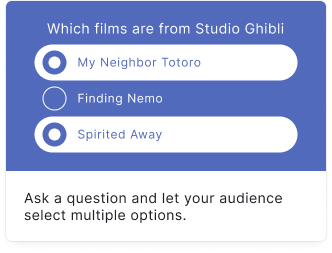
Your audience can pick more than one answer. Multi-select questions are ideal when multiple responses can be correct, such as "select all that apply" formats.
Setup
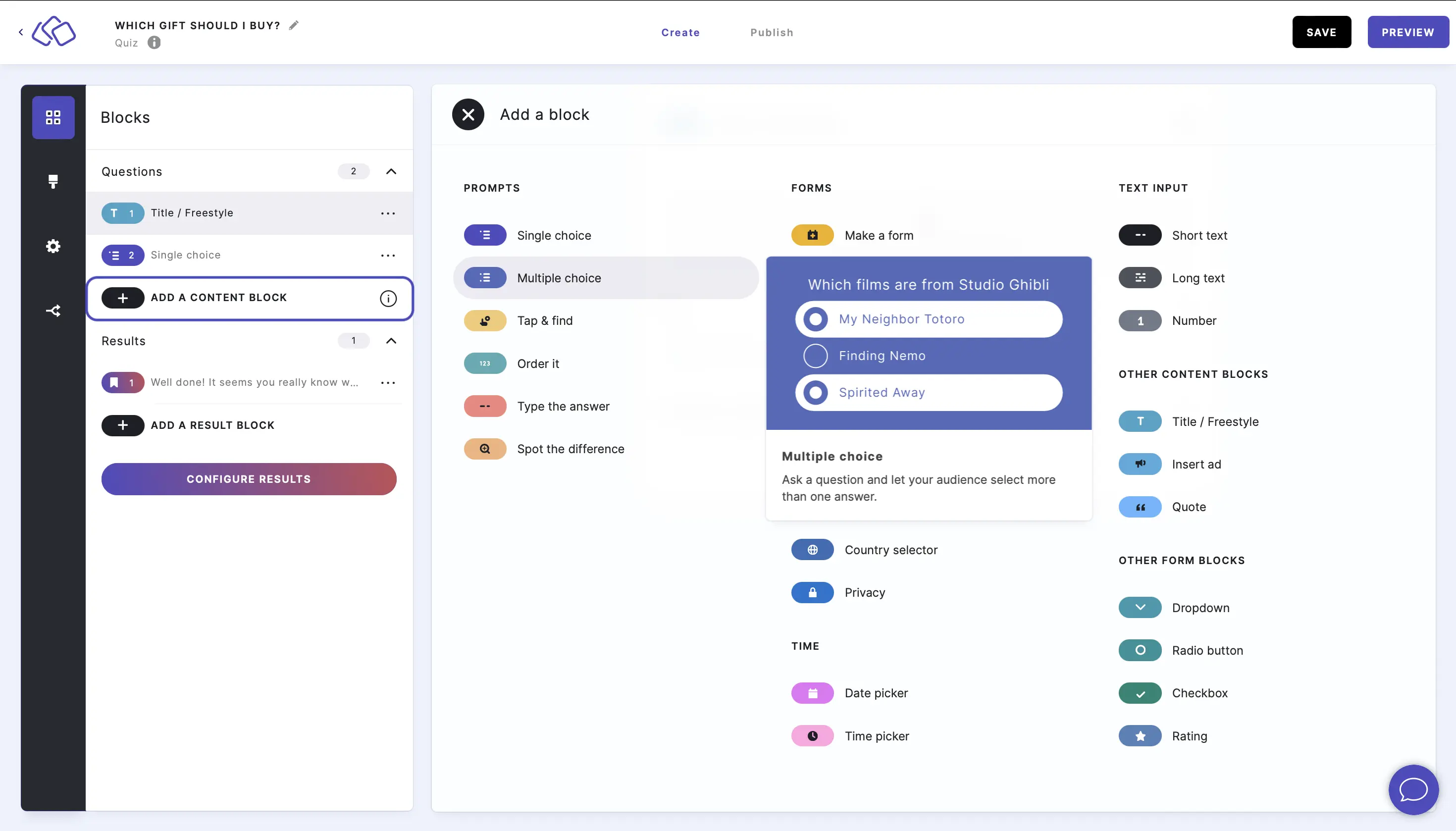
- Click on ADD A BLOCK and select Multi-select.
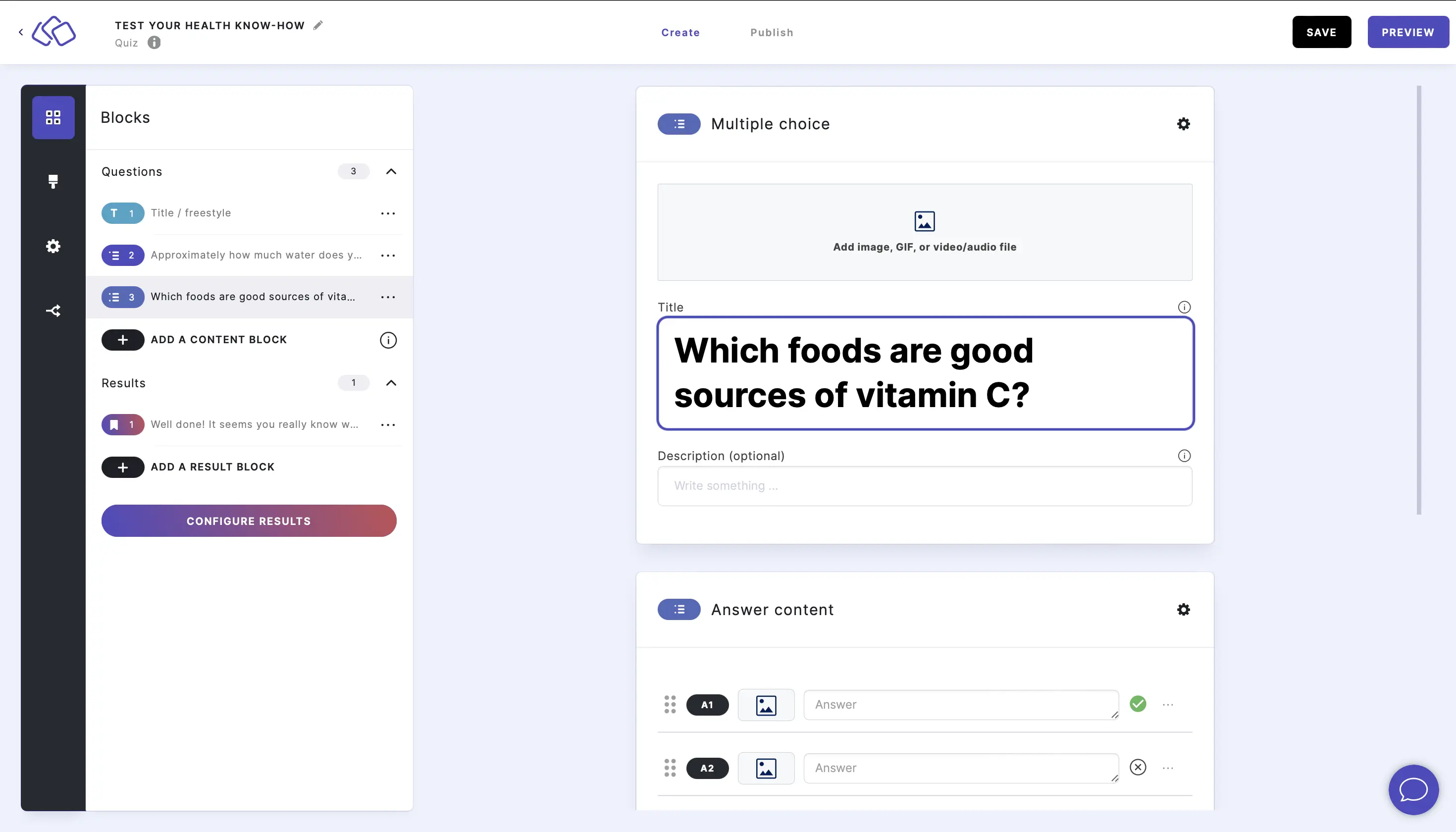
- Insert a question into the Title field.
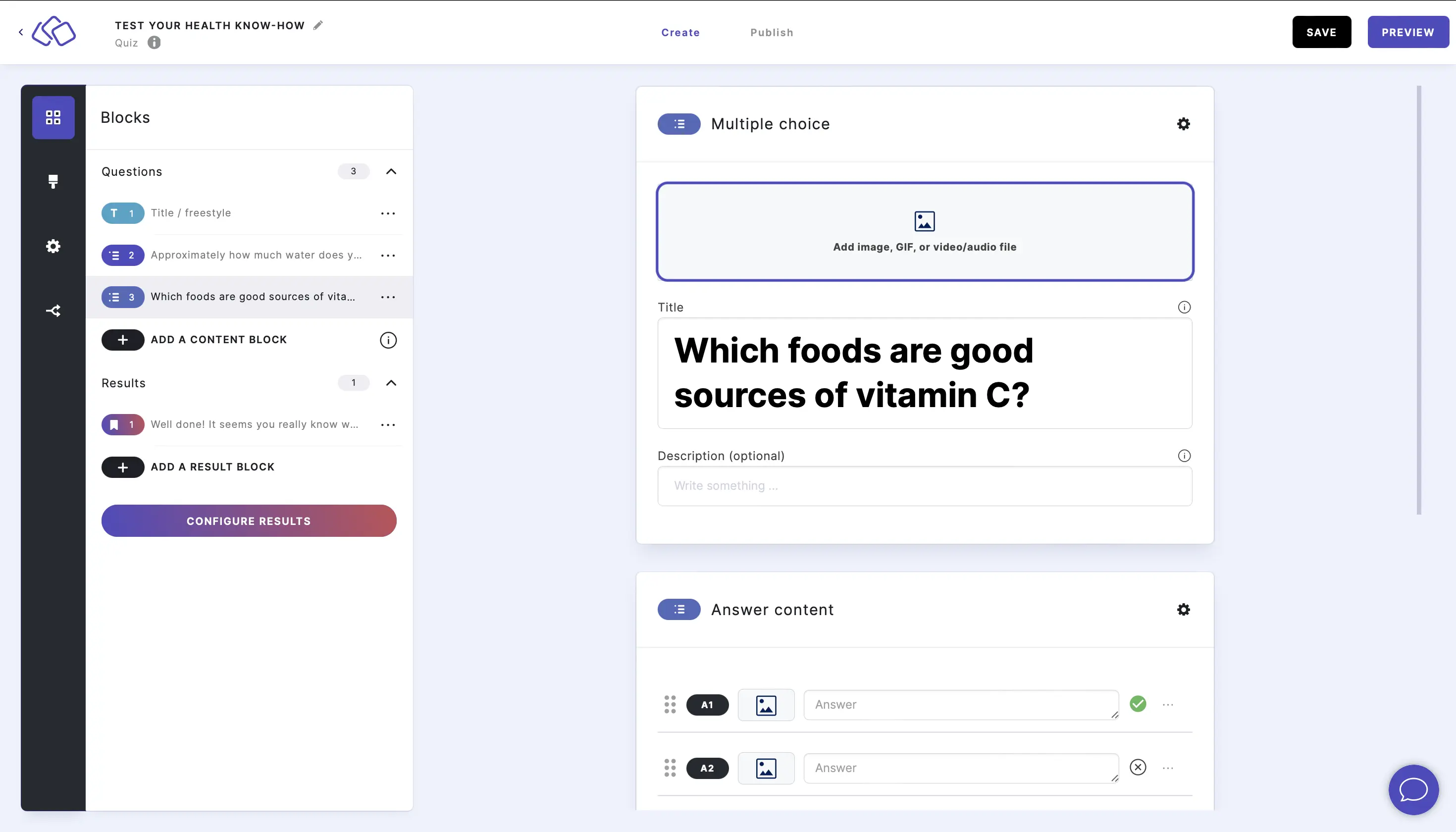
- Add an image by clicking on Add image, GIF, or video/audio file.
- Insert the answers. Add as many answers as you want by clicking on Add an answer.
Click on the cross next to the answer to make it into a correct answer.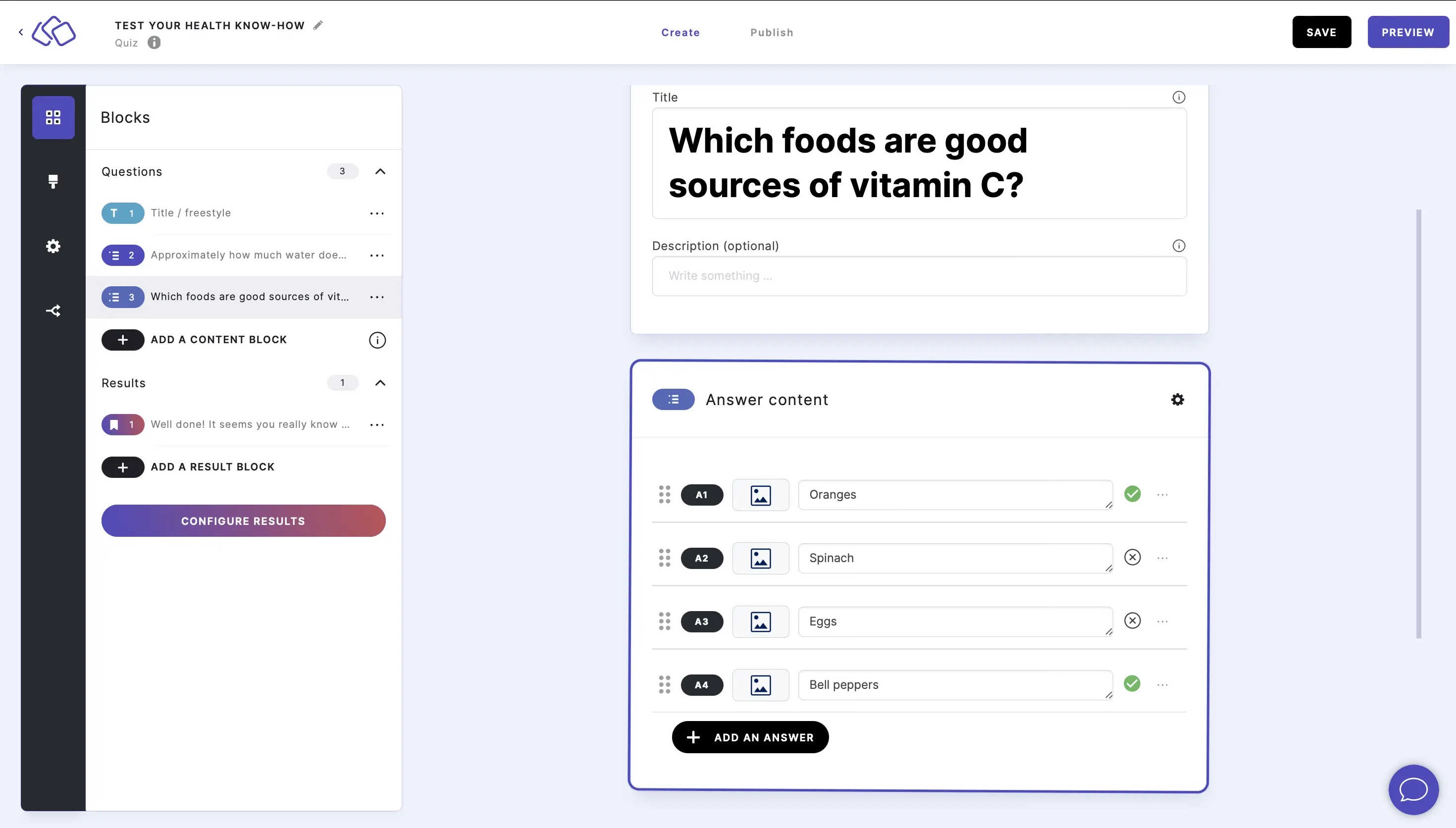
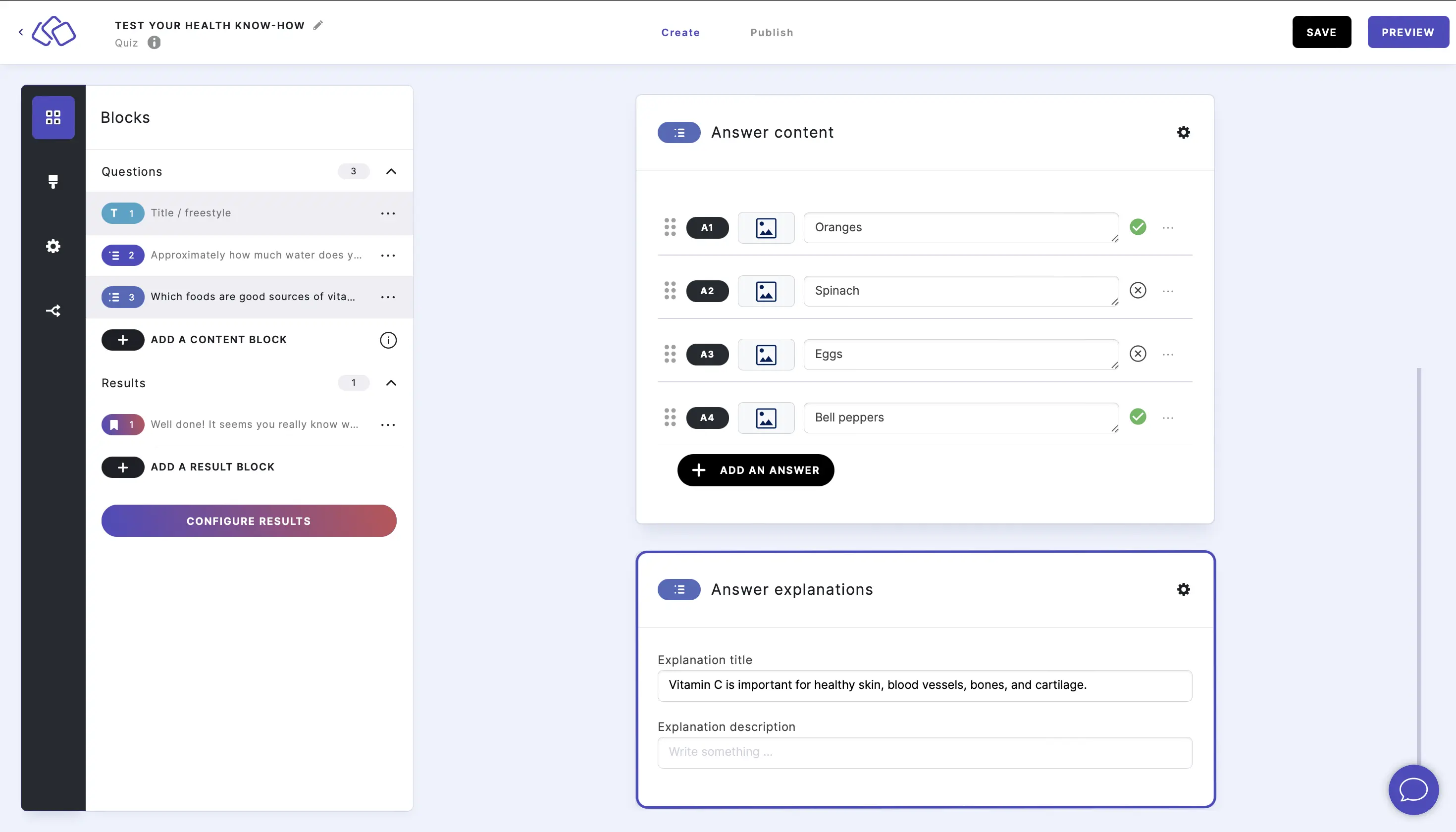
- Insert explanations into the Answer explanation field(s) (optional).
Options
Click on the options icon on the right to configure the following settings.
Media
| Option | Description | Default |
|---|---|---|
| Show media | Toggle to show or hide the block's main image. | ON |
| Media ratio | Choose the aspect ratio: From settings, Wide 16:9, Square 1:1, Tall 3:4, or Original ratio. | From settings |
Required
| Option | Description | Default |
|---|---|---|
| Required | When enabled, your audience must answer this block before proceeding. When disabled, a "Skip" button appears. | ON |
Answers
| Option | Description | Default |
|---|---|---|
| Show answer media | Toggle to show or hide images on each answer choice. | ON |
| Media ratio | Choose the aspect ratio for answer images: From settings, Wide 16:9, Square 1:1, Tall 3:4, or Original ratio. | From settings |
| Description | Show a description field below each answer. | OFF |
| Right or wrong question | When enabled, answers are marked as correct or incorrect. Disable this for opinion-based questions with no wrong answers. | ON |
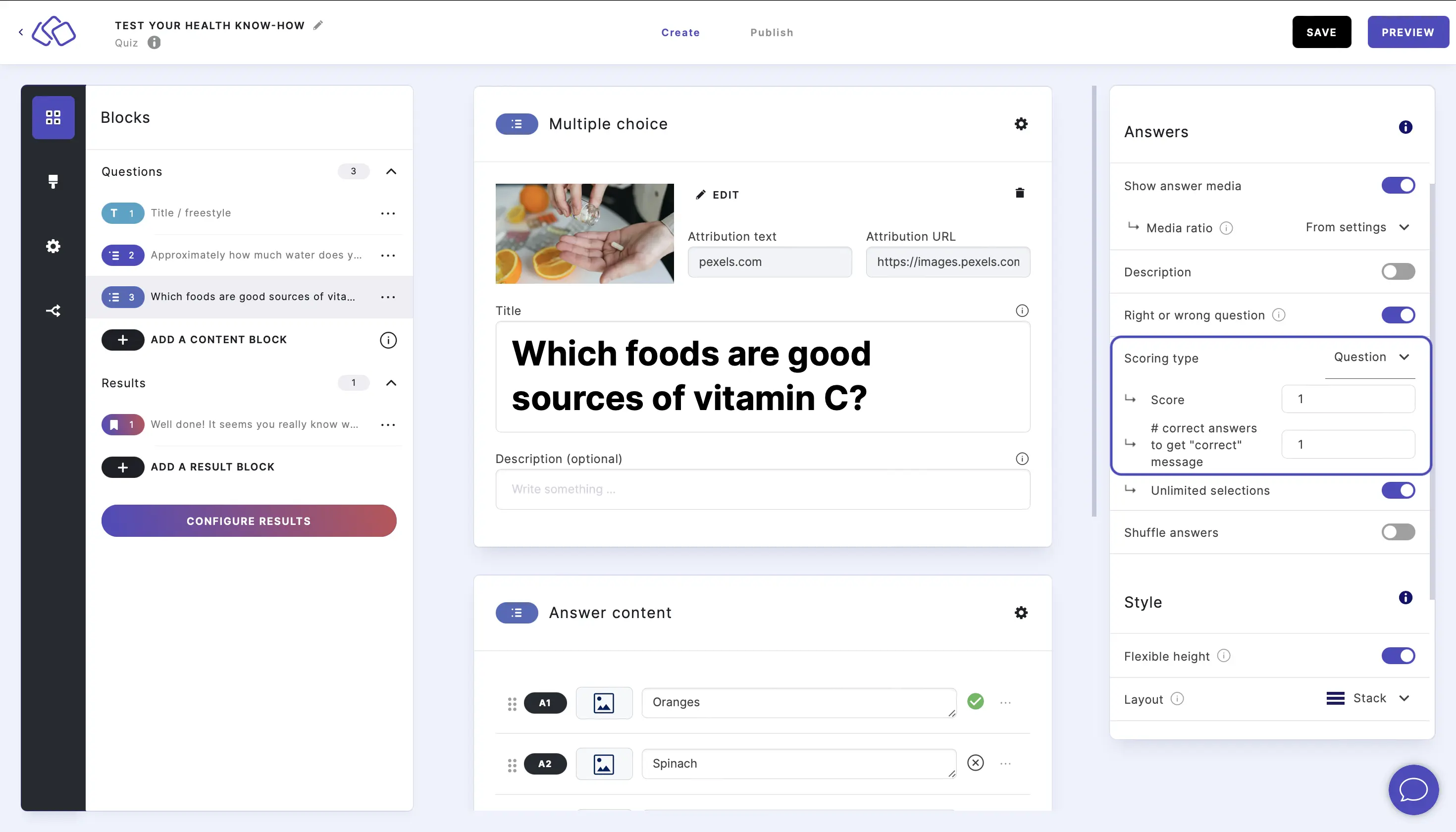
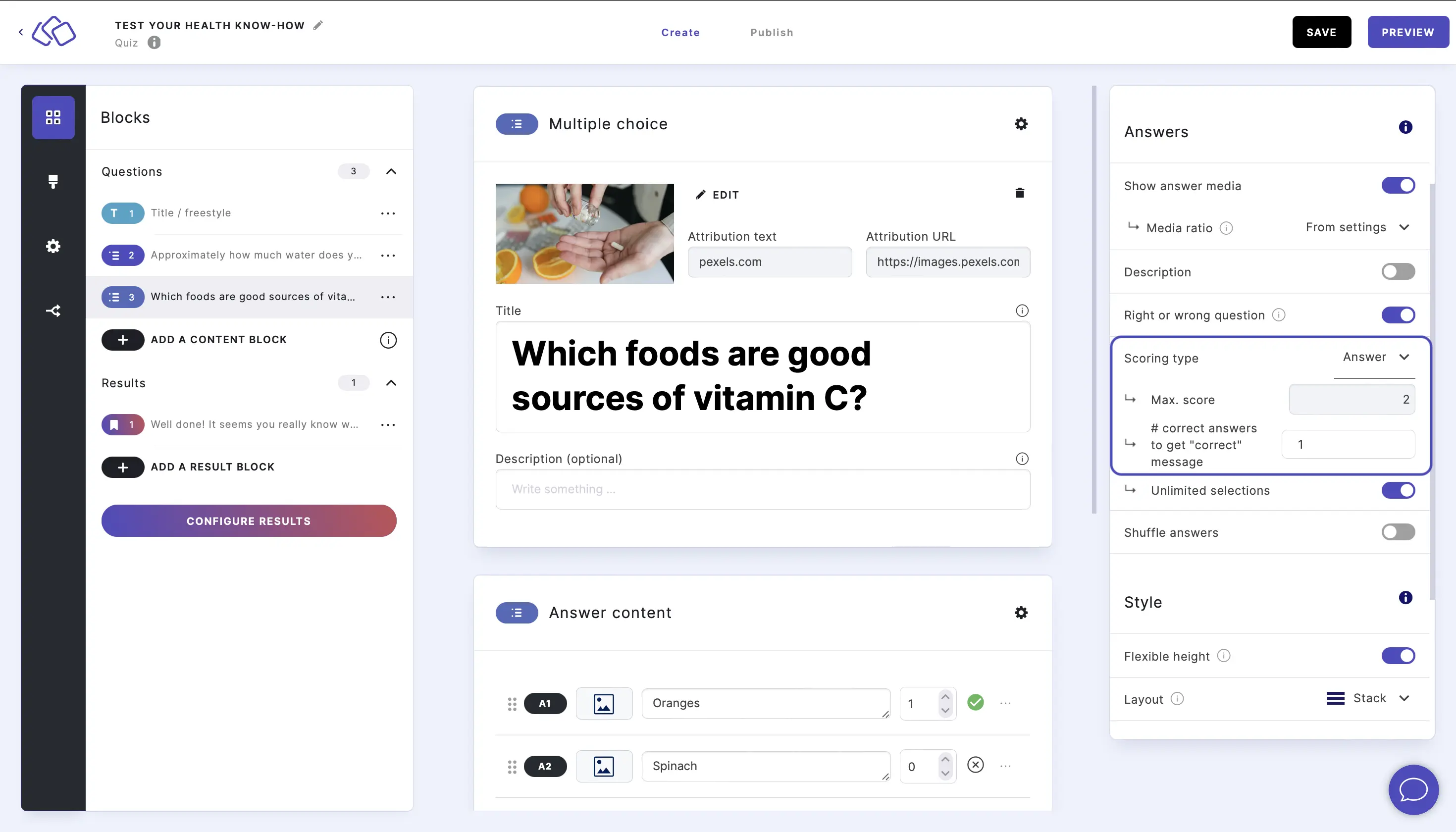
| Scoring type | Choose how points are awarded: Question (one score for the whole question) or Answer (individual score per answer). | Question |
| Score | The number of points awarded for a correct answer. Only visible when Scoring type is set to Question. | 1 |
| # correct answers to get "correct" message | The minimum number of correct answers your audience needs to select to receive the "correct" feedback. Only visible when Scoring type is set to Question. | 1 |
| Unlimited selections | Allow your audience to select as many answers as they want with no limit. | ON |
| Show amount of possible choices | Show your audience how many remaining options they can still select. | OFF |
| Shuffle answers | Randomize the order of answers each time the block loads. | OFF |
Change scoring
By default, every correct answer is worth one point with one correct answer needed to get the point, and the audience has an unlimited number of answer selections.
To have a score per question, enter your preferred Score and # correct answers to get "correct" message.
To change the score per answer, change Scoring type to Answer and adjust the scores next to the answers.
Limit the number of selections
To limit the number of selections, disable Unlimited number of selections and then enter your chosen maximum.
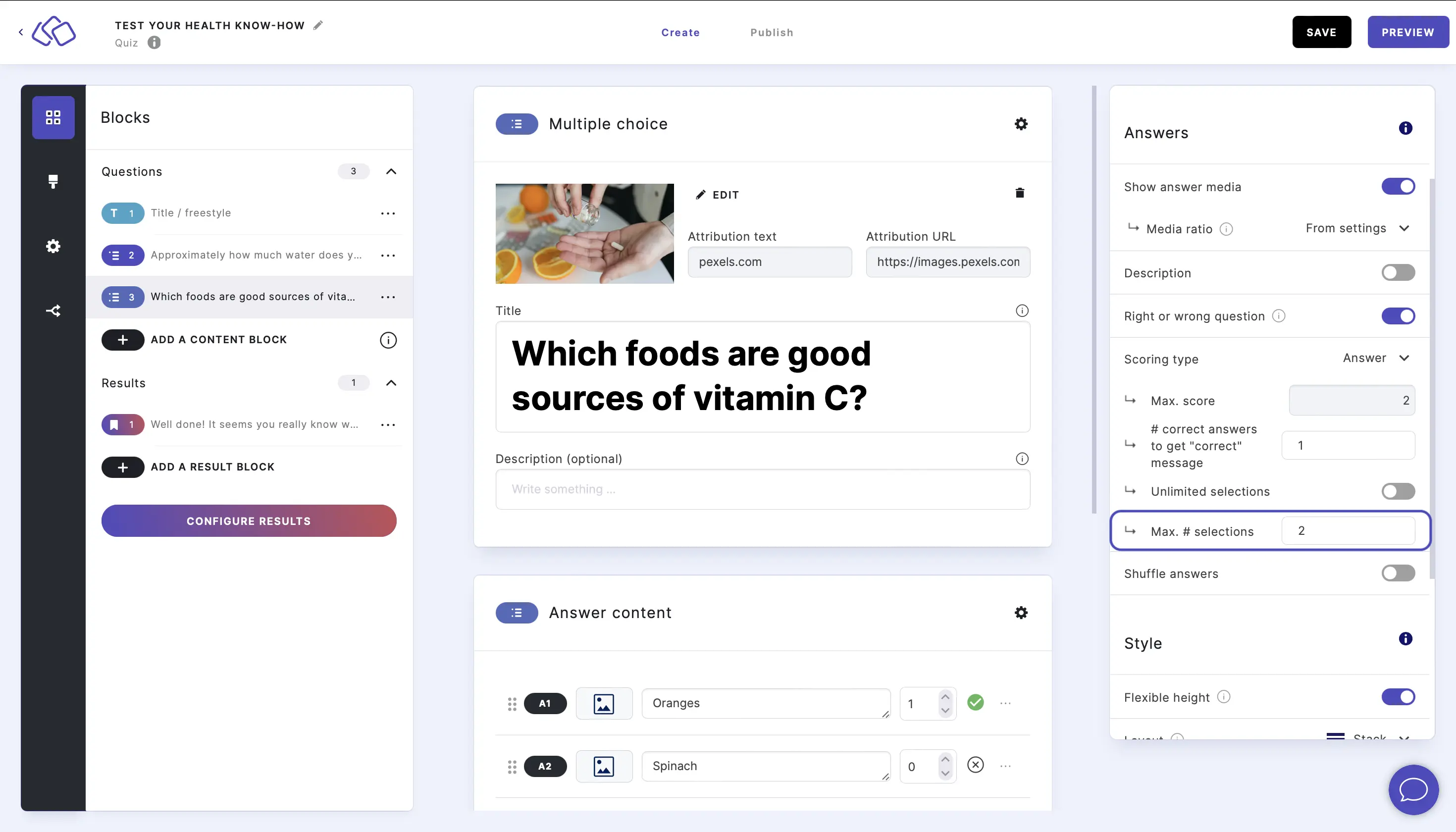
Show amount of possible choices
To show your audience how many remaining options they can still select, enable Show amount of possible choices.
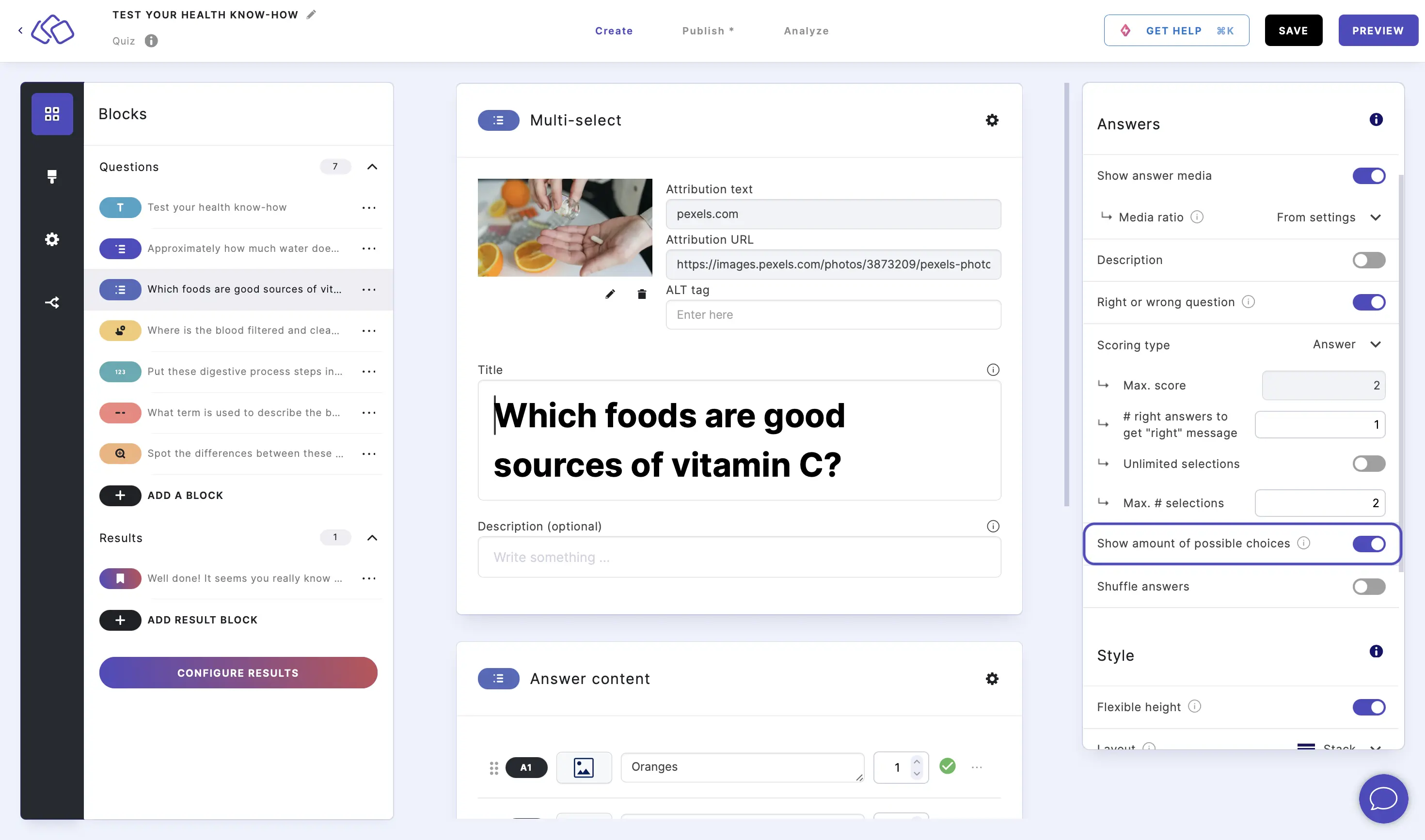
Answer explanations
| Option | Description | Default |
|---|---|---|
| Show explanations | Toggle to show or hide answer explanations after your audience answers. | ON |
| # of explanations | Choose how many explanations to display: One for all answers, Right and wrong, or Per answer. | One for all answers |
| Answer explanation display | Choose where the explanation appears: Overlay pop-up or Below question. | Overlay pop-up |
| Show media | Toggle to show or hide images in the answer explanation. | ON |
| Media ratio | Choose the aspect ratio for explanation images: From settings, Wide 16:9, Square 1:1, Tall 3:4, or Original ratio. | From settings |
Style
| Option | Description | Default |
|---|---|---|
| Flexible height | Allow answer boxes to have different heights based on their content. | ON |
| Layout | Choose how answers are displayed: Stack (vertical list) or Row (horizontal grid). | Stack |