

Reaction poll
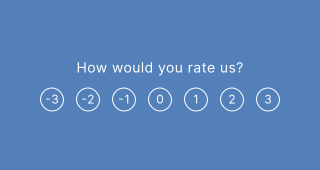
A slider-based feedback block. Your audience moves a slider to express their level of agreement or opinion. Great for sentiment analysis and quick mood checks.
Setup
- Click on ADD A BLOCK and select Reaction poll.
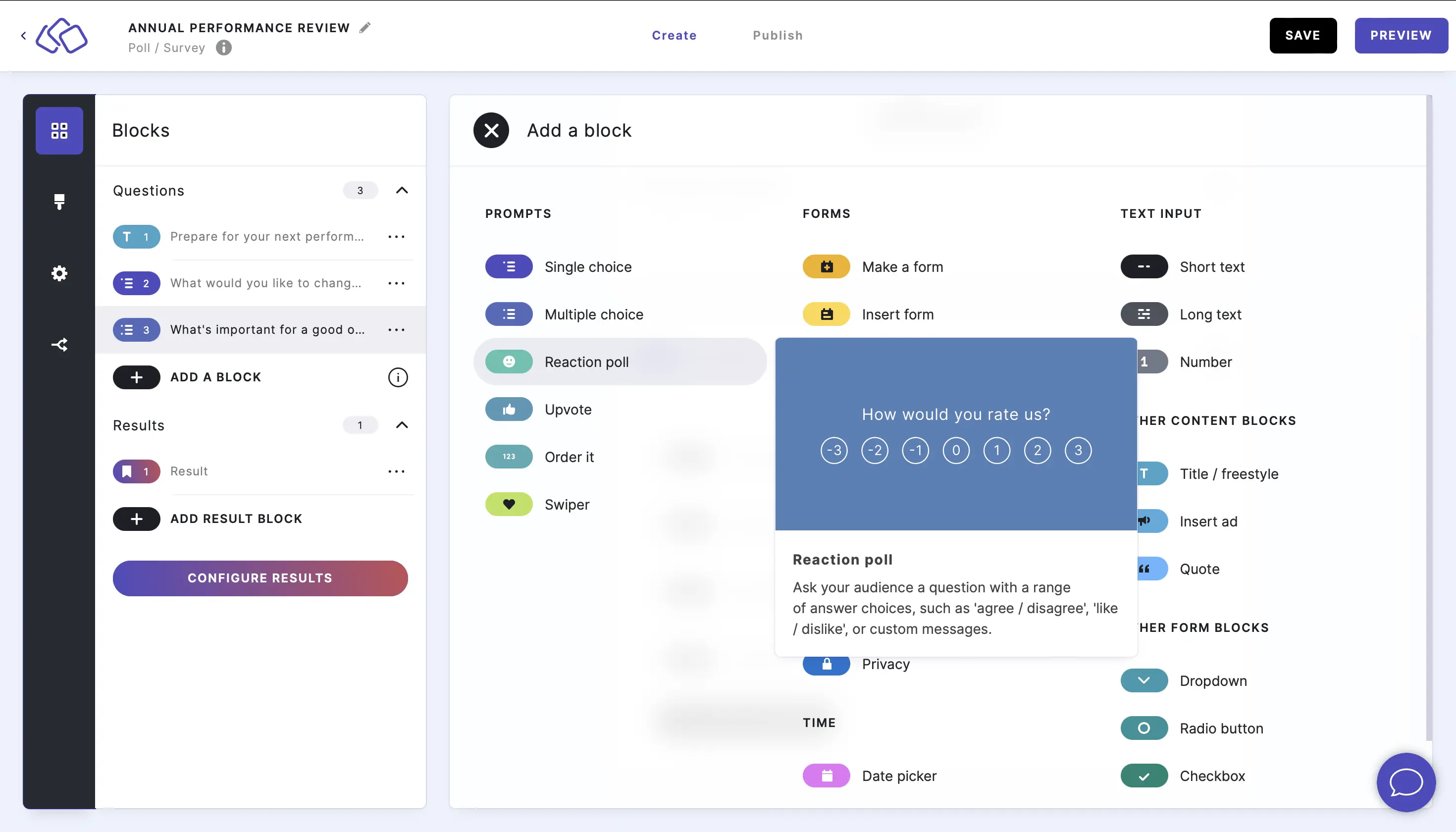
- Type a question or text into the Title field and add a description if you like.
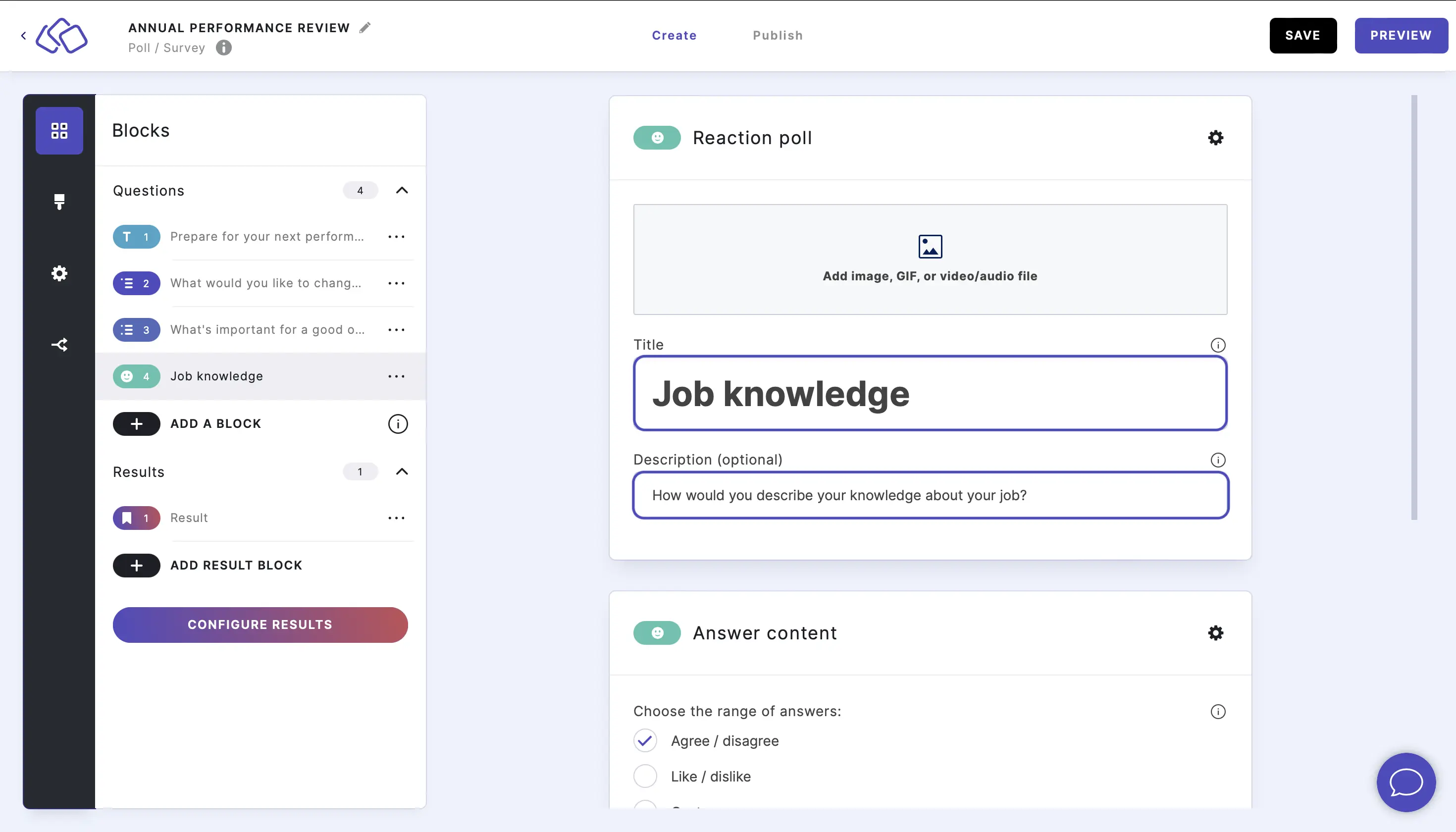
- Add an image by clicking on Add image, GIF, or video/audio file.
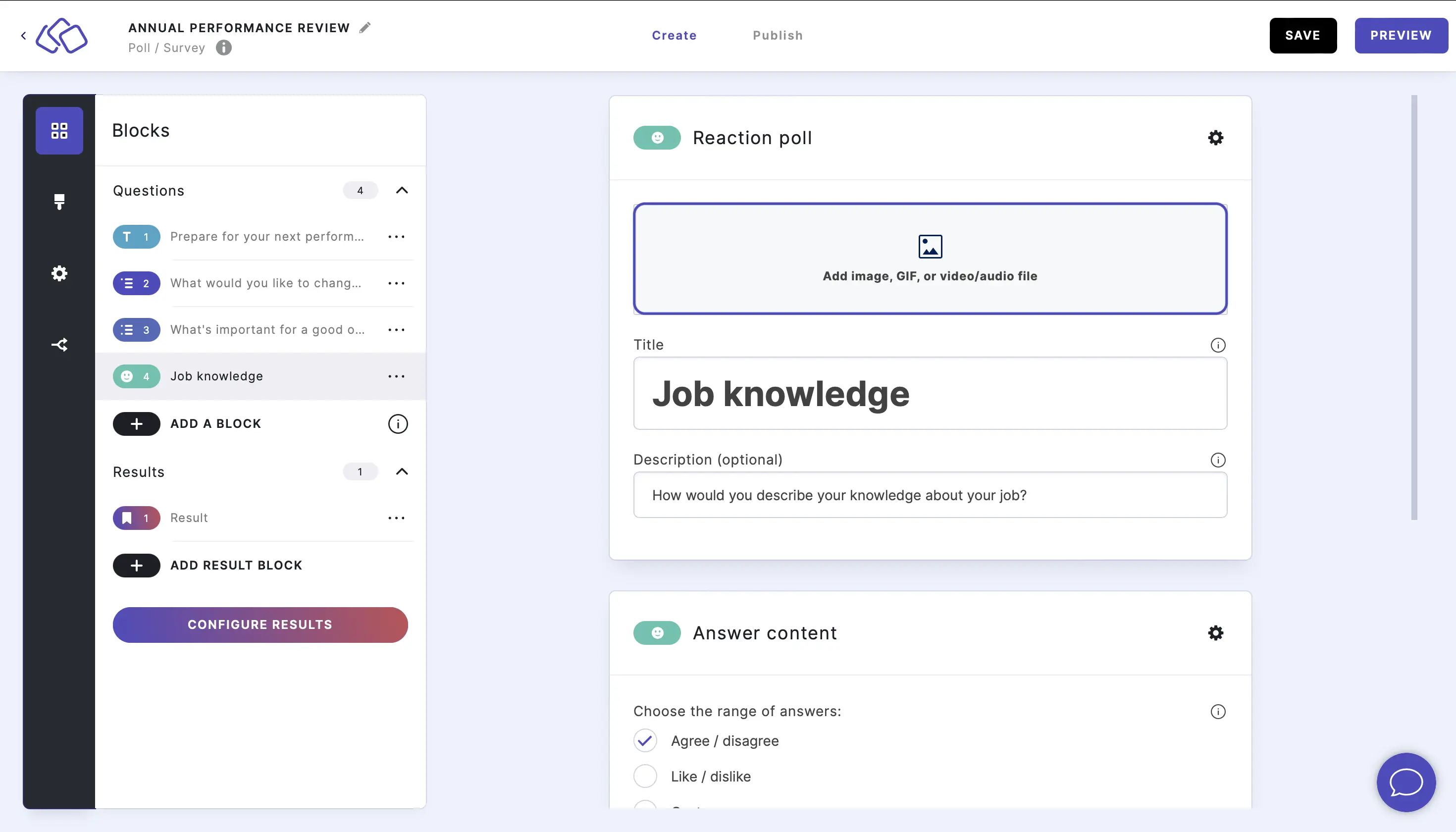
- Insert the range of answers. You can choose between:
- Agree / disagree (default)
- Like / dislike
- Custom
Customized ranges are then automatically applied to all your Riddle's poll questions.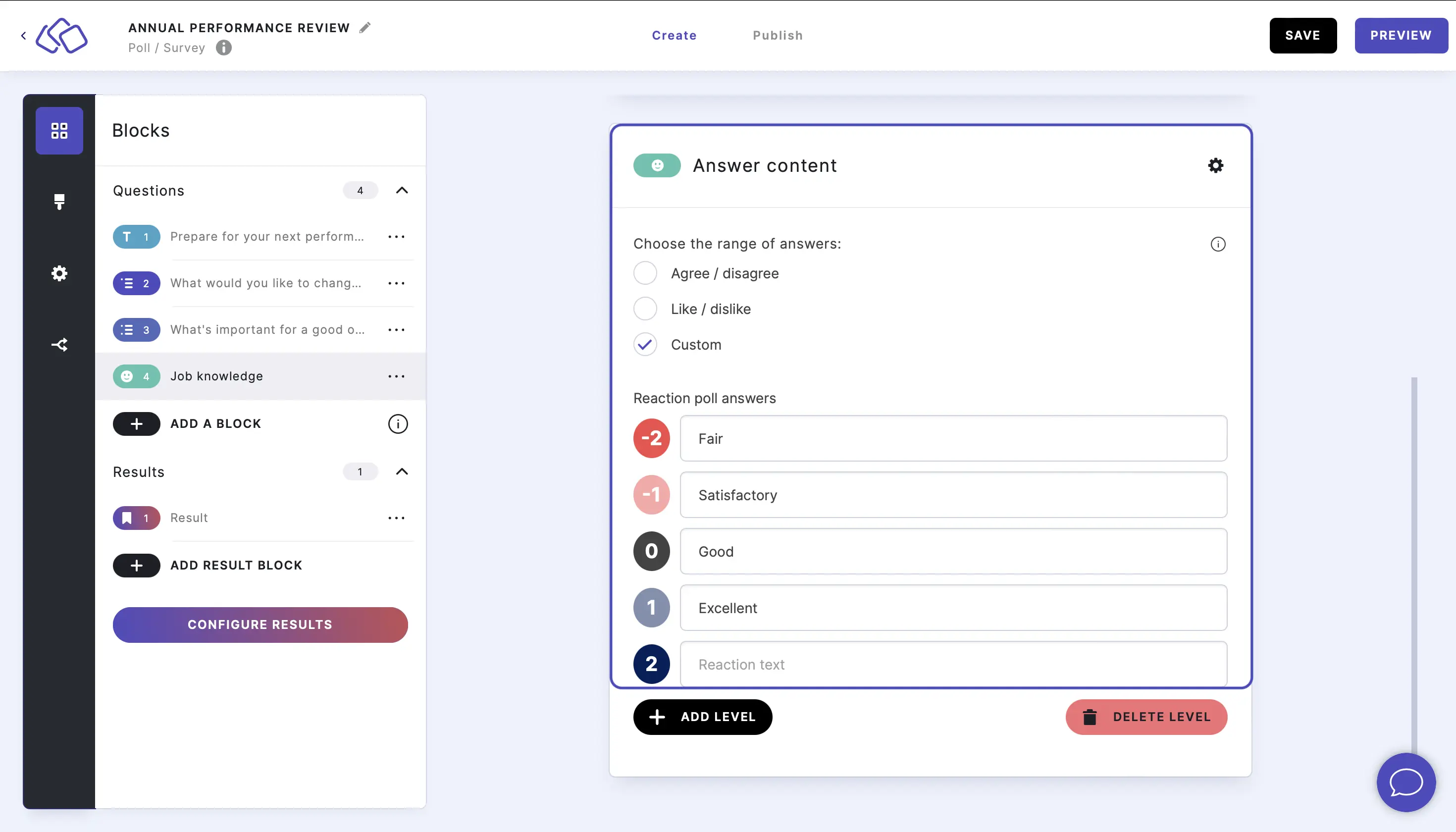
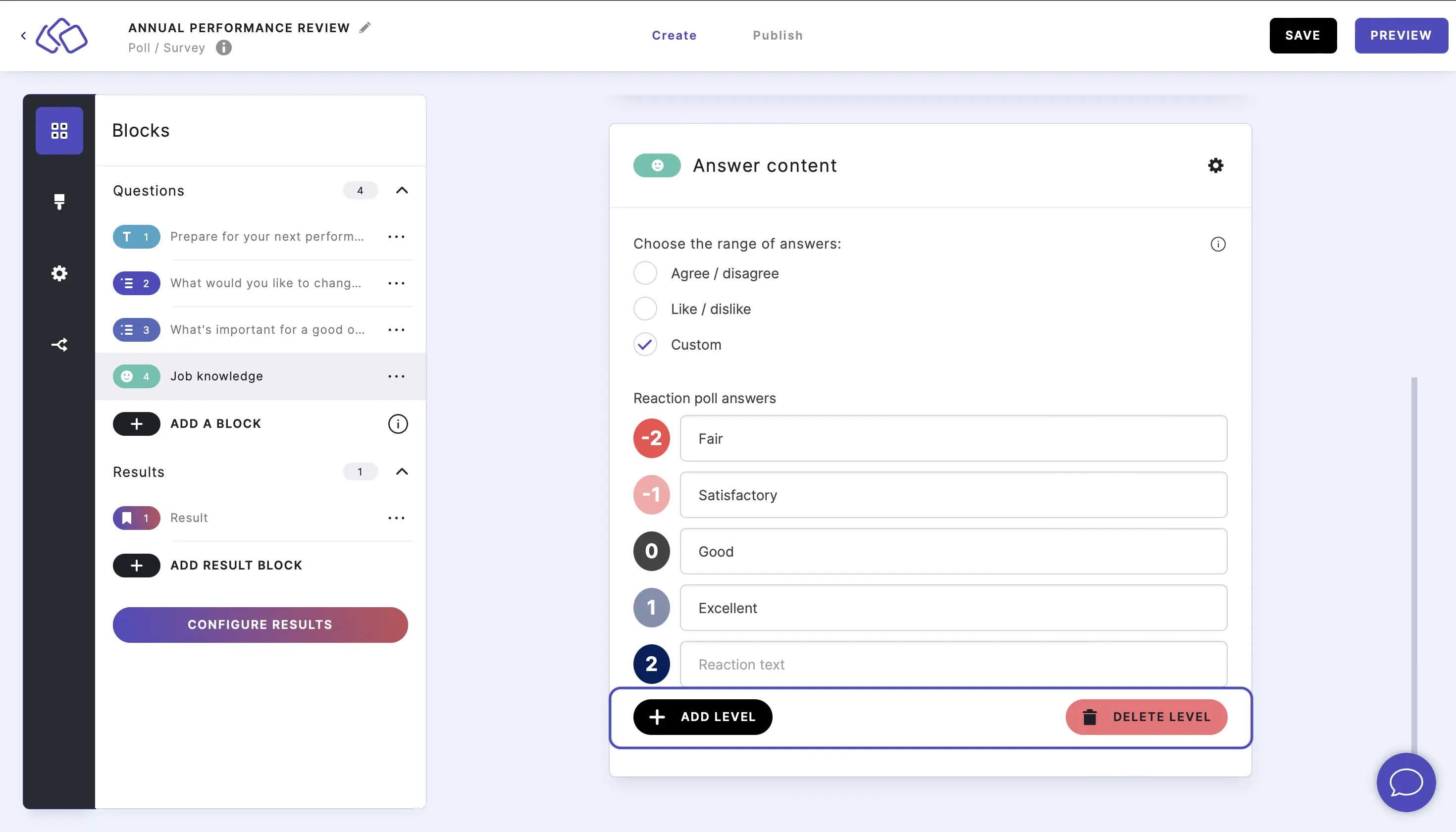
- Add or delete options by clicking on ADD LEVEL or DELETE LEVEL.
Reaction range options
The Reaction poll uses a predefined range of answers that your audience selects using a slider. Choose one of the following range types:
Agree / disagree (default)
The default range includes seven levels with color-coded labels:
| Level | Label | Color |
|---|---|---|
| -3 | Strongly disagree | Red |
| -2 | Disagree | Orange-red |
| -1 | Slightly disagree | Pink |
| 0 | Neither agree nor disagree | Grey |
| 1 | Slightly agree | Light green |
| 2 | Agree | Green |
| 3 | Strongly agree | Dark green |
Like / dislike
A simpler range with fewer levels for quick like/dislike feedback.
Custom
Create your own range by editing labels and adding or removing levels with the ADD LEVEL and DELETE LEVEL buttons. Custom ranges are applied to all Reaction poll questions in your Riddle.
Options
Click on the options icon on the right to configure the following settings.
The Reaction poll has very minimal options compared to other poll blocks - there are no Answers or Style sections.
Media
| Option | Description | Default |
|---|---|---|
| Show media | Toggle to show or hide the block's main image. | ON |
| Media ratio | Choose the aspect ratio: From settings, Wide 16:9, Square 1:1, Tall 3:4, or Original ratio. | From settings |
Required
| Option | Description | Default |
|---|---|---|
| Required | When enabled, your audience must answer this block before proceeding. When disabled, a "Skip" button appears. | ON |
Related articles: