Pick the winner
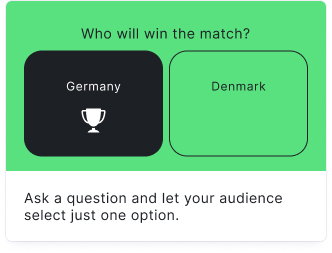
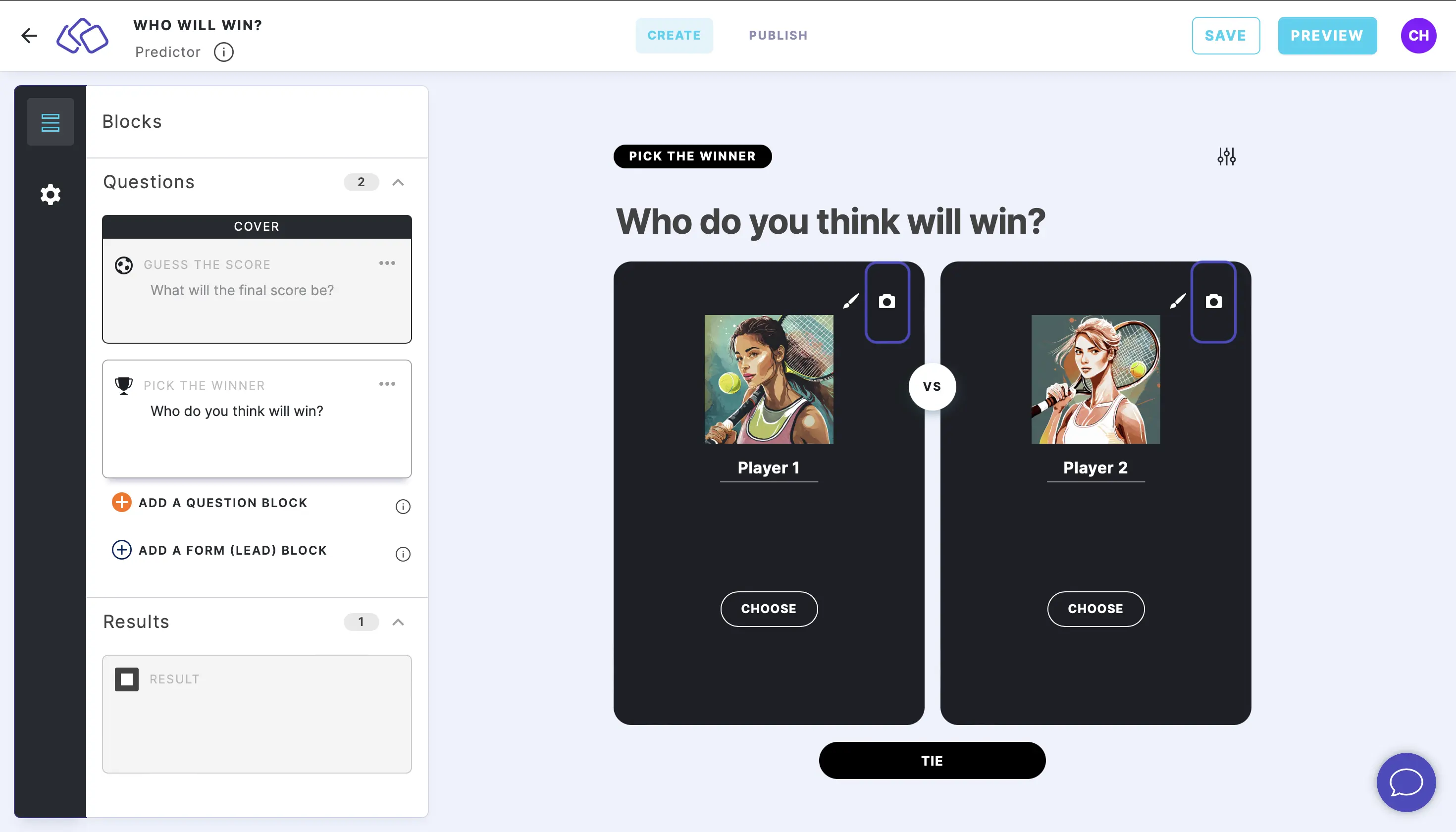
Your audience can pick a winner out of two players, teams, or options. A "CHOOSE" button appears under each side, and your audience clicks to make their pick. This block is ideal for head-to-head matchups, "who will win" predictions, and binary choice scenarios.
Setup
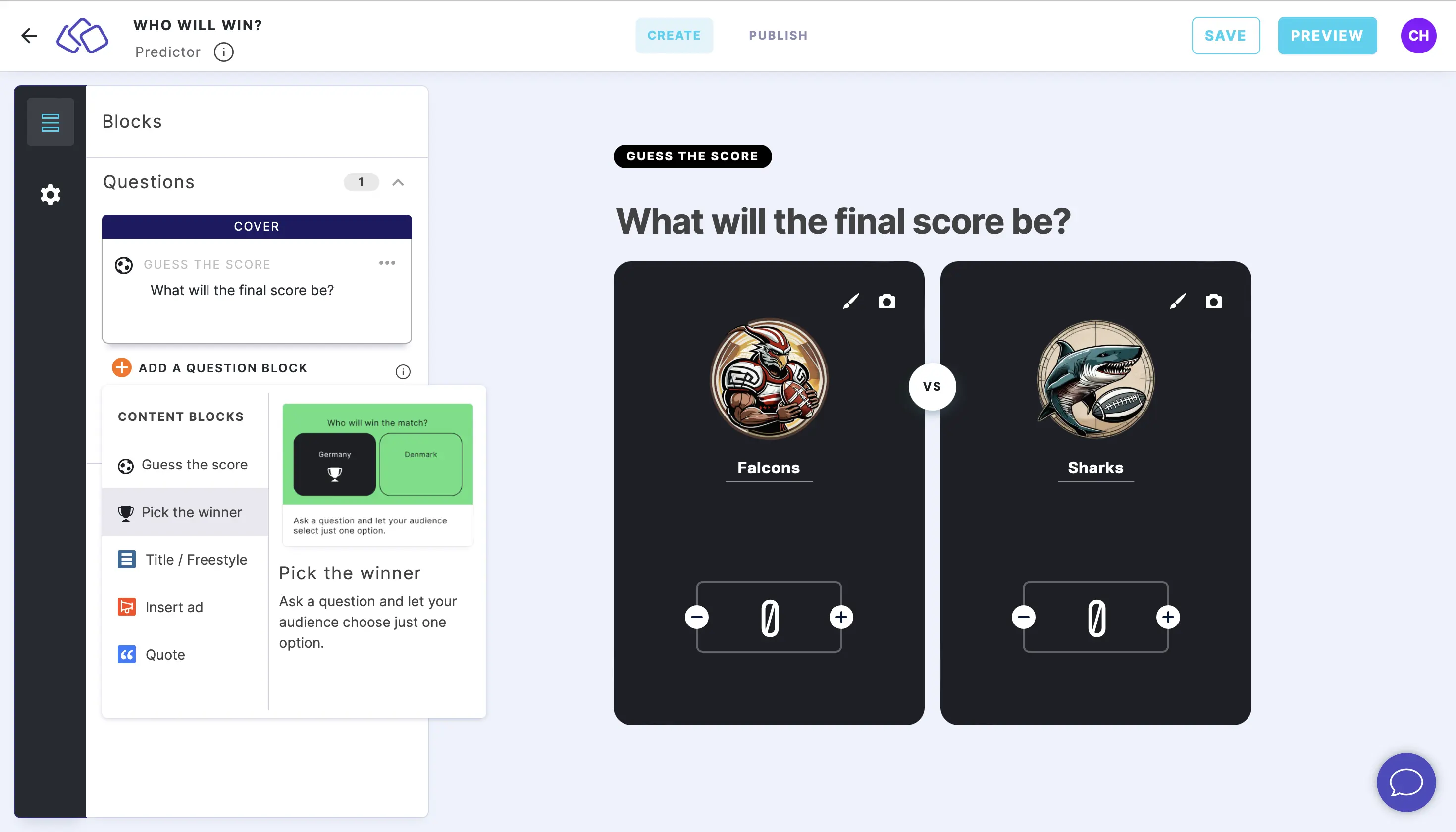
- Click on ADD A BLOCK and select Pick the winner.
- Type a question or text into the Title field.
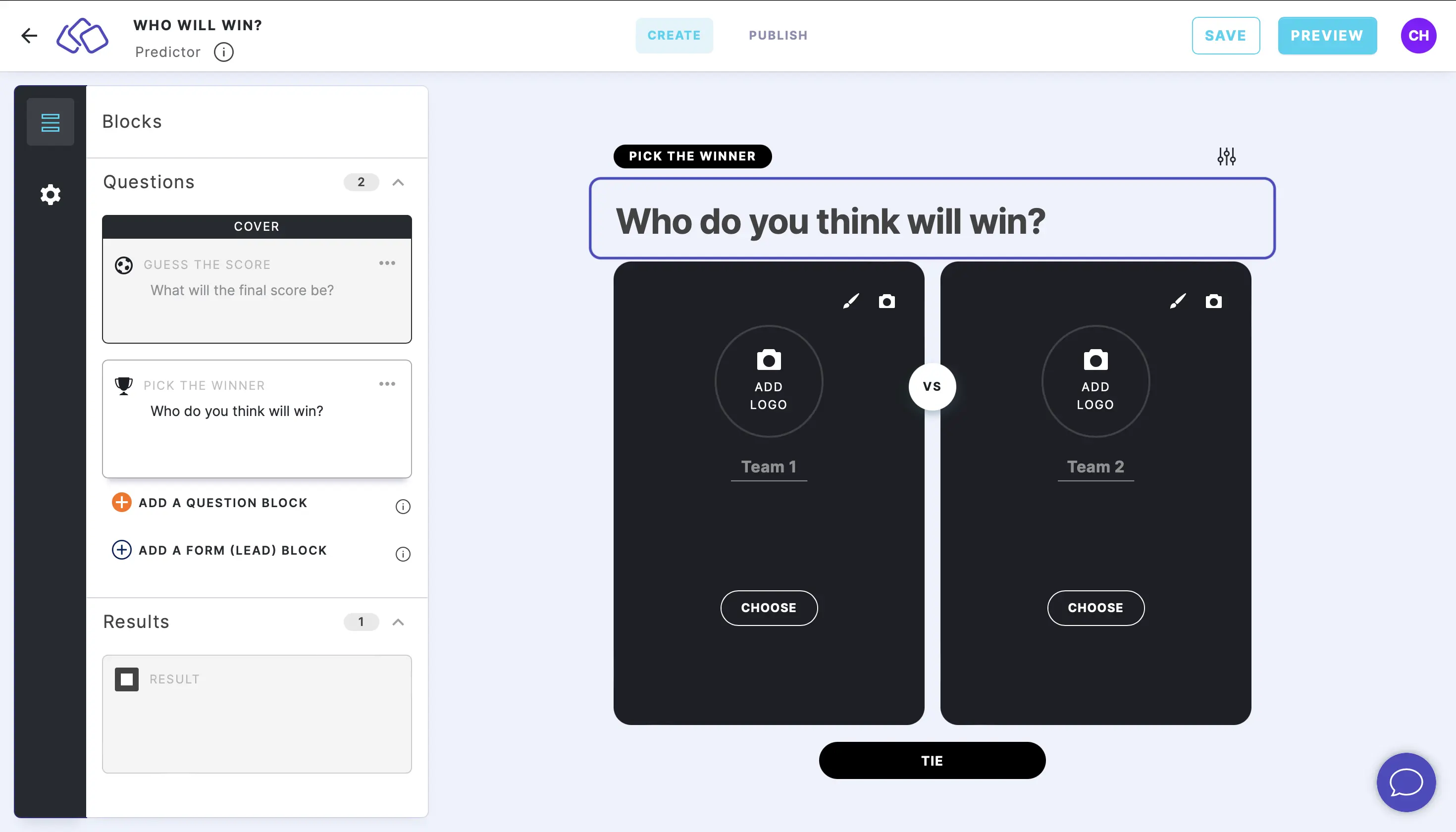
- Add names to the Team 1 and Team 2 fields.
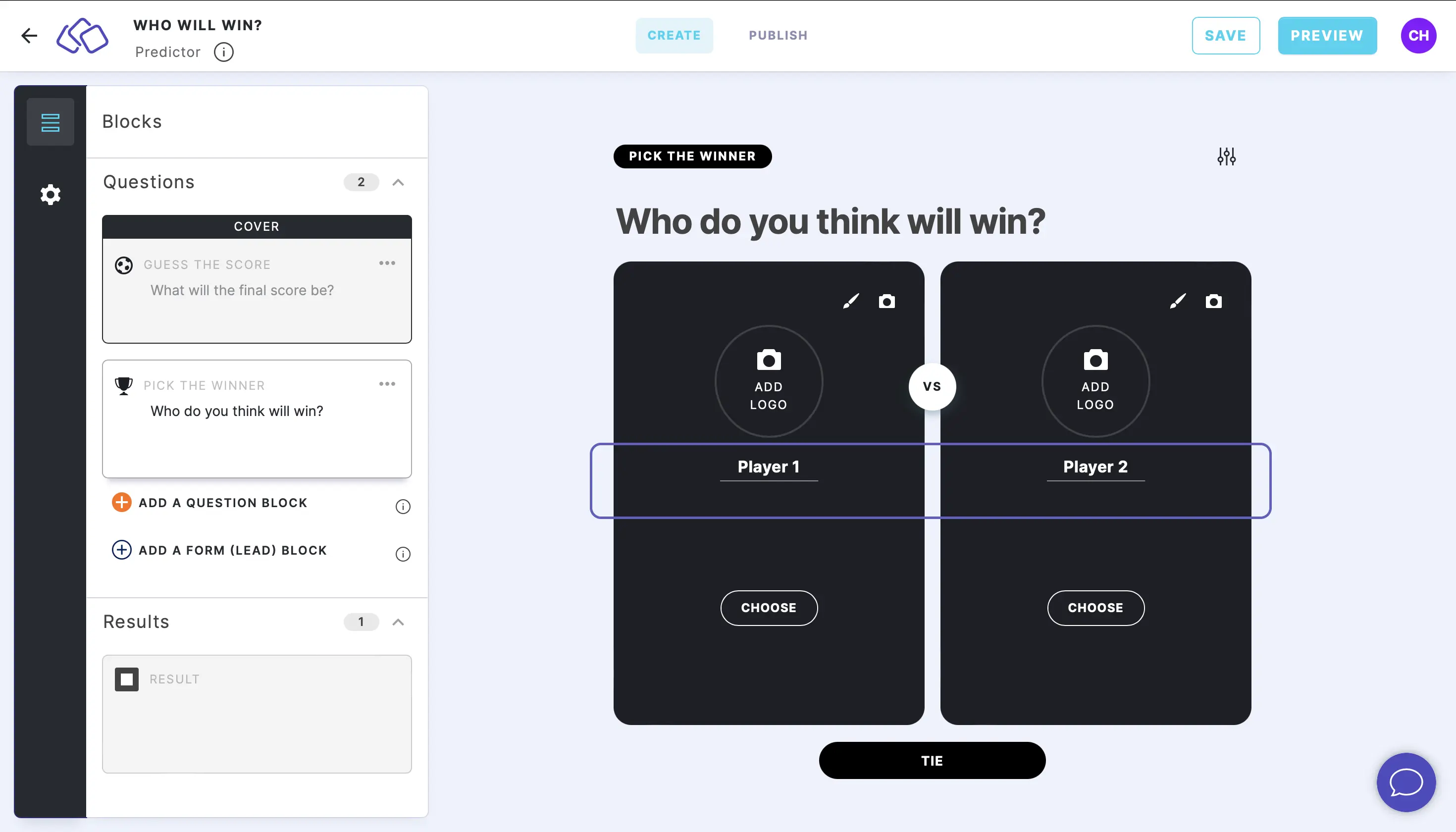
- Add an image or logo by clicking on ADD LOGO and then Add image, GIF, or video/audio file. The logo image should have a transparent background and be a .png or .svg.
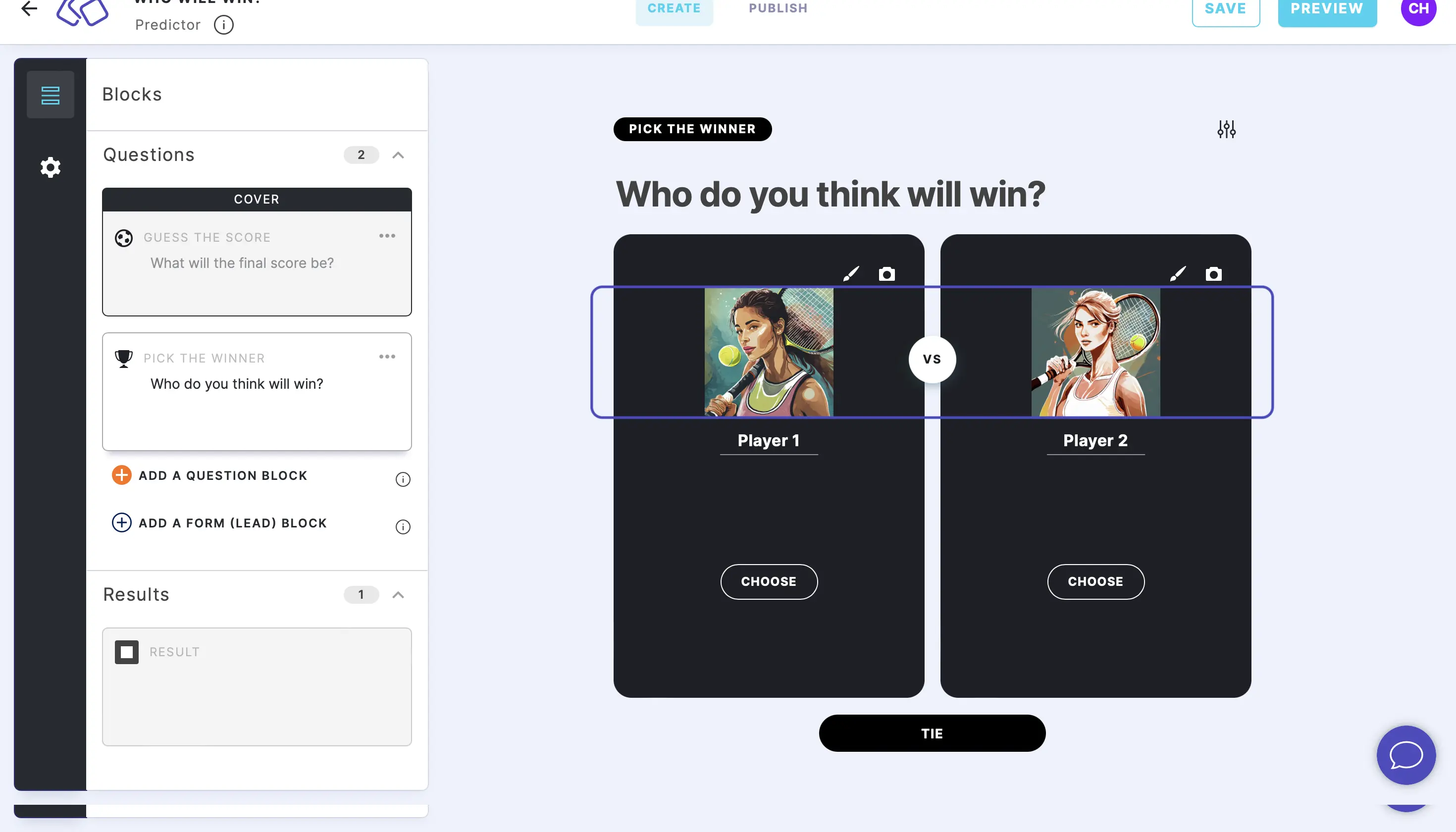
Options
Click on the options icon on the right to configure the following settings.
Answers
| Option | Description | Default |
|---|---|---|
| "Tie" option | Add a third "Tie" option so your audience can predict a draw. | ON |
Settings
The following settings are configured in the Settings section on the left under GENERAL.
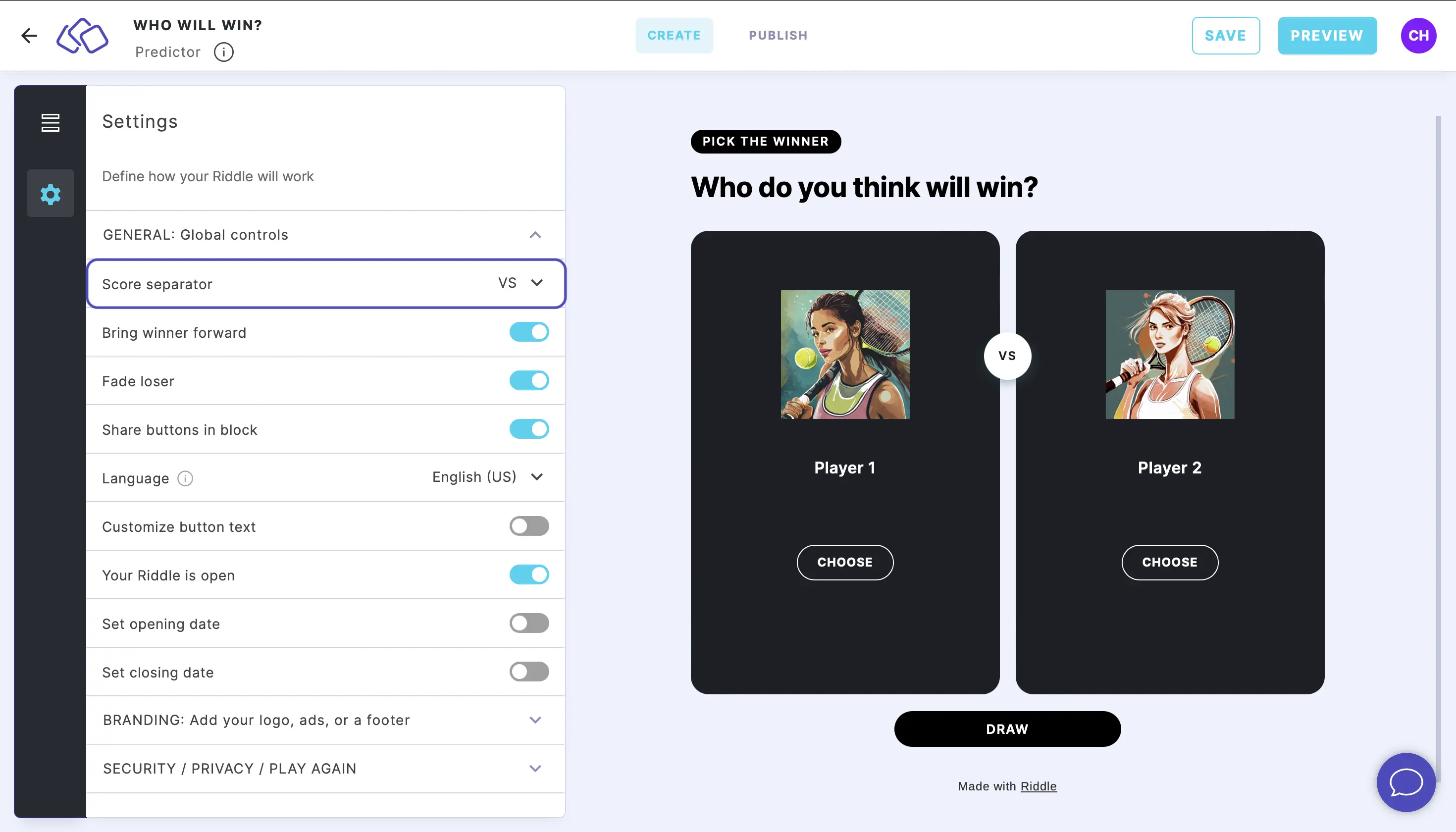
Change the separator
Select the separator from the dropdown menu.
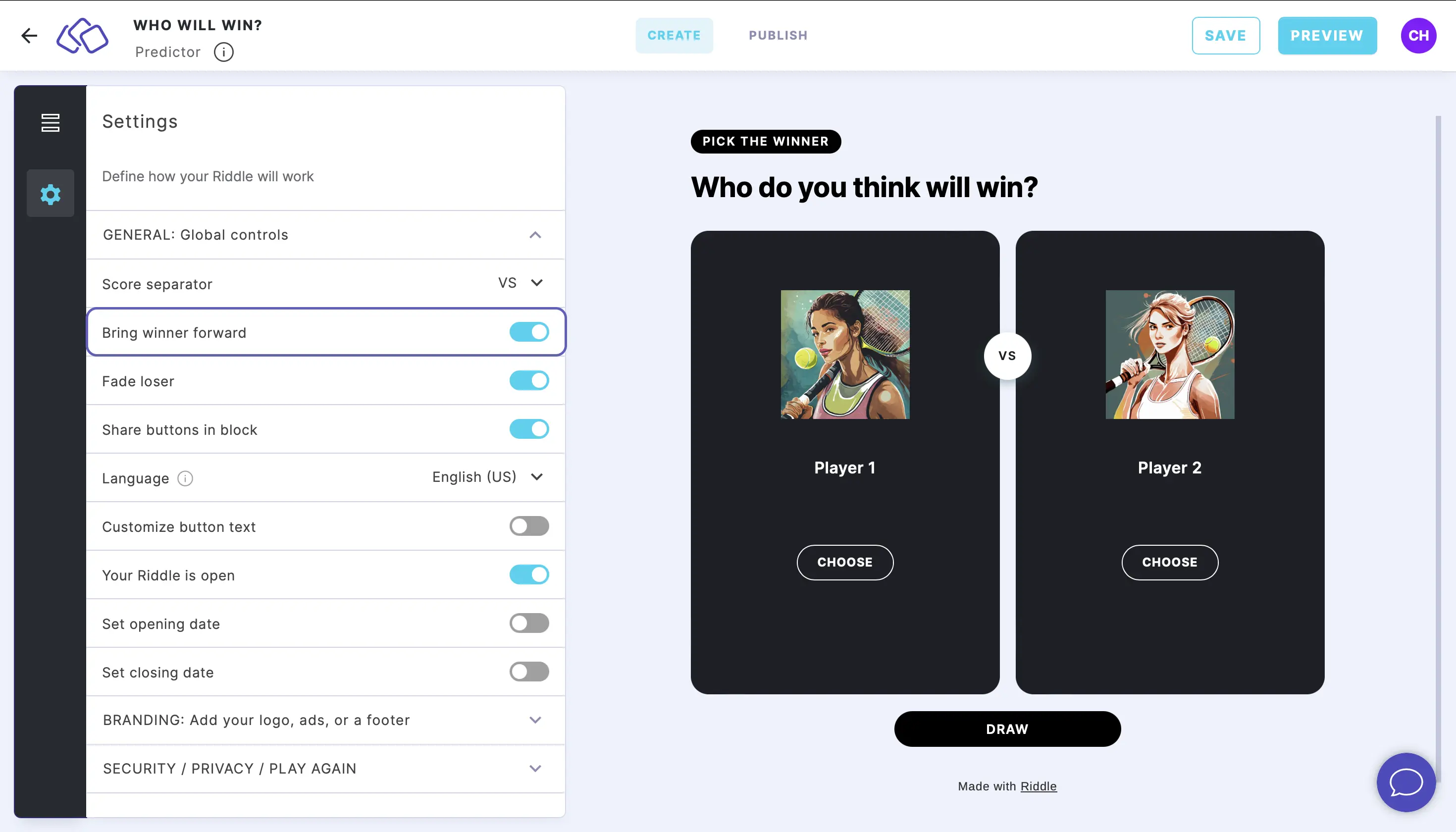
Bring winner forward
Enable Bring winner forward to make the audience's choice bigger and place it in the foreground.
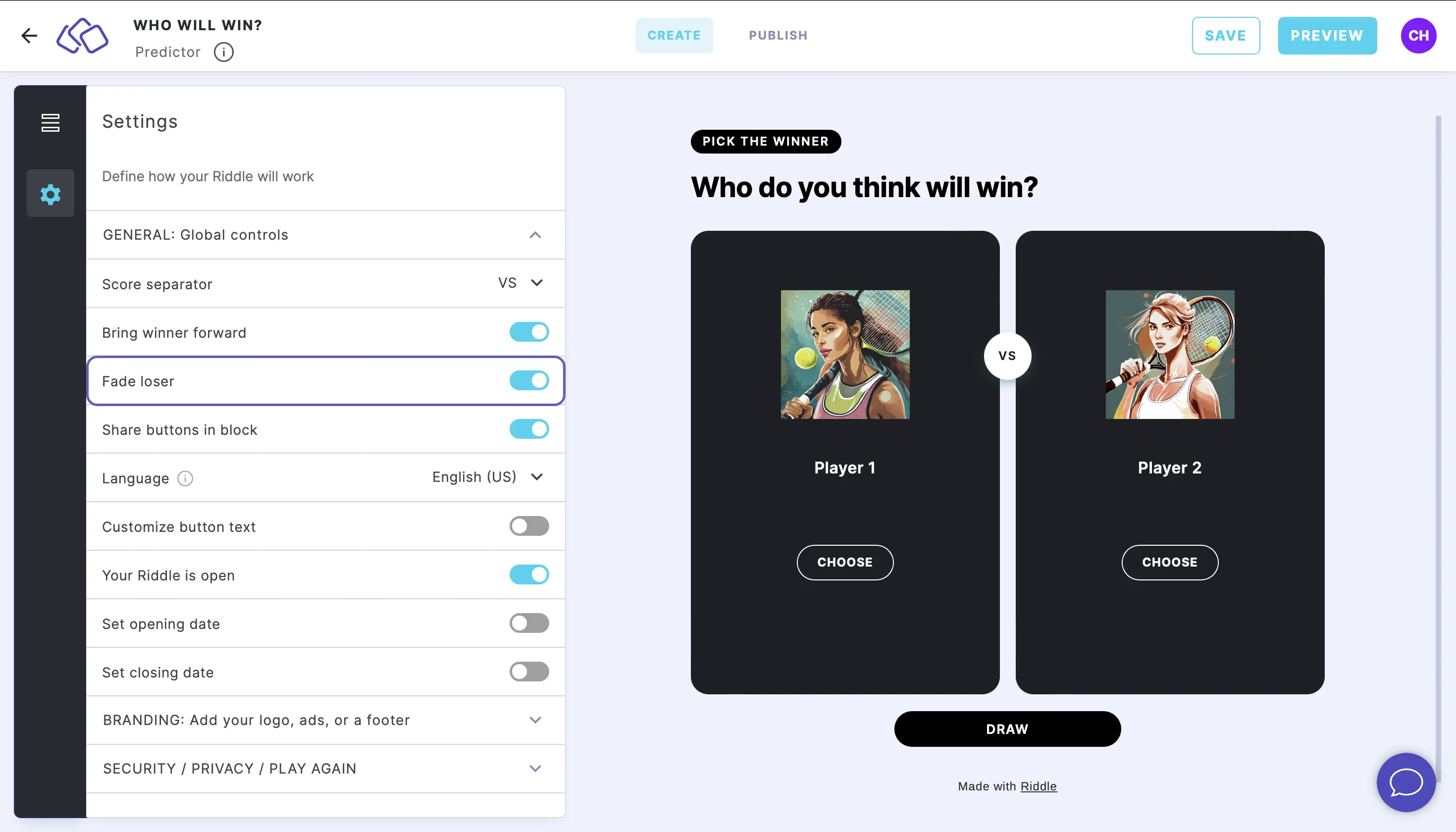
Fade loser
Enable Fade loser to make the background of the audience's losing choice gray.
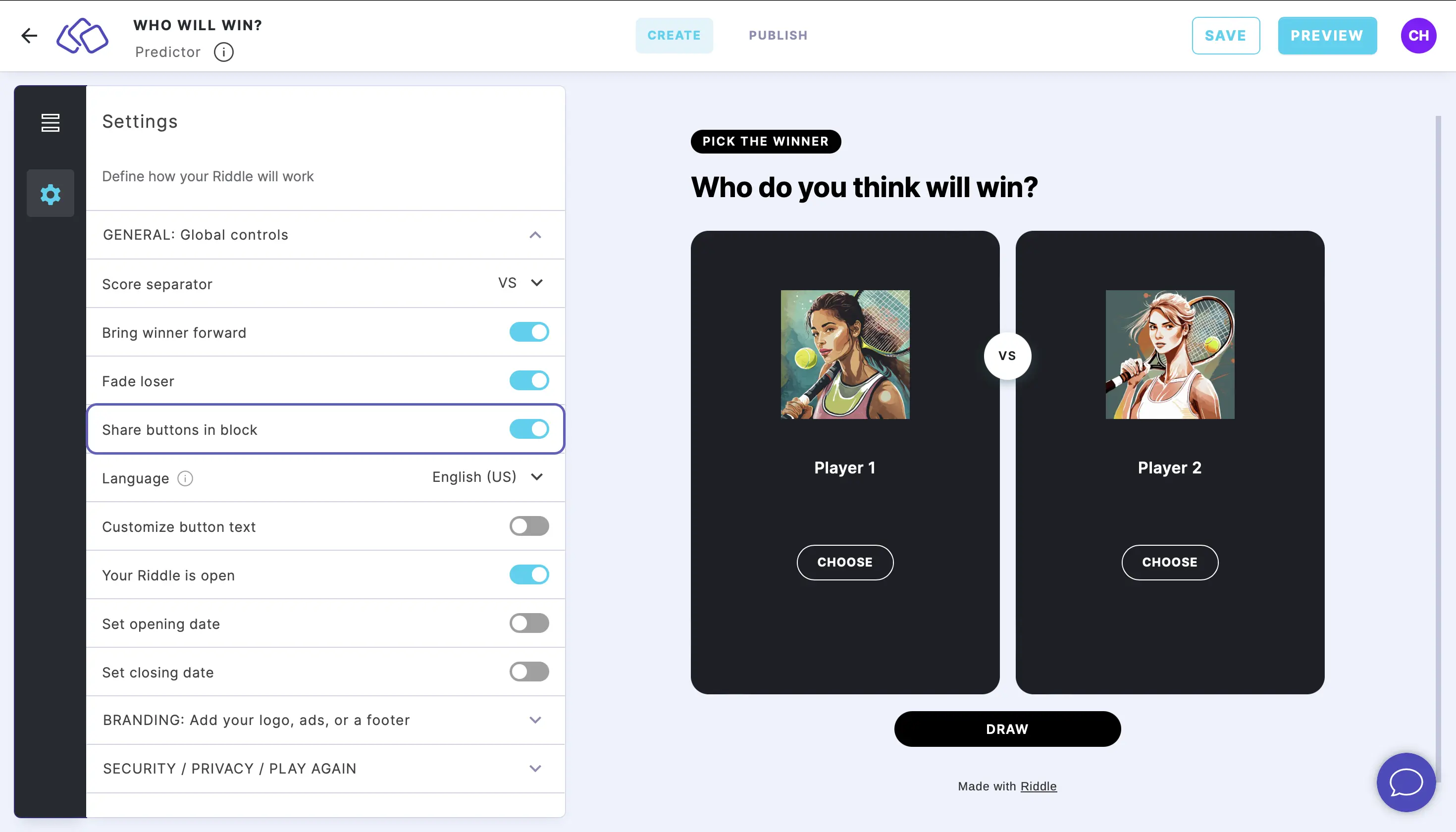
Share buttons in block
Enable Share buttons in block to show the share buttons you have set up in the result page directly in this block.
Customize appearance
Customize colors
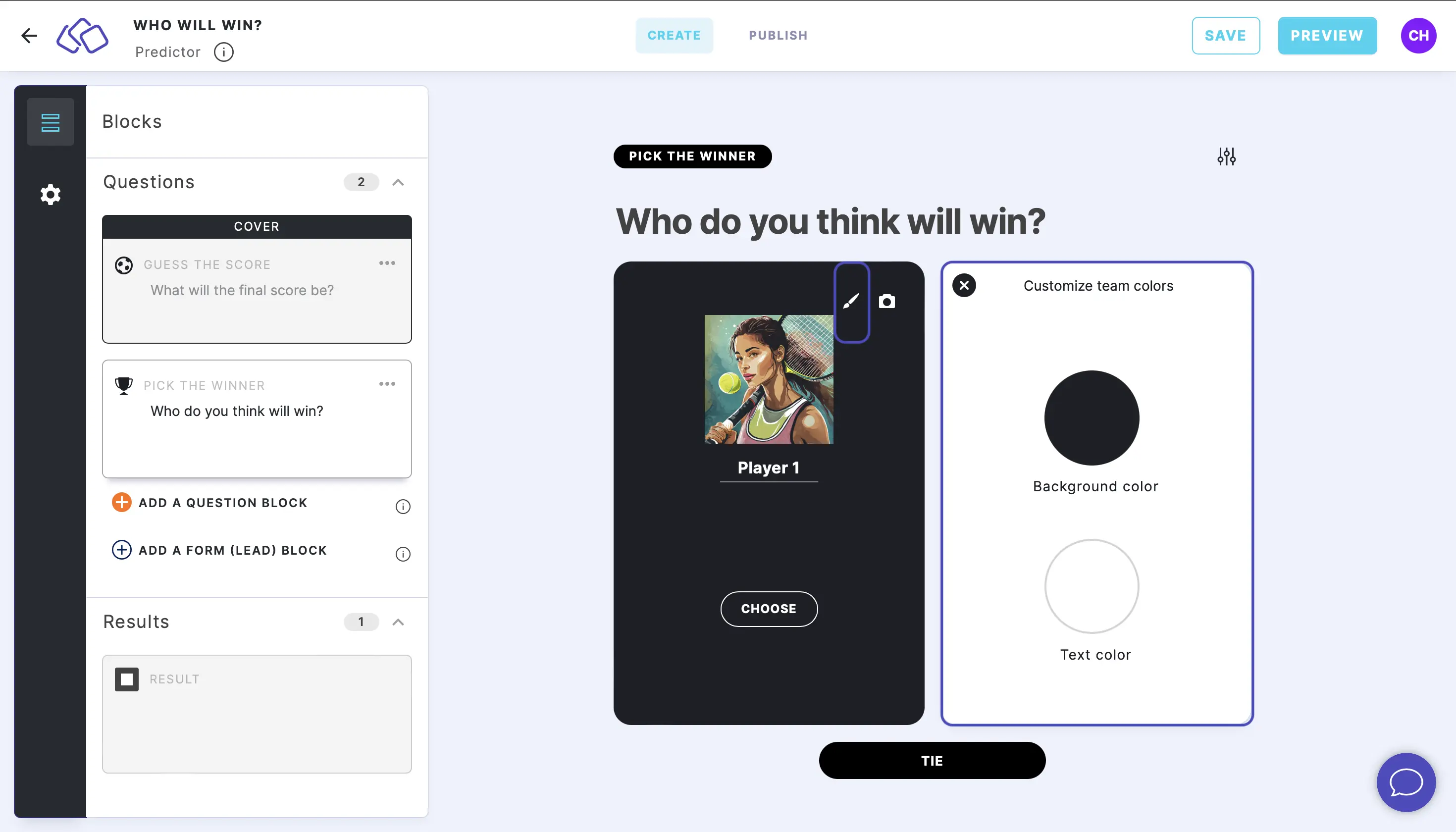
In the block, click on the edit icon in the top right of the card. Click on the circles above Background and Text and choose colors or enter color codes.
Upload background image
In the block, click on the camera icon in the top right of the card and then Add image, GIF, or video/audio file. Most images work well as they are automatically centered. If you require precise control, make the background image 317 x 469 px.