

Guess it
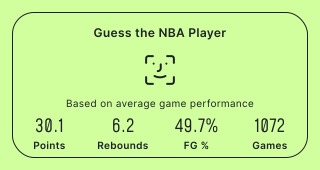
Your audience works out a person, place, or thing from a set of hints that reveal one by one. Play it with a guessing image (blurred by default, sharpening with each wrong guess) or as a text-only round. Perfect for "Guess the player" or "Guess the city" style content.
Setup
- Click on ADD A BLOCK and select Guess it.
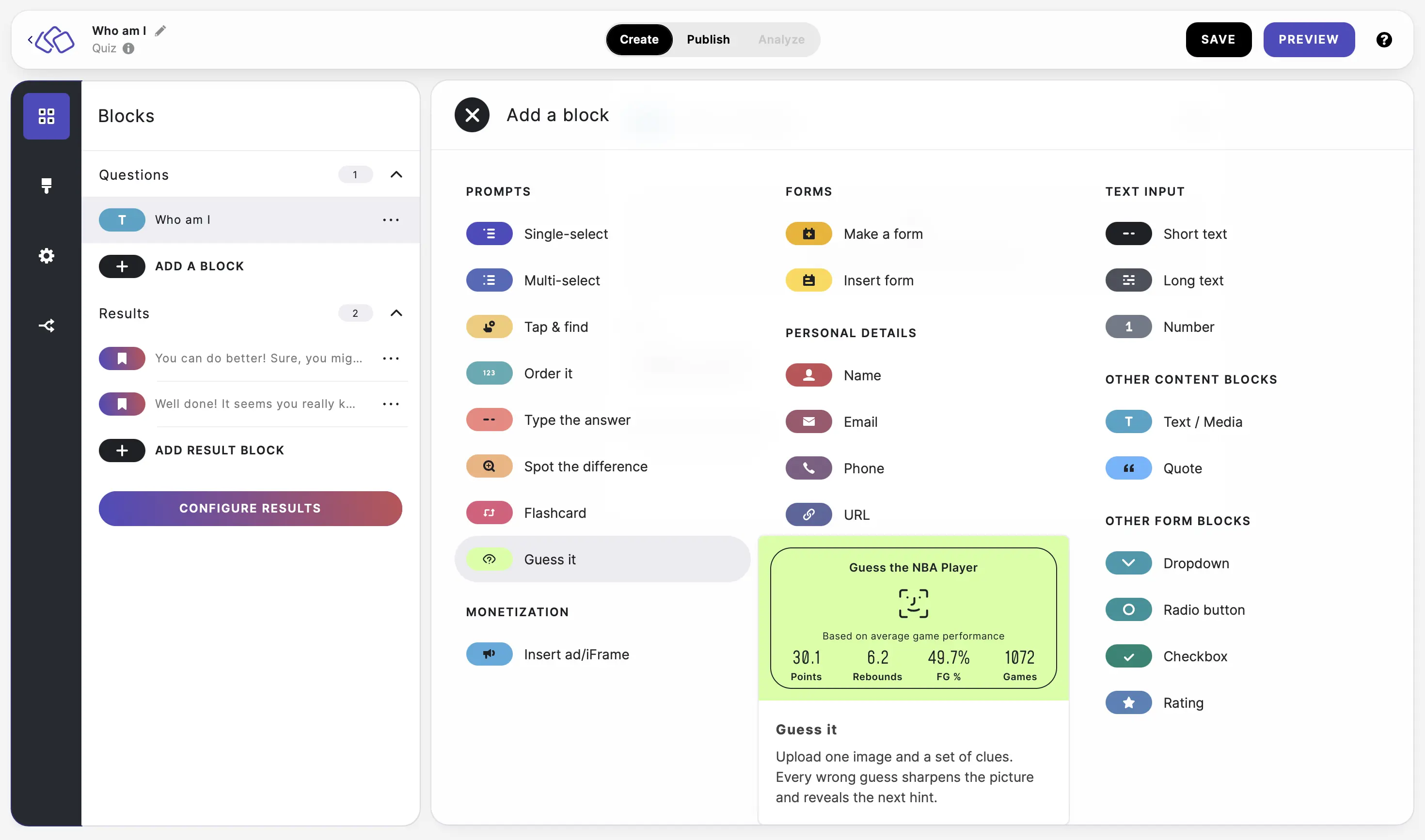
- Use the toggle at the top of the block to choose the mode:
- Image mode – your audience guesses from an image (blurred by default; see the Image blur mode option below).
- Text mode – removes the image, so your audience guesses from the hints alone.
- Fill in the GUESS THE… title to frame the round.
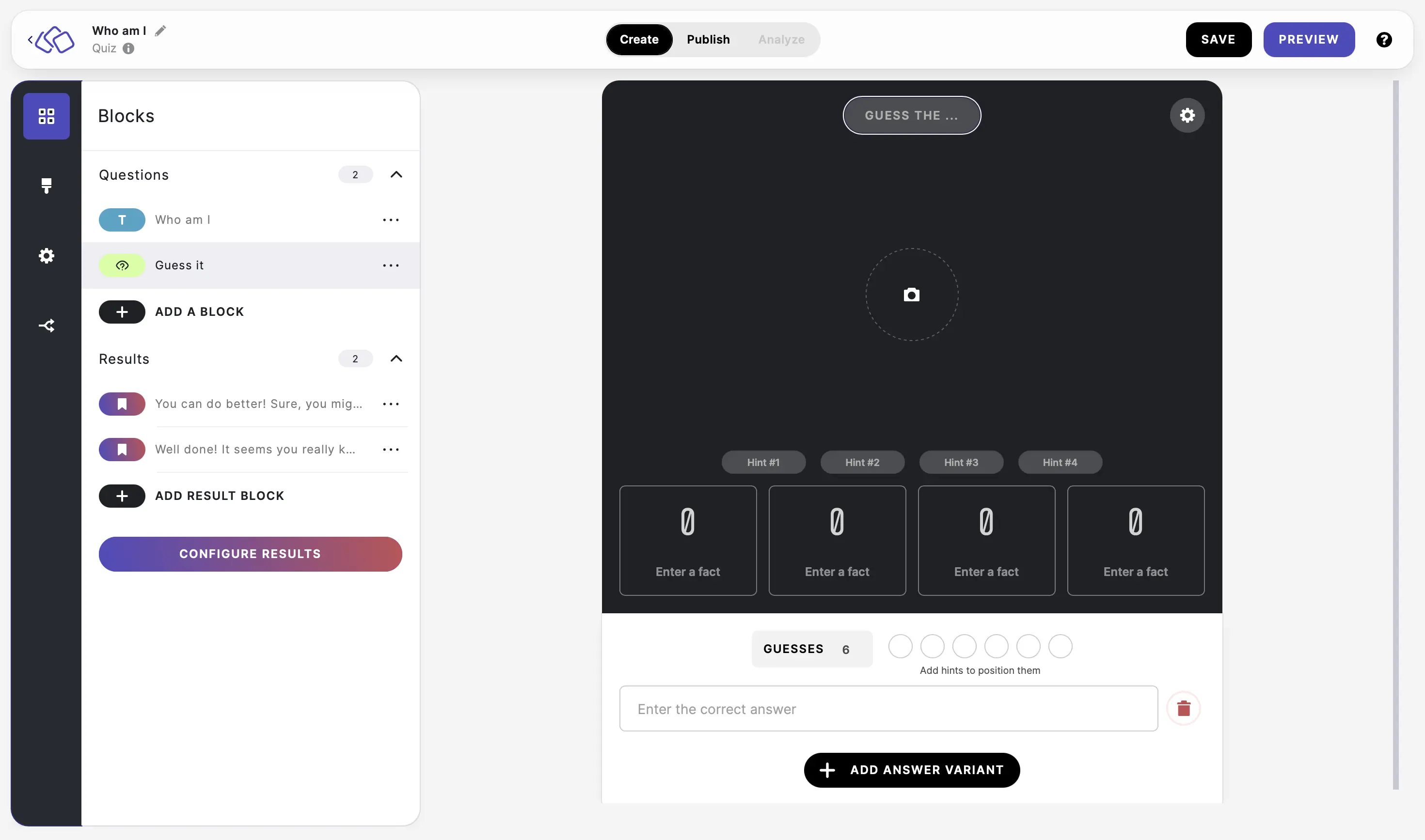
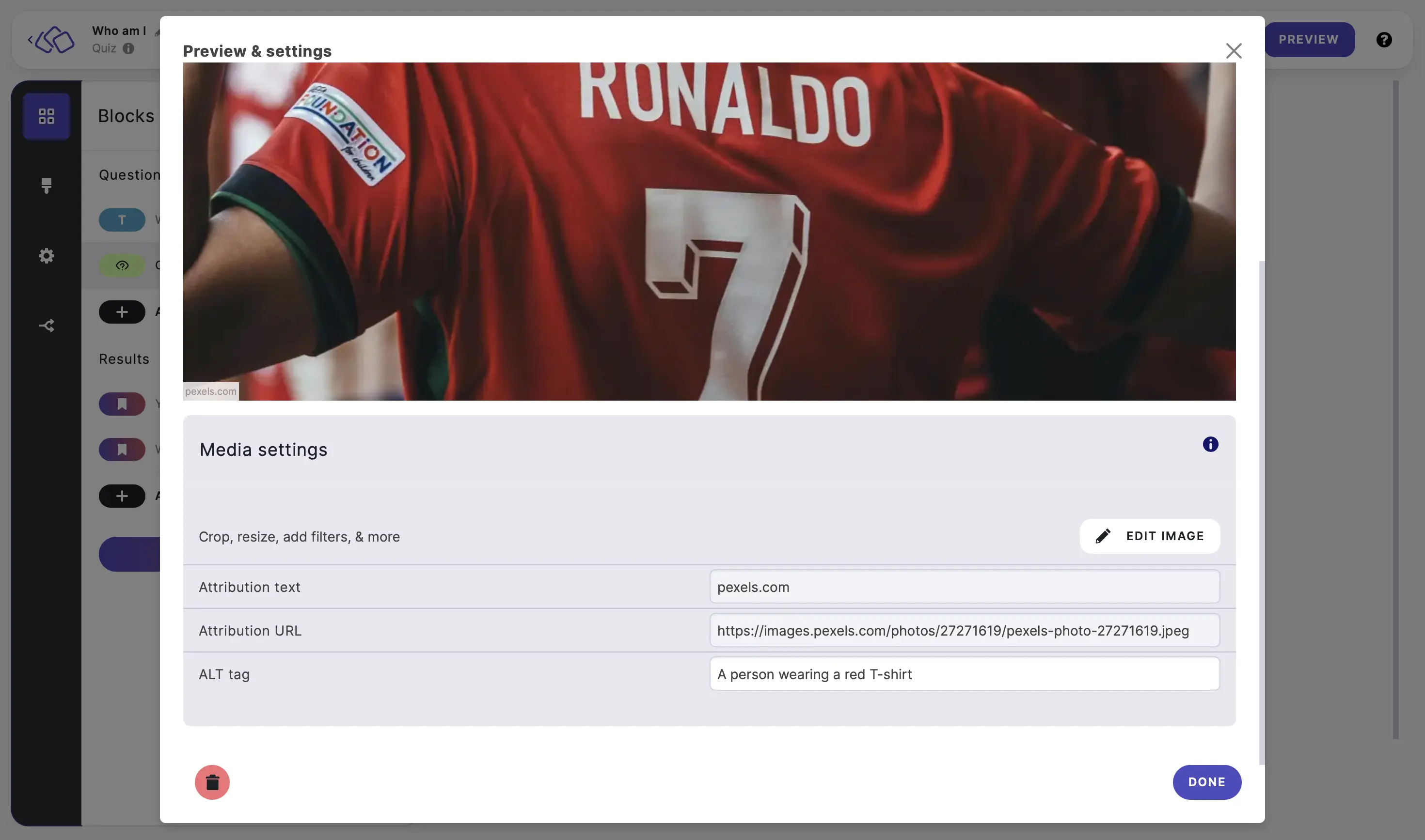
- In image mode, click on the camera icon to upload an image (Upload, Your Media Library, Google, or Pexels).
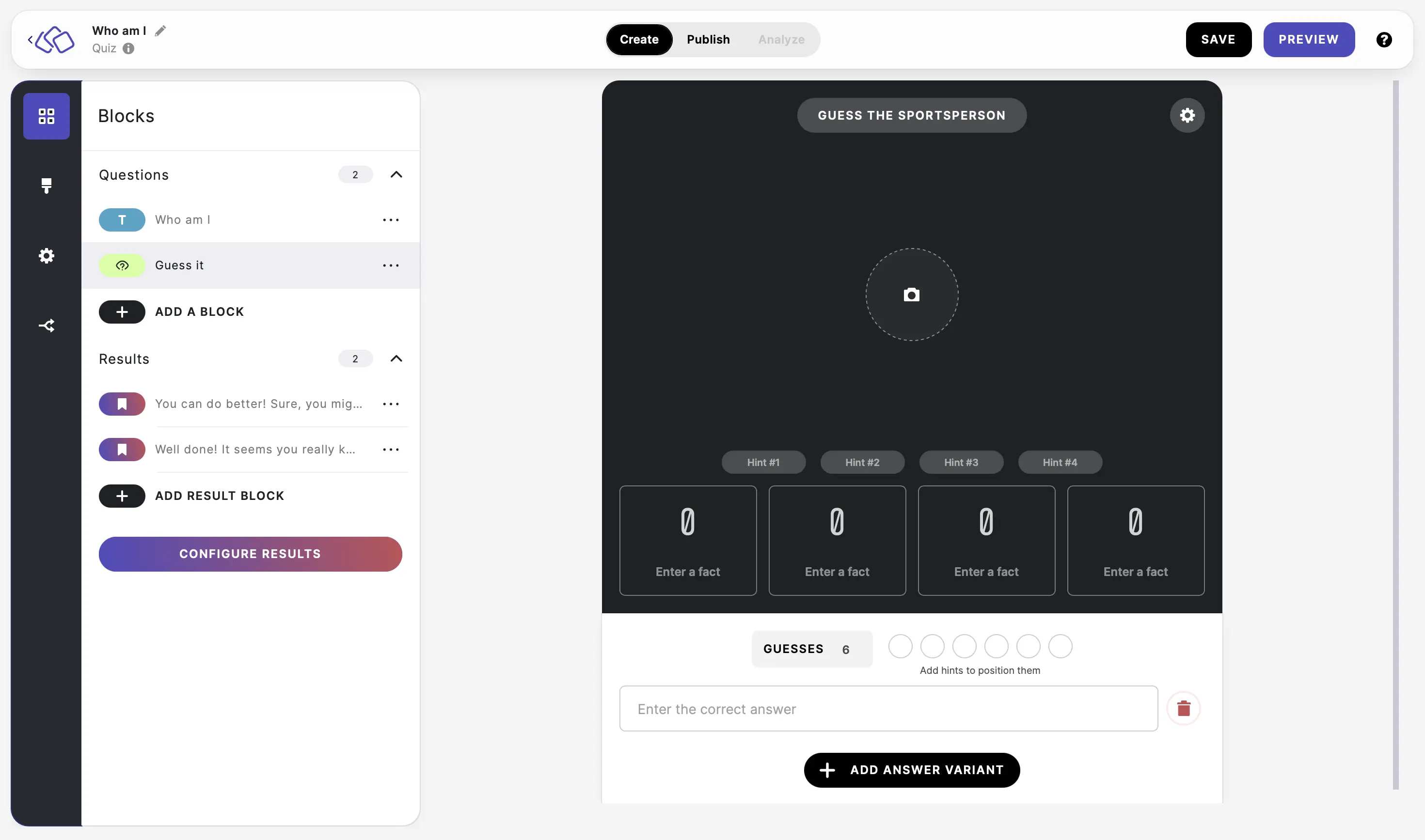
- In image mode, add an alt tag describing the image without giving away the answer, so screen readers can describe it to your audience. For example, for a "Guess the player" block with a photo of Cristiano Ronaldo, use "blurred image of a player wearing a red shirt".
- Add your hints – hints and facts are now one and the same, so everything is a hint. You get six hint fields by default: three unlocked and three locked.
- Lock icon – an unlocked hint shows from the start; a locked hint is revealed as your audience uses up guesses. Click the icon to switch a hint between the two.
- Delete icon – removes a hint. Empty hints simply never show to your audience.
- Drag and drop a hint to change the order in which it's revealed.
- Choose whether hints appear on the image or below the image with the Hint position option (see below).
- Click on the GUESSES label to change the wording (for example, "Tries").
- Enter the correct answer.
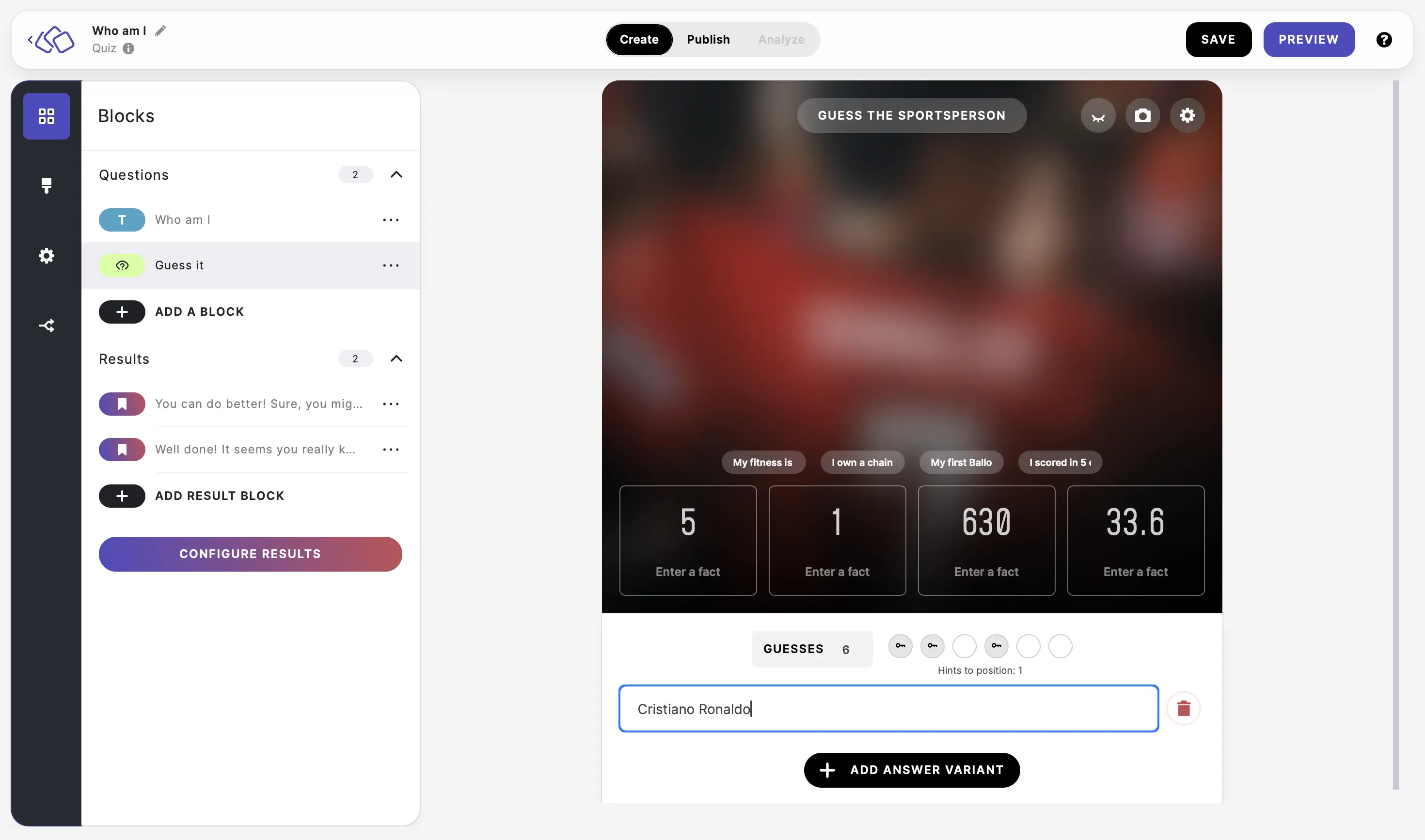
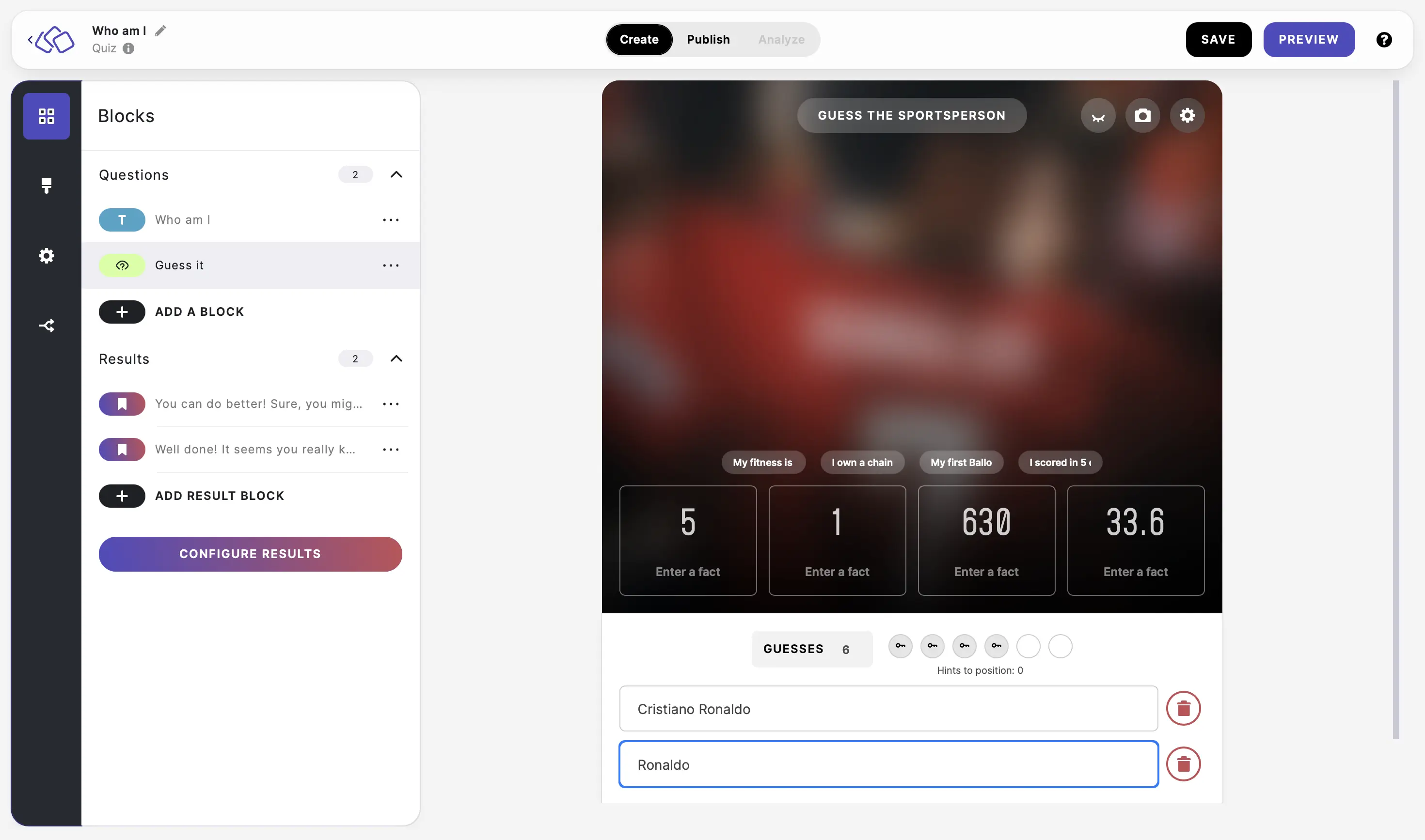
- Click on ADD ANSWER VARIANT to accept alternative names or spellings (optional).
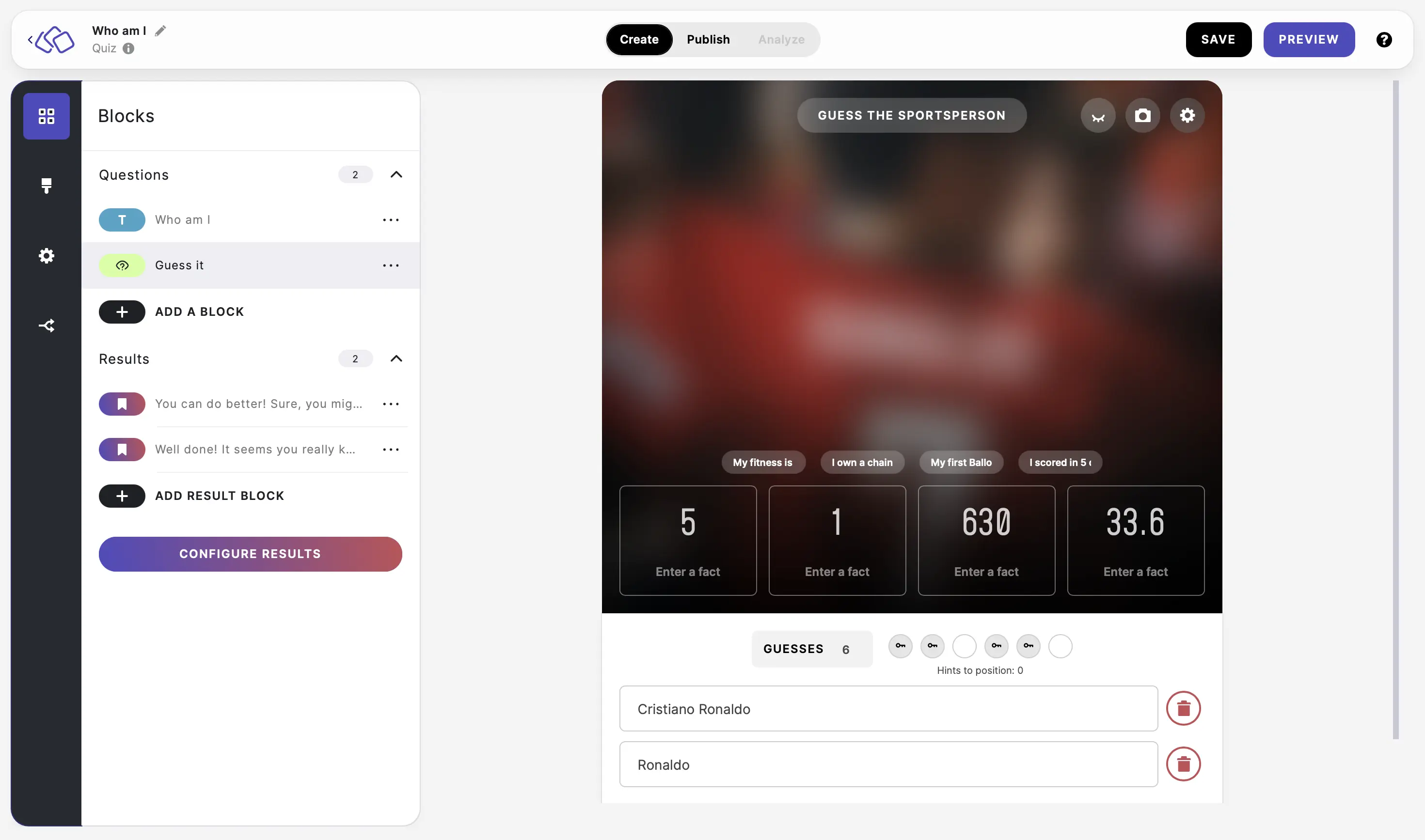
- In image mode, click on the eyelid icon to preview the fully revealed image.
Set spelling options
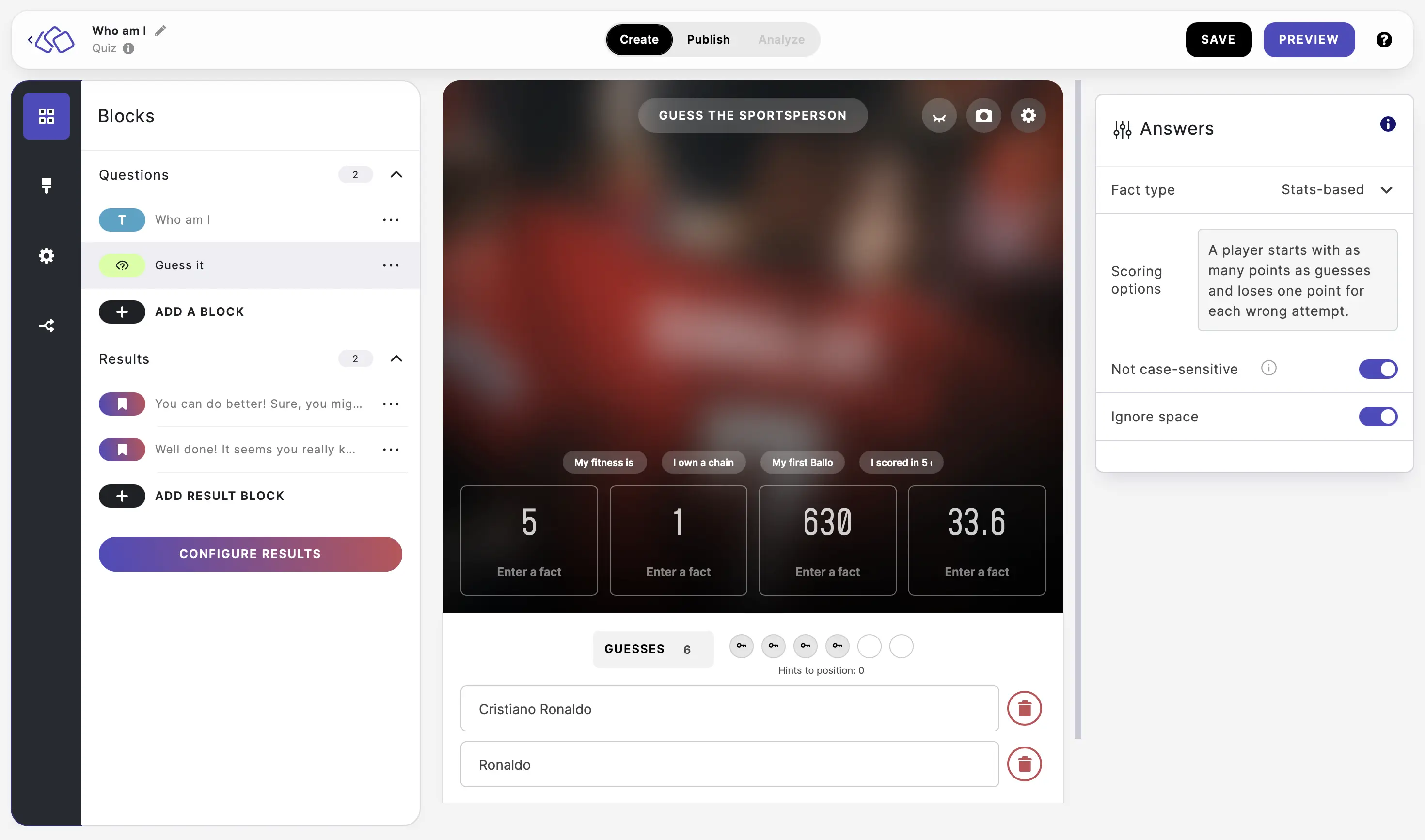
Click on the options icon in the top right of the Guess it card and enable Not case-sensitive and/or Ignore space.
Please note: data entered in this block is stored in the browser so answers can be auto-submitted to finish the Riddle.
Options
Click on the options icon on the right to configure the following settings.
Display
| Option | Description | Default |
|---|---|---|
| Show block title | Add a title above the block. | ON |
| Show "How to play" | Show a short how-to-play intro to your audience. | ON |
Image
| Option | Description | Default |
|---|---|---|
| Image blur mode | How the image behaves: Unblur gradually (sharpens with each wrong guess), No blur (always fully visible), or Always blur (stays blurred). | Unblur gradually |
| Hint position | Show hints on the image or below the image. | – |
Answers
| Option | Description | Default |
|---|---|---|
| Answer explanation | Show an explanation after your audience answers. | OFF |
| Scoring | A player starts with as many points as guesses and loses one point for each wrong attempt. | - |
| Not case-sensitive | Accept answers regardless of uppercase or lowercase letters. | ON |
| Ignore space | Accept answers regardless of extra or missing spaces. | ON |
Required
| Option | Description | Default |
|---|---|---|
| Required | When enabled, your audience must answer this block before proceeding. When disabled, a "Skip" button appears. | ON |