

Send leads to Google Sheets
Automatically send Riddle leads and responses to a Google Sheets spreadsheet. This is the quickest way to collect and view leads – no additional software needed, and your team can collaborate on the data in real time.
Once the setup is completed as below, every new lead is added to the sheet automatically.
Good to know: the Google Sheets integration is now called Google Drive. Your existing sheets and connections keep working, nothing changes for you. The same connection also stores files from the File upload field in a folder in your Google Drive.
Here's a short video guide on how connect your Riddle to Google Sheets:
- Go to the Publish section and click on Save and connect data.
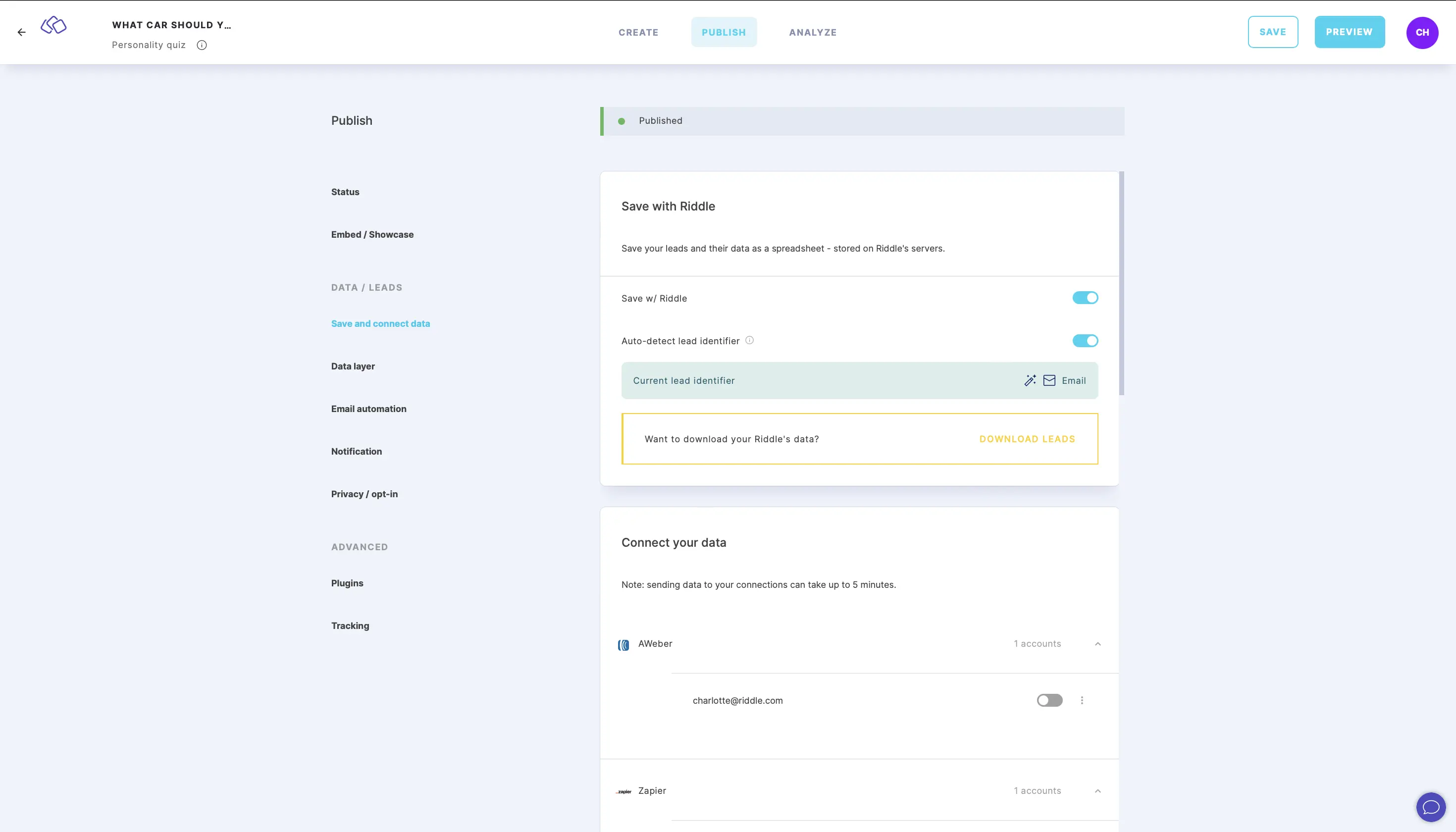
- Go to Add integrations.
- Click on the blue ADD button next to Google Drive (formerly Google Sheets).
- In the Google Drive window that appears, choose a Google account to connect to Riddle.
- Click on Allow to authorize Google to connect with your Riddle account.
Riddle automatically creates a sheet in your Google Docs. It will have a title like Riddle: 35QoMRx7 (Riddle + <your Riddle's ID>).
Riddle also automatically sends a test lead to your Google Sheet. - In the pop-up window that appears in Riddle, click on CONTINUE or click on SEND to test the integration again.