

Embed your Riddle
Add your Riddle to any website by copying and pasting the embed code. The embed code is a short snippet of JavaScript and CSS that loads your Riddle in an iframe and resizes it automatically on desktops, tablets, and phones. It works in any tool that lets you paste raw HTML, from WordPress, Wix, and TYPO 3 to page builders like Gutenberg, Elementor, and Visual Composer.
Copy and paste the embed code
- Go to the Publish section and click on Embed / Landing page.
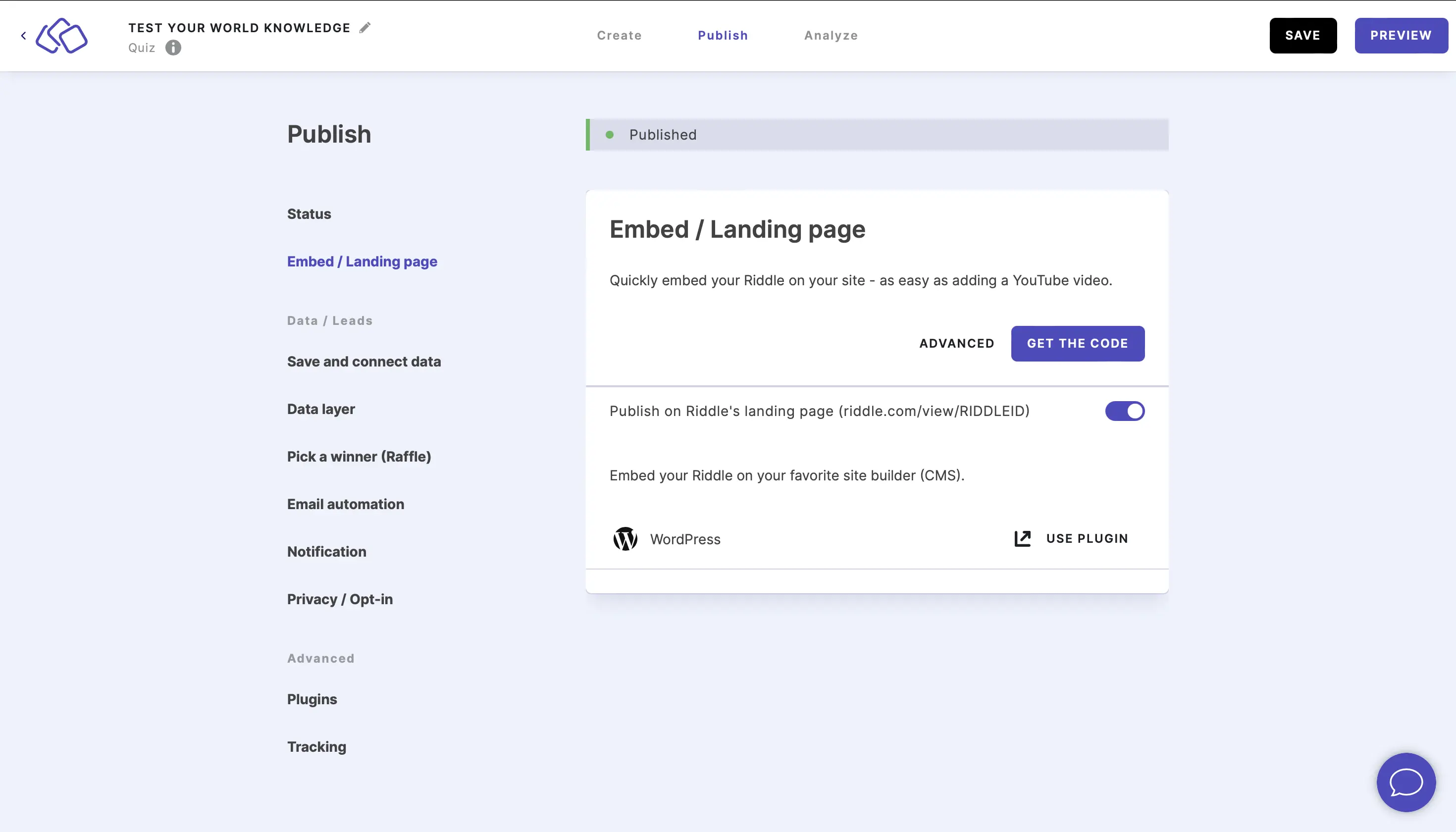
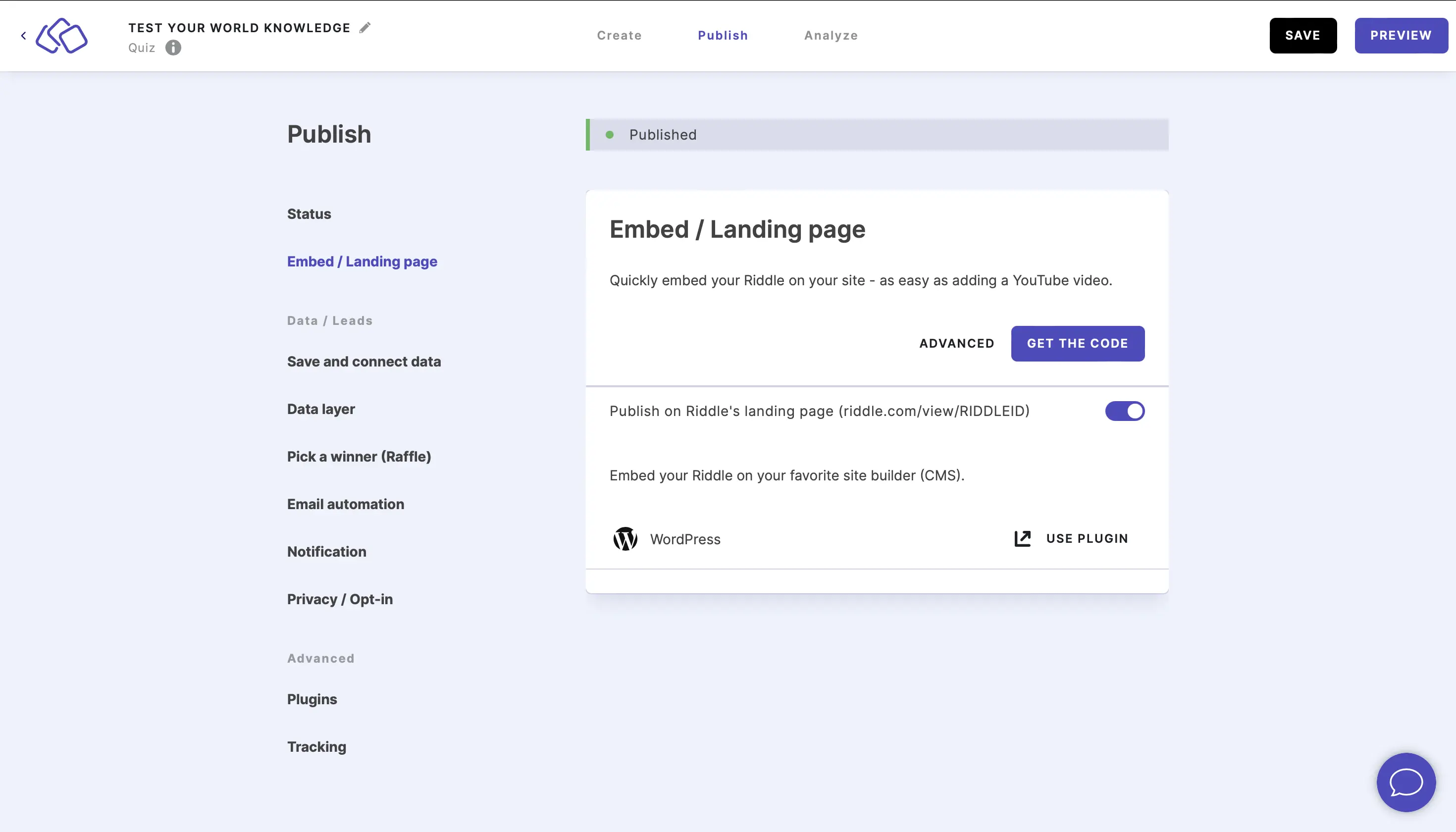
- Click on GET THE CODE.
- In the pop-up screen, click on COPY.
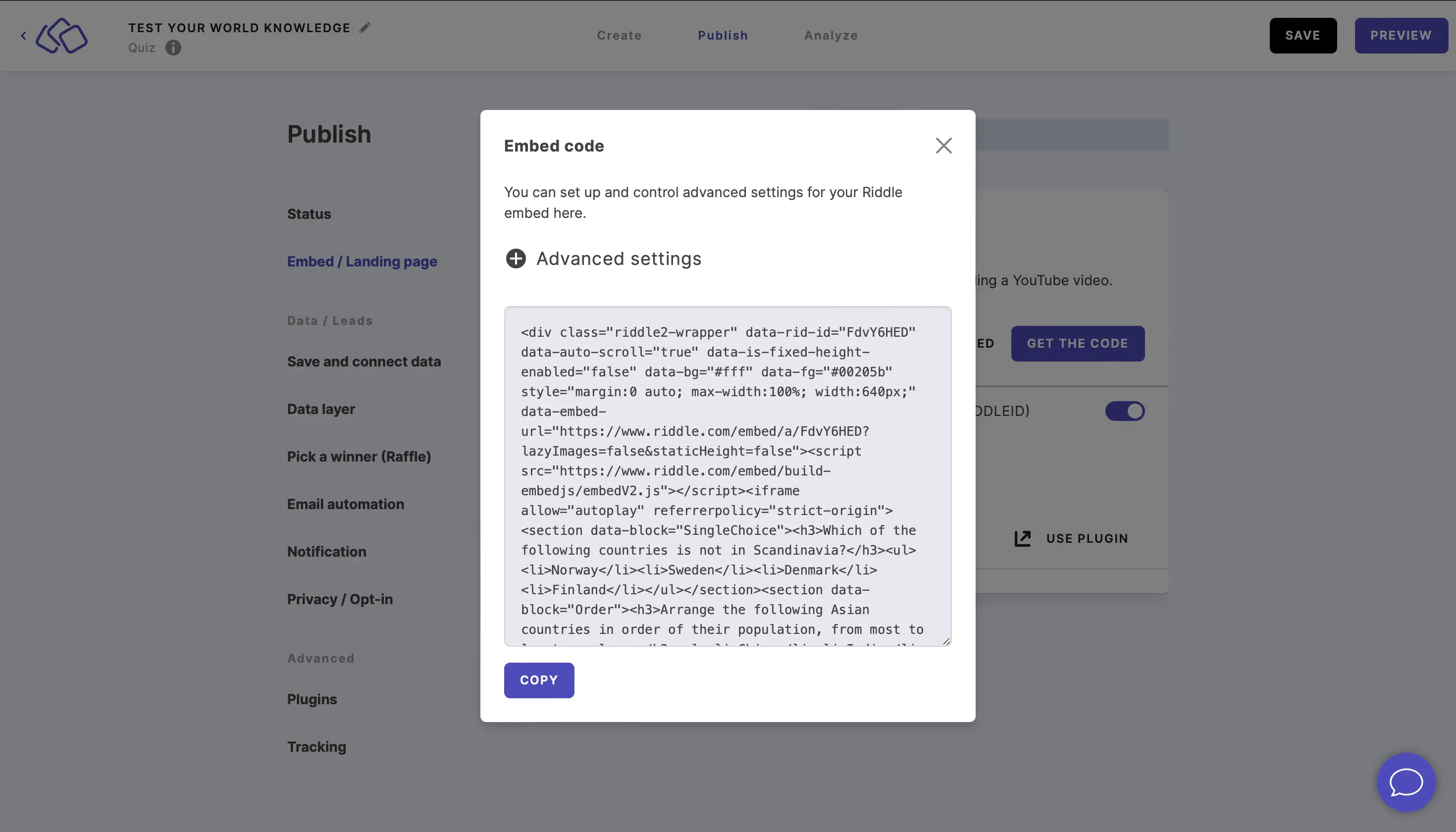
- Go to your website's text editor, and paste your Riddle's embed code.
Good to know before you start: your Riddle has to be published before it loads on your site, and the domain you embed it on has to be whitelisted. Whitelisting one top-level domain such as
yoursite.comautomatically covers its subdomains and paths.
Where to paste the embed code
The embed code is the same everywhere, but some platforms need a specific block or element to accept it.
| Platform | What to use | Guide |
|---|---|---|
| WordPress | A Custom HTML block, or the Riddle plugin | Embed a Riddle on WordPress |
| Wix | An Embed a widget / HTML iframe element | Embed a Riddle on Wix |
| TYPO 3 | An HTML content element | Embed a Riddle on Typo 3 |
| Any other site or CMS | Any field that accepts raw HTML | This article |
If your website builder strips JavaScript, generate a No JavaScript embed under ADVANCED instead. It works almost everywhere, but your Riddle no longer resizes itself, so you have to set a fixed height. See Embed advanced for the full list of embed options such as max width, lazy loading, and SEO indexing.
Keep an embedded Riddle up to date
- Content changes (questions, answers, images, design): publish your Riddle again and every embed updates automatically. You do not have to touch your website.
- Embed setting changes (max width, auto scroll, fixed height, lazy loading, No JavaScript): the embed code itself changes, so copy the new code and replace the old snippet on your site.
If your Riddle does not load, sizes wrongly, or makes the page jump, work through Embed troubleshooting.
Frequently asked questions
How do I embed a Riddle on my website?
Go to the Publish section of your Riddle, click on Embed / Landing page, click on GET THE CODE, click on COPY in the pop-up, and paste the snippet into your website wherever the Riddle should appear. The Riddle has to be published, and the domain has to be whitelisted.
Where do I find the embed code of a Riddle?
In the Riddle Creator under Publish > Embed / Landing page > GET THE CODE. The same screen also holds the landing page link and, under ADVANCED, all embed options.
Does an embedded Riddle work on mobile?
Yes. The standard embed code uses JavaScript and CSS to resize automatically for smartphones and tablets, whatever max width you set. Resizing only works while JavaScript and CSS are enabled, so a No JavaScript embed needs a fixed height instead.
Do I have to update the embed code every time I edit my Riddle?
No. Publish your Riddle again and the changes appear automatically wherever it is embedded or linked. You only need to copy the code again when you change an embed setting under Publish > Embed / Landing page > ADVANCED, because that changes the snippet itself.
Why is my embedded Riddle not loading?
The two most common causes are a domain that is not whitelisted and a security or optimization plugin on your site that blocks third-party iframes. Whitelist the domain under Add/edit domains, then disable such plugins briefly to test. See Embed troubleshooting for lazy loading, sizing, and scrolling issues.
How many Riddles can I embed on one site?
Once a domain is whitelisted you can embed an unlimited number of Riddles on it, and one whitelisted top-level domain also covers its subdomains and paths.
Can I share a Riddle without embedding it?
Yes. Every published Riddle also has a hosted landing page you can link to directly from the same Embed / Landing page screen. You can make that landing page full-screen if you want it to fill the browser window.