

Typerush
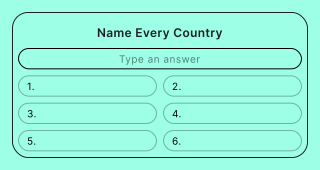
Ask a categorical question and let your audience type as many answers as they can as quickly as possible. Typerush is perfect for fast-recall challenges like "Name all US states" or "List all Premier League teams".
Setup
- Click on ADD A BLOCK and select Typerush.
- Insert a question into the Title field.
- Insert all correct answers to your question. Each answer can have multiple variants (to account for typos or different spelling). Add variants by hitting enter after each variant. Add as many answers as you want by clicking on Add an answer.
- Add hints for each answer, to make it easier for your audience.
Show hints
You can hide hints if you do not want to show them. Go to the options icon on the right of Answer Content and disable Show hints.
Show row numbers
Showing row numbers makes sense if your answers are in any logical order. Go to the options icon on the right of Answer Content and enable Show row numbers.
Show answer media
Answer media can be shown in addition to hints, or replacing them entirely. Go to the options icon on the right of Answer Content and enable Show answer media.
Ignore space and not case-sensitive
Allow variants of the correct answer with wrong spacing and capitalization. Go to the options icon on the right of Answer Content and enable Not case-sensitive and/or Ignore space.
Scoring type
Award points per right answer or only if the whole block was solved. Go to the options icon on the right of Answer Content and change Scoring type to Question (score for the whole block) or Answer (score per individual answer).
Reveal all answers after block timer expires or user gives up
It is recommended to use a block timer on Typerush blocks to add an extra level of engagement. Your audience can choose to give up if they feel they have answered as much as they could. You can choose to show unsolved answers to your audience once the timer expires or they give up.
Options
Click on the options icon on the right to configure the following settings.
Media
| Option | Description | Default |
|---|---|---|
| Show media | Toggle to show or hide the block's main image. | ON |
| Media ratio | Choose the aspect ratio: From settings, Wide 16:9, Square 1:1, Tall 3:4, or Original ratio. | From settings |
Required
| Option | Description | Default |
|---|---|---|
| Required | When enabled, your audience must answer this block before proceeding. When disabled, a "Skip" button appears. | ON |
Answers
| Option | Description | Default |
|---|---|---|
| Show hints | Toggle to show or hide the hint column in the answer table. | ON |
| Hints / Answer order | Choose the display order: Hints first shows the hint column before the answer column, Answers first shows the answer column before the hint column. | Hints first |
| Show row numbers | Show numbered rows in the answer table. Useful when answers have a logical order. | OFF |
| Show answer media | Toggle to show or hide images alongside each answer row. | ON |
| Media ratio | Choose the aspect ratio for answer media: From settings, Wide 16:9, Square 1:1, Tall 3:4, or Original ratio. | From settings |
| Not case-sensitive | Accept answers regardless of uppercase or lowercase letters. | ON |
| Ignore space | Accept answers regardless of extra or missing spaces. | ON |
| Scoring type | Choose how points are awarded. Answer awards points per correct answer. Question awards a single score for the entire block. | Answer |
| Max. score | The maximum number of points that can be awarded for this block. | 1 |
| Reveal all answers after block timer expires / user gives up | Show all unsolved answers to your audience once the timer runs out or they choose to give up. | ON |