

General settings
Control how your Riddle behaves – from navigation and progress indicators to language, scheduling, and user memory. These global controls apply to every block in your Riddle.
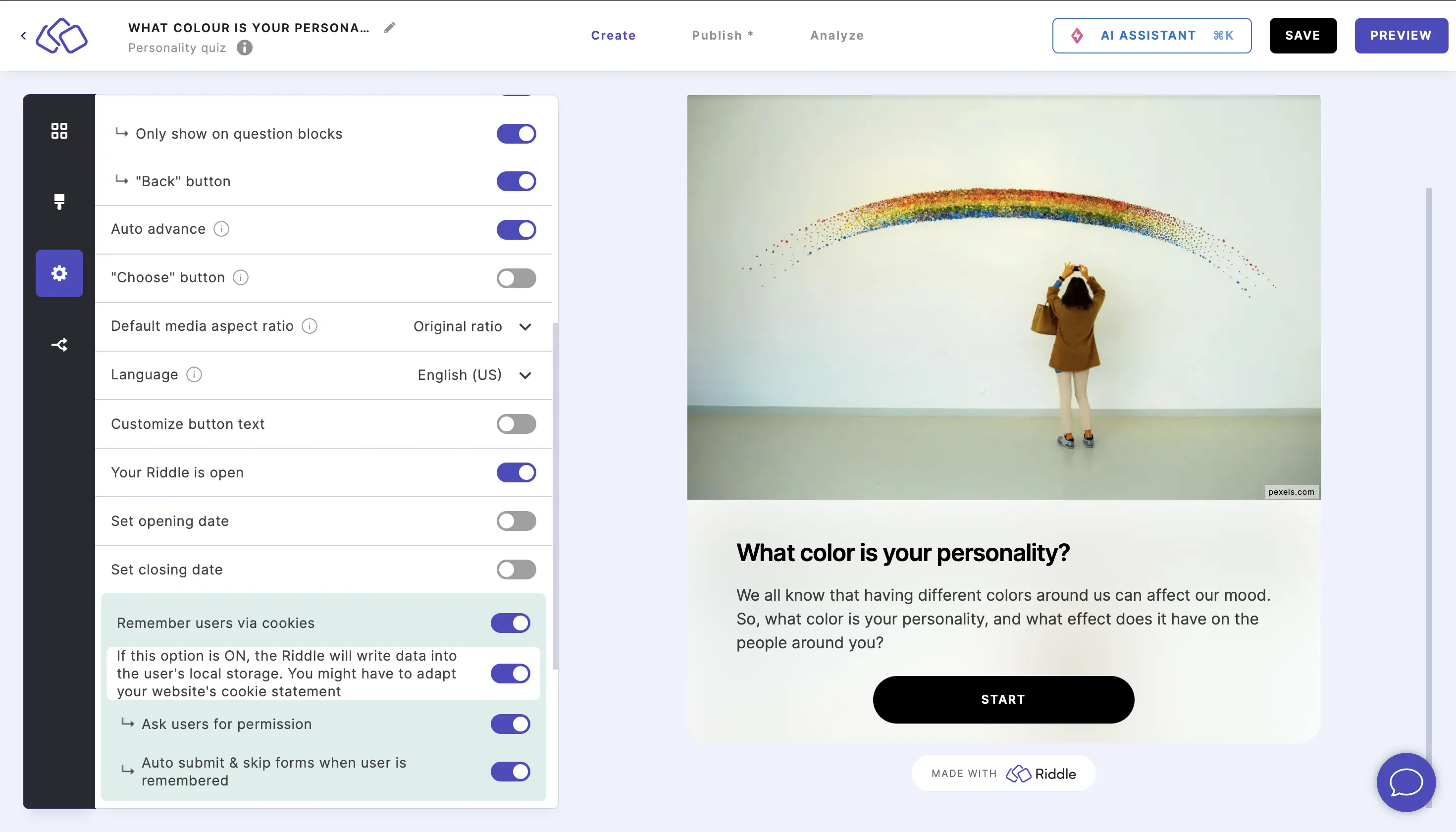
Enable pagination
- Go to the Settings section and click on General: Navigation, language & scheduling.
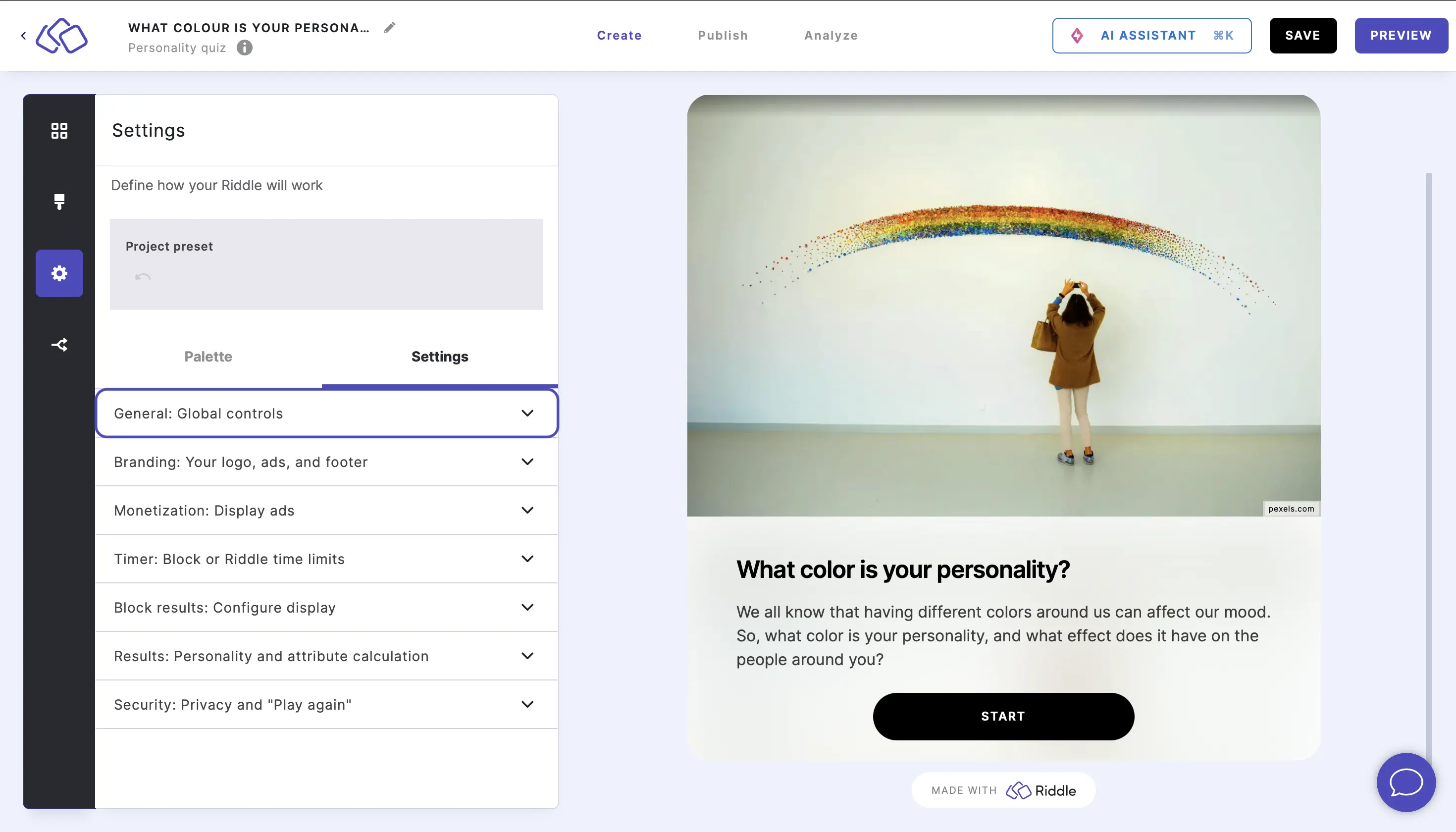
- Enable Pagination to control the page and progress display.
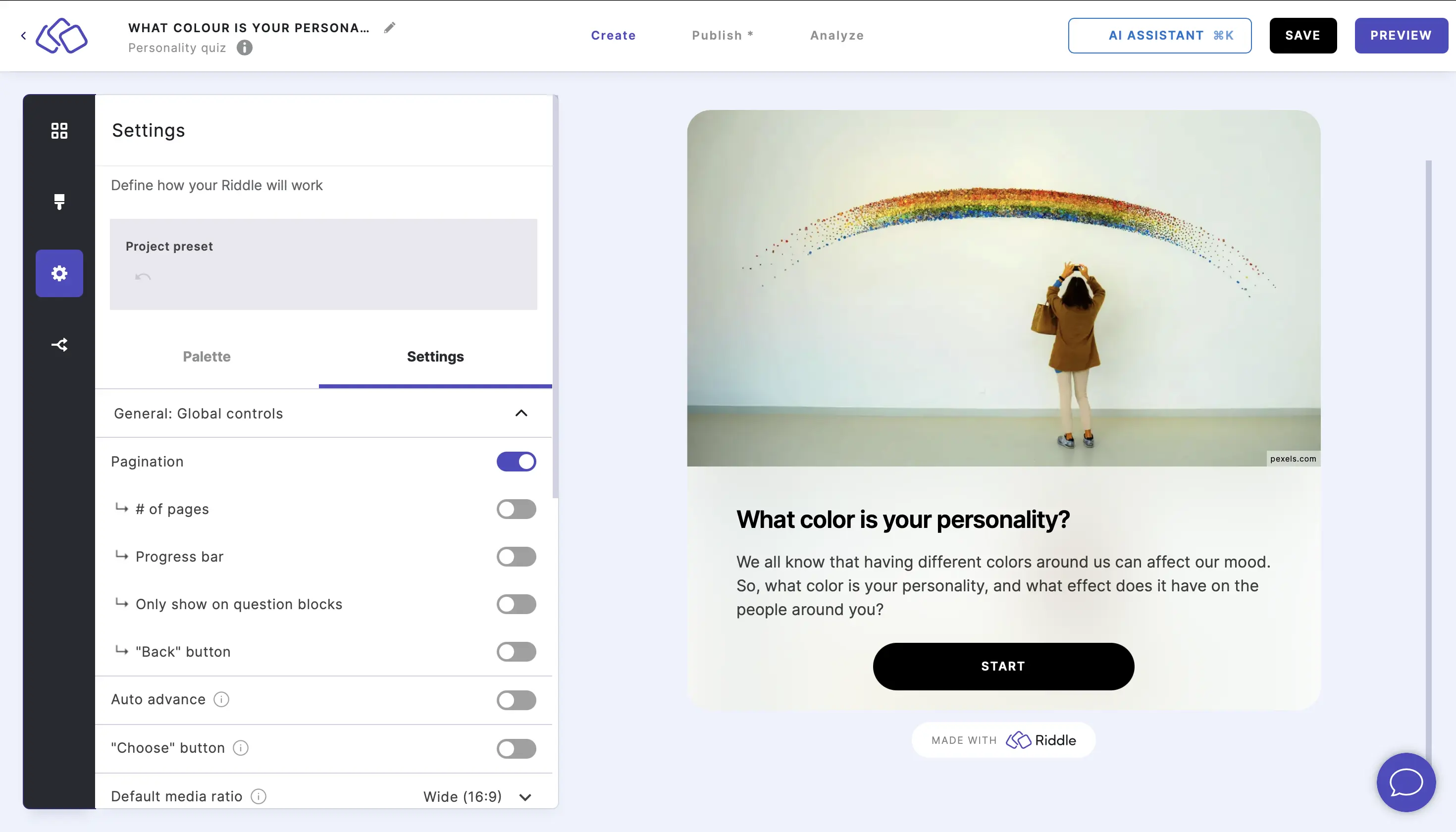
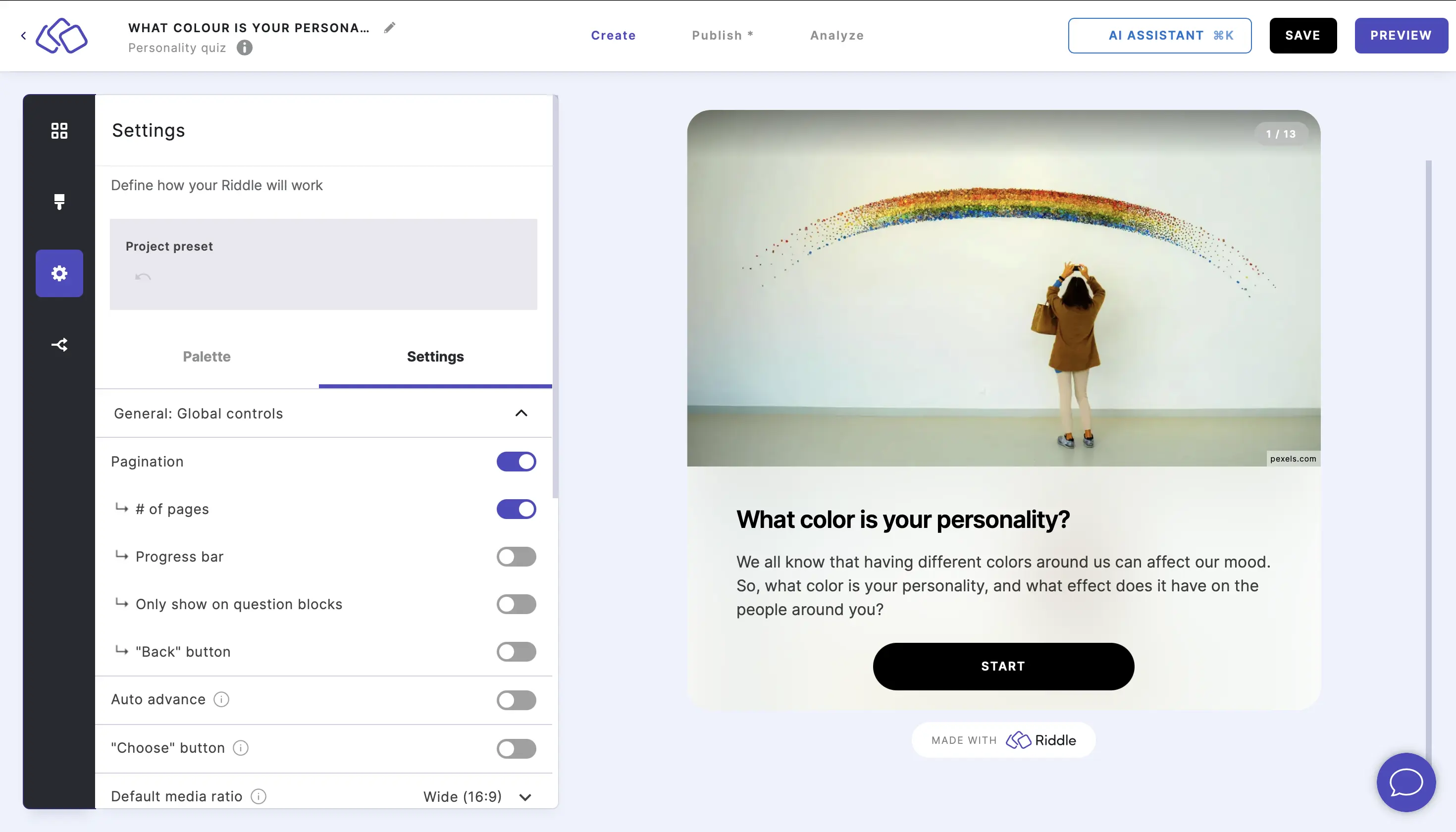
- Enable # of pages to display the total number of pages to the audience while doing the Riddle.
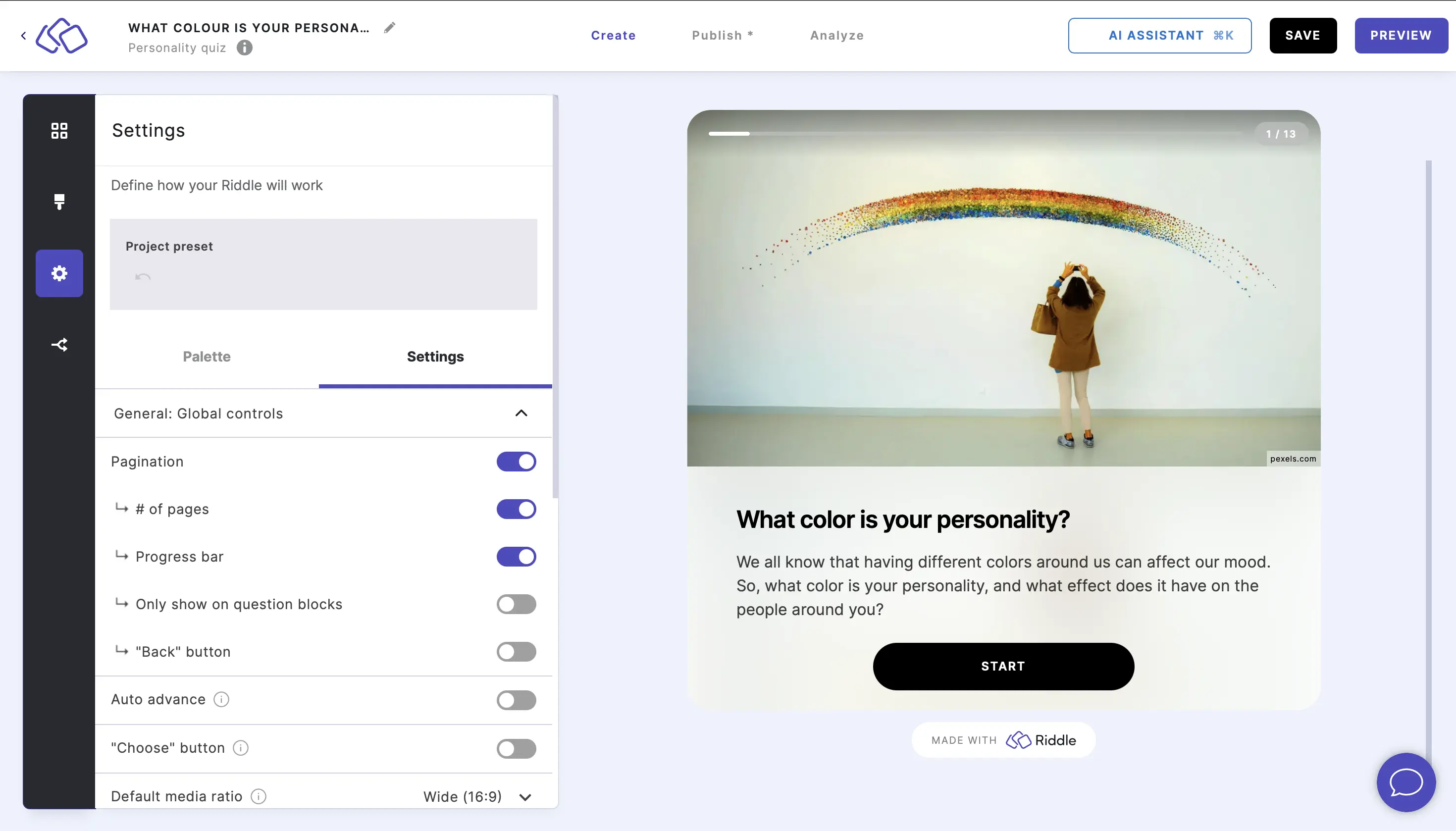
- Enable Progress bar to display how far through the Riddle the audience is.
- Enable Only show on question blocks to limit the page numbers / progress bar to the blocks that contain questions. This is recommended when your Riddle includes content blocks, forms, or other non-question blocks that would otherwise inflate the page count.
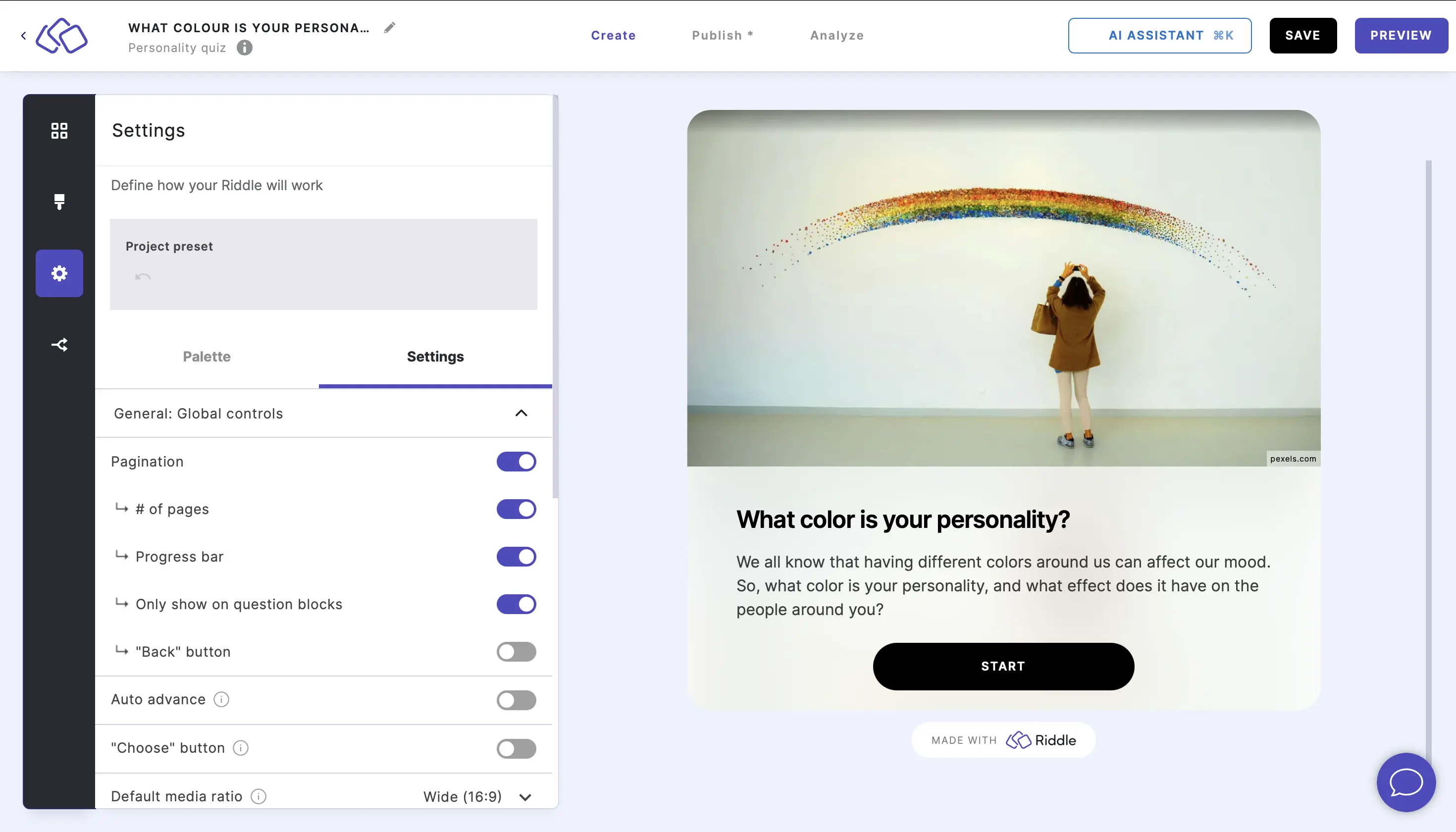
- Enable Display "Back" button to allow your audience to go back to the previous question via a backward arrow symbol < in the top left corner of the Riddle. Disable this for competitive quizzes where going back could allow answer changes after seeing later questions.
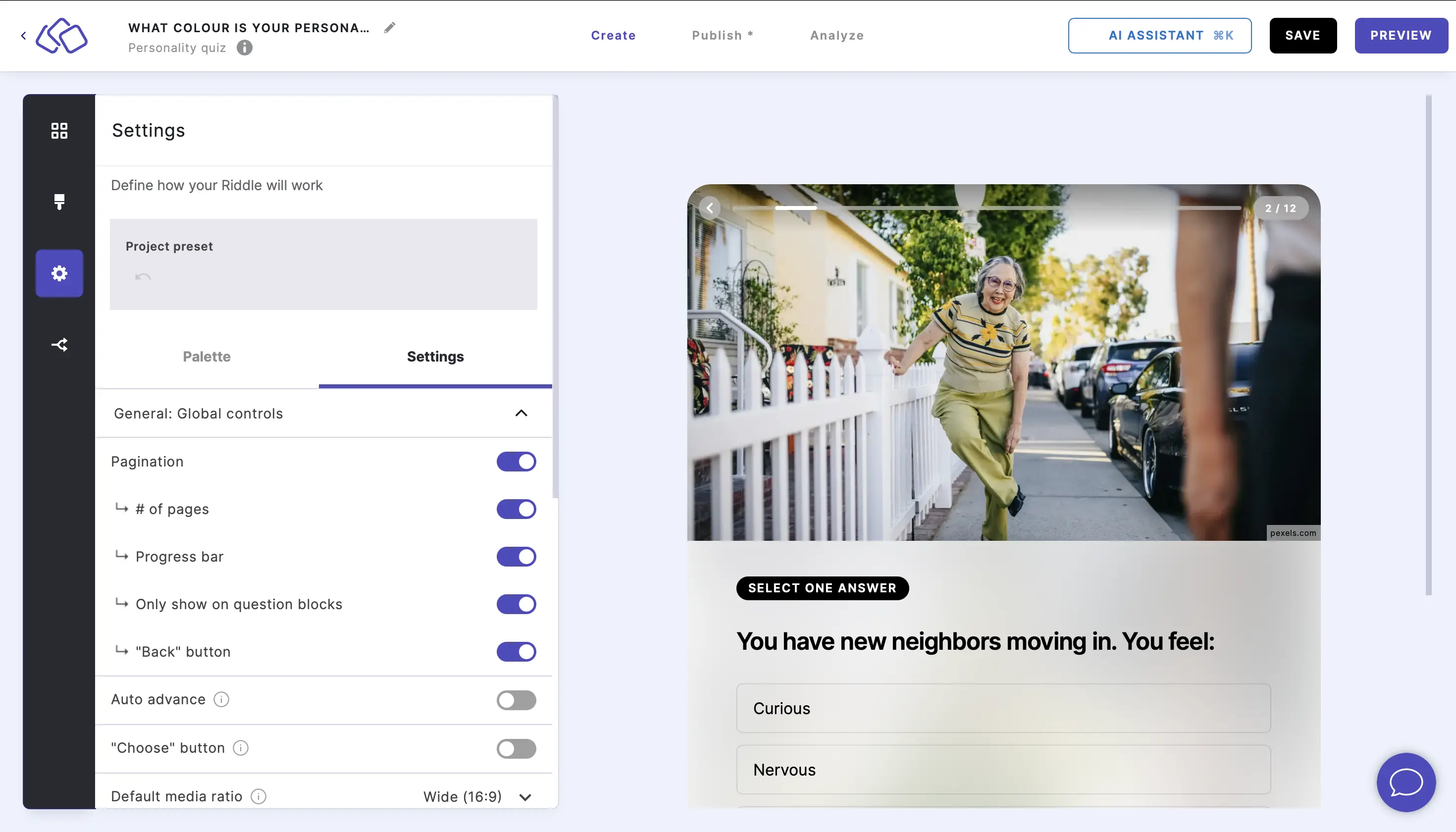
- Choose the Pagination Style to control how the progress display looks:
- Continuous – a single progress bar that fills as your audience moves through the Riddle.
- Segmented – one segment per block, like Instagram Stories. In quizzes, each segment shows whether the block was answered, skipped, or is the current one; in other Riddle types the segments are plain tabs.
Advance automatically from one block to the next
- Go to the Settings section and click on General: Navigation, language & scheduling.
- Enable Auto advance to automatically go from one question to the answer explanation or next question. This creates a faster, more fluid experience – ideal for single-choice quizzes where your audience only picks one answer per block.
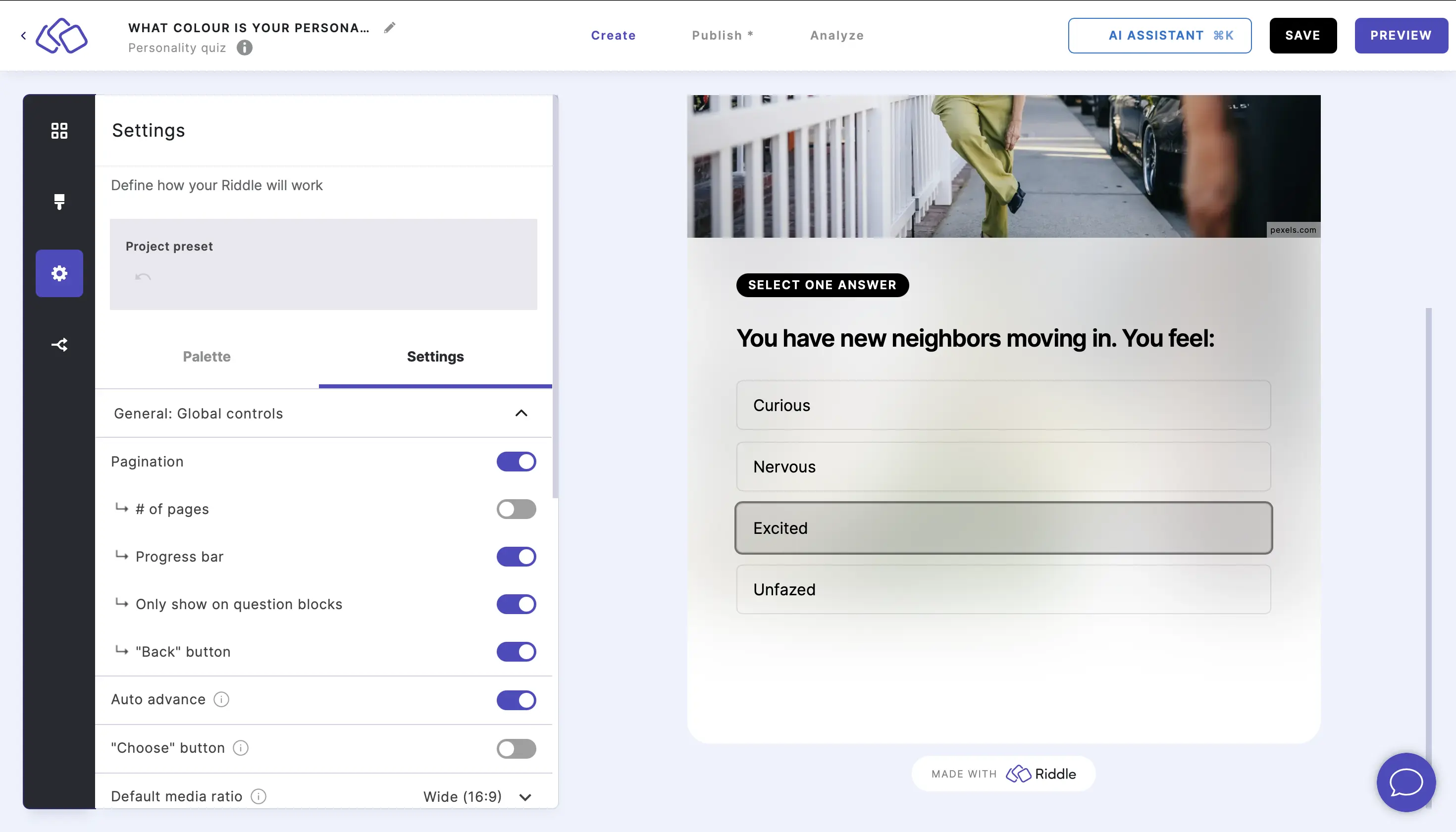
- Enable "Choose" button so your audience can change their answers before submitting. This is useful for multi-select questions or when you want your audience to deliberate before committing.
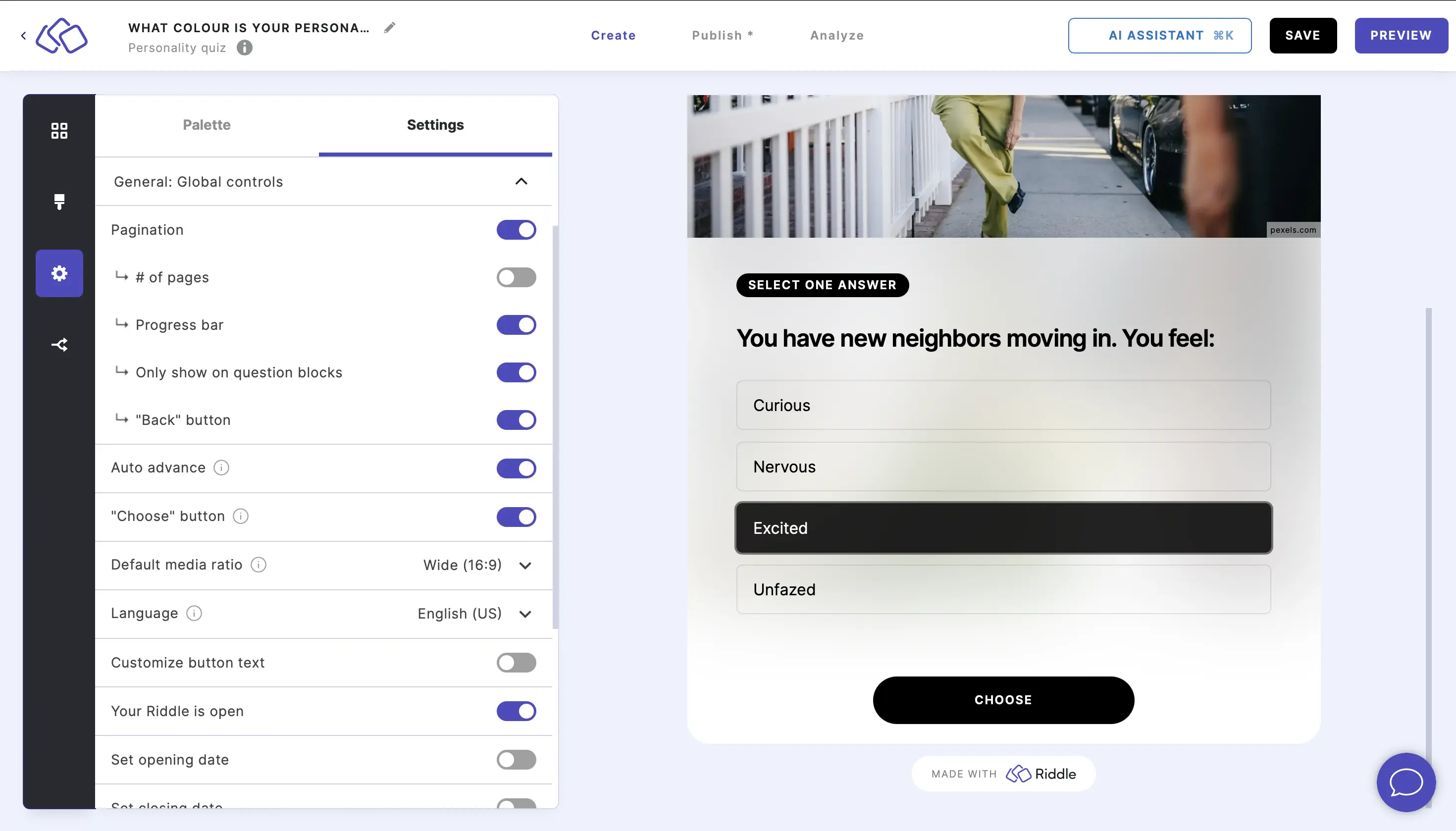
This overwrites auto advance where applicable.
Change the media ratio
- Go to the Settings section and click on General: Navigation, language & scheduling.
- Go to Default media ratio and select a ratio for images and other media: Wide (16:9), Square (1:1), Tall (3:4), or Original ratio. Use Wide for landscape photos and video thumbnails, Square for profile images or product shots, and Original ratio when your images vary in size and you want to preserve their proportions.
You can always override this within each individual block.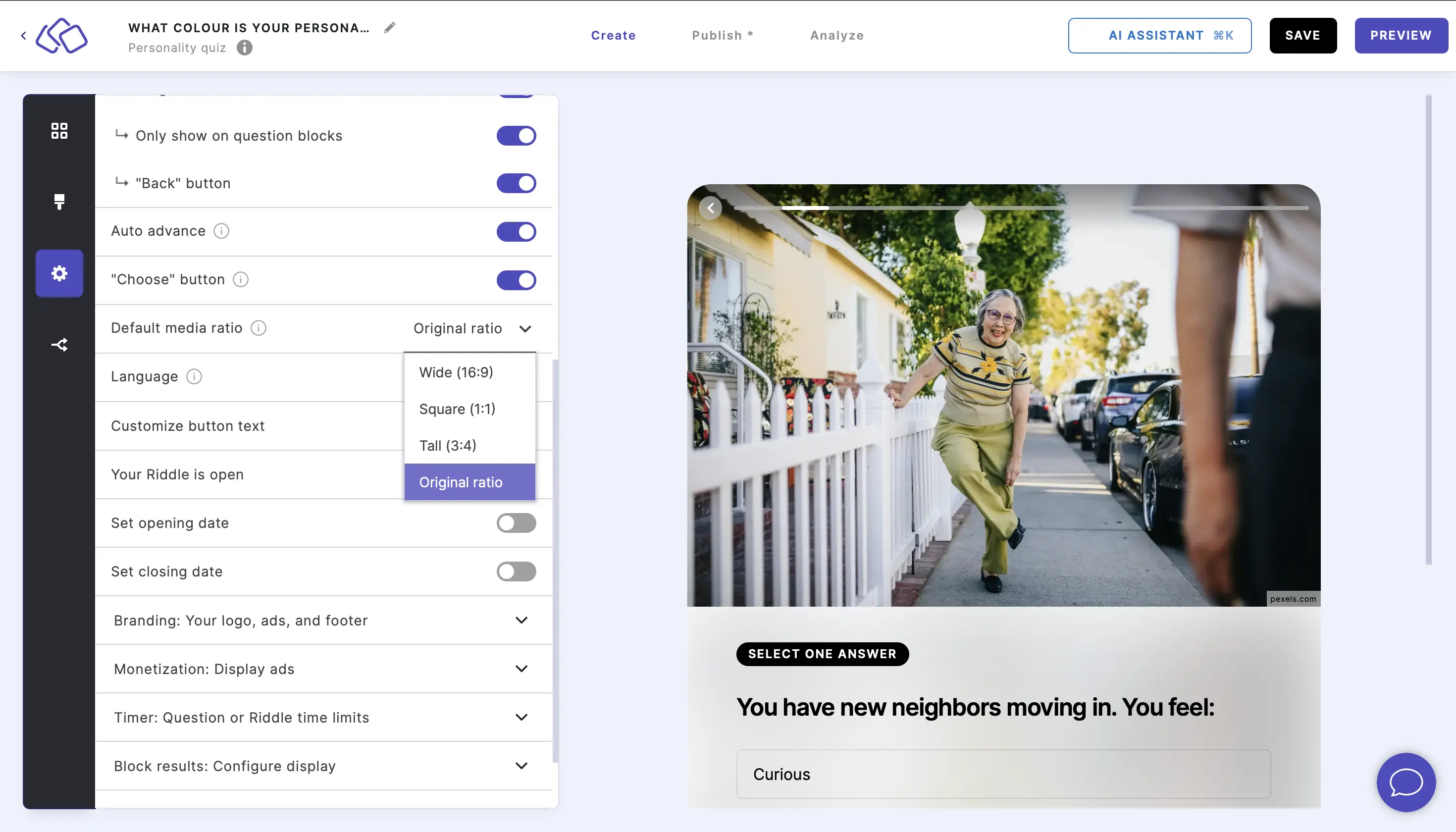
Change the language
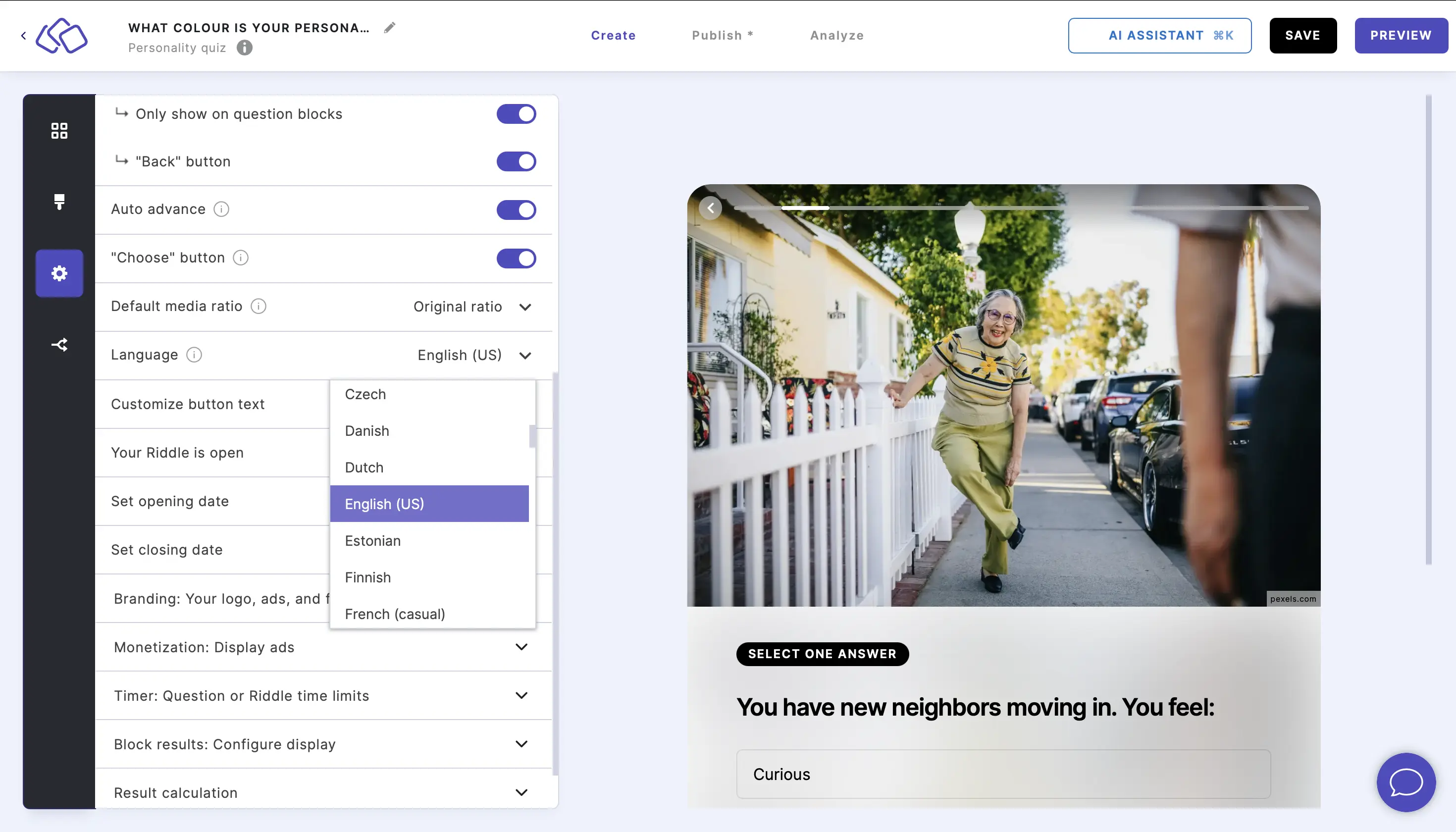
- Go to the Settings section and click on General: Navigation, language & scheduling.
- Go to Language to set the language for your Riddle. This controls the language of all system-generated text – buttons like "Choose", "Next", "Play again", error messages, and UI labels. It does not translate your own content (questions, answers, descriptions).
Customize buttons
- Go to the Settings section and click on General: Navigation, language & scheduling.
- Enable Customize button text to change what specific buttons say. Use this when the built-in language setting does not cover your language, or when you want branded wording (e.g. "Show me my results" instead of "Next").
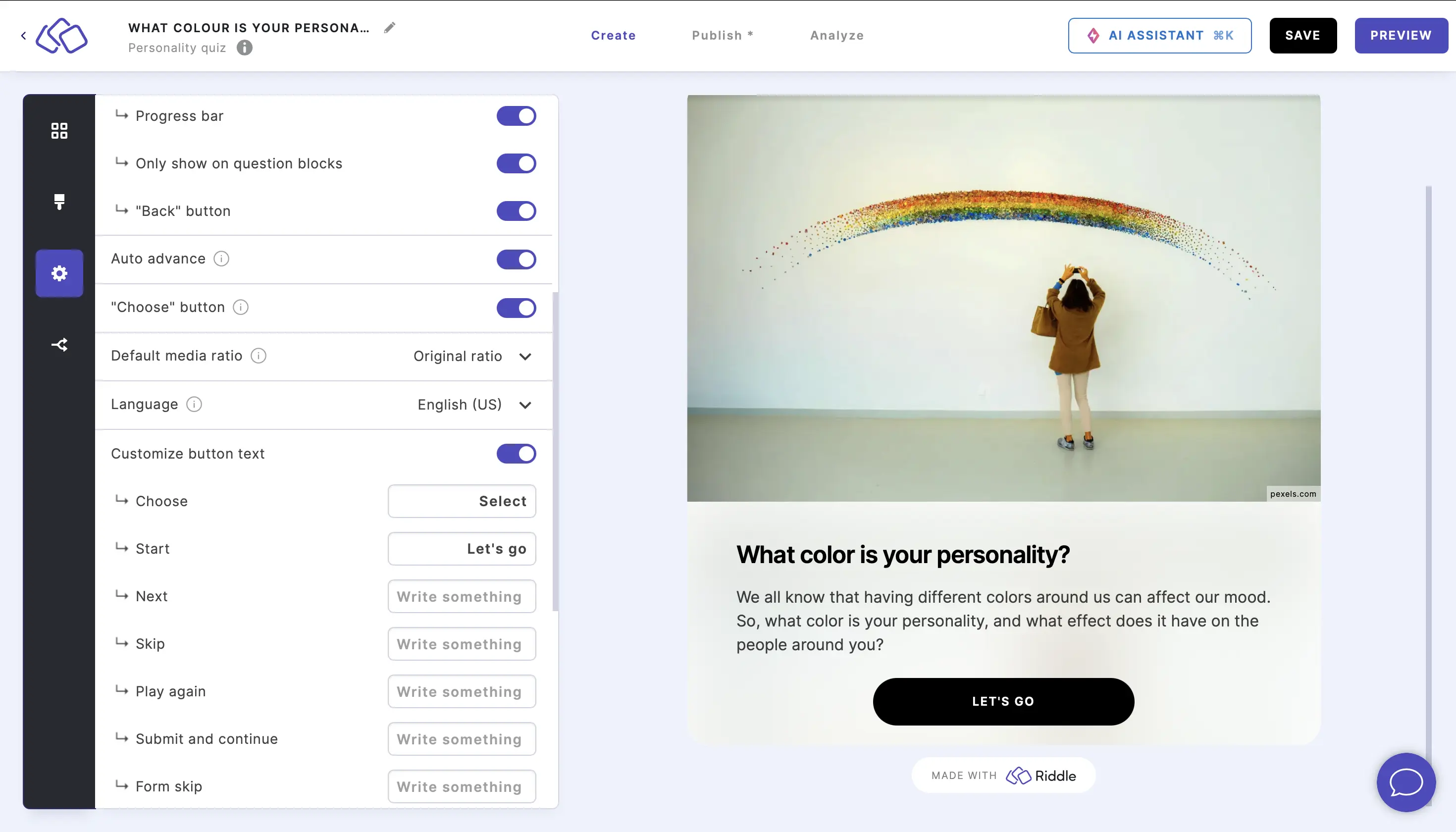
You can enter your own text in the Write something fields for the following buttons:- Choose
- Choose again
- I give up
- Start
- Next
- Skip
- Play again
- Submit and continue
- Form skip
Riddle open/closed
- Go to the Settings section and click on General: Navigation, language & scheduling.
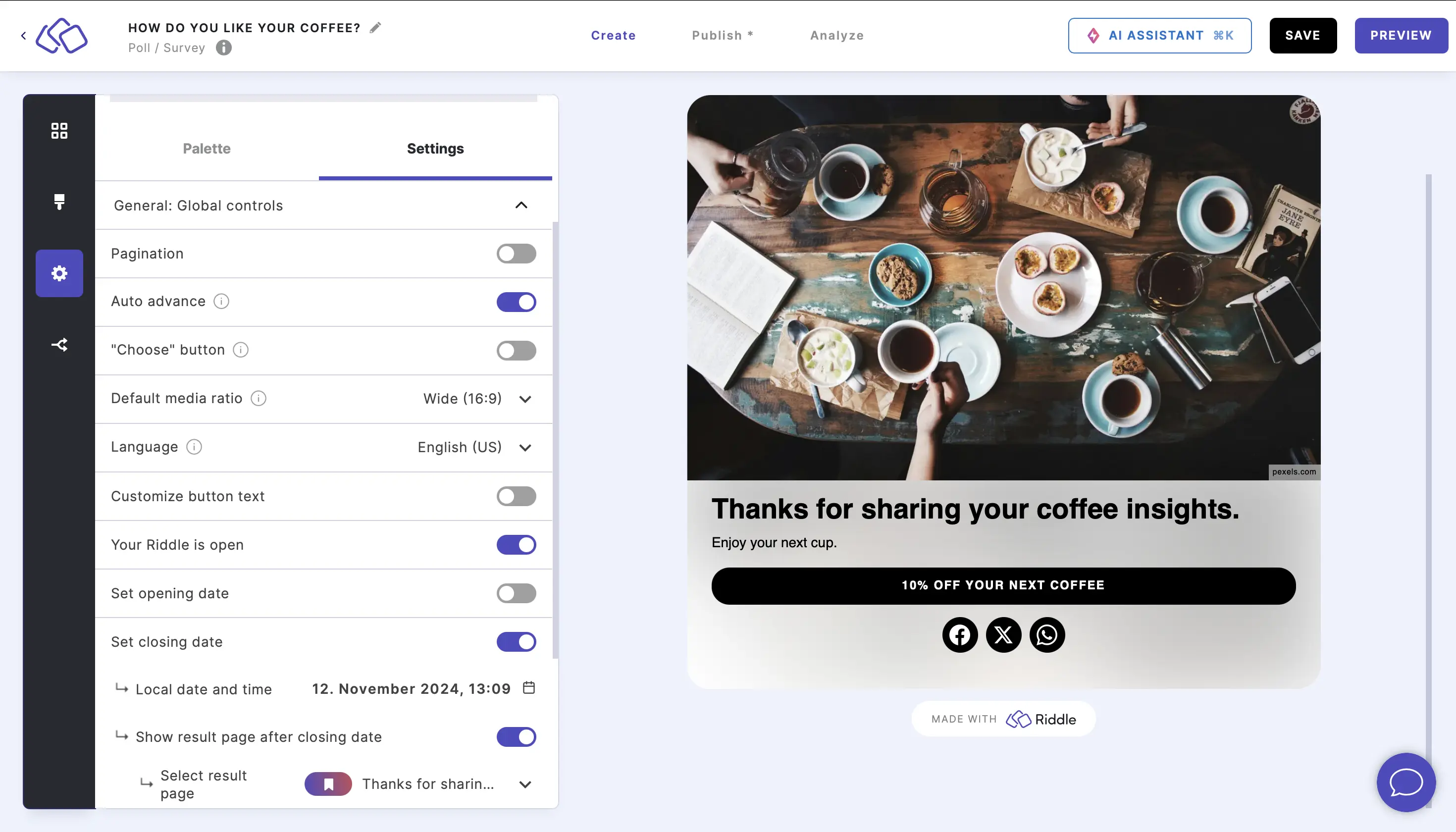
- Your Riddle is open by default. To close the Riddle, disable Your Riddle is open. Use opening and closing dates for time-limited campaigns, competitions, or seasonal content that should only be available during a specific window.
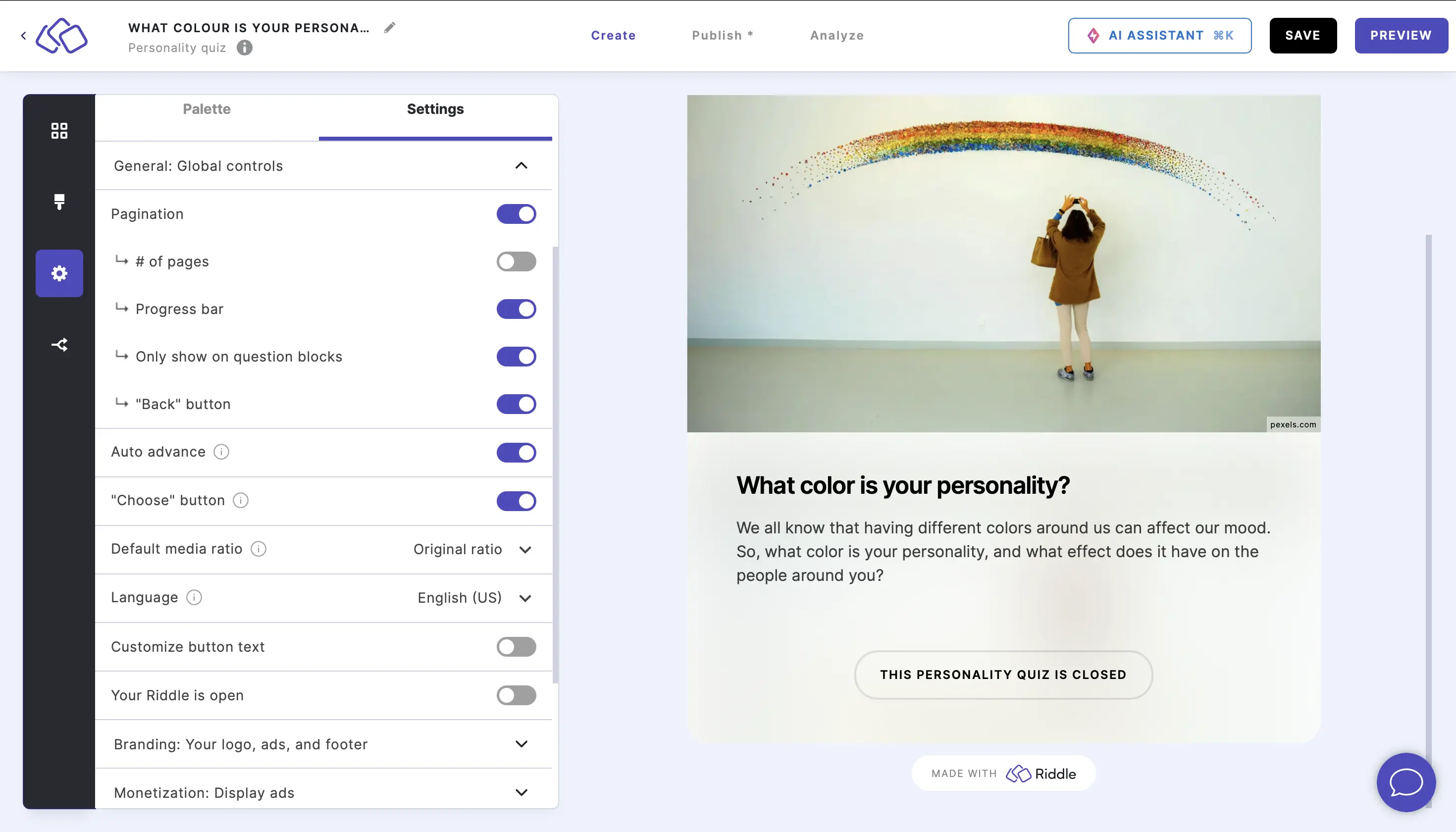
To limit when your Riddle is open, enable Set opening date and/or Set closing date and choose a local date and time. - Enable Show result page after closing date and select result page from the dropdown menu so that a specific result page appears for your audience following the closing date (for a poll/survey only).
Remember user via cookies
Despite its name, this feature does not set a browser cookie – it writes an entry to the visitor's browser local storage instead. Local storage works like a cookie in that it remembers data between visits, but it stays in the browser and isn't sent to a server.
It remembers two things for a returning visitor:
- Form data – entries like name and email, so your audience doesn't have to type them again. With the extra controls below, forms they've already filled can even be auto-submitted and skipped.
- Progress – how far they got in the Riddle, so they resume where they left off instead of starting over. This matters most for flashcards, which are built for repeat, self-paced learning.
It's especially useful for leaderboard quizzes, recurring polls, or any Riddle your audience takes multiple times.
How it affects flashcards
- Off: progress is lost on every page reload – your audience starts from the first card each time.
- On, with permission: on the first card or form, your audience is asked to consent. If they agree, their progress is saved and they return to their next unanswered card.
- On, without permission: progress is saved automatically, and a returning visitor is taken straight to their next unanswered card.
See Quiz navigation with flashcards for the full picture.
Good to know:
- Local storage is covered by privacy regulations like GDPR – mention it in your website's privacy policy or cookie banner.
- It only works when your Riddle is embedded on your website – not on a Riddle landing page, and not in apps (they don't support local storage).
Set it up
- Go to the Settings section and click on General: Navigation, language & scheduling.
- Enable Remember users via cookies.
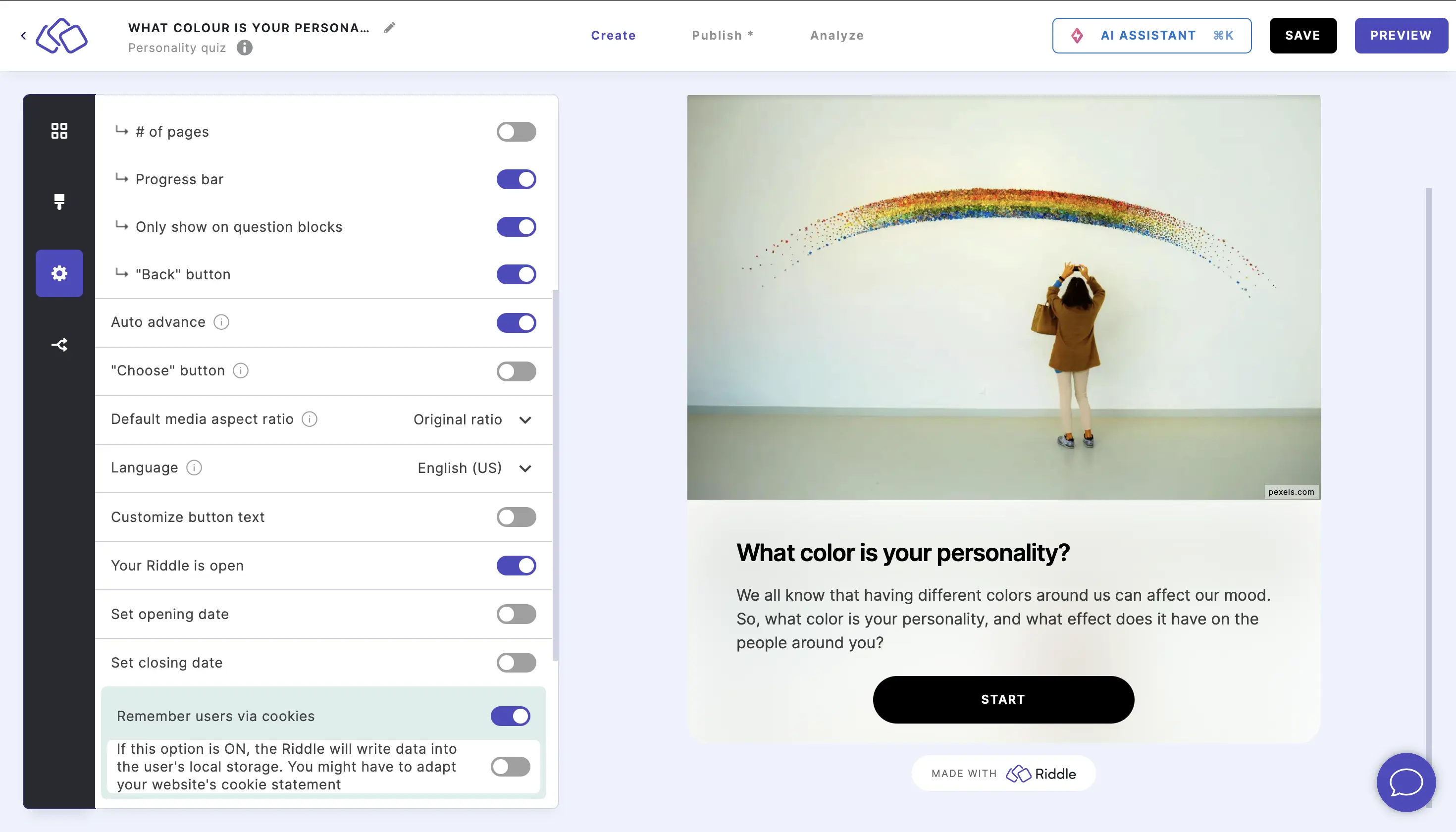
- To enable more controls, enable the button next to If this option is ON.
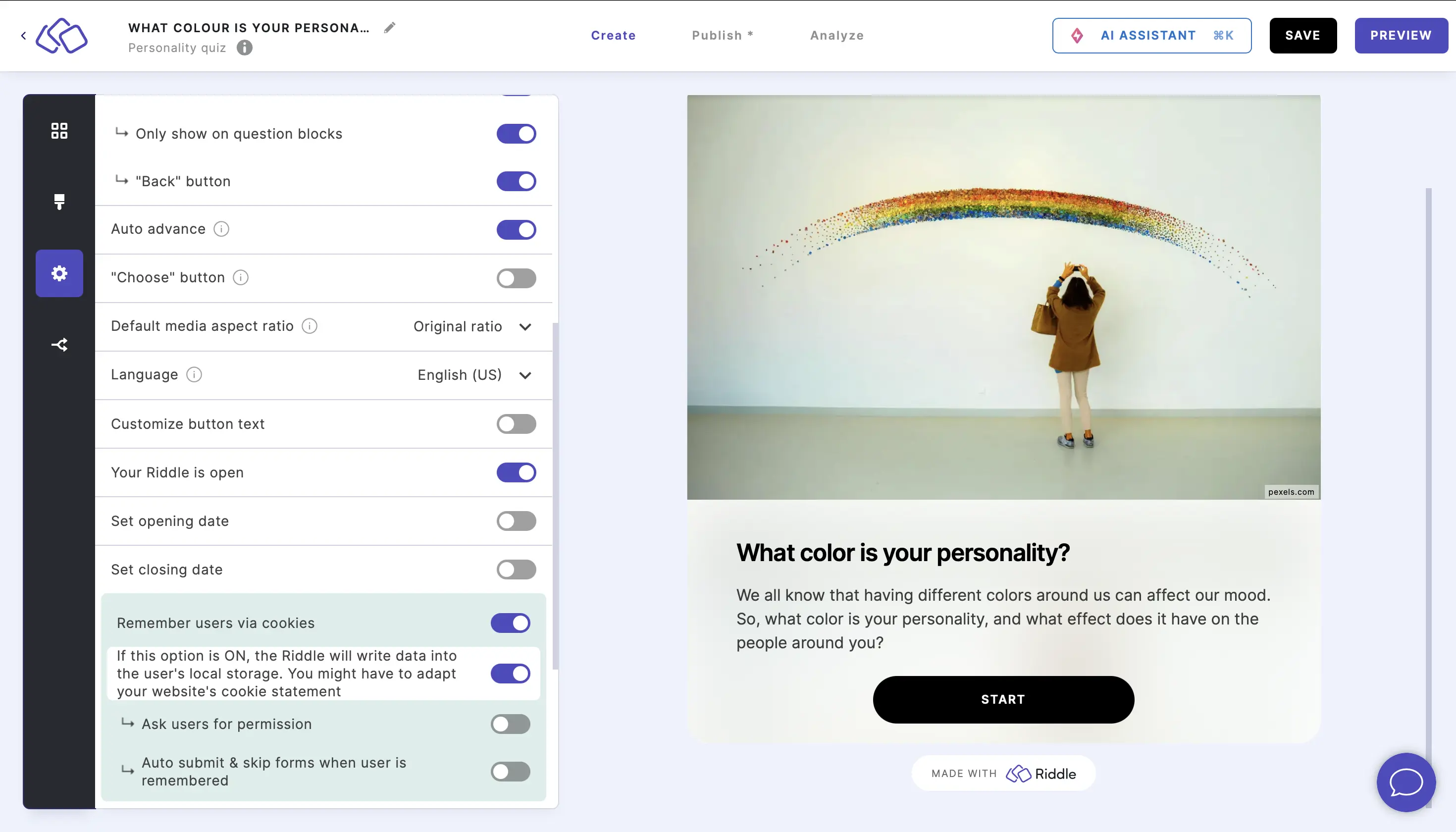
- Enable Ask users for permission to show your audience a checkbox to opt in to storing their data in local storage and reusing it on future forms. Recommended for GDPR compliance – your audience explicitly opts in.
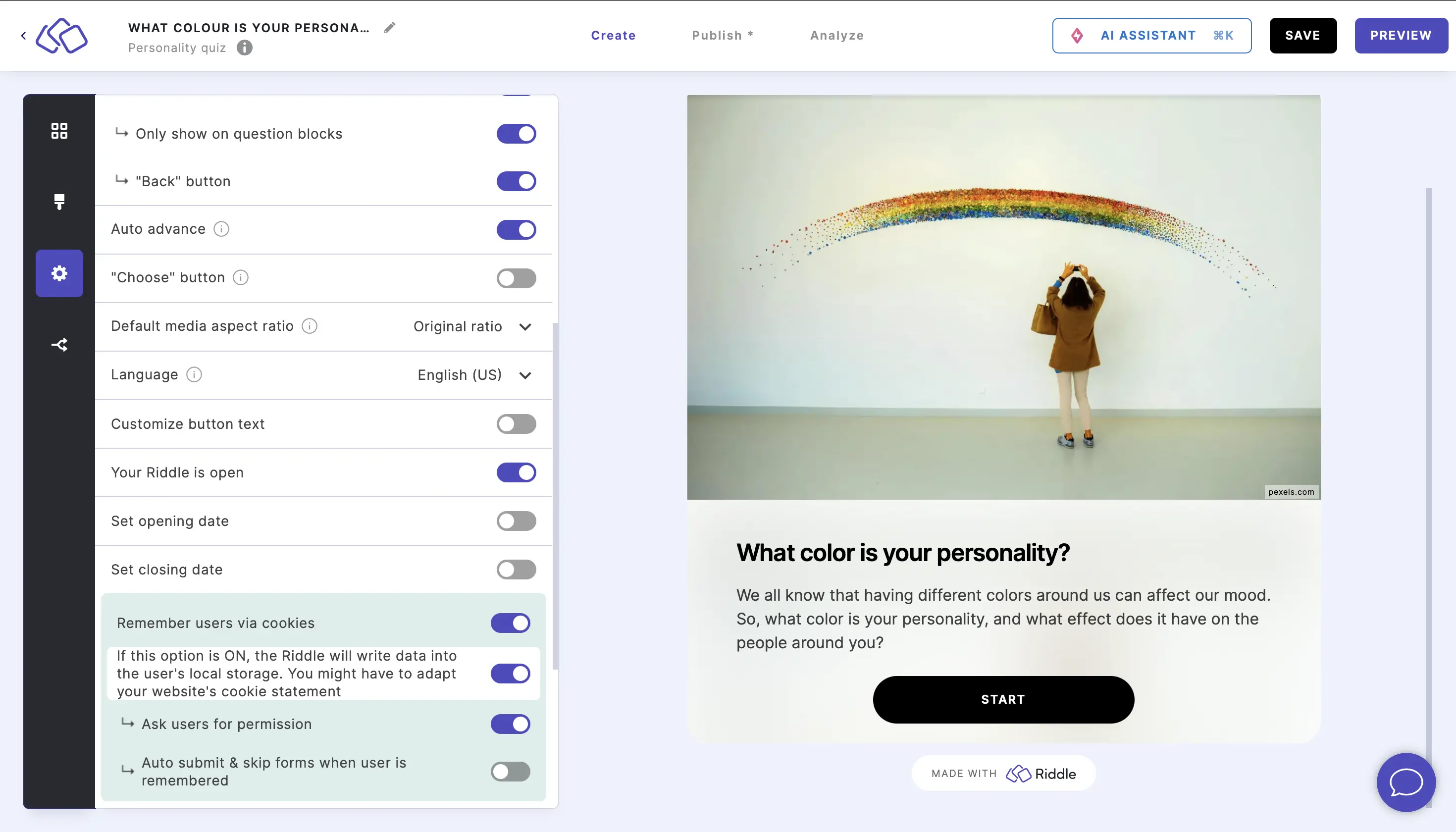
- Enable Auto submit & skip forms when user is remembered to skip forms completely for remembered users, taking them straight to the next block. This creates a seamless experience for returning users – but they cannot update their information without clearing their browser's local storage.
Tips
- Enable Progress bar and Only show on question blocks together for quizzes – your audience sees clean progress without counting intro or form blocks.
- Use Auto advance for fast-paced single-choice quizzes. Add the "Choose" button for multi-select questions where users need to confirm their selection.
- Set opening and closing dates for competitions or seasonal campaigns to automatically control availability.
- Enable Remember users via cookies for leaderboard quizzes where your audience returns multiple times – it saves them from re-entering their name and email.